
That sinking feeling in your stomach when you realize you've accidentally formatted your hard drive or emptied the Recycle Bin of vital files is, frankly, a nightmare. It doesn't matter if it was your own carelessness, a system error, or if someone else accessed your computer without permission; the despair is the same when you see your photos, work files, or important documents vanish without a trace in Windows 11.
The first thing you should know is that, even though it may seem like everything is lost, there's a light at the end of the tunnel. In most cases, the data isn't physically deleted instantly; the system simply marks that space as available for writing new data. Therefore, if you act quickly and thoughtfully, the chances of recovering deleted files in Windows 11 are quite high.

The golden rule: Stop writing to the disk immediately!
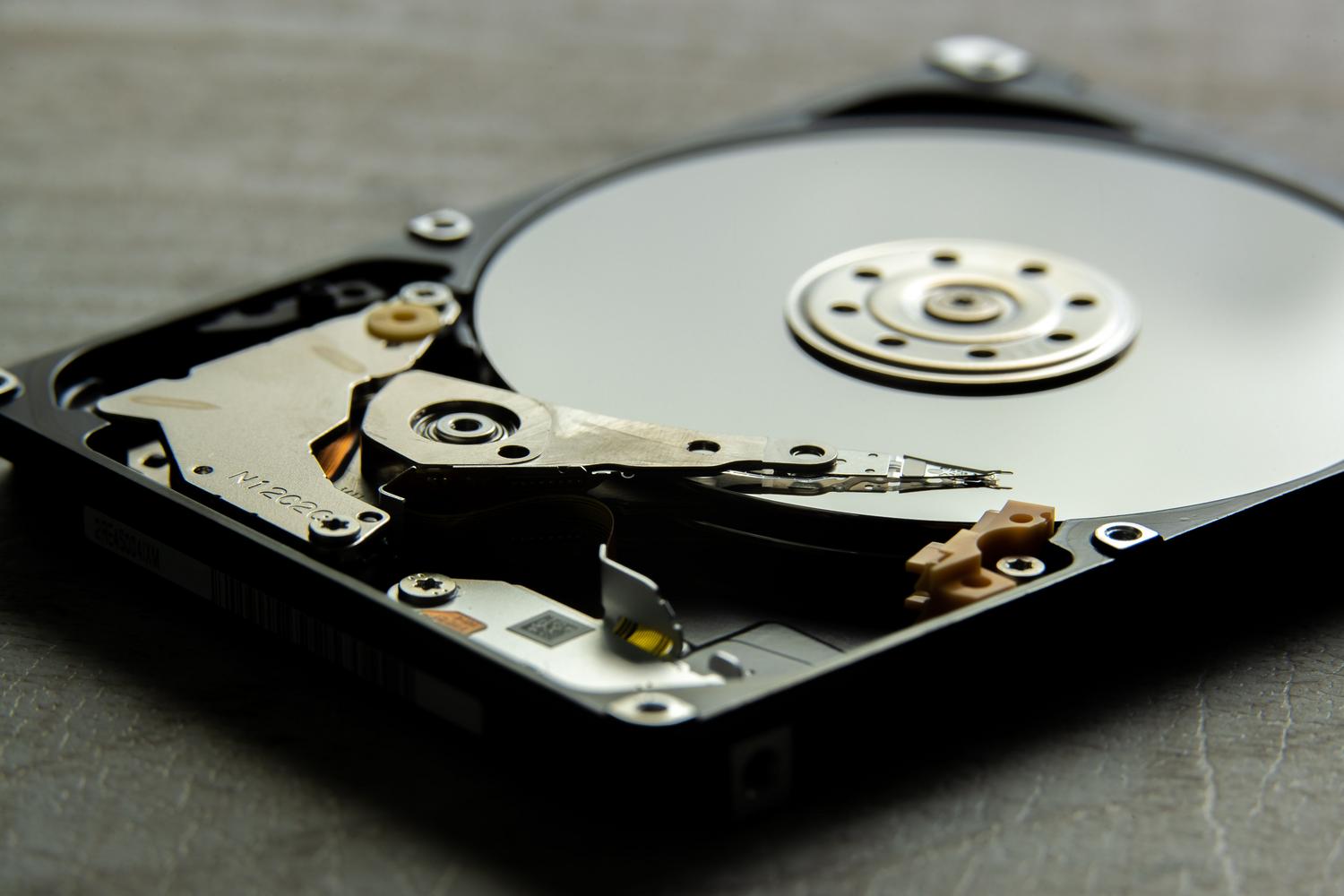
If you've noticed the error, the most important thing is to stop all activity on the affected drive. Don't install programs on that drive, don't download files, and don't browse the internet. Why? Because every bit of new information you save could overwrite the old data , and once a file is overwritten, recovering it is virtually impossible, even for professionals.
On SSDs, this is even more critical due to a function called TRIM , which cleans up deleted data in the background to optimize performance. Therefore, it's best to unmount the drive if possible or use a bootable operating system from a USB drive to prevent Windows from continuing to write temporary data.

Key differences between quick formatting and full formatting

Not all formatting is the same, and this determines whether you'll recover your files or not. Quick formatting is the most common; it only erases the allocation table (the index that indicates where each file is located), but the actual data remains. With the right software, these files are fairly easy to recover.
Conversely, a full format is much more aggressive, as it overwrites disk sectors with zeros or specific patterns. In this scenario, recovery is extremely complex and, in many cases, impossible without very expensive laboratory equipment . If this has happened to you, it's best not to experiment and contact digital forensics experts directly.
First steps: Simple and native Windows solutions

Before installing complex software, it's a good idea to check where Windows stores backups by default. Sometimes we assume something has been permanently deleted when there's an invisible backup running.
- Recycle Bin and OneDrive: It seems obvious, but always check the Recycle bin in Windows 11 and especially the OneDrive cloud service, since sometimes the synchronized files have a second chance at recovery there.
- File History and Previous Versions: If you had system protection enabled, you can right-click on the folder where the data was located and select "Restore previous versions".
- Backup and restore: Through the Control Panel, in the Utilities section, you can try using the tool to "Backup and Restore" to bring back personal files.

Advanced tools for data recovery

If the native options haven't worked, it's time to move on to the big guns. Depending on your technical skill level, you have several options:
Intuitive and assisted software
For those who want to keep things simple, there are programs like Disk Drill or EaseUS . The great thing about these tools is that they offer a visual interface where you can preview the files before recovering them, thus avoiding saving junk or corrupted files. For more details, you can consult how to recover files with Recuva, PhotoRec, and Disk Drill . The key here is to install the software on a different drive than the one you want to recover and save the results to an external drive.
Free and open source options
If you're looking for something free and don't mind a steeper learning curve, PhotoRec and TestDisk are the best options. To get started, you can follow a guide on how to recover deleted files with TestDisk and PhotoRec . PhotoRec is fantastic for recovering images and videos, but it has one drawback: it often loses the original file names and folder structure, leaving you with thousands of randomly renamed files that you'll have to sift through manually.
Command line and Windows File Recovery
Microsoft has its own free tool called Windows File RecoveryIt's available in the Store. It works using commands (like CMD). If you prefer the official method, you can learn how to Recover deleted files using Windows File Recovery CLIFor example, using the syntax winfr C: E: /regular /n *.pdfYou can try rescuing all the PDFs from drive C and moving them to E. It's powerful, but it requires you to be comfortable with the command console.

When to give up and go to a professional lab
There are situations where home software can be dangerous. If you hear strange noises from the disk (clicks or scraping), if the drive isn't recognized by the system , or if it has suffered physical damage (such as a liquid spill), stop trying anything. Forcing a damaged hard drive with scanning software can permanently destroy the magnetic platters.
Specialized companies have cleanrooms and forensic hardware capable of reading data directly from the physical storage medium, bypassing the disk controller. It's the most expensive option, but it's the only viable one when the failure is mechanical or electrical.
Strategies to prevent it from happening again
The best recovery is the one you don't have to do. For peace of mind, the ideal is to apply the 3-2-1 rule : have three copies of your data on two different storage devices (for example, a hard drive and cloud storage), and one of them stored off-site. Automated backup tools like Acronis Cyber Protect allow you to create complete system images, which means that if someone formats your PC, you can restore it to its exact state from a week ago in just a few clicks.
Remember that maintaining a strict backup policy and using strong passwords to prevent unauthorized access to your computer are the only real guarantees against human error or technical failures. Acting quickly, avoiding writing new data, and choosing the right tool for the type of formatting are the cornerstones of trying to save your digital information when all seems lost.


Passionate writer about the world of bytes and technology in general. I love sharing my knowledge through writing, and that's what I'll do on this blog, show you all the most interesting things about gadgets, software, hardware, tech trends, and more. My goal is to help you navigate the digital world in a simple and entertaining way.