- Microsoft 365 and cloud security groups can be recovered for 30 days after deletion before being permanently purged.
- The restore process returns the group object and associated resources such as Exchange, SharePoint, Planner, Teams, Viva Engage, and classic Power BI workspaces.
- The ability to recover groups depends on the roles in Microsoft Entra ID, with global administrators, group administrators, and group owners being key.
- Management and restoration can be done from Outlook, Microsoft 365 and Entra admin centers, or via PowerShell and Microsoft Graph.
Losing a Microsoft 365 group by accidentally deleting it It can be quite a shock: Teams, the shared mailbox, the SharePoint site, Planner... all disappear, and suddenly it seems like half your work has vanished. The good news is that, in many cases, this deletion isn't permanent, and there's a chance to recover it if you know where to look.
In this article we will see How to recover deleted Office 365 (Microsoft 365) groups Using Outlook, the Microsoft 365 admin center, and PowerShell (with the Microsoft Graph module), we'll review exactly what gets restored, who has permission to do it, what time limits apply, and what options remain after the group has been permanently purged. Everything is explained in Spanish (Spain) with a practical approach so you can apply it in your daily work.
How deleting and restoring work in Microsoft 365
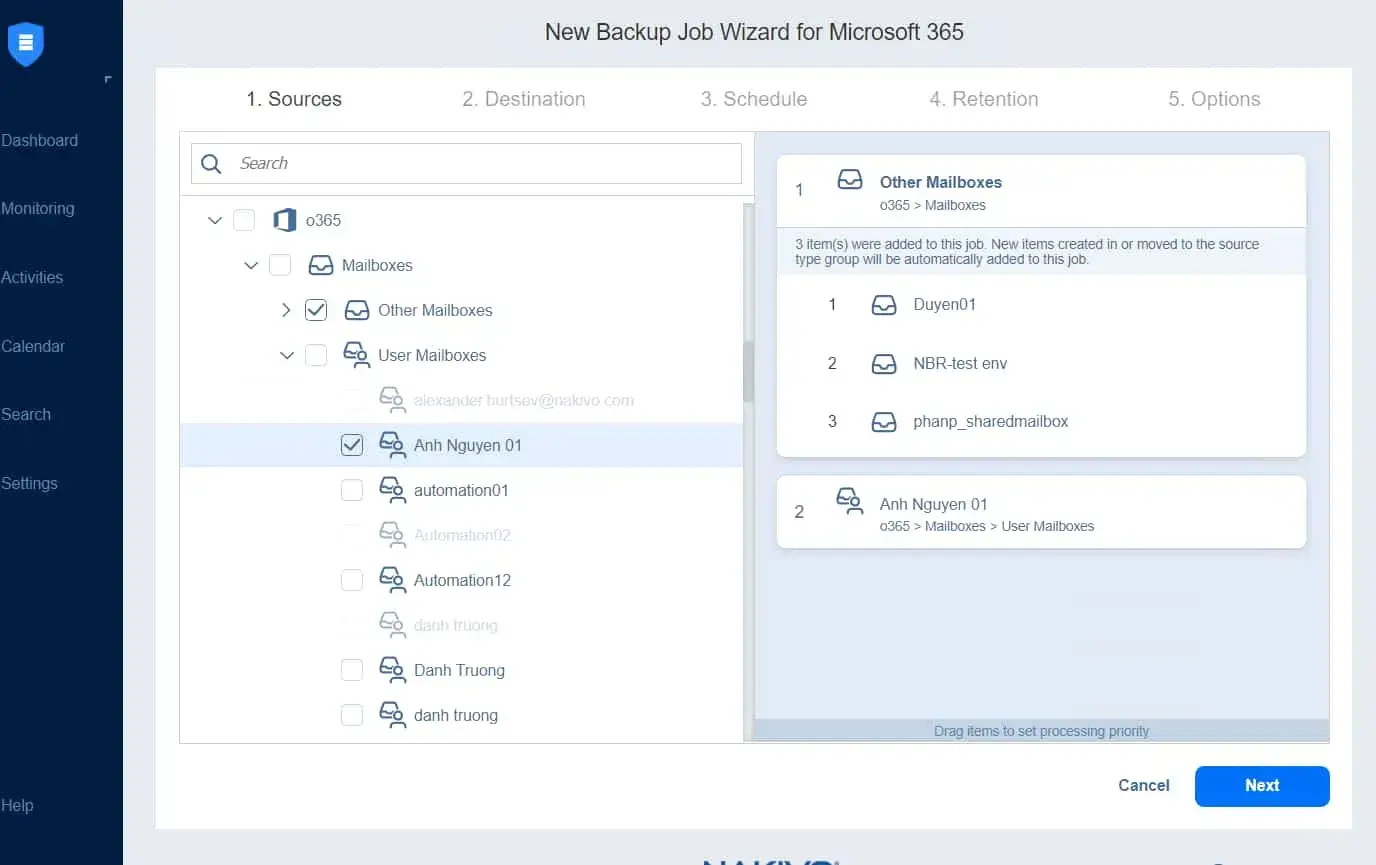
When a Microsoft 365 group or a Microsoft Cloud Security Group Login IDIt doesn't actually disappear completely immediately. For a standard period of 30 days, it remains in a "soft delete" state, in which the group is not normally visible, but it continues to exist in the background so it can be restored.
This 30-day grace period cannot be customized.You can neither expand nor shrink it. After those 30 days, the group is permanently deleted (purged) and there is no way to recover it using standard Microsoft 365 tools or PowerShell.
It is important to be clear that This feature only applies to Microsoft 365 groups and cloud security groups. managed in Microsoft Entra ID. Classic Exchange distribution groups behave differently and do not benefit from this 30-day restoration mechanism.
During that retention period, the deleted groups remain accessible. From the Microsoft 365 admin center, the Microsoft admin center enters and through Microsoft Graph PowerShell cmdlets, provided you have the appropriate permissions.
What is recovered when restoring a deleted Office 365 group?
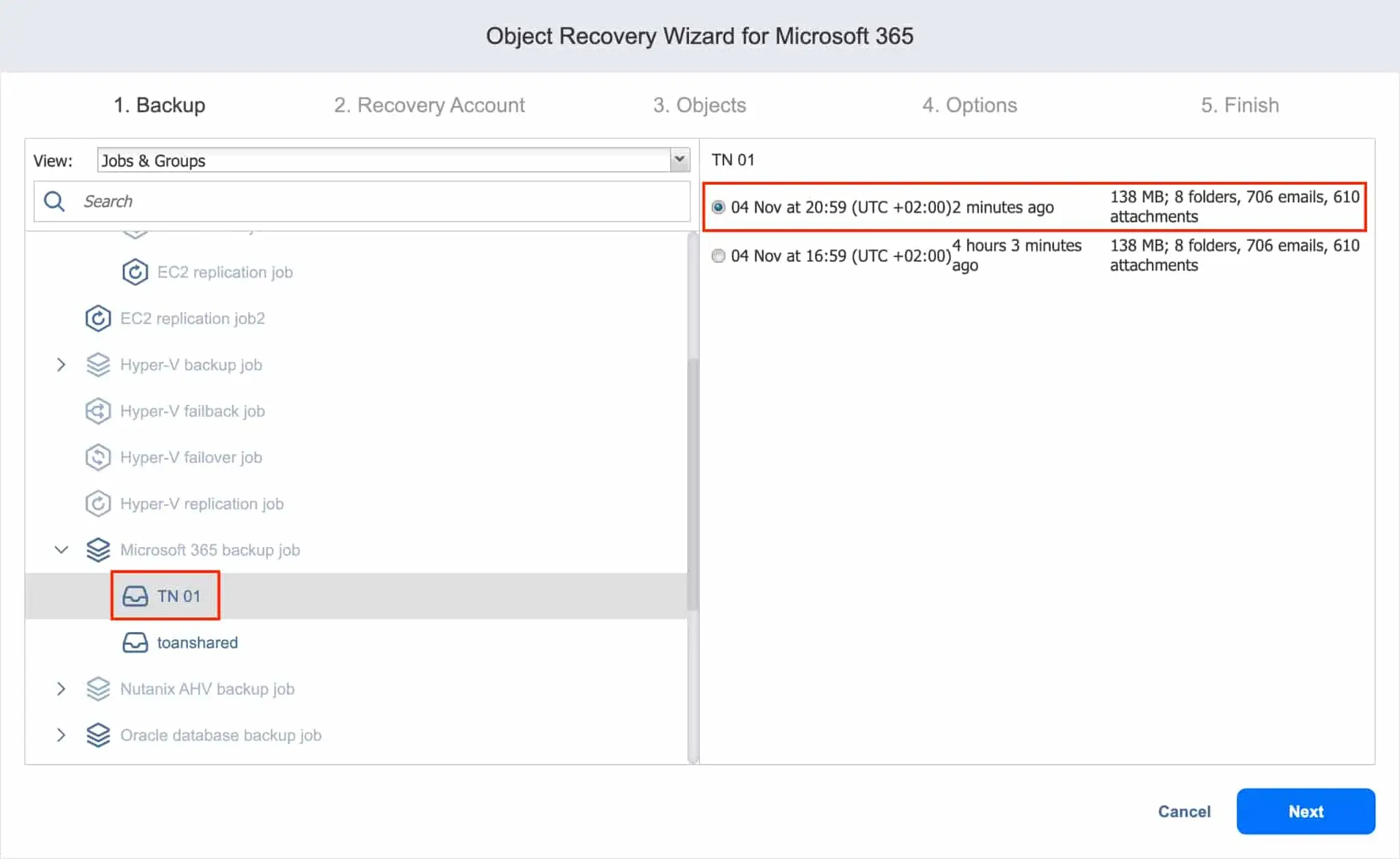
When you restore a Microsoft 365 group that was in a deleted state, not only does the group name reappear in the list; A fairly large set of associated resources is recovered that depend on that same group object in Microsoft Enter ID.
In general terms, restoring a Microsoft 365 group recovers the following key elements, provided they existed before the deletion:
- Group object in Microsoft Enter ID (formerly Azure AD): group properties, basic settings, and list of members and owners.
- Group email addresses, both the primary address and the aliases configured for the associated mailbox.
- Shared mailbox and calendar in Exchange Online, with the emails and appointments linked to the group.
- SharePoint Online group site, along with the document and file libraries it contains.
- OneNote Notebook that is linked to the group.
- Planner's plan and tasks associated with that Microsoft 365 group.
- Microsoft Teams Team that was created from that group, with its channels and configuration (although a full restoration may take a little longer).
- Viva Engage content and community (formerly Yammer) if the group originated from Viva Engage.
- Classic Power BI workspace backed by that Microsoft 365 group.
This whole package makes it the restoration is quite completeHowever, it should be noted that if the group had many documents, sites, or associated resources, the process may take up to 24 hours to become fully operational across all applications.
Once the recovery is complete, the group should meet again. in Exchange, Planner, SharePoint, Teams and the rest of the workloads that support Microsoft 365 groups, without you having to rebuild the structure from scratch.
Who can restore deleted groups: roles and permissions
Not everyone can revive a deleted group; You need to have specific roles in Microsoft Entra ID or Microsoft 365Microsoft details what each role type can do with respect to Microsoft 365 groups and cloud security groups.
In summary, the permissions for restoring groups are as follows:
| Role | Permissions on deleted groups |
|---|---|
| Global Administrator, Group Administrator, Level 2 Partner Support, Intune Administrator | They can restore any deleted Microsoft 365 or cloud security group, without restrictions. |
| User Administrator, Associate Level 1 Support | They can restore any deleted Microsoft 365 or cloud security group, except those assigned to the Global Administrator role. |
| Standard user | You can restore any Microsoft 365 or cloud security groups you own.provided that he is listed as the owner of that deleted group. |
This means that if you own a group that has been deleted, You have options to recover it on your own from Outlook or, in some cases, from the web interface, without always having to resort to an administrator.
In medium or large corporate environments, group catering is usually managed by the IT team with group administrator or global administrator rolesespecially when using PowerShell scripts or when dealing with groups critical to the organization.
View and manage deleted groups from the Microsoft 365 admin center
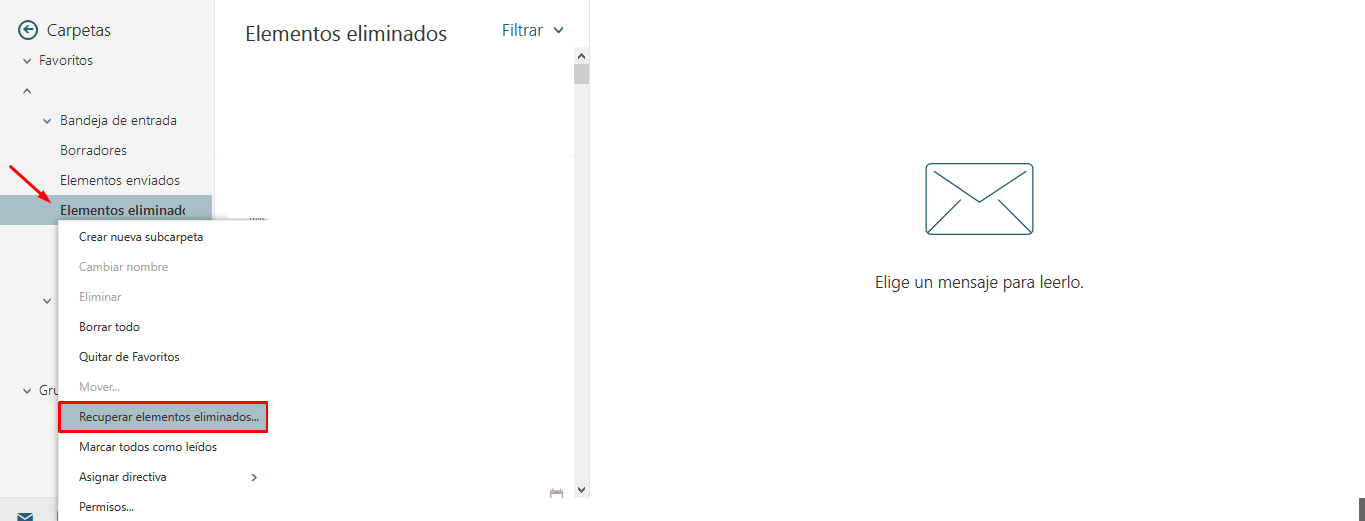
One of the most direct ways to manage deleted groups is to use the Microsoft 365 admin centerespecially if you're an administrator and need to see at a glance which groups are still within the recovery period.
The general process for locating and restoring deleted groups from this console is as follows:
- Access the Microsoft 365 admin center with an account that has administrator permissions (at least group administrator).
- In the side menu, scroll down to the section Groups and select the option corresponding to Deleted groups.
- In the list that appears, Find the group you want to recover, select it and click on Restore group.
From this same panel there is also the option to permanently delete a group that is in a deleted stateThis can be done using the "Permanently Delete" action. To perform this final removal, you must be an administrator, as there is no going back.
This view is especially useful when you want validate if a group is still within the 30-day window or if it has already been purged. If it doesn't appear in the list of deleted groups, you'll also need to check the Microsoft Admin Center or use PowerShell to confirm.
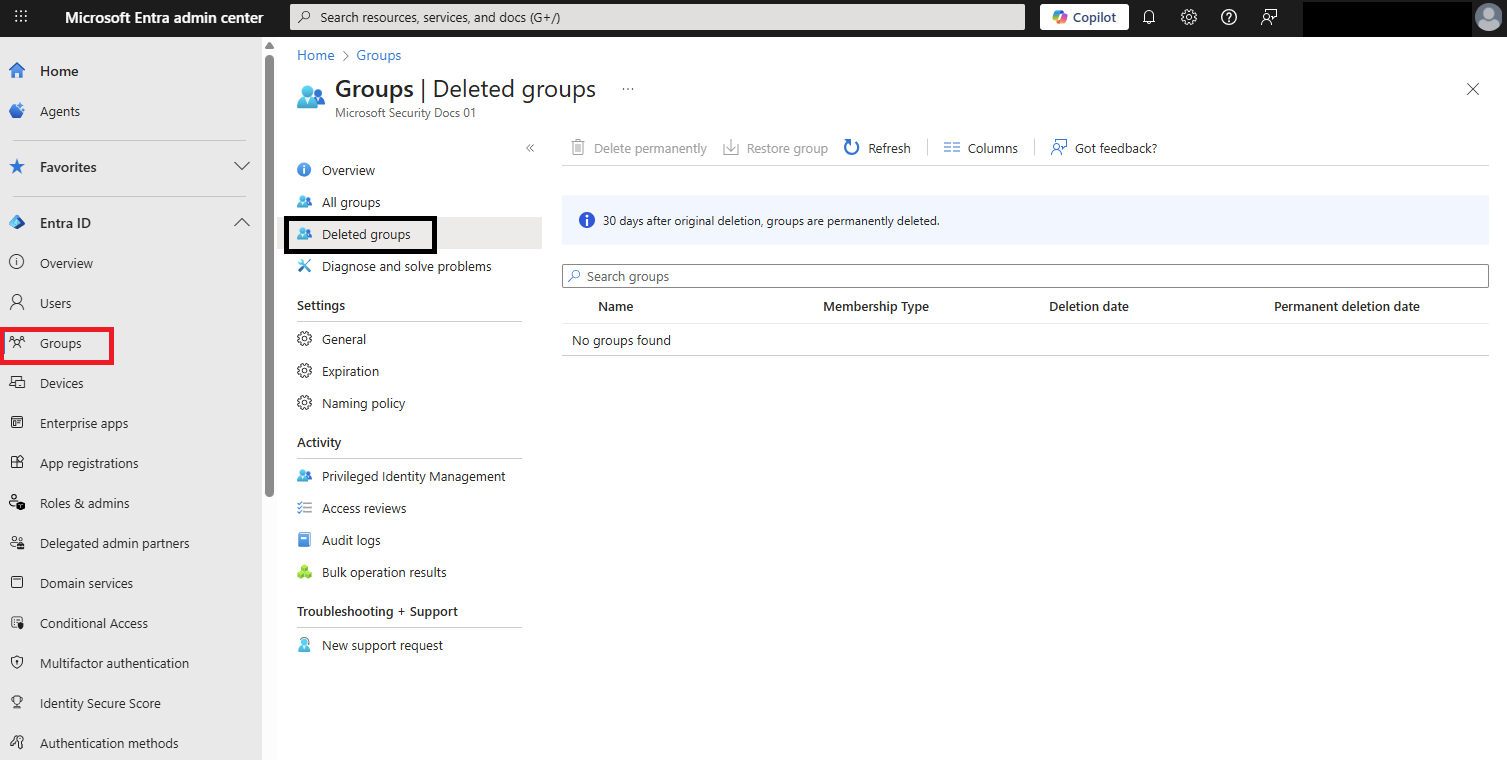
View and restore deleted groups from the Microsoft admin center. Log in
In addition to the main Microsoft 365 portal, you have the option to manage groups directly from the Microsoft Admin Center. Enter ID, which is where the group objects are actually stored at the directory level.
To work with deleted groups from this portal, the flow is similar to the following:
- Sign in to the Microsoft admin center Sign in using an account with the group administrator role or higher.
- In the main menu, go to Microsoft Access ID.
- Click on Groups and later All groupsNext, select the tab or section Deleted groups.
- In the deleted groups panel you can:
- Restore the group selected with the action “Restore group”, recovering both the object and its associated resources.
- Eliminate it permanently using "Permanently delete", for which you must have administrator permissions.
This view in Microsoft Entra ID is usually more complete when we talk about cloud security groups and integrations with other workloadsAnd it's very useful if you use conditional access policies, enterprise applications, or other services that rely on these groups.
Additionally, viewing the groups here allows you to quickly confirm whether a group still exists in a temporarily deleted state or if, on the contrary, It has already been purged and there is no standard way to recover it.
Restore a deleted group from Outlook on the Web
If you own a Microsoft 365 group, there are times when you can Retrieve it yourself directly from Outlook on the web, without touching the administration center or PowerShell, which is very useful in day-to-day tasks for resolving minor incidents.
The general procedure in Outlook is quite simple:
- Sign in outlook on the web with your Microsoft 365 account.
- In the folder panel on the left, look for the node Groups and select the option Manage groups.
- Within group management, go to the section or tab Removed, where the deleted groups that can still be recovered are shown.
- Locate the group you want to restore and choose the option Restore located next to the group's name.
If the group does not appear on this list, it is possible that Don't own the groupIf it was deleted more than 30 days ago or was manually purged, you'll need to contact your administrator.
This route is especially convenient when it comes to collaboration groups created by the teams themselves And someone has recently deleted them by mistake, since it saves you from opening tickets or relying on third parties for easy recovery.
Using PowerShell and Microsoft Graph to recover deleted groups
When you need more granular control or to manage many groups at once, PowerShell with the Microsoft Graph module It becomes the key tool. With just a few cmdlets, you can list all deleted groups, check their status, and restore only the ones you need.
The first step is to ensure you have the Microsoft Graph beta module installed to work with directory-specific cmdlets. Typically, you would use a command similar to:
Install-Module Microsoft.Graph.Beta
Connect-MgGraph -Scopes "Group.ReadWrite.All"
After connecting with the appropriate permissions, you can View all deleted Microsoft 365 groups and cloud security groups that can still be restored in your Microsoft organization. Sign in with:
Get-MgBetaDirectoryDeletedGroup
This cmdlet gives you a list of deleted objects. If you're interested in a specific group and you know its object identifier (objectId), or you obtained it from the previous output, you can query only that group with:
Get-MgBetaDirectoryDeletedGroup -DirectoryObjectId <objectId>
Once you confirm that the group you're looking for hasn't been permanently purged yet, it's time to restore it along with its contents using the restore cmdlet:
Restore-MgBetaDirectoryDeletedItem -DirectoryObjectId <objectId>
If, on the other hand, you want to permanently remove it and skip the recovery window, the equivalent command to purge it would be:
Remove-MgBetaDirectoryDeletedItem -DirectoryObjectId <objectId>
It is worth remembering that, if the group has SharePoint sites, documents, Planner, Teams, or other resources Associates, the full restoration may take up to 24 hours to propagate across all services, even though the group object itself appears to be restored almost immediately.
Verify that a group has been restored correctly
Restoring a group is only the first part; verify that everything has returned to normal It's equally important. To achieve this, you can combine technical checks with reviews from the end-user's perspective.
At the PowerShell level, after performing the restore with Microsoft Graph, you can use this cmdlet to review the group information:
Get-MgBetaGroup -GroupId <objectId>
If the restoration was successful, you should be able to verify that the group is present and active again. Then, check that the group:
- It appears in the left navigation pane of Exchange., with its accessible shared mailbox.
- Show your plan again in Planner, with the associated tasks and plans.
- It has its SharePoint sites and libraries availablebeing able to open documents and folders without errors.
- It is accessible from Teams or other Microsoft 365 entry points. that depend on that group, such as Viva Engage or classic Power BI.
If any of these elements are slow to appear, it is likely that The restoration continues to spread.In that case, it's a good idea to wait a few hours and check again before opening a support ticket. If, after that time, content is still missing, you'll need to review the audit logs or contact Microsoft support.
What happens if the group is no longer in “Deleted Groups”?
A fairly common scenario is finding that The group no longer appears in the list of deleted groups. Neither in the Microsoft 365 admin center, nor in the Entra admin center, nor in the results of Get-MgBetaDirectoryDeletedGroup. In that case, it's most likely a group that was permanently purged.
When that happens, there is no native Microsoft 365 option to Automatically rebuild the complete link between Teams, SharePoint, Planner, and the original groupWhat you can do is work with what still exists independently.
For example, in some cases a has been manually retrieved SharePoint site that depended on a now-deleted Teams teamThe site can be revived, but the linked group doesn't magically return: it won't appear in the group list, and you won't have the original Exchange mailbox or Planner.
In such a situation, the pragmatic solution is usually:
- Create a new Microsoft 365 group and its corresponding Teams team with the desired structure.
- Migrate or move SharePoint content from the restored site (or from backups) to the new site associated with the newly created group.
- Recreate the plan in Planner, channels in Teams and other resources that could not be automatically recovered.
It's not ideal, but when a group has been purged, The option of full déjà-vu recovery does not exist.In these cases, relying on backups, third-party solutions, or migration processes can save a lot of headaches.
If you have specific questions or very specific scenarios (for example, complex integrations, automations with Power Automate, etc.), it is always advisable consult the Microsoft Tech Communitywhere administrators and experts share experiences on restoring and managing Microsoft 365 groups.
The key to avoiding surprises with Office 365 groups lies in being well aware of the firm 30-day limit, understanding which roles can recover which types of groups, and mastering both the simple options (Outlook and admin centers) and the advanced ones with PowerShell and Microsoft Graph; with this combination you can handle almost any accidental group deletion with relative ease, and when there is no going back you will know how to rebuild the environment and move the data in the most orderly way possible.

Passionate writer about the world of bytes and technology in general. I love sharing my knowledge through writing, and that's what I'll do on this blog, show you all the most interesting things about gadgets, software, hardware, tech trends, and more. My goal is to help you navigate the digital world in a simple and entertaining way.