- Understanding how Outlook archives and deletes emails allows you to locate messages that seem lost.
- It is possible to recover emails from Archive, Deleted Items and the hidden Recoverable Items folder.
- The AutoArchive and Cleanup settings directly influence when and where emails are moved or deleted.
- Recovery tools and backups are the last resort when PST files are damaged or deleted.
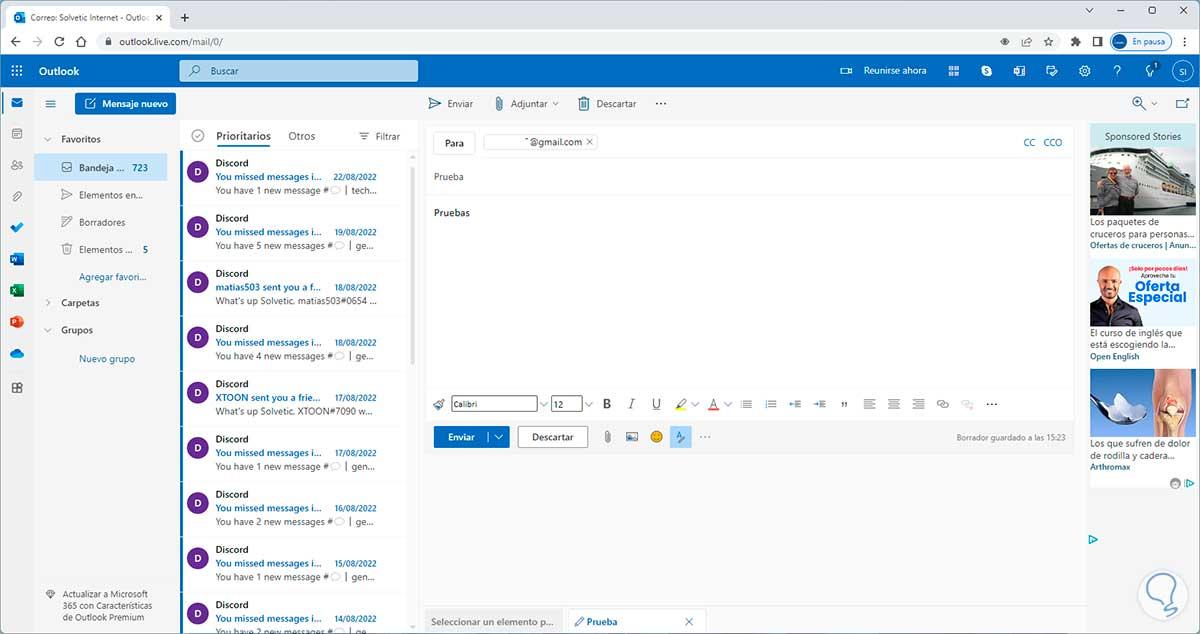
If you've gone to look for an important email and realized it's "disappeared" from your inbox, it's very likely that it was archived or moved in Outlook without you noticing . Don't worry, it happens more often than you think, and in most cases, those emails aren't lost forever.
In this guide, you'll find everything you need to recover archived emails in Outlook, understand how automatic archiving works , restore deleted messages, and even adjust settings so you're never caught off guard again. We'll cover the different versions of Outlook (classic desktop, new Outlook, and Outlook on the web/Outlook.com) and also how to work with archived PST files.
What does archiving emails in Outlook mean, and why do they disappear from the inbox?
Before you start fiddling with options, it's helpful to understand exactly what Outlook does when it archives. Archiving in Outlook basically involves moving old emails from your inbox to another folder or data file , keeping them accessible but out of the main view so your mailbox doesn't become a mess.
Most users encounter archiving because Outlook includes the AutoArchive feature, which automatically archives old messages . This feature periodically checks your folders (Inbox, Sent Items, etc.) and moves items older than a certain age to an archive folder or a separate data file (.pst), depending on your user profile settings.
An important point is that, although they may appear to "disappear" visually, these emails are still in your account or data file. The real problem is not knowing where to look : Archived folder, Archive, external PST files, Deleted Items folder, and even Recoverable Items if they have been deleted.
Another confusing detail is that archiving doesn't necessarily reduce the overall mailbox size . If items are moved within the same data file, the overall size remains the same; they simply change location. And, if you use AutoArchive to a PST file, the server mailbox might be smaller, but you'll still have to manage that local file.
Ultimately, for some users AutoArchive is a relief because it keeps their email cleaner effortlessly, while for others it becomes a headache because important messages end up outside the inbox without them noticing.
Why Outlook automatically archives emails and how it affects you
Outlook includes several policies and automatic cleanup options that determine what happens to your messages over time. By default, it's typically configured to archive emails in your inbox that are more than a few months old and to permanently delete sent or deleted items after a certain period.
In many enterprise environments, administrators enforce retention policies: for example, inbox messages or drafts older than six months are moved to Archive , and sent or deleted items are permanently purged after two months. These policies may vary by organization, but the idea is to control mailbox growth and comply with internal or legal regulations.
Outlook also lets you adjust the AutoArchive interval. You can decide how often you want folders checked to move older items to the archive location . From daily archiving to every 60 days, it's usually best to choose a middle ground to avoid constantly seeing items being moved around.
It's also important to note that some accounts, especially in professional environments, connect to external archiving solutions (for example, corporate email archiving platforms). In these cases, emails may leave your Outlook inbox but remain available in a corporate archiving system , accessible through specific searches or web portals.
All of this means that if you open Outlook one day and find a message missing, there are several possible locations: the Archived or Files folder, local PST files, Deleted Items, Junk Email, or even Recoverable Items . Therefore, it's best to follow a logical search order.
How to view and retrieve archived emails directly from Outlook
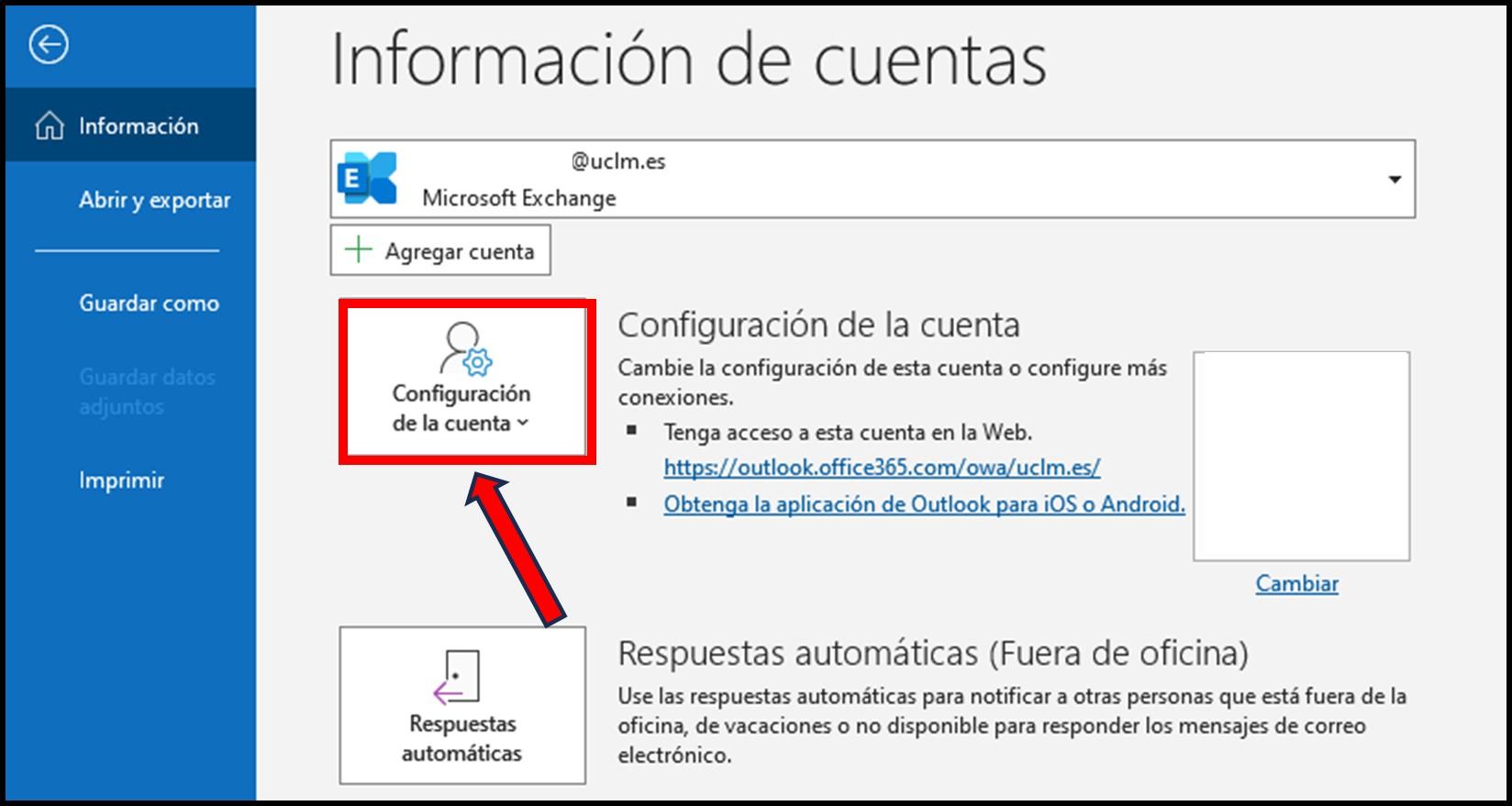
In many cases, "lost" emails are neither deleted nor stored in an external PST file, but simply in the Archived or File folder within your own Outlook account . The first step is to check those folders from the folder pane itself.
In the desktop version of Outlook (classic or new), make sure you're in your main mailbox and check the left side of the window, where the list of folders appears (Inbox, Sent, Drafts, etc.). Look for a folder called "Archive," "Archived," or something similar . Sometimes there may be subfolders inside, created by you or by an automatic rule.
If you can't find the message at first glance, use the search box. Type a keyword, the sender's name, or even a brief description of the subject. Outlook lets you filter your search by a specific folder (for example, only within Archive) or by your entire mailbox, making it easy to find emails that were archived by mistake or a long time ago.
Once you find the email you need to access, moving it back is very simple. You can right-click on the message and choose "Move to > Inbox" or "Move to >" . Alternatively, you can drag the email from the File menu to the desired folder.
This way, the message is no longer archived for practical purposes and reappears in the original inbox or folder . You can repeat the same process with multiple emails at once: select them while holding down the CTRL key and move them as a group.
Import and retrieve archived emails in PST files (data files)
In many work environments, especially when using network drives or handling heavy email traffic, it's common practice to archive data to an external PST file. In some cases, they're even saved to a dedicated network drive, such as drive Z:, with a "Data" folder where the archived .pst files are stored .
If you know or suspect that your emails were archived in a PST data file, you'll need to import that file into Outlook to retrieve or view the emails . The standard process in the classic version of Outlook is quite straightforward and is done from the File menu.
First, open Outlook and go to the "File" tab at the top of the program's main window . Within that menu, look for the "Import and Export" or "Open and Export" option, depending on the exact version you're using. In some versions, if you don't see it immediately, hover your mouse over the bottom of the menu until all the options appear.
The wizard that opens will ask you to choose what you want to do. Select “Import from another program or file” and click Next. Then, select “Personal Folders File (.pst)” as the source type and continue. In the next step, you will need to specify the path and name of the PST file where the archived emails are located.
Use the browse button to locate the file, for example, on your Z: drive within the "Data" folder. Select it and choose how you want to handle potential duplicates (usually you can choose to replace or allow duplicates, depending on your preference ). Outlook will then display a hierarchy of folders contained within that PST file so you can choose which ones to import.
If you want to recover everything archived, select the root folder of the PST file (the top row in the hierarchy) and enable the option to include subfolders so that the entire set is imported . If you are only interested in specific mailboxes or folders, select only those locations. Finally, specify whether you want the items imported into your current mailbox or a new archive folder.
Once you finish the wizard, the "Archived Folders" (or whatever the PST file's name is ) will appear in the sidebar , along with all the email subfolders it contained. From there, you can browse, search for specific messages, and drag the items you want to recover back to their original folders or to a new folder you create to organize the restored files.
Recover deleted emails from Deleted Items or Junk Email
Many users confuse archiving with deletion, and vice versa. When a message is deleted in Outlook, it doesn't usually disappear completely; instead, it's first moved to the "Deleted Items" folder . As long as it remains there, recovery is very simple.
In both the new Outlook and classic Outlook, go to the folder list and open "Deleted Items ." If the folder is hidden, use the option to show the navigation pane or expand the folder section. Once inside, you can sort by date, sender, subject, etc., to quickly find the email you need.
Select the message or messages you want to restore. You can do this by hovering your cursor over them and checking the box next to each item, or by clicking and using the Ctrl or Shift keys to select multiple messages. Then, use the "Move" option on the Home tab, choosing Inbox or another destination folder . You can also drag them manually or use the "Restore" option in the context menu.
Something similar happens with the "Junk" or "Spam" folder . If Outlook has mistakenly classified a legitimate message as spam, you'll find it there. It's a good idea to check this folder from time to time and review how to detect phishing or malware emails , because in some services like Outlook.com, the contents are automatically deleted after about 30 days.
To retrieve a message from Junk Mail, select it and mark it as "not junk" or "not spam ." Outlook will usually ask if you want to report the sender as spam and will move the message to your Inbox or the folder of your choice. From then on, messages from that sender are more likely to go directly to the correct location.
How to recover emails beyond Deleted Items: Recoverable Items
If you've already emptied the Deleted Items folder or used shortcuts like Shift+Delete to permanently delete messages, there might still be one last chance: the hidden "Recoverable Items" folder on the server . This functionality depends on the type of account (Exchange, Microsoft 365, etc.) and the retention period defined by your organization.
In the new Outlook, navigate to the Deleted Items folder and look for the "Recover deleted items from this folder" option . Clicking it will open a window with items that are no longer in Deleted Items but are still retained for a limited time. There you can scroll through the list or sort by subject, deletion date, or sender.
Select the items you want to recover and click "Restore" in the options ribbon . The messages will usually be returned to the Deleted Items folder, from where you can move them to their final location. In other words, the actual recovery process happens in two steps: first, they return to Deleted Items, and then you decide where to put them.
In the classic desktop version of Outlook with Exchange accounts, the procedure is similar: go to Deleted Items, and on the Home tab, click "Recover Deleted Items from Server ." The same Recoverable Items window will appear, where you can select messages, contacts, calendar appointments, or tasks (all with an envelope icon) and restore them by choosing "Restore Selected Items."
This option is also available in Outlook on the web or Outlook.com. Access Deleted Items from the left pane and, at the top of the list, use "Recover deleted items from this folder ." Select the messages you want and click Restore. If possible, they will be returned to their original folders; otherwise, they will be placed in their default location (Inbox, Calendar, Contacts, or Tasks, depending on the item type).
It's important to know that administrators can set how long items are stored in Deleted Items and how much longer they remain in Recoverable Items (for example, 30 days in Deleted Items and an additional 14 days in Recoverable Items ). Once these time periods have expired, it's very likely that the email can no longer be recovered, even by technical support.
Recover entire folders and manage bulk restores
Not only can you recover individual messages, but you can also restore entire folders if they're still in Deleted Items . This is very useful when you accidentally delete a whole folder containing old projects or personal archives.
In the classic version of Outlook, go to Deleted Items and click the icon to expand the list of deleted subfolders . If you see an entire folder you need to recover, select it and drag it with your mouse to its correct location in the folder hierarchy. Outlook will move the folder along with all its messages.
If you want to recover many items at once from the Recoverable Items window, you can do so efficiently. Hold down the CTRL key while clicking on each message to select non-contiguous items . If there are several in a row, click on the first one, press Shift, and then click on the last one to select the entire block. Then, click "Restore Selected Items."
Keep in mind that Outlook associates each item with a "message type" and can only return certain types to specific folders (for example, appointments or meeting requests to Calendar, contacts to Contacts, emails to mailboxes). If you drag multiple items of different types to the same folder, Outlook applies specific rules to assign them to the correct location , even though you only see a generic movement from a user's perspective.
If after reviewing Deleted Items and Recoverable Items you still can't find anything critical, the next step is to talk to your system administrator or your organization's support team. In some cases, mailbox backups or external archiving solutions may exist that allow you to locate and restore older messages.
Adjust AutoArchive and cleanup options to avoid losing track of emails
Once you understand how to recover archived or deleted items, it's worth taking a few minutes to properly configure AutoArchive and Outlook's cleanup options to avoid future problems. The idea is to decide what gets archived, how often, and where.
In Outlook desktop, go to File > Options and then to the "Advanced" section in the left pane . There you'll find the AutoArchive options. From that dialog box, you can enable or disable the feature completely, configure how often you want it to run, and what behavior it should have with older messages.
You can check the box to have AutoArchive run every X days and adjust that number using the increment arrows. This determines how often Outlook checks your folders to move older items based on your defined criteria . Typical options range from archiving almost daily to once a month or every two months.
The dialog box also lets you choose whether expired items should be moved to a specific archive folder or deleted directly . If your goal is to preserve information, it's safer to move them to Archive; and to protect sensitive messages, consider hiding and securing confidential emails by specifying a folder or a PST file where old emails will be stored. Only enable the option to permanently delete old items if you are absolutely certain of what you are doing.
On the other hand, in Outlook on the web (Outlook.com), you can review settings such as the automatic emptying of Deleted Items when you sign out . If you notice that everything you've deleted disappears every time you sign out, go to Settings > Message Management and uncheck the "Empty Deleted Items folder when you sign out" option. This will give you an extra layer of security for recovering recently deleted items.
If you need even finer control, you can supplement AutoArchive's behavior with custom rules that move specific emails to particular folders (by sender, subject, etc.). However, it's a good idea to thoroughly document how these rules are configured so you don't wonder in a few months why some emails are automatically moved and others aren't.
When to use recovery software and limits of what can be restored
Although Outlook offers several ways to recover archived or deleted emails, there are situations where messages have been permanently deleted or have exceeded their retention periods. In these cases, the only hope lies in server backups or, if dealing with local PST files, specialized data recovery tools.
When you delete or corrupt a PST file on your computer, the data may remain on the disk until it is overwritten with new information. Data recovery tools like Wondershare Recoverit and similar solutions are designed to scan hard drives, USB flash drives, or other drives for fragments of PST, OST, or other file formats and reconstruct them as much as possible.
This type of program can be very useful if, for example, your Outlook archive PST file has become corrupted or has been accidentally deleted and you don't have a recent copy. After recovering the file from the disk, you can import it back into Outlook following the import steps we saw earlier and thus regain access to archived emails that seemed lost.
Even so, it's important to understand that no software guarantees 100% recovery . If the disk space where the PST file was located has already been overwritten, those messages most likely cannot be recovered. That's why it's crucial to combine Outlook's automatic archiving features with a good backup policy and, if you work for a company, to make sure you know which corporate backup or archiving solutions are in use.
In practical terms, you should ideally view AutoArchive and recovery tools as complementary layers of protection: archiving to maintain order and accessibility, and recovery to undo serious accidents . The better you understand these components and how they're configured in your environment, the less likely an important email will be irretrievably lost.
With all of the above, you now have a fairly complete understanding of how archiving works in Outlook, how to locate messages that have left your inbox, what to do if they've been deleted, and even what advanced options you have in case of PST file corruption or loss. With a few adjustments to AutoArchive, by regularly checking Archive, Deleted Items, and Junk Email, and by knowing when to use Recoverable Items or external tools, managing and recovering archived emails in Outlook will go from being a hassle to a simple maintenance routine.


Passionate writer about the world of bytes and technology in general. I love sharing my knowledge through writing, and that's what I'll do on this blog, show you all the most interesting things about gadgets, software, hardware, tech trends, and more. My goal is to help you navigate the digital world in a simple and entertaining way.