
Would you like to learn how to add a link to a YouTube video ? YouTube annotations are a powerful marketing tool that can be used to increase your video viewership and YouTube channel subscribers.
But using video annotations also makes it easy to add a link to a YouTube video that redirects your audience to your website. With this tool, you can create a call to action and guide your audience to the desired action.
- Contact for a quote
- Subscribe to a newsletter
- Download a file PDF Free
- go to a particular site or page (article, commercial offer or landing page)
- And much more, the possibilities are endless.
We invite you to learn the ways to put a link in a YouTube video. Stay with us. But, before putting a link in a YouTube video, you must add an associated website to your account, with your own domain name. Then, to add an external link through annotations, you will need to follow 5 simple steps step by step:
- Verify your YouTube account
- Please confirm that your YouTube account is in good standing.
- Enable external link annotations
- Link your website
- Enable annotations
Steps to put a link in a YouTube video
Let's see what the methods are to put a link in a YouTube video:
Here you can learn about: How to Delete Your YouTube Comment History
Step 1 to put a link in a YouTube video (Verify your YouTube account)
- Step 1:: The first step in this process is to verify your YouTube account. To do this quickly, you need to go to this LINK and follow the instructions in this simple two-step process.
- Step 2:: Select your country from the drop-down menu, then indicate how you want your account verified (SMS or automated phone call).
- Step 3:: You will receive a confirmation code that you must enter in the corresponding field.
- Step 4:: Once you have successfully verified your YouTube account, you will be greeted with a congratulatory message stating that your account has been verified.
NOTE : You can also go directly to clicking the "Validate" button on your Functions page (CREATOR STUDIO > STRING > Status & Functions).
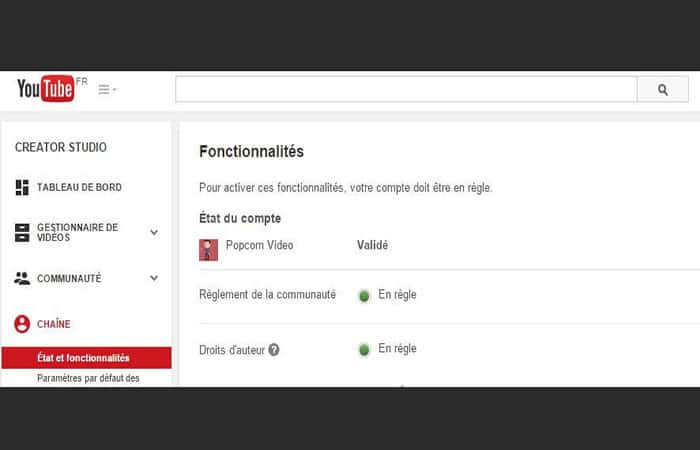
Step 2 to put a link in a YouTube video Confirm that your YouTube account is up to date.
To add a partner website, your account must be active. You can confirm the relevant details on the features page ( CREATOR STUDIO > CHANNEL > Status and features ).
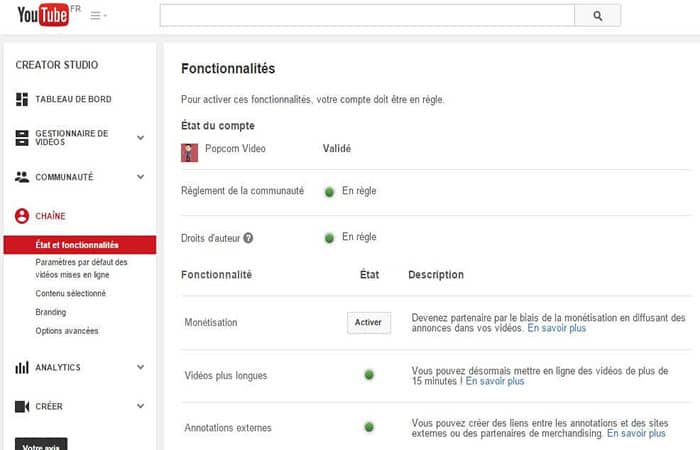
- NOTE: : The green dot of «External notes» indicates that it is now possible to access external sites.
Step 3 to put a link in a YouTube video (Enable external link annotations)
To add a link to a YouTube video and enable external links, you need to verify your channel's monetization ( CREATOR STUDIO > CHAIN > Status and Features ). This is a required step, but you don't need to add ads to all your videos. To do so, follow these steps:
- Step 1:: Click on a video to annotate it.
- Step 2:: A notification bar will appear inviting you to enable your YouTube account for external annotation links.
- Step 3:: Click the button ActivateYou will be asked to accept the terms and conditions. If everything is done correctly, you will receive a message telling you that the procedure was successful.
Step 4 to put a link in a Youtube video (Link your website)
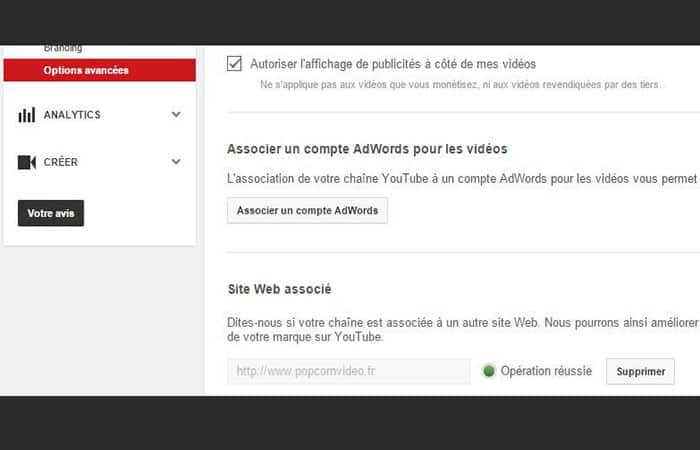
- Step 1:: The next step is to add your website to validate it (CREATOR STUDIO > CHAIN > Advanced Options).
- Step 2:: Click "confirm": This opens a link to the tools Google Webmasters: If you don't have an account yet, you need to open one. It's free and takes a maximum of 5 minutes.
- Step 3:: Here you must prove that you are the owner of your site. Google offers different methods for this, the easiest of which is to upload an HTML verification file to your site using FTP software.
NOTE : Until you do this, your YouTube site's status will be "pending." Follow the procedure provided by Google. Also, link your YouTube channel's email address to your website in Google Search Console (formerly Google Webmaster Tools), and you're all set! When you return to YouTube, you'll see that the process has been completed successfully.
Step 5 to put a link in a YouTube video (Add the annotations)
Now that your site has been associated with your YouTube account, you can finally place a link in a YouTube video that can be flagged.
- Step 1:: go to the «Video Manager«, click on one of your videos, then click «Annotations» in the top menu.
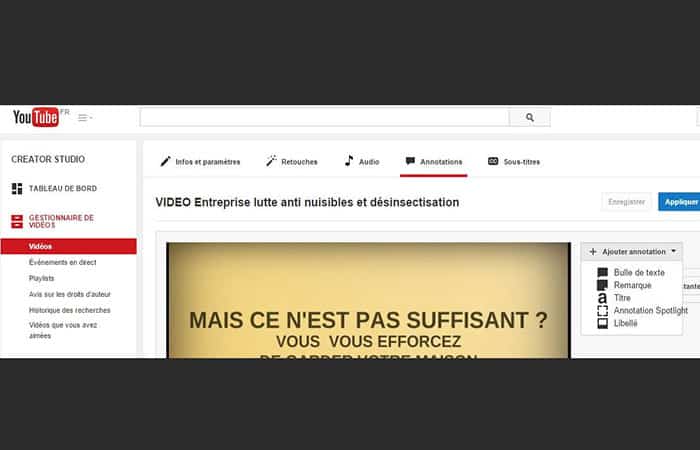
- Step 2:: Then, click on “Add annotation” to the right of the video and choose how you want it to appear in your video (Text Bubble, Note…)
- Step 3:: Go down and check "link", Choose «Associated website» in the drop-down menu on the right, then enter the destination URL (your site or a particular page on it).
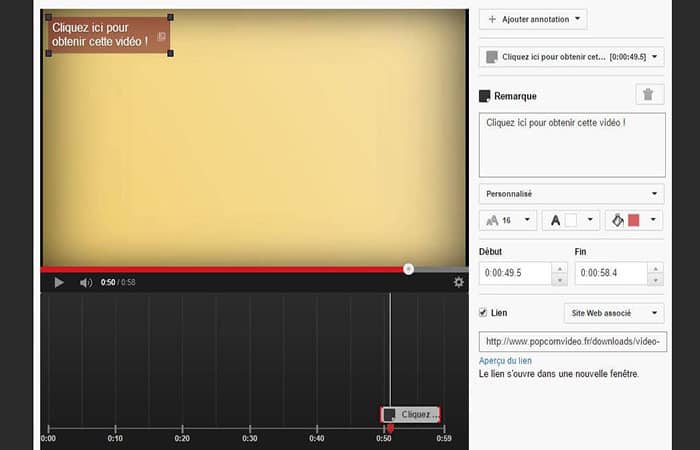
After you save your work, remember to test your links on YouTube to make sure they point back to your site. You may also want to consider using the Google URL Builder tool to add campaign tracking tags to your links so you can see which ones are most effective.
You can also check the " YouTube Analytics " panel to see statistics on specific annotations.
How to effectively manage your social networks?
Putting a link in a YouTube video is just one possibility among many. And what about other social networks? There is nothing surprising in this, since this world is constantly evolving.
Therefore, it's imperative that you stay up-to-date on new features and what they can do for you professionally. But what if you don't have the time , or if it seems too complex?
Rest assured that there is always a solution. Call a digital coach, for example. This will allow you to benefit from the following:
- digital coaching, to gain autonomy.
- a management of your digital marketing, if you are short on time or not interested in managing it yourself
- a digital transformation, if you are not up to date
In any case, you will be fully supported, whether you are a freelancer or a TPE. You will see that effective management of your social networks will bring you more traffic, and therefore improve your conversion rate.
Digital communication is clearly essential these days, especially to present your products. Now that you know how to put a link in a Youtube video, all you have to do is place them in all your videos and watch your traffic increase.
Other methods to put a link in a YouTube video
YouTube now limits the creation of external links to channels that adhere to the YouTube Partner Program , which means having a minimum of 10,000 views on your videos and creating a Google AdSense account to monetize them.
For the time being, links in old videos remain active as long as you don't edit them. Since annotations disappeared in May 2017, you can put a link in a YouTube video either in the pages or on the end screens; both functions are compatible with mobile devices, which represent 60% of YouTube's audience. Let's look at other ways to do it.
Create an external link in a YouTube video
A feature that allows you to place a clickable link in a YouTube video to a website. This feature is particularly useful in the case of a product video or one that complements a news story on the web. In order to access this feature, you must first associate a website with your YouTube channel.
Method 1: How to associate a website with your YouTube channel
Associating a website with a chain improves your referencing in the sense that the association of your chain and your website will be better analyzed and represented in Google search results.
First, you must be the owner of the site you want to associate:
- Step 1:: In Webmaster Tools, add your website as a partner website. You'll then need to confirm that you own the site (several ways are possible) before linking it to your YouTube account.
- Step 2:: In your YouTube account. Review your channel's advanced settings and add the information in the "Related website«.
From now on you will be able to link annotations to your videos to these domain names.
Method 2: Add annotations and create a link to an associated website
- Step 1:: In the Video Manager, select the video to modify and then click “Modify”And then on "Files".
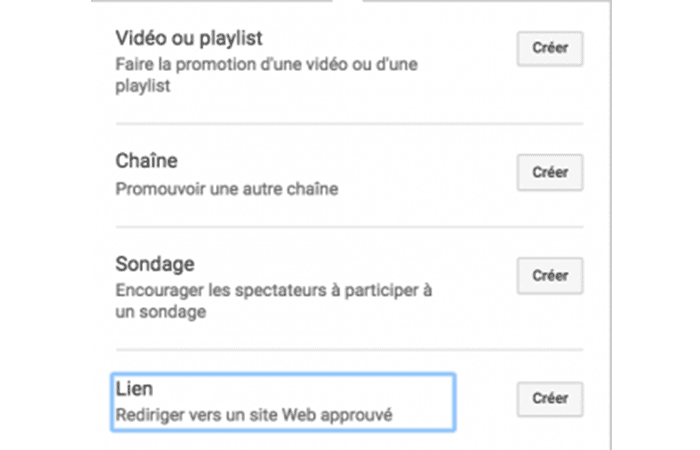
- Step 2:: Create a file, choose between:
- promote a video
- a playlist
- of a chain
- create a poll
Link to an approved website
- Step 3:: Create a link.
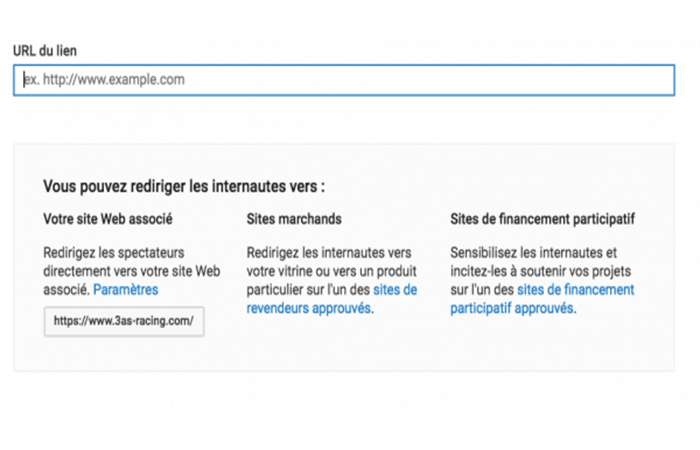
- Step 4:: In the drop-down menu that appears, click on «Your partner website«.
- Step 5:: Place your website link in the field provided.
NOTE : If you have associated your site's URL, you can enter the URL of a page or article. Be careful not to include a link in the full YouTube video URL (http://www…) for the link to be recognized.
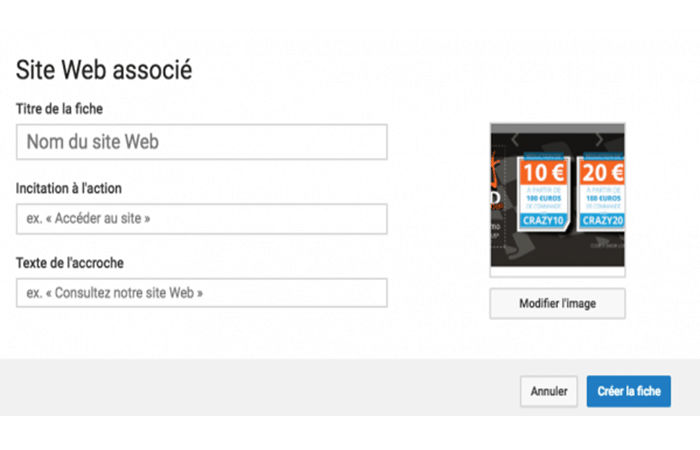
- Step 6:: Fill in the requested fields (teaser, images, etc.)
How to use this annotation?
This type of annotation can be interesting for those who want to associate a website with their video. However, before using it, certain precautions must be taken into account:
- Video playback is interrupted when you click the annotation link, which may impact the view time (watch time) and therefore the reference of your video.
Therefore, this annotation is primarily recommended for a promotional/product video or to illustrate a web article that you want to direct your audience to.
- It is preferable to place the card at end of video to minimize viewing time.
- Enter the website URL in the description of your video, it will be taken into account when referencing the video (metadata) and when playing it on a mobile device (annotations are not displayed on a mobile device).
You can also use links to merchant sites when referencing them on YouTube. You can find this information in the list of approved merchant sites or approved crowdfunding sites like Patreon or Tipeee at this LINK.
YouTube: You can no longer add external links if monetization is not enabled
At the end of their videos, YouTubers typically include a link to other videos or websites. Recently, it became impossible to add external links to a YouTube video if the channel is not monetized.
How can you insert external links on YouTube?
Many YouTubers complained that they could no longer add external links to cards at the end of their videos (especially to Patreon, a platform popular with YouTubers because it allows them to donate to creators).
These same YouTube users noticed that adding external links was disabled in their account settings. To activate external links, they must first activate monetization for their YouTube channel.
No monetization, no external links
YouTube has issued a statement formalizing its decision to block external links. The company indicates that it is restricting the addition of external links to channels in the YouTube Partner program in order to assess the validity of each channel beforehand.
This update aims to curb abuse and does not affect current YouTube Partners or existing end cards . So, if your previously published videos have end links, those will not be removed. However, to add new end links to your new YouTube videos, you will need to join the Partner Program.
Remember that this program is reserved for channels that have reached 10.000 views in public mode ( all conditions are listed here ).
You can also read about: How to Link a YouTube Account to AdSense
Please note that in order to add external links, the only condition to be respected is to activate monetization: you do not need to insert ads in your YouTube videos to be able to put external links at the end of your videos.
As you can see, these are the ways to put a link in a YouTube video if you want to monetize your website or sponsor other YouTubers. We recommend that you follow the steps and methods indicated so that you are successful. We hope we have helped you.

My name is Javier Chirinos and I am passionate about technology. Ever since I can remember, I have been interested in computers and video games, and that passion has turned into a job.
I have been publishing about technology and gadgets on the Internet for over 15 years, especially in mundobytes.com
I am also an expert in online marketing and communication and have knowledge in WordPress development.