- Implementation of modern hardware such as WiFi 6 and Mesh systems to eliminate dead zones and manage more devices.
- Configuring traffic priorities using QoS and device segmentation in the 2.4 GHz and 5 GHz bands.
- Use of physical Ethernet cable connections on static equipment to reduce wireless signal congestion.

Having a house full of gadgets, from color-changing light bulbs to weather assistants, is no longer just something you see in movies. The problem is that when everyone at home starts browsing the internet, playing games, or making video calls at the same time, the Wi-Fi often starts to struggle, and the connection becomes frustratingly slow. Network saturation basically occurs when the router is overwhelmed by the volume of requests and doesn't know how to handle them, causing those annoying streaming interruptions or voice control taking forever to respond.
If you feel your internet connection is struggling, don't worry, there's a solution. It doesn't always require spending a fortune; sometimes adjusting a couple of settings or changing the device's location is enough. In this article, we'll break down step-by-step how to optimize your home network for lightning-fast performance, regardless of how many people are connected or how many smart devices you have scattered throughout your home.

Understanding the capacity of your connection

Before you start tinkering, it's important to know that a standard router typically supports between 10 and 30 devices. However, in a modern home, it's common to have over 50 devices when you include sensors, smart plugs, and mobile phones. To prevent everything from running slowly, the first step is to review your internet plan . If you only have 100 Mbps but three people in your house are watching Netflix in 4K and another is in a Zoom meeting, you'll find that the bandwidth is insufficient. Ideally, for busy households, you should opt for symmetrical speeds of 300 Mbps or more , especially if you work remotely.
The hardware: the brain of your network
Sometimes the culprit is the router provided by your internet service provider, which is usually quite basic. If you want to upgrade, look for a device compatible with Wi-Fi 6 (802.11ax) . This technology is fantastic because it's specifically designed to manage multiple devices without interference, thanks to features like MU-MIMO and OFDMA. Also, make sure the processor is at least dual-core and has 128 MB of RAM, or 256 MB if you have heavy data traffic.

Positioning and coverage tricks
It might seem silly, but hiding your router behind the sofa or inside a closet is a huge mistake. The WiFi signal is diffused downwards and blocked by brick walls or metal frames, which can reduce its strength by up to 25% . The smartest thing to do is place it in a central, elevated spot in your home. If your house is very large or has several floors, avoid cheap repeaters, which sometimes create more problems, and opt for WiFi Mesh systems ; these create a unified network with multiple nodes that eliminate dead zones without interruptions as you move around the house.
Advanced configuration optimization

To prevent the network from collapsing, you can apply several technical strategies from the router's administration panel:
- Band management: Take advantage of dual-band Wi-Fi. Leave the 2.4 GHz band for smart home devices that don't require speed but need range, and reserve the 5 GHz band for your PC, game console, or Smart TV, as it is much faster and less congested.
- Traffic prioritization (QoS): Activate Quality of Service to tell the router what's a priority. This way you can prioritize work video calls over other calls. gaming network configurations in background.
- Guest Network: Create a separate network for visitors. This prevents IP conflicts on your main network and protect your data private.
- DHCP and WPS protocols: Make sure you have DHCP enabled so that each device receives its IP address automatically, and use the WPS button to connect new devices without any hassle.

Maximum stability and creative uses of the network
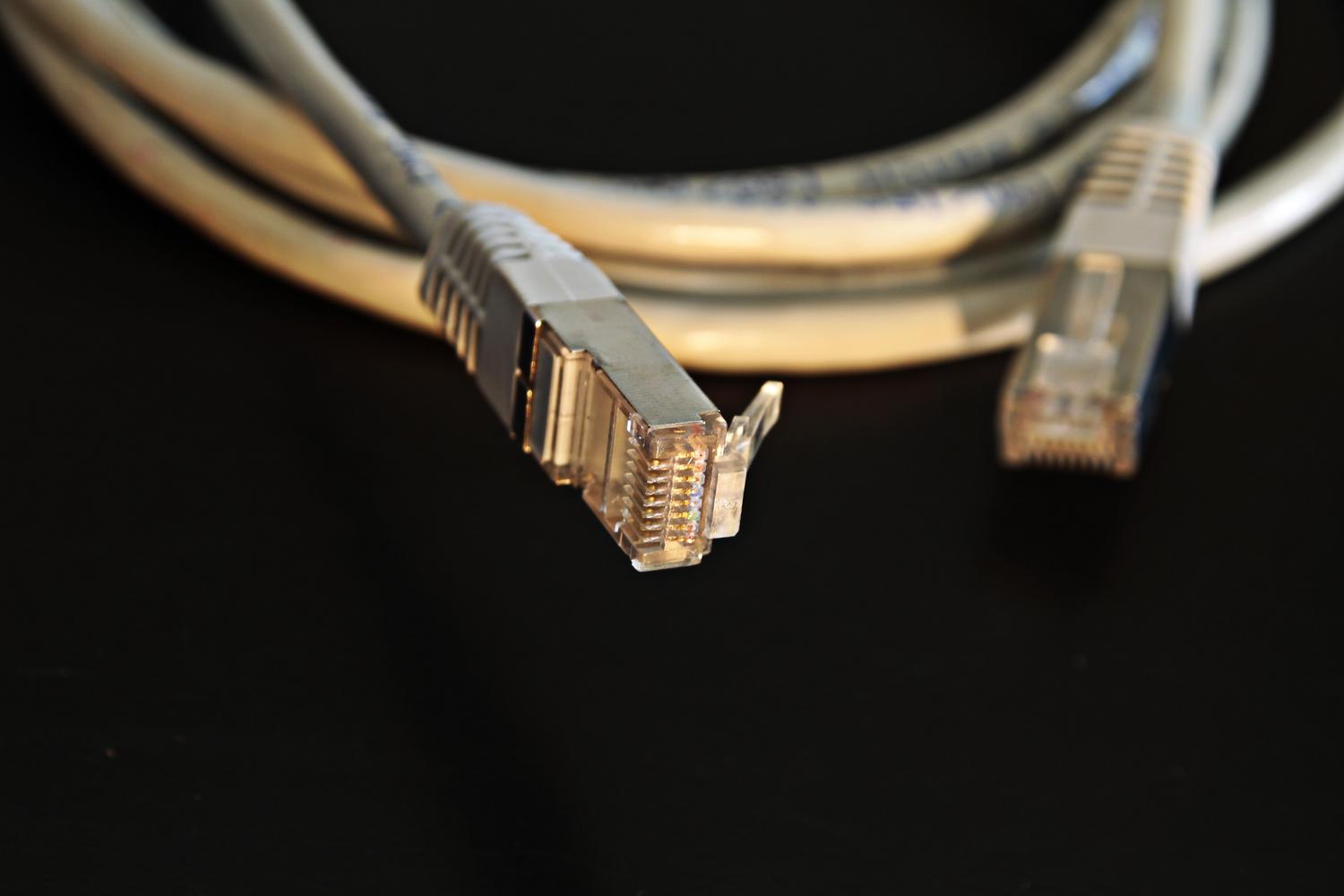
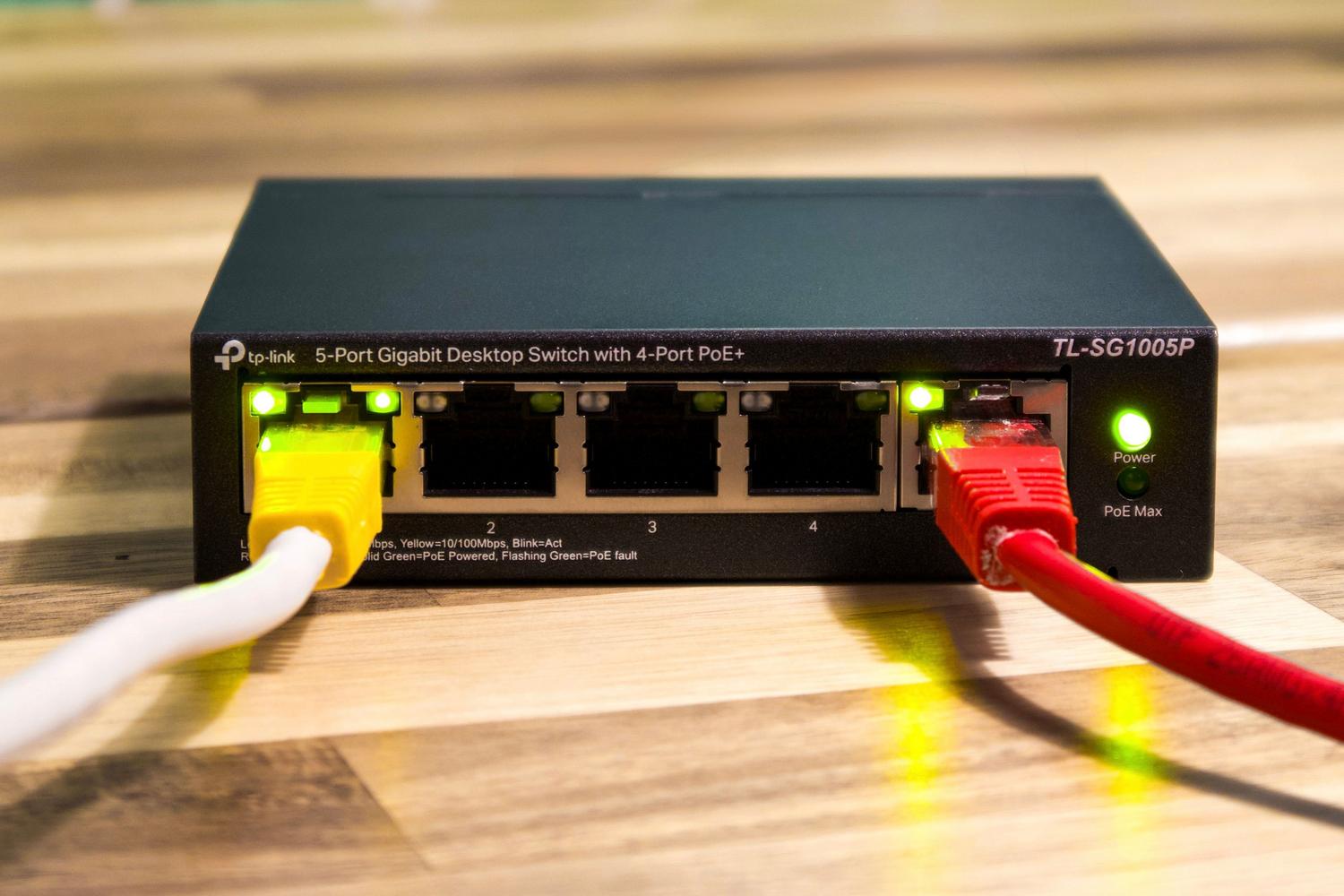
While Wi-Fi is convenient, nothing beats a wired connection. For stationary devices, such as desktop computers or game consoles, always use an Ethernet cable . This not only gives you maximum speed and minimal latency, but also frees up bandwidth for mobile devices to perform better. If a cable isn't available, powerline adapters (PLCs), which transmit the signal through your electrical wiring, are a very effective alternative.
Furthermore, your local network can do much more than just provide internet access. You can set up a NAS (Network Attached Storage) , your own private cloud for storing photos and backups without relying on external services. You can also repurpose an old PC by installing Linux or TrueNAS to turn it into a file server or media center with Plex, thus preventing the hardware from ending up in the trash.
Habits to maintain flow
To ensure consistent performance, it's a good idea to establish routines. Schedule large downloads for the early morning hours when no one else is using the network. It's also advisable to occasionally access your router's control panel to update its firmware , as manufacturers release security and performance improvements. Finally, run speed tests using tools like Ookla to verify that your internet provider is delivering the speeds you're paying for.
Maintaining a stable connection in a busy home requires a combination of up-to-date hardware, strategic router placement, and smart traffic management. By prioritizing critical services using QoS, distributing devices across frequency bands, and replacing Wi-Fi with wired connections in fixed equipment, a smooth and uninterrupted browsing experience is achieved for all users.


Passionate writer about the world of bytes and technology in general. I love sharing my knowledge through writing, and that's what I'll do on this blog, show you all the most interesting things about gadgets, software, hardware, tech trends, and more. My goal is to help you navigate the digital world in a simple and entertaining way.