- Analysis of real speed through tests to choose between wireless or wired connection.
- Router location optimization and interference management to stabilize the signal.
- Configure traffic priorities using QoS to avoid buffering in 4K content.
- Preventive maintenance of hardware and software to ensure maximum system performance.

Having a smart TV these days is essential for making the most of home entertainment, whether you're binge-watching streaming services or losing track of time with YouTube videos. However, nothing is more infuriating than a sluggish internet connection, causing the image to freeze right at the climax of a movie or resulting in frustrating frame rate drops when playing cloud games with services like GeForce NOW.
Many people believe the magic solution is to run an Ethernet cable from the router to the TV, but here's the surprise: on many Android TV or Google TV devices, connecting them by cable can drastically limit the speed . This happens because many integrated network cards are very basic and capped at 100 Mbps, while modern Wi-Fi speeds are much higher.

The dilemma between Ethernet cable and Wi-Fi
It's very common for mid-range TVs or older models to have a limited Ethernet port. It doesn't matter if you have a 600 Mbps or even 1 Gbps fiber optic connection; if the TV's network card is the bottleneck , you won't get more than 90 or 100 Mbps. In contrast, wireless technology has advanced by leaps and bounds, and many devices now support WiFi 5 or WiFi 6.
To clear up any doubts, the best thing to do is install a speed test app, like Speedtest, directly on your Android TV. If you notice that you reach 300 Mbps over Wi-Fi but only 90 Mbps over a wired connection, don't hesitate to unplug the cable and switch to wireless. Don't try to fix this with cheap USB-to-Ethernet adapters from Amazon, as they often have compatibility issues and don't always solve the problem permanently, although you can take advantage of other practical uses for the USB port on your Smart TV.
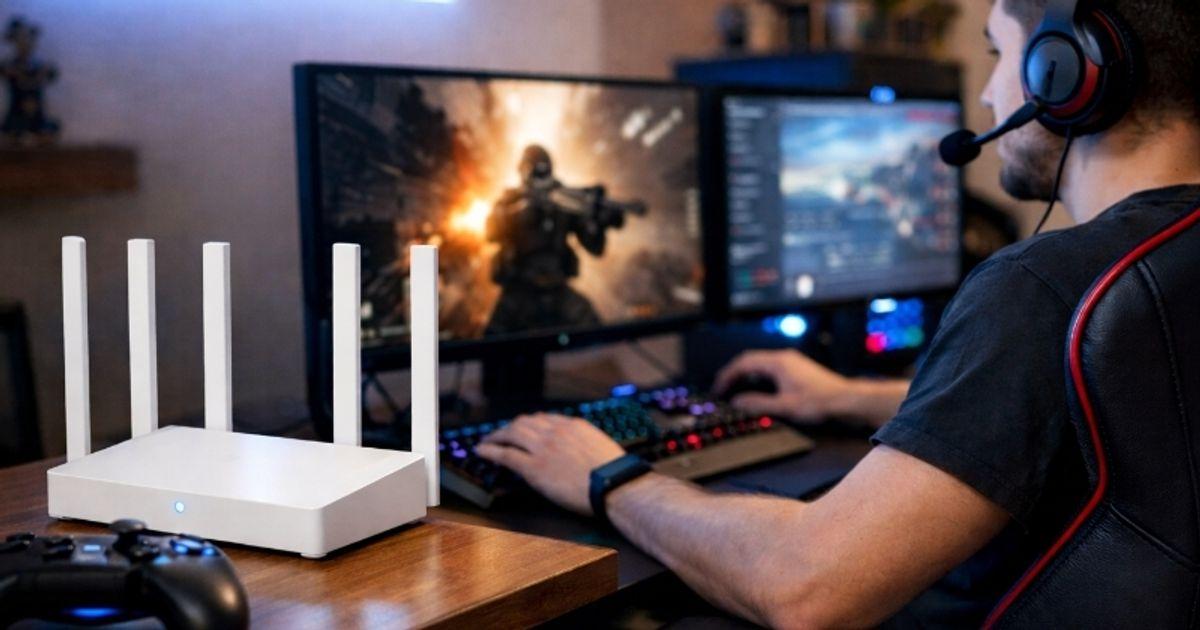
Tips to stabilize your Wi-Fi signal and avoid lag
If you decide to go wireless, the router's location is key. Place it in a central, elevated spot in your home , avoiding hiding it behind furniture or placing it against excessively thick walls. Be very careful with appliances: microwaves, refrigerators, and Bluetooth speakers generate interference that can disrupt your connection.

Regarding frequencies, remember that the 2,4 GHz band has a longer range but is slower and more congested. If your Android TV Box is close to the router, always connect it to the 5 GHz band , as it offers significantly better performance and less interference. If the distance is considerable, consider installing a dual-band repeater or, even better, a Wi-Fi Mesh system to cover every corner of your home without losing signal strength.
It's also a good idea to check the transmission channels. If you live in an apartment building, your neighbor's channel is likely interfering with yours. By accessing your router's control panel (usually the IP address 192.168.1.1), you can change the Wi-Fi channel to a less congested one for better stability.
Advanced settings: QoS and Hardware
If you have a mid-to-high-end router, look for the QoS (Quality of Service) feature. This tool is invaluable because it prioritizes streaming traffic over other tasks. So, if someone at home starts downloading large files or games, the router will ensure your Android TV Box has the necessary bandwidth to prevent 4K buffering.

Regarding hardware, if your router is more than three years old, it may be outdated. WiFi 6 standards handle the number of simultaneously connected devices much better. Don't forget to update your router's firmware either , as updates usually bring performance improvements and critical security patches.
If you hate cables but want the stability of Ethernet, PLC adapters are a fantastic alternative. These little devices carry the internet signal through your home's electrical wiring, saving you the trouble of drilling through walls and offering a much more robust connection than traditional Wi-Fi for high-resolution content.
Software optimization and content quality
It's not all about hardware; the Android TV software can also cause problems. Make sure the operating system is up to date in the settings menu. A simple trick when you notice slowness is to completely restart the device by unplugging it from the power outlet for a few seconds to clear background processes that might be consuming resources.
Sometimes, the problem lies with the streaming platform itself. Some allow you to manually adjust the video quality. If you notice your network is slow, lower the resolution from 4K to 1080p ; this will reduce data usage and prevent buffering. Keep in mind that each service has its own requirements: while 1 Mbps is sufficient for SD, smooth 4K typically requires at least 15 or 25 Mbps.

To avoid surprises, always use official apps and keep them updated. Pirated versions or unofficial websites often cause stability issues that have nothing to do with your internet speed, but rather with poor or unoptimized servers . Additionally, if you use a browser to view content, clearing the cache periodically can help everything run more smoothly.
Achieving a seamless viewing experience requires a balance between up-to-date hardware, smart router placement, and efficient bandwidth management. Whether prioritizing traffic with QoS, choosing the 5 GHz band, or simply updating system software, even small adjustments can eliminate buffering and allow high-definition content to play smoothly.


Passionate writer about the world of bytes and technology in general. I love sharing my knowledge through writing, and that's what I'll do on this blog, show you all the most interesting things about gadgets, software, hardware, tech trends, and more. My goal is to help you navigate the digital world in a simple and entertaining way.