- Windows 11 It incorporates several native ways and shortcuts to manage active windows and minimize the rest.
- The Aero Shake feature helps reduce screen clutter and can be turned on or off according to your preferences.
- There are multiple keyboard shortcuts useful for different organizational situations and multitasking with windows.
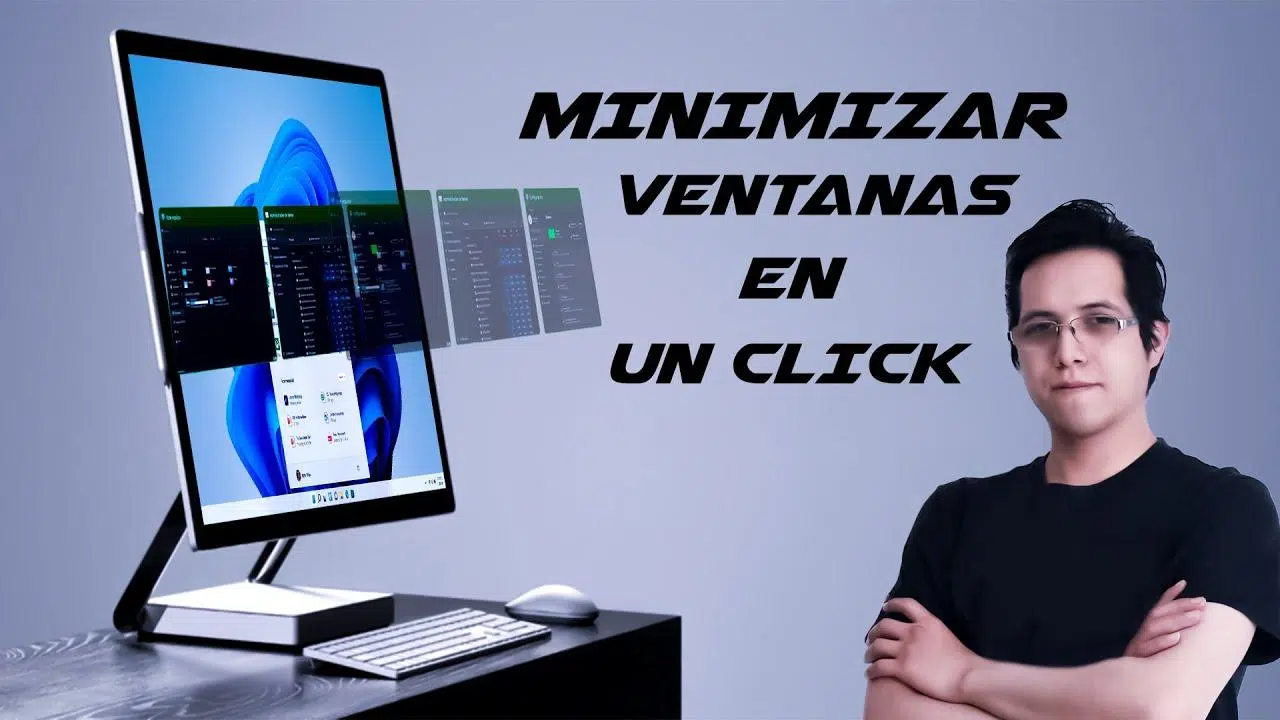
Have you ever had your desktop full of windows and wanted to focus on just one, but without closing or losing the rest of your open documents? Minimizing all windows except the active one is one of those useful yet often overlooked features of Windows 11, and although it's not new, it's still a trick that can save you time and prevent clutter when you need to concentrate.
If you're looking for a quick and easy way to organize your workspace and reduce the chaos of stacked windows, here you'll find the ultimate guide with all the methods, tricks , and shortcuts.
Why minimize all windows except the active one?
The Windows desktop tends to fill up with windows as we work, browse, or have multiple applications open. Being able to focus on a single window without having to close or manually rearrange the others is the basis of this feature, which aims to facilitate concentration and reduce distractions.
This feature, designed for multitaskers, first appeared in Windows 7 as Aero Shake . While not initially well-known, it has gradually been incorporated into subsequent versions of Windows, evolving and adapting as it has been updated . Apple has also included it in its latest macOS versions under the name Visual Organizer , but the underlying philosophy is similar: to eliminate the unnecessary and highlight what's important.
More and more users are valuing these types of solutions, both for work organization and when visual clutter limits productivity. The ability to 'sweep' all windows except the one you need becomes a fundamental tool , especially in multitasking scenarios where documents, browsers, chats, and all sorts of programs are mixed together.
Methods to minimize all windows except the active one in Windows 11
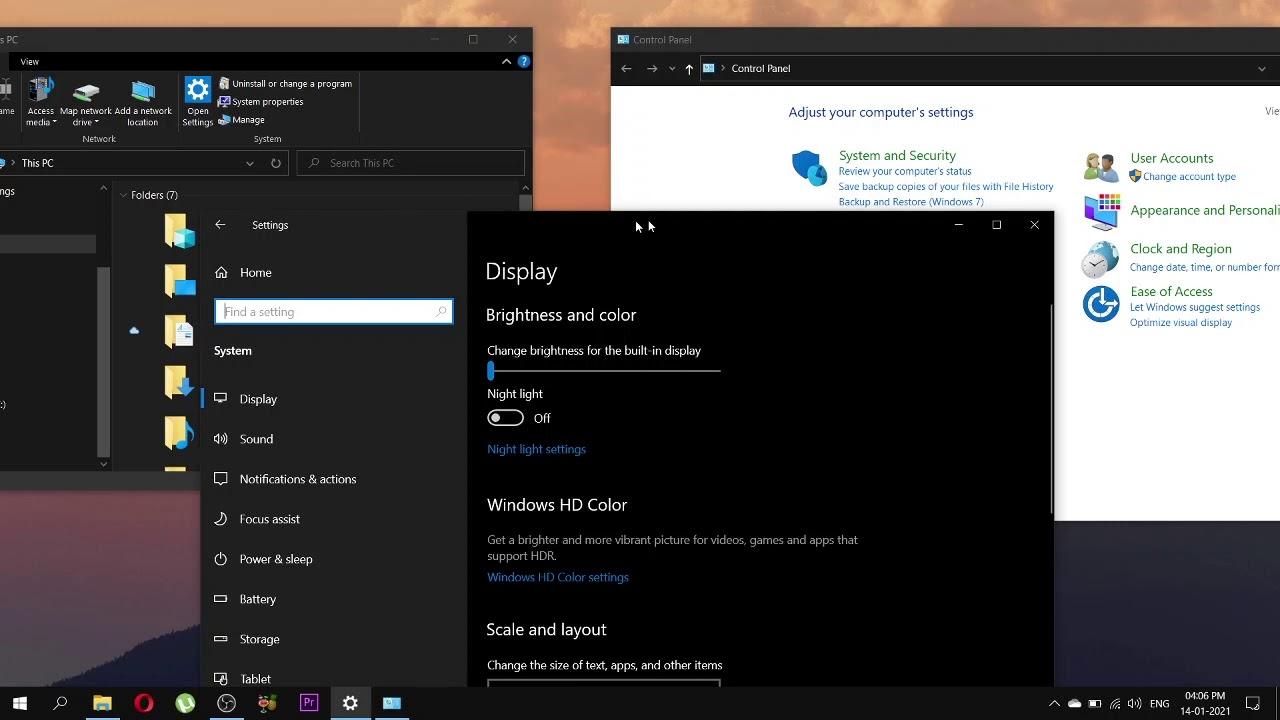
Windows 11 offers several ways to achieve this effect. The most visual and popular method is the Aero Shake gesture , but there are also specific keyboard shortcuts for those who prefer them, and a few more options from the taskbar menu. Below, we'll review them all in detail.
Aero Shake: the gesture of shaking the window
The Aero Shake function is the fastest and most 'physical' way to minimize all windows except the one you're currently using. It works very simply:
- Open multiple windows and select the one you want to keep visible.
- Click and hold on the top bar (title bar) of the active window.
- With the mouse button held down, move the window left and right ('shake').
Automatically, all other open windows will minimize to the taskbar, leaving only the active window on the desktop. If you repeat the shake gesture, the windows will be restored and reappear exactly as they were.
This feature has been available since Windows 7, and it's still present in Windows 11, but for usability reasons, it's disabled by default . In previous versions (like Windows 10), it was enabled by default, but Microsoft decided to change this because some users were accidentally activating it simply by slightly moving a window.
How to enable (or disable) Aero Shake in Windows 11
If you try the gesture and it doesn't work, you probably need to enable the option in your settings. The steps are:
- Sign in Configuration of Windows (you can do it with Windows + I).
- Go to the section System and inside to Multitasking.
- Find the switch “Shake title bar in windows” and activate it.
From now on, Aero Shake will be available every time you shake the active window. If you ever want to disable this option (for example, if you find it annoying when windows minimize when you move them), just return to this menu and uncheck it.
What happens if you accidentally move the window?
Aero Shake can be accidentally activated if you roughly drag a window. It's not a big deal because, as we've seen, shaking it again restores the original windows . The system remembers the previous arrangement, so you won't lose any windows or open documents.
Keyboard shortcuts to minimize windows in Windows 11
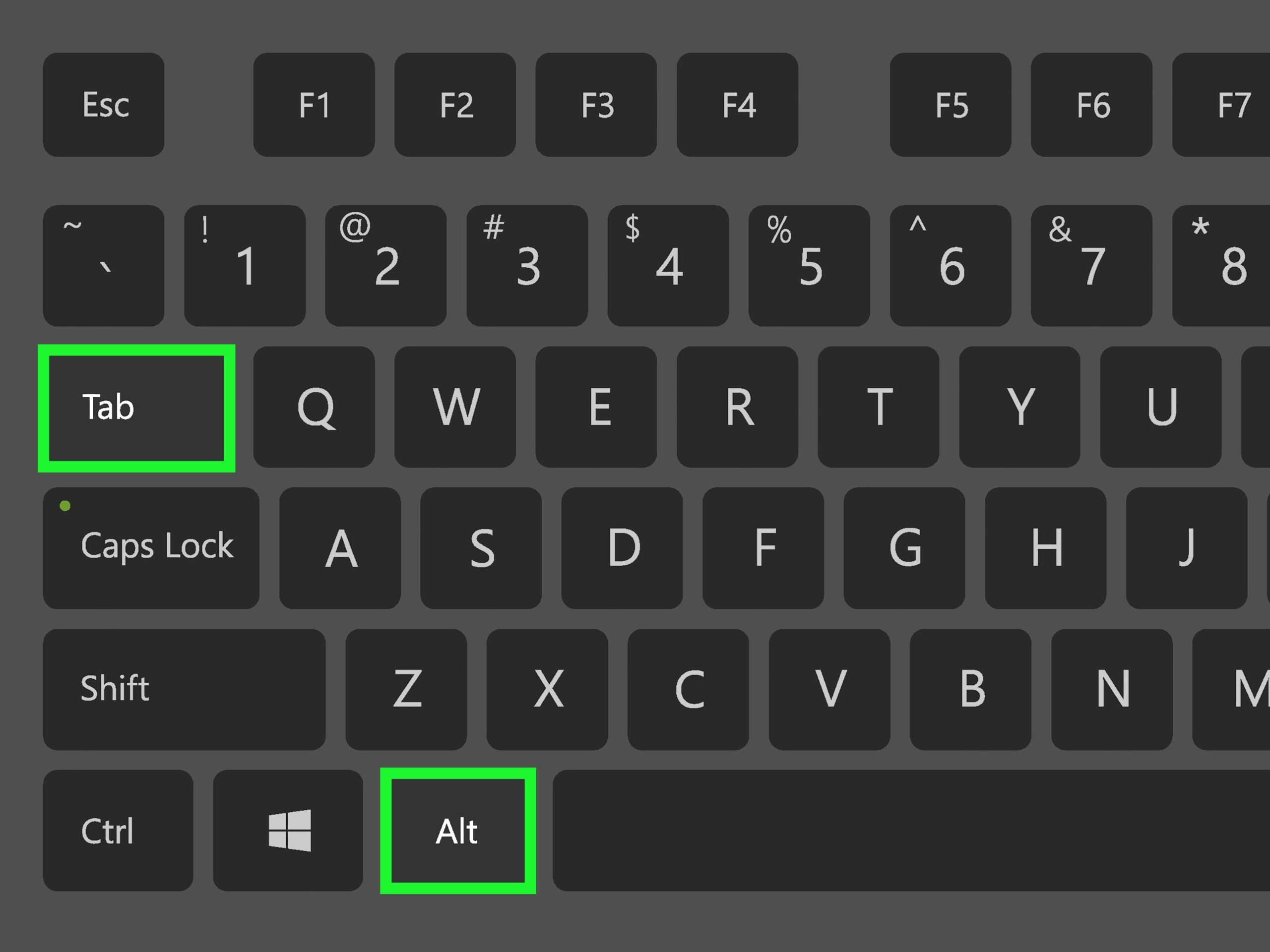
For those who prefer keyboard speed, Windows 11 includes numerous shortcuts for minimizing, restoring, or rearranging windows . The most direct shortcut to minimize all but the active window is the following:
- Windows + Start: Minimizes all windows, leaving only the active one.
By pressing these keys simultaneously, only the currently selected window will remain on the screen, while the rest will move to the taskbar. If you press the shortcut again, all minimized windows will return to their original position.
It's important to note that there are other shortcuts to minimize all windows (including the active one) , but not to leave only one on the screen. For example:
- Windows + CODE: Minimize all windows.
- Windows + D: Show or hide the desktop (minimize or restore all windows).
- Ctrl + Shift + M: Restores all minimized windows.
To minimize only the active window, you have:
- Windows + down arrow: Minimize the active window (if it is maximized, it restores it first and then minimizes it).
All these shortcuts help you control your desktop and adapt it to your needs at any given time.
More tips for managing windows in Windows 11
Window management in Windows 11 goes far beyond Aero Shake and basic shortcuts. The system includes advanced tools for organizing your screen and multitasking . Here are some other useful features and combinations:
- Windows+Z: Opens the snap layouts to place windows in different positions or groups.
- Windows + left/right/up/down arrow: Adjusts the active window to different areas of the screen, allowing work in parallel.
- Windows + Tab: Access Task View and Virtual Desktops.
- Windows+Ctrl+D: Create a new virtual desktop (to separate different tasks or sessions).
Other useful shortcuts for moving between open windows and applications include:

- Alt + Tab: Quickly switch between open windows.
- Alt + F4: Close the active window.
- Windows + BILLION: Navigate through pinned apps on the taskbar using the arrow keys and Enter.
- Windows + number: Opens the application located in the corresponding position on the taskbar.
Windows and shortcuts: differences depending on the version of Windows
As we mentioned at the beginning, Windows 7 was the version where Aero Shake first appeared . In Windows 10, the feature is generally enabled by default, but in Windows 11 it is disabled by default as a measure to prevent accidental activation , although the other methods and shortcuts continue to work the same.
In addition, Windows 11 has improved window management by incorporating Snap Layouts and virtual desktops, but the option to minimize all windows except the active one remains available for those who wish to enable it . If you're coming from a previous version and find the initial setup unfamiliar, remember that you'll most likely need to manually enable Aero Shake by following the steps outlined above.
Alternative option: third-party applications for window management
If for any reason you need more advanced features than those offered by Windows by default, there are third-party programs and utilities that expand your desktop organization possibilities . A classic example is WinXCorners , which adds customizable gestures and actions to the corners and edges of the screen, allowing you to set rules, shortcuts, and automations to minimize, move, or resize any window with a click of the mouse.
These applications can be useful for those seeking complete customization of the work environment, although in most cases, the native solutions of Windows 11 are more than sufficient for normal and even intensive use.
Other useful shortcuts and functions for productivity
In addition to the above, it's worth remembering some additional shortcuts and tricks to get the most out of Windows 11 for desktop tasks :
- Windows + E: Open File Explorer.
- Windows + G: Launches the Game Bar.
- Windows + R: Opens the Run box.
- Windows + U: Access the accessibility center.
- Windows + Shift + S: Select a region of the screen to capture an image.
- Windows + P: Change the screen projection mode when you have an external monitor or TV.
There are also specific shortcuts for working with text (copy, paste, select), managing virtual desktops, and manipulating programs from the taskbar or using touchpad gestures if you're using a laptop.
Touchpad gestures: extra productivity for laptops
Laptops with Windows 11 typically come with a touchpad that supports multiple gestures, making many actions easier without using a keyboard or external mouse . Some of the most useful gestures include:
- Three-finger tap: Show searches or notifications.
- Swipe down with three fingers: Show the desktop (minimizes all windows), and swipe up again to restore the windows.
- Four-finger swipe: switch virtual desktops.
- Pinch in or out: zoom in.
These gestures, along with Aero Shake features and keyboard shortcuts, make Windows 11 an extremely flexible environment to adapt to any window management and multitasking needs.
Mastering all the methods for minimizing windows, except for the active option in Windows 11, can make a significant difference in your daily productivity. You have access to everything from native options like Aero Shake and convenient keyboard shortcuts to new snapping layouts and virtual desktops. Activate the features that suit you best, customize touchpad gestures if you're using a laptop, and experiment with different combinations until you find your ideal way to keep your desktop clean and focused on what matters most at any given moment. This way, working or enjoying your computer will be much more comfortable and efficient, eliminating visual clutter and distractions.

Passionate writer about the world of bytes and technology in general. I love sharing my knowledge through writing, and that's what I'll do on this blog, show you all the most interesting things about gadgets, software, hardware, tech trends, and more. My goal is to help you navigate the digital world in a simple and entertaining way.