- Accuracy is improved by combining appropriate sensitivity, DPI from the sensor and acceleration disabled when you are looking for 1:1 control.
- Use mouse software for exact DPI and Windows for fine adjustments; adjust the games separately.
- Customize your pointer (size/color/schemes) to make it easier to see and make fewer mistakes on delicate clicks.
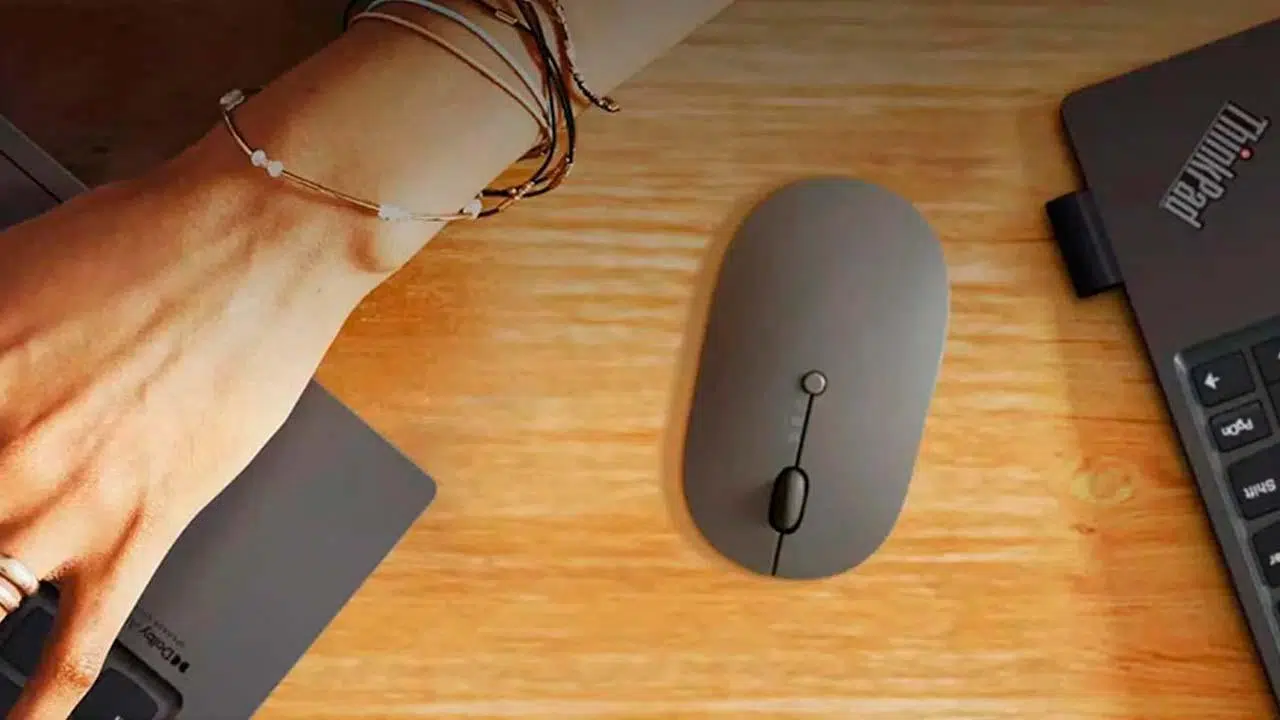
If you're trying to fine-tune your pointer control and wondering how to make your mouse more precise in Windows 11 , you've come to the right place. True precision comes from a good combination of sensitivity, acceleration, and DPI , along with some visibility settings and pointer customization.
In the following lines, you'll find everything you need: step-by-step instructions in Windows 11 and Windows 10, how to disable acceleration (improving pointer accuracy), how to adjust cursor speed on both mouse and touchpad, and best practices for gaming and everyday work. We'll include manufacturer tips and recommendations to ensure your pointer goes exactly where you want it to , without surprises and with minimal latency.
Configure Windows for really fine mouse control
The first step to improving accuracy is to review the system's native settings. Windows 11 and Windows 10 offer clear controls for pointer sensitivity, acceleration, and appearance , and it's best to adjust them in the correct order to see an immediate improvement.
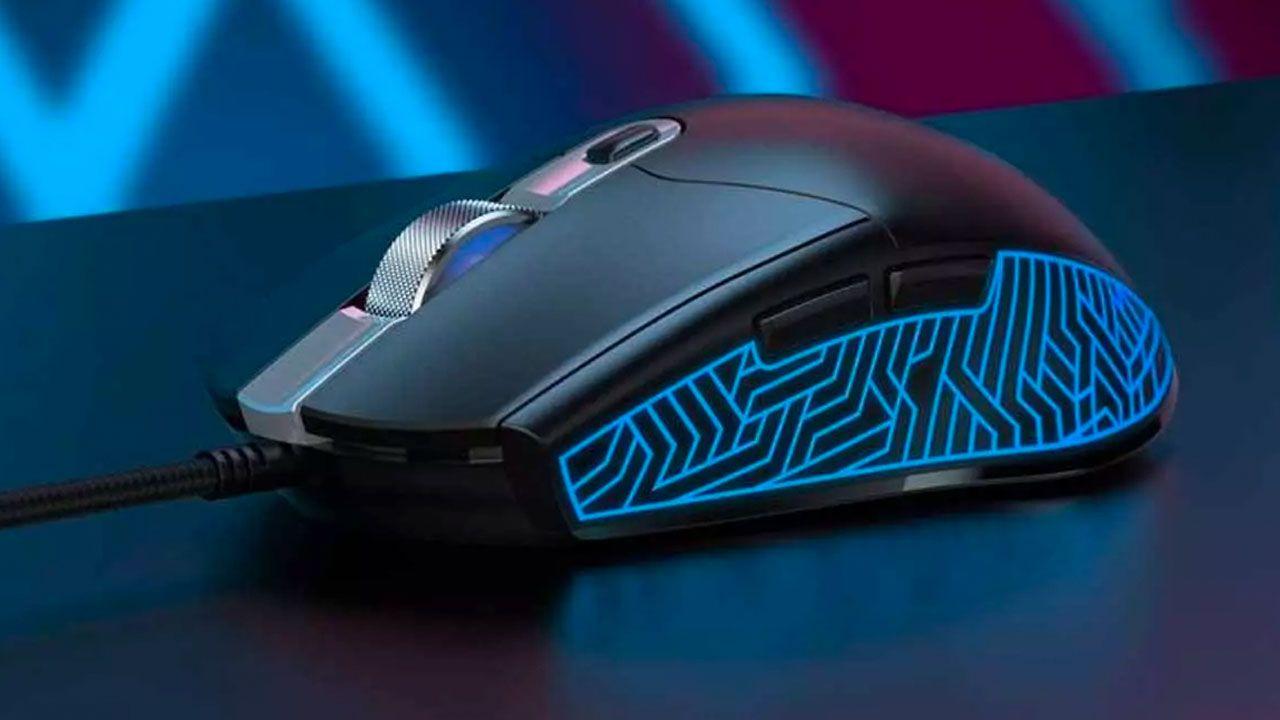
Adjust the cursor (mouse) speed in Windows 11
For most users, starting with pointer sensitivity is the quickest way. Here's how to change mouse pointer speed in Windows 11 without any hassle:
- Open Start and type "Mouse Settings." Click Open.
- Under “Mouse Pointer Speed,” move the slider left or right until scrolling feels natural.
Try it while moving the mouse from side to side. The idea is to reach any area of the screen without falling short or going too far , and without having to constantly lift the mouse from the pad.
Adjust the cursor speed (touchpad) in Windows 11
If you're using a laptop, it's a good idea to align the touchpad sensitivity with that of the mouse. Windows 11 clearly separates both controls to prevent one setting from interfering with the other.
- Open Start and search for "Touchpad settings." Click Open.
- Under “Cursor Speed,” move the slider and try short and long gestures and movements.
When switching between mouse and trackpad, maintaining consistent sensitivities reduces adaptation time and prevents aiming errors in precision apps (editors, spreadsheets, etc.).
Adjust the cursor speed in Windows 10 (mouse and touchpad)
In Windows 10 the process is similar, although the names change slightly. For the mouse :
- Type “Mouse settings” in Windows search and open the panel.
- Under “Cursor Speed” move the slider until you find the ideal spot.
If that control doesn't appear (depending on your Windows version/edition), there's a classic alternative. Follow these steps :
- In Mouse Settings, go to “Additional Mouse Options.”
- Mouse Properties will open. Go to the Pointer Options tab.
- Under "Select a pointer speed," adjust the slider. Click Apply, then OK.
For the touchpad in Windows 10, open "Touchpad settings" and adjust "Change cursor speed." This will give you control over both the peripheral and the touchpad , preventing interference between them.
Turn off or on "Enhance pointer precision" (acceleration)
This point is key, especially if you play FPS games or work on tasks where movement needs to be precise. Acceleration makes the pointer move according to the speed of the gesture , not just the physical distance traveled with the mouse. This accelerates the cursor when you move quickly and decelerates it when you move slowly.
To disable it in Windows 10 and 11 from the Control Panel :
- Open the Control Panel and go to “Hardware and Sound” > “Mouse.”
- In “Mouse Properties”, “Pointer Options” tab.
- Under “Motion,” uncheck “Improve pointer precision.”
- Click Apply and then OK.
By disabling acceleration, the physical distance you move the mouse corresponds more predictably to the on-screen movement . This is often ideal for fine aiming. If you can't get used to it or your desktop is very small, you can re-enable acceleration.
When is it appropriate to maintain acceleration?
It's not all black and white. There are cases where acceleration still makes sense and can be useful:
- If after deactivating it you lose control of the cursor because you have been using acceleration for years and it is difficult for you to adapt.
- If you don't have desktop space and need to cover a lot of screen space with little movement.
- If the game or app requires lightning-fast turning and movement, and you value speed over pinpoint accuracy. Tips for esports
An important tip: avoid constantly turning the acceleration on and off . Your body adapts better when you maintain a consistent setting for several days.
Change the appearance of the pointer: size, color, and schemes
Making the pointer more visible also affects your accuracy, especially on large screens or with light/dark backgrounds. In Windows 11, you can adjust the size and color from Accessibility settings.
- Start > Settings > Accessibility > Mouse Pointer.
- Choose pointer size and color (white, black, inverted, or custom).
For more advanced options (individual schemes and icons):
- Go to Settings > Bluetooth & devices > Mouse.
- Under “Related Settings,” tap “Additional Mouse Options.”
- In “Mouse Properties,” open the “Pointers” tab.
- In "Combination," select an entire scheme or customize individual pointers with "Browse." When you're done, click OK to save..
Choosing a more visible pointer reduces click errors and makes navigation more comfortable. If you work long hours in Excel or text editors, you'll notice the difference from day one.
Alternative route and useful shortcuts
In addition to navigating through menus, you can use Windows search. Type "Mouse," "Mouse pointer," or "Pointer options" in Start to jump directly to the options. In older builds, it may appear as "Devices > Mouse" (Windows 10) before you reach the classic options.
How to choose the exact sensitivity without losing precision
The Windows DPI slider is handy, but it works at the system level and uses percentages, not exact values. This means the change is software-based and doesn't give you a precise DPI number . At the midpoint, Windows maintains the base sensitivity; if you lower the slider to half, it reduces it to approximately 50%, and so on.
On systems with modest CPUs or during heavy workloads, software sensitivity adjustments can add a touch of jitter (erratic movement). It's not common, but if you notice jerking when moving the mouse, consider the following methods.
Advanced Settings: DPI, Mouse Software, and Games
When you need pinpoint accuracy, there's more to life than Windows controls, and it's helpful to know how to fix accidental double-clicks . The best approach is to adjust the sensor using the manufacturer's software or physical DPI buttons , and then fine-tune the settings in your everyday games.
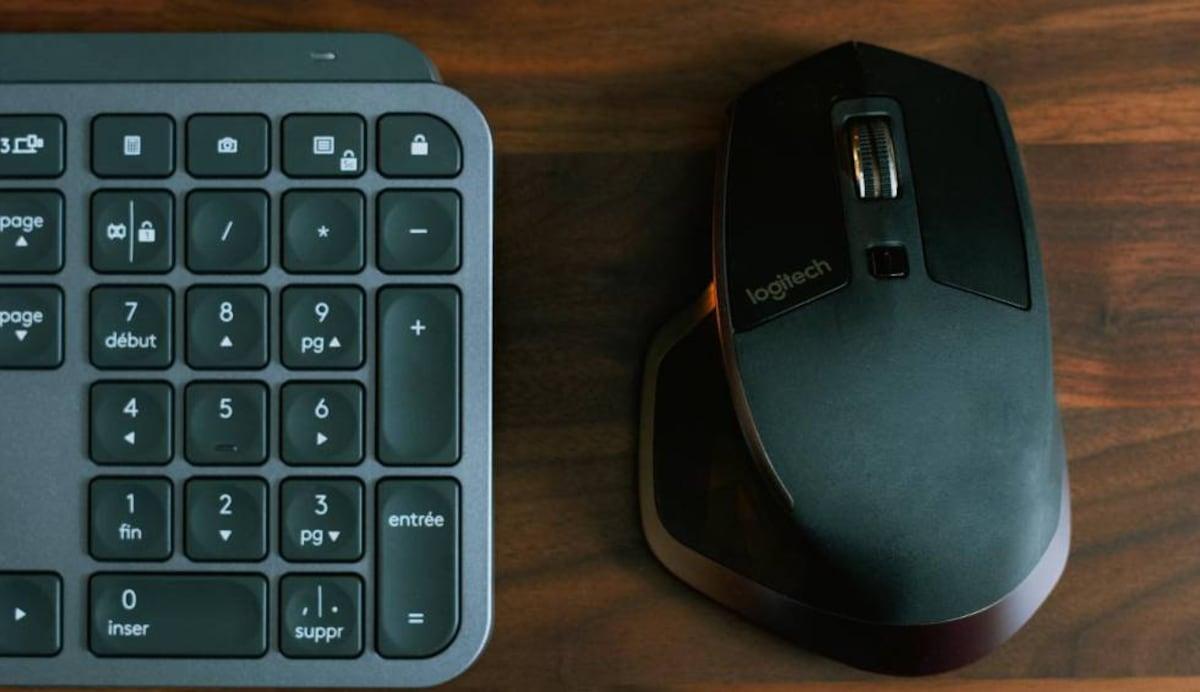
With the mouse application (manufacturer software)
If your mouse has its own software (Logitech, Razer , Corsair, etc.), use it. These programs communicate directly with the sensor and allow you to set exact DPI settings (800, 1200, 1600, 3200, etc.), create application-specific profiles, and save settings to the mouse's internal memory in many models.
Clear advantages: fine-tuning, less system dependence, and more stable response . If your mouse supports onboard memory, you can transfer your sensitivity settings to any PC without installing anything.
From the mouse itself (DPI buttons and “sniper” button)
Many gaming mice include one or two dedicated buttons for changing DPI on the fly. This is the fastest way to increase or decrease sensitivity without opening menus . There are usually several preset DPI levels provided by the manufacturer.
Some models, like the typical mouse with a "sniper" button, temporarily reduce sensitivity while you hold it down . This is ideal for sniping in FPS games: longer movement on the mousepad = finer aiming in the game.
Game Sensitivity: Independent of Windows
Important: Windows sensitivity settings don't apply in games. Each title has its own settings and scale , so you'll need to configure them for each game individually. Go to the game's options, look for "Mouse" or "Control," and adjust until you feel completely in control.
If a game doesn't offer that option (some don't), you can use the mouse's DPI buttons or profiles in the manufacturer's software . This way you don't have to touch Windows and your workflow remains intact outside of the game.
Screen resolution and its impact on accuracy
Moving the pointer across 1920 pixels is not the same as moving it across 2560 or 3840. Knowing the maximum supported resolution helps you adjust your DPI. The higher the resolution, the more movement you need to cross the screen at the same DPI. On a 4K monitor, for example, it's normal to slightly increase the sensitivity or DPI compared to a 1080p monitor.
The key idea: find a balance where you can reach corners and menus without straining your wrist , and where you can aim precisely in games without overshooting the target. Adjust DPI and game sensitivity together.
How much DPI do I really need?
Don't get hung up on stratospheric numbers. For most people, 800–1600 DPI is perfectly adequate for both work and play . 2400 DPI is more than enough in many cases, and 3200–6400 DPI is only useful in very specific situations.
At 32.000 DPI, any micro-movement sends the pointer flying across the screen ; it's impractical for everyday use. A good, stable sensor without unwanted acceleration is far better than marketing numbers that are impossible to live up to.
Windows or mouse software?
Windows is great for quick adjustments, but if possible, prioritize using your mouse software to define precise DPI settings and profiles . This will give you consistency across games and apps, and a more "mechanical" and predictable feel.
Even so, both methods are compatible : set the DPI with the manufacturer and make minimal adjustments in Windows to fine-tune the overall feel. If you notice strange behavior under heavy load, reduce Windows' DPI settings and let the mouse's DPI control the settings.
When to change and when to keep your settings
If you've been using acceleration for years, give yourself time. Your muscles learn, and after a few days, you'll improve your accuracy effortlessly . Avoid switching between on and off every afternoon, because that way you'll never fully adapt.
On small desktops, slightly higher sensitivity or enabled acceleration can help . If you switch to a larger gamepad, try disabling acceleration and lowering the DPI for improved precision.
Customize your pointer to see better and miss less
Beyond sensitivity, a good-looking pointer is important. Change its size and color in Accessibility > Mouse Pointer to make it stand out against light/dark backgrounds. In "Pointers," you can choose a complete scheme or individual icons for each action.
A larger or higher-contrast arrow can make all the difference when you're making small clicks in spreadsheets, editors, or video timelines. Don't underestimate the visual impact on your accuracy.
Quick checklist for smooth mouse operation
If you want a straightforward recipe, here's a quick rundown of the basics. Adjust in this order and test each change before proceeding :
- Set base DPI with mouse software (e.g. 800–1200 DPI to start).
- In Windows 11, leave the speed slider near the center and test.
- Disable “Enhance Pointer Precision” if you’re looking for 1:1 (especially for FPS).
- Go into your main game and adjust the sensitivity there until you get the aim right.
- In Accessibility, increase the pointer size/contrast if you have trouble seeing it.
Save separate profiles if you switch between work, editing, and gaming. Switching profiles with a key or when opening an app saves you minutes every day.
With all of the above, you should notice a clear improvement in control: predictable movements, firmer clicks, and fewer corrections. Between disabling acceleration, properly adjusting the speed, and setting the appropriate DPI , the pointer stops "floating" and starts responding consistently to your hand.


A passionate writer about the world of bytes and technology in general. I love sharing my knowledge through writing, and that's what I'll do on this blog: show you all the most interesting things about gadgets, software, hardware , tech trends, and more. My goal is to help you navigate the digital world in a simple and entertaining way.