- El HDR provides a superior visual experience with greater dynamic range and vibrant colors.
- It is essential to have hardware and compatible software, including monitor, GPU, and codecs.
- Windows 11 makes it easy to verify, activate, and calibrate HDR with built-in tools and dedicated apps.
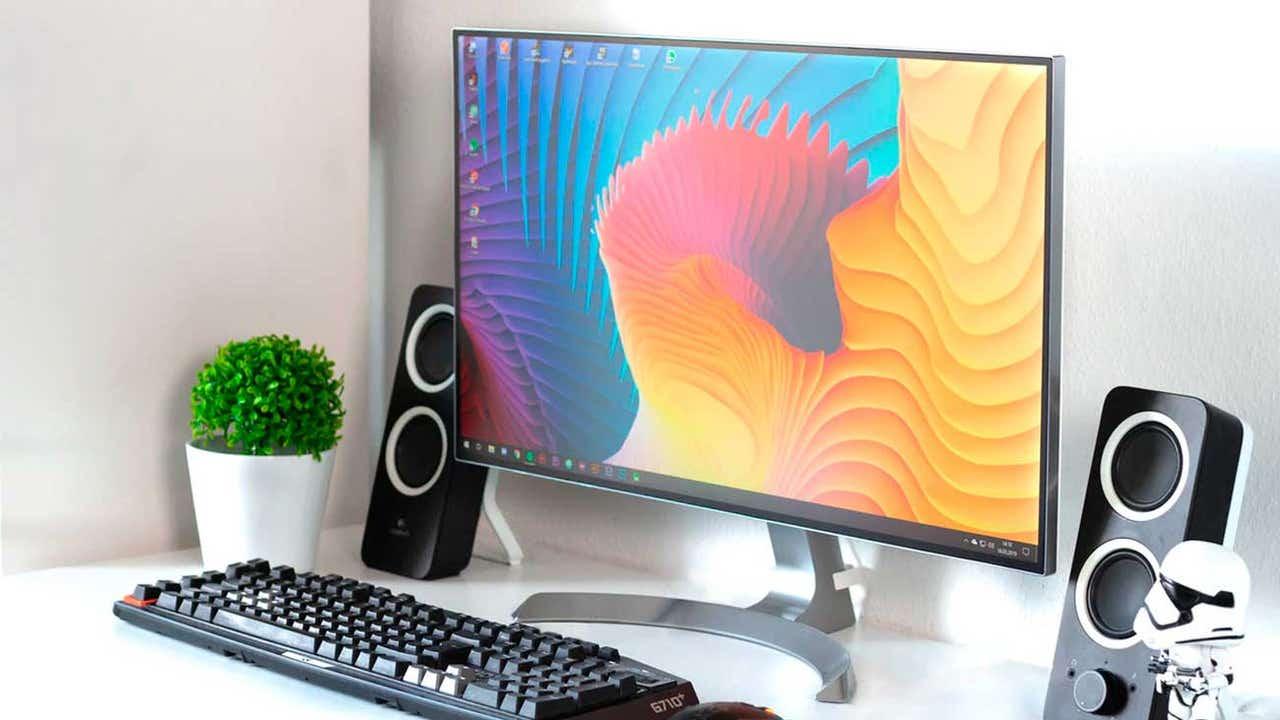
Today, HDR has become one of the star features for those seeking the best image quality on their Windows 11 computer . But despite the term's popularity, it's not always clear how to know if your screen is truly HDR-compatible or how to take full advantage of its benefits. Whether you want to enjoy your favorite series, movies, and video games with a more realistic look, or you're simply interested in having the best possible visual experience, this article will serve as a complete guide to answer all your questions about HDR support on your computer.
We'll break down everything from the hardware and software requirements and the steps to activate and configure it correctly , to tips for calibrating your screen and avoiding common problems. If you're wondering exactly what HDR is, how to check if your monitor supports it, and what you need to get the most out of it in Windows 11, keep reading because you'll find all the information you need here, explained clearly and practically.
What is HDR and why is it important in Windows 11?
HDR (High Dynamic Range) is a technology that has revolutionized image quality in televisions, monitors, and laptops in recent years. It allows for a wider range of colors, sharp details in both the brightest and darkest areas , and ultimately, images that are much more true to life.
In Windows 11, HDR is integrated to take advantage of these improvements not only in videos and movies, but also in video games and multimedia content. The result is a more vibrant image, with intense colors and remarkable contrast . Thus, scenes with extreme differences in light and shadow, such as a sunset or a room with a lit candle, appear more natural and pleasing to the eye.
This feature has become so popular that more and more monitors, laptops, and televisions are including HDR as a selling point. However, to enjoy it properly, the screen, operating system, and graphics card must all be compatible and everything must be correctly configured.
Requirements for your display to support HDR in Windows 11
Before enabling HDR in Windows 11, it's essential to know if your device meets the necessary hardware and software requirements . Otherwise, the option may not appear, or the experience may not be as expected. Here are the aspects you should check:
- HDR Compatible Display: It must support standards such as HDR10. If it is an integrated display (laptop, tablet or 2-in-1), it requires a minimum resolution of 1080p or with a maximum brightness of at least 300 nits. On external monitors, verify that they support HDR10 and have connections such as DisplayPort 1.4, HDMI 2.0 or higher, USB-C or Thunderbolt.
- Monitor HDR Certification: Check if your screen has recognitions like DisplayHDR 400, 600 or 1000The higher the number, the higher the maximum brightness the monitor can achieve, which translates into better results with compatible content.
- Supported graphics card: The latest GPUs usually support HDR without problems. On cards NVIDIA, from the 900 series onwards already offer it (with HDMI 2.0). On AMD, the RX 400 series and above include it, and some RX 300 series models (with HDMI 1.4b) support HDR with certain limitations.
- Drivers and operating system: It is essential to have Updated Windows 11 and the latest graphics drivers. HDR metadata management and options like adjusting SDR brightness are only available in the latest versions.
- Installed codecs: You need the following codecs to play HDR content on platforms streaming:
- HEVC (for Netflix and other premium services).
- VP9 (for YouTube).
- AV1 (emerging, increasingly used).
- Other requirements: The app Windows HDR Calibration requires running the app in full screen, having a recent graphics card and the driver supporting it WDDM 2.7 or higher.
Most monitor or laptop manufacturers clearly state whether their display supports HDR. If you're unsure, check the specifications or the manufacturer's official website.
How to check if your display supports HDR in Windows 11
If you already have a monitor or laptop and want to know if you can use HDR, follow these steps:
- Open the menu Home and access Configuration.
- Enter the section System and later Screen.
- Click on Advanced display. Here you will see the list of connected displays and, next to each one, information about its HDR certification (DisplayHDR, Dolby Vision, etc.).
- Look for the line that indicates if it is certified for HDR and what maximum brightness level it can reach.
- On that same screen, you can see if HDR is enabled and what capabilities your display offers (e.g., HDR video playback, gaming, etc.).
You can also check the manufacturer's website or the equipment manual if you have any doubts about compatibility.
How to enable and configure HDR in Windows 11 step by step
If you've verified that your display supports HDR, you can enable it and adjust several options from Windows 11 settings:
- Opens Settings > System > Display.
- Select the screen on which you want to activate the HDR (important if you use more than one monitor).
- Activate the option Use HDRThe screen may go black for a moment before adjusting the HDR profile.
- Access the HDR settings submenu (click on the 'Use HDR' text or bar). Here you can adjust the brightness for SDR content, activate Auto HDR for games that don't support it by default and configure other options.
- If you want to further fine-tune the image quality, you can download the app Windows HDR Calibration from the Microsoft Store. This app will guide you through test patterns to get the image just right.
You can also quickly access HDR activation/deactivation using the shortcut Windows + Alt + B , especially useful if you switch between work and leisure or if you edit photos and videos.
Calibrate your monitor's HDR profile in Windows 11
To get the perfect HDR look on your screen, it's recommended to calibrate it using the official Microsoft app:
- Install Windows HDR Calibration from the Microsoft Store.
- Open the app from the home menu and make sure you have the HDR-compatible display selected.
- Follow the on-screen steps to set up three test patterns, which help establish:
- The darkest visible detail.
- The brightest visible detail.
- The maximum brightness your screen can reach.
- You can also adjust the color saturation in both HDR and SDR by moving the slider until you get the most natural and pleasing result.
- The app will generate a custom profile for your tracker. If you ever want to delete it, you can do so from the Color Management in the Windows Control Panel.
Remember to perform calibration whenever you change your display settings or add a new monitor to your system. Performing the calibration process after the monitor has been on for about 15 minutes ensures the greatest image stability.
Extra tips and optimizations for perfect HDR in Windows 11
In addition to the basic steps, there are several tips that can improve your HDR experience on Windows 11:
- Use the correct cable: To take advantage of the maximum image quality and refresh rates, connect your monitor via DisplayPort 1.4 o HDMI 2.0/2.1 as allowed by both the monitor and graphics card.
- Keep the drivers updated: Always download the latest version from Windows Update or the official website of your GPU manufacturer (NVIDIA, AMD, Intel).
- Check for the presence of post-processing effects on the monitor: Some HDR monitors activate image enhancement filters that can interfere with calibration. If possible, disable them from your monitor's on-screen display (OSD) menu for more natural colors.
- Choose the best certification: Certified Monitors DisplayHDR o Dolby Vision They usually offer better guarantees of quality and color accuracy.
- Set the brightness and SDR: Windows 11 lets you adjust the brightness of SDR content while HDR is enabled, so you don't lose detail in older videos, photos, or apps.
- Enable Auto HDR for SDR gaming: If you want older games (without native HDR support) to benefit from the visual enhancement, enable the option Auto HDR in the Windows 11 HDR menu. You can leave it enabled by default or disable it at any time if you're not satisfied with the results.
What can I do if the image looks dull when I activate HDR?
One of the most common issues when enabling HDR for the first time is that the screen may appear excessively dull, washed out, or have an odd brightness. This is usually due to:
- The HDR profile has not been calibrated correctly.
- The displayed content is not HDR compatible and improper tone mapping is applied.
- There are incompatibilities between the display configuration and the graphics drivers.
To fix this, perform HDR calibration following the steps above and be sure to keep in mind the recommendations regarding cables, codecs, and drivers. On some monitors, it's possible to switch between DisplayHDR and Dolby Vision modes, or force a manual mode that allows for greater brightness at the expense of color accuracy (accessible from the monitor's menu).
HDR-compatible platforms and content
To enjoy HDR, the content must also be compatible. Currently, major streaming platforms like Netflix, HBO, YouTube, and Disney+ offer a large portion of their catalogs with HDR support if the aforementioned hardware and software requirements are met. Furthermore, if you'd like to learn more about compatibility with different technologies, you can consult the differences between HDR and DCR.
In the gaming world , more and more modern games (and some classics, thanks to Auto HDR) are taking advantage of the technology to offer much more photorealistic environments. Finally, in professional photography and video editing, HDR is essential for those who require maximum color fidelity and detail.
With all these points covered and the steps clearly outlined, anyone with a compatible computer can start enjoying the full potential of HDR in Windows 11 , significantly improving both entertainment and productivity. Whether you're watching TV shows, editing photos, or playing games, having your system properly configured is key to making every image look spectacular on your screen.

Passionate writer about the world of bytes and technology in general. I love sharing my knowledge through writing, and that's what I'll do on this blog, show you all the most interesting things about gadgets, software, hardware, tech trends, and more. My goal is to help you navigate the digital world in a simple and entertaining way.