- Discover the most powerful options for integrating Outlook with OneNote and centralizing your information.
- Learn how to send emails, meetings, and tasks between both apps to optimize your productivity.
- Explore tips and solutions for enabling the add-on and managing tasks or notes synced.
Imagine being able to manage your emails, tasks, and meeting notes all in one place, effortlessly? The integration of Outlook with OneNote has become one of the most powerful tools for those seeking productivity and organization in their daily lives, whether professionally or personally. This combination allows you to keep comprehensive track of emails, meetings, reminders, and important notes , simplifying information management and teamwork.
In this article, you'll discover everything you need to know about integrating Outlook with OneNote , getting the most out of both applications. We'll explore features, integration options across different platforms ( Windows , Mac , Web), methods for sending information between programs, how to work with tasks, meetings, and emails, solutions to common problems, and even tips to improve your daily workflow with practical advice and answers to frequently asked questions.
Why integrate Outlook with OneNote?
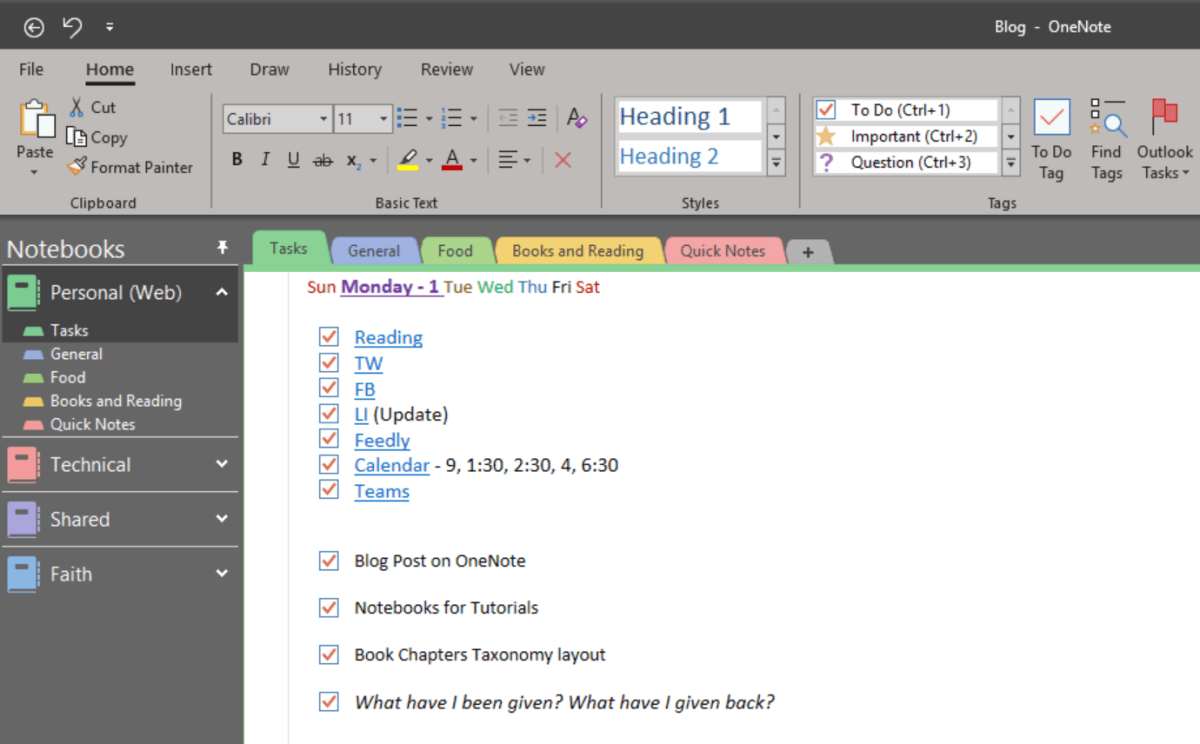
By unifying OneNote and Outlook, you can ensure that the information you receive in your email, calendar, and to-do list is directly connected to your notes and projects. This allows you to centralize all your documents, plans, and pending tasks in a single system , preventing oversights or the loss of important information.
Among the notable benefits of this integration are:
- Complete record of meetings and collaborations: You can save details of agendas, attendees, decisions, and tasks in one place.
- Efficient task management, syncing what you write down in OneNote directly as Outlook tasks.
- Email Organization, storing messages or attachments in thematic notebooks and consulting them whenever you need.
- Improved collaboration thanks to the ability to share notes, distribute minutes, or information directly with your meeting contacts.
Plus, OneNote has a very flexible interface that adapts to the way you work. You can create custom sections, organize them however you like, and move pages between notebooks without limits.
Send Outlook emails and meetings to OneNote
The "Send to OneNote" feature is key to transferring information from Outlook to your notes. It allows you to easily save emails, meeting invitations, and other items to the sections and notebooks of your choice within OneNote.
The process is very similar whether you're using Outlook for Windows, Mac, or the web version. The general steps are:
- Open the email or meeting in Outlook that you want to send to OneNote.
- Find and click on the OneNote icon or “Send to OneNote” in the toolbar.
- Choose notebook and section where you will store the content.
- Confirm with “Save”.
The subject of the email or meeting will become the title of the page within OneNote, and the original date and time will be preserved , making it easier to locate that information later.
Once saved, you can freely move that page to other sections or notebooks, or share it as needed.
Outlook versions supported for Send to OneNote
The Send to OneNote add-in is available in most recent versions of Outlook:
- Outlook for Windows: Included in Outlook 2016, 2021, and Outlook for Microsoft 365.
- Outlook for Mac: Available on the latest desktop versions.
- Outlook for the web (Outlook Online and Outlook.com): You can access from any browser.
Note that Outlook 2019 does not support this feature, and older versions used a COM add-in that may require manual activation.
How to activate or restore the Send to OneNote add-in
If you don't see the OneNote icon in the Outlook ribbon, the add-in is probably inactive or disabled. To activate it on Windows:
- Open Outlook and go to File > Options > Add-ons.
- Search in the inactive plugins section «OneNote Notes about Outlook items«.
- At the bottom, in Manage, select "COM Add-ins" and press Ir.
- Check the box for OneNote and click OK.
You should now see the OneNote button when you select emails, tasks, or meetings in Outlook.
On Mac, if the feature isn't showing up, make sure you have the latest version of Outlook for Mac, as previous versions only allowed this integration for Office Insider users.
Create Outlook tasks from OneNote and vice versa
One of the most interesting advantages is the ability to create Outlook tasks from your OneNote notes and have both applications keep the information synchronized. This way, anything you mark as completed in one place will automatically be reflected in the other.
For this:
- Select the text from your OneNote note that you want to convert into a task.
- On the toolbar, click Outlook Tasks and choose the deadline (today, tomorrow, personalized…).
- The task will appear in your Outlook list and in the note itself, with a flag to follow up.
You can also do the reverse: from an Outlook task, use the OneNote button to save it to the notebook and section of your choice.
To mark it as complete, simply tap the indicator in any of the apps.
How to save emails and attachments in OneNote
In addition to tasks and meetings, you can store any email message or even attachments in OneNote to organize relevant information by project, client, or event.
The simplest process:
- Select the desired email(s) in Outlook.
- Click the OneNote icon on the ribbon.
- Choose notebook and section, and confirm.
It is also possible to send emails directly to OneNote using a special email address:
- Set up your account by accessing https://www.onenote.com/EmailToOneNote and follow the instructions to associate your email address.
- Send any email or note to [email protected] from the registered address.
- The message will be automatically saved in the section you selected during setup.
You can move, copy, or delete these pages as needed, keeping your relevant information at hand.
Integrating meeting details into OneNote
To record meeting details, you can insert information such as the date, topic, attendees, and agenda directly from your Outlook calendar into OneNote:
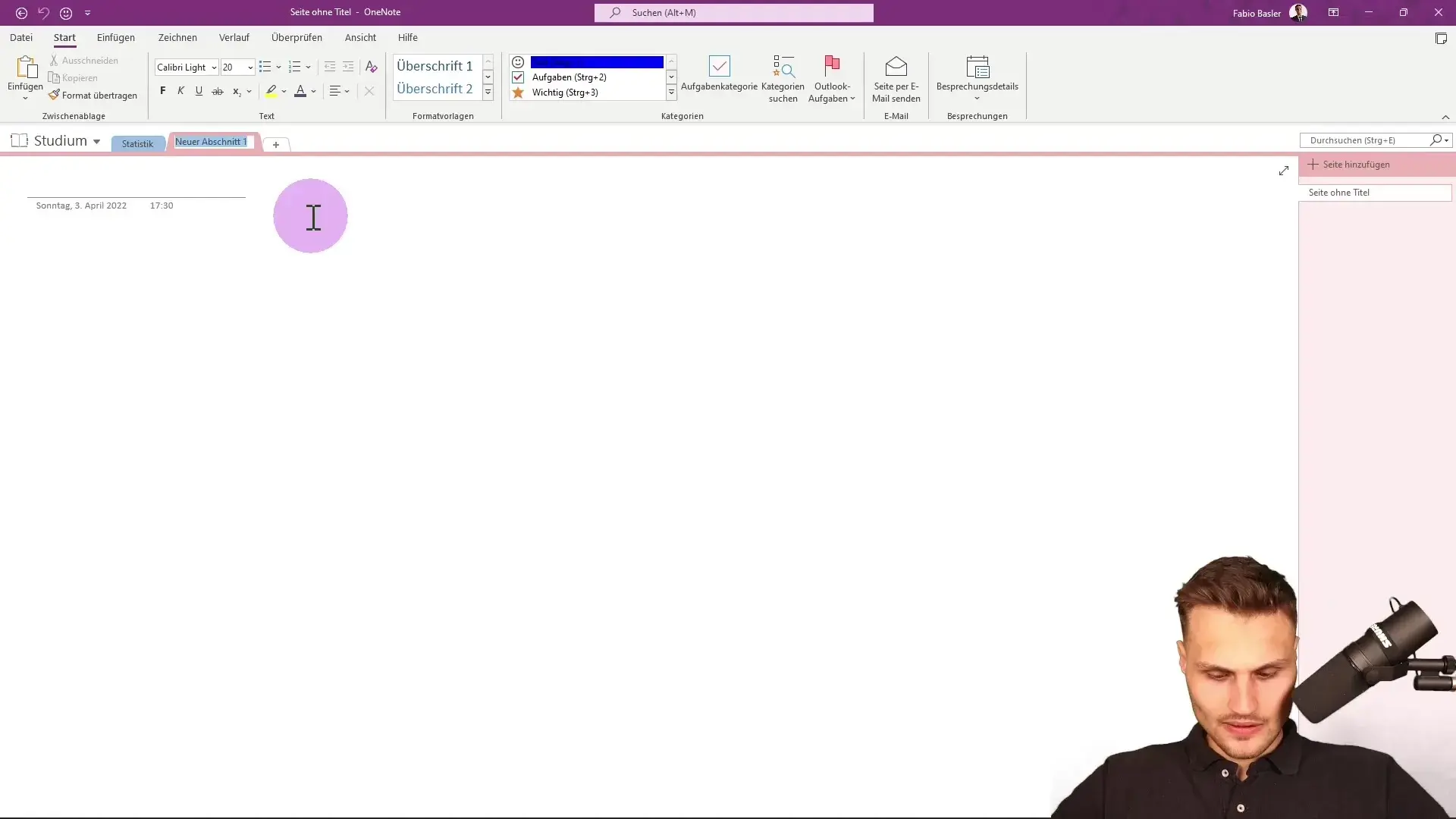
- In OneNote, select Home > Meeting Details.
- Choose the meeting you're interested in from the list (you can search for other dates if needed).
- Click “Insert Details” to display all the details in your note.
These details will be added as editable text , so you can supplement them, modify information, or delete what you don't want, such as attendees who ultimately did not show up.
OneNote feed in Outlook (Outlook for the web and Outlook.com)
The OneNote Feed feature lets you view, edit, and manage notes from different applications (OneNote, Sticky Notes, Samsung Notes, etc.) directly from Outlook on the web. To use it:
- Open Outlook on the web and sign in.
- Click the “OneNote Feed” icon in the toolbar (top right).
- You'll see your recent notes, OneNote pages, and sticky notes synced to your account.
You can create new sticky notes, edit existing ones, and drag them directly into a new, reply, or forwarded email. You can also open OneNote or Samsung Notes pages (the latter can only be viewed).
Integrating Outlook and OneNote is the ideal combination for those who want to unify the management of email, tasks, meetings, and notes, achieving outstanding organization and facilitating collaboration with colleagues. By following the methods we've explained, you'll always have all the information related to your projects at hand and avoid missing important details . Adapt the features to your workflow and you'll notice your productivity increasing day by day.

Passionate writer about the world of bytes and technology in general. I love sharing my knowledge through writing, and that's what I'll do on this blog, show you all the most interesting things about gadgets, software, hardware, tech trends, and more. My goal is to help you navigate the digital world in a simple and entertaining way.