- PlayCover lets you run iPhone apps and games on Macs with Apple Silicon, with real support for keyboard, mouse, controllers, and full screen.
- To use PlayCover, it is necessary to disable Gatekeeper and, in some cases, also SIP, assuming the security risks involved.
- The tool works with .ipa files of iOS applications and installs them in their own folder within Documents on macOS.
- Not all iPhone apps will work perfectly on Mac, but PlayCover greatly expands the possibilities beyond Apple's official compatibility.
If you have a Mac with an Apple Silicon chip and you love your iPhone apps and games, you've probably wondered how you could use those iOS apps directly on your Mac without relying solely on those available in the Mac App Store. Apple promised integration between iOS and macOS with the arrival of the M1 processor, but the reality is that the native experience falls somewhat short.
The good news is that there's a tool called PlayCover that lets you install iPhone apps and games on your Mac with full support for keyboard, mouse, controllers, and full screen . In this article, we'll see, step by step, how to get the most out of it, what you need, what limitations it has, and what you should keep in mind regarding security to ensure everything runs smoothly.
What is PlayCover and what can it do on your Mac?
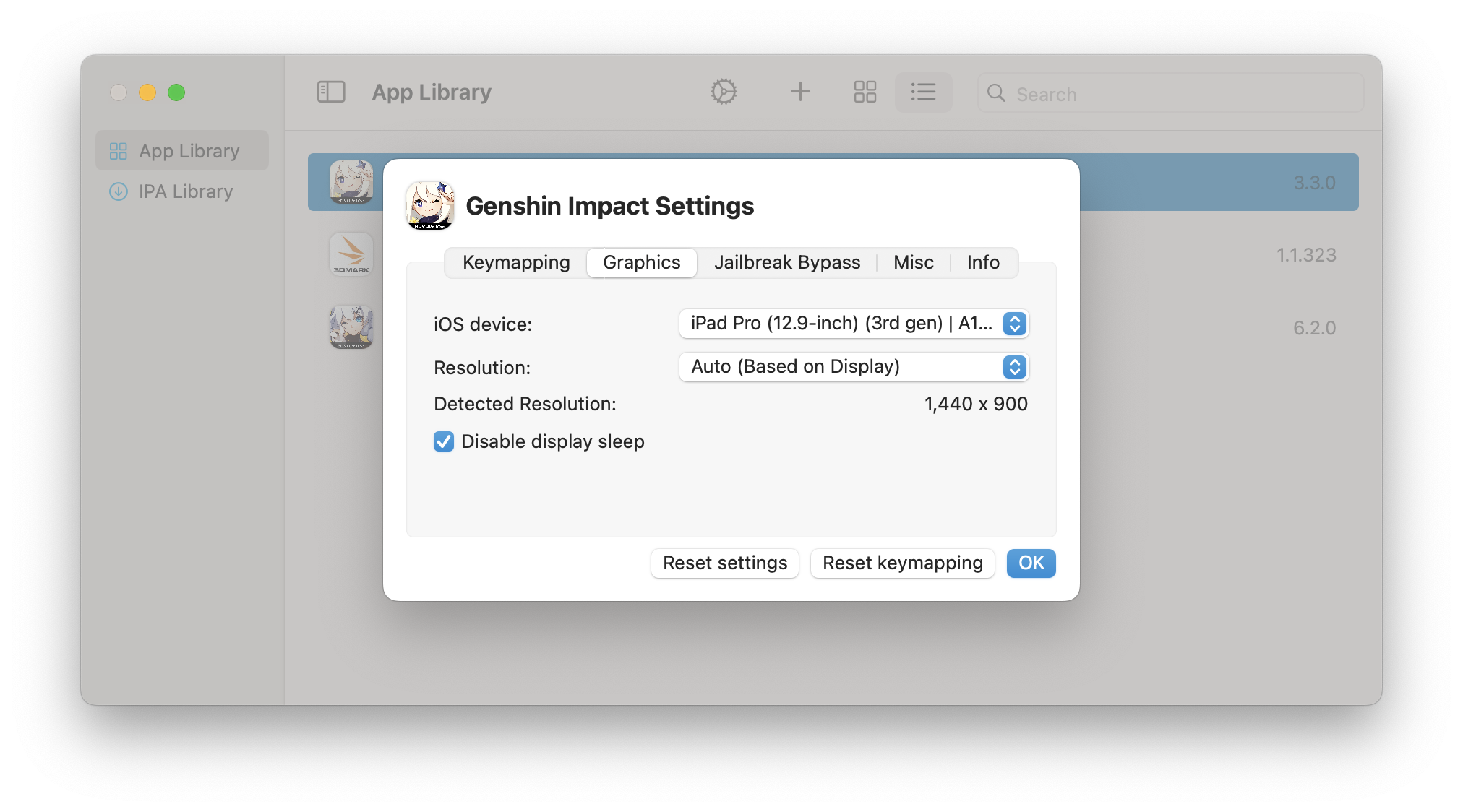
PlayCover is an application created by Alexandr Dorofeev and his team that bridges the gap between apps originally designed for iPhone or iPad and your Mac with an Apple Silicon processor. Instead of settling for basic iOS compatibility on macOS, this tool offers an experience much closer to that of a native computer game or app.
The key difference from Apple's official compatibility is that, with PlayCover, iOS apps run with genuine support for keyboard, mouse, gamepads, and full-screen mode . This means you no longer have to simulate a touchscreen using the trackpad or mouse as if you were "tapping" the iPhone screen; you can map controls, use keyboard shortcuts, and play comfortably.
On the official PlayCover website, you'll find a Frequently Asked Questions (FAQ) section where the team provides detailed setup instructions, troubleshooting tips, and requirements . It's a good reference point if you get stuck at any step, but we'll cover the entire process in detail here so you can follow along without getting lost.
It's important to note a key detail: PlayCover is only compatible with Macs using Apple Silicon chips (M1, M1 Pro, M1 Max, M1 Ultra, M2, etc.). The website mentions they are working on a possible version for Intel-based Macs, but currently the tool is specifically designed for the ARM architecture of the latest Macs.
Furthermore, PlayCover doesn't directly download apps from the App Store; instead, it relies on .ipa files , which are the iOS app installation packages. This means that to use a specific game or app, such as an App Store title, you'll need its .ipa file to drag and drop into PlayCover for processing.
Limitations of iPhone apps on macOS without PlayCover
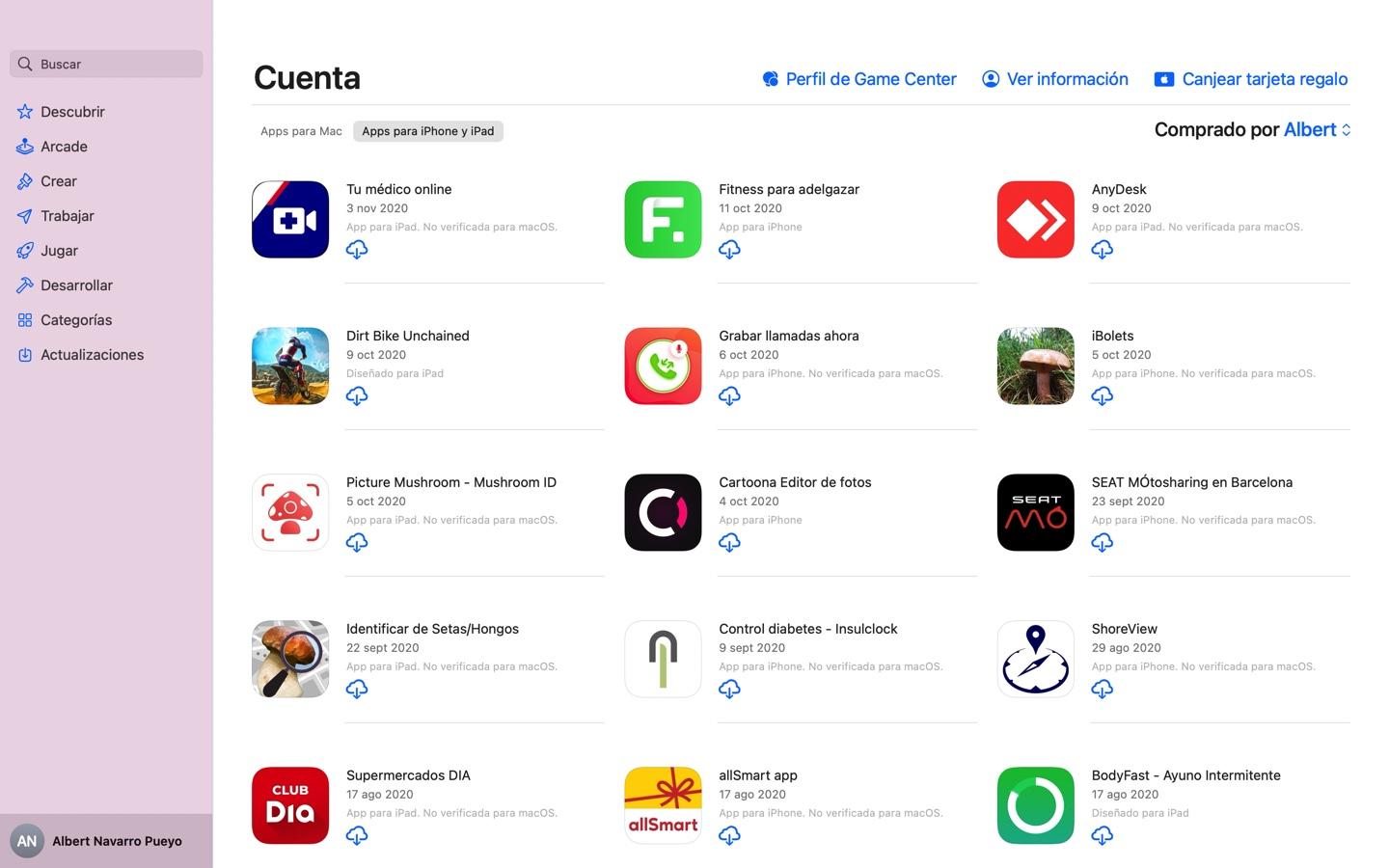
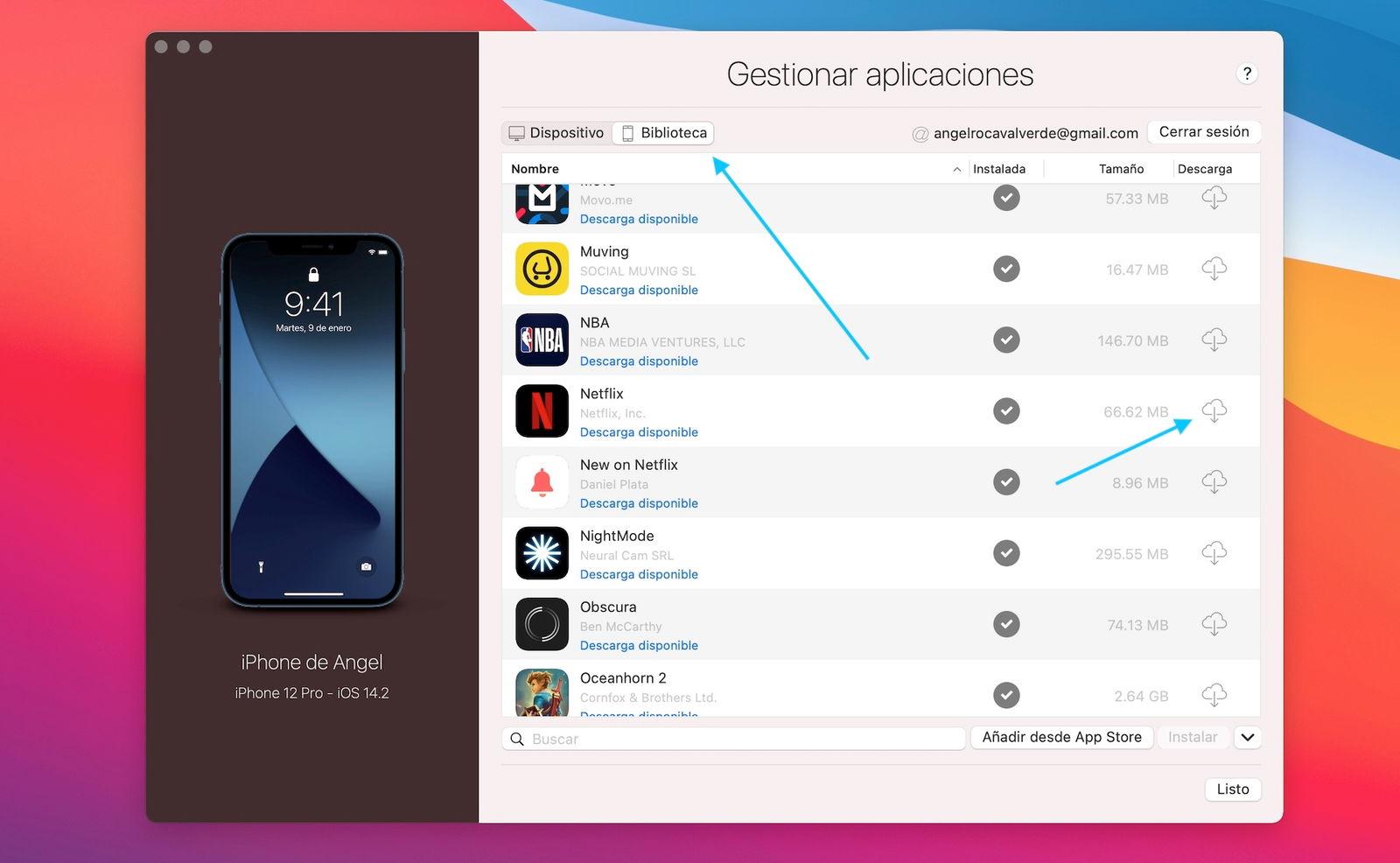
When Apple introduced the M1 chip, one of its biggest promises was that iPhone and iPad apps could run directly on macOS . Technically, this is true: some iOS apps have been made available for Mac installation by developers through the Mac App Store. However, the real-world experience has quite a few drawbacks.
The biggest problem is that these apps often lack adequate keyboard and mouse support . Many are designed for touchscreen use and don't properly understand clicks, keystrokes, or typical computer input combinations. In practice, you end up moving the cursor as if it were a virtual finger and tapping the screen, which is awkward, imprecise, and feels unnatural.
Another weak point is window management: not all apps are optimized for true full-screen mode , nor for large resolutions or formats other than those of the iPhone or iPad. This results in black borders, distorted interfaces, or elements that appear too small or too large.
In the specific case of games, things get even more complicated. Many mobile titles are perfectly playable with a physical controller or keyboard, but when you bring them to a Mac, you lose those dedicated control schemes , so you can only mimic on-screen taps. That's where PlayCover makes all the difference, as it lets you map controls and enjoy games with a feel much closer to that of a PC or console game.
You may have even tried to install a specific app, such as a Bible reading or study app like Tyndale House's Filament Bible, only to find that it's not available in the Mac App Store despite being perfectly functional on iPhone or iPad . This limitation stems from the developer's decision not to offer the app for macOS, something that can be circumvented with tools like PlayCover, provided you obtain the corresponding .ipa file.
Prerequisites and security: Gatekeeper and SIP
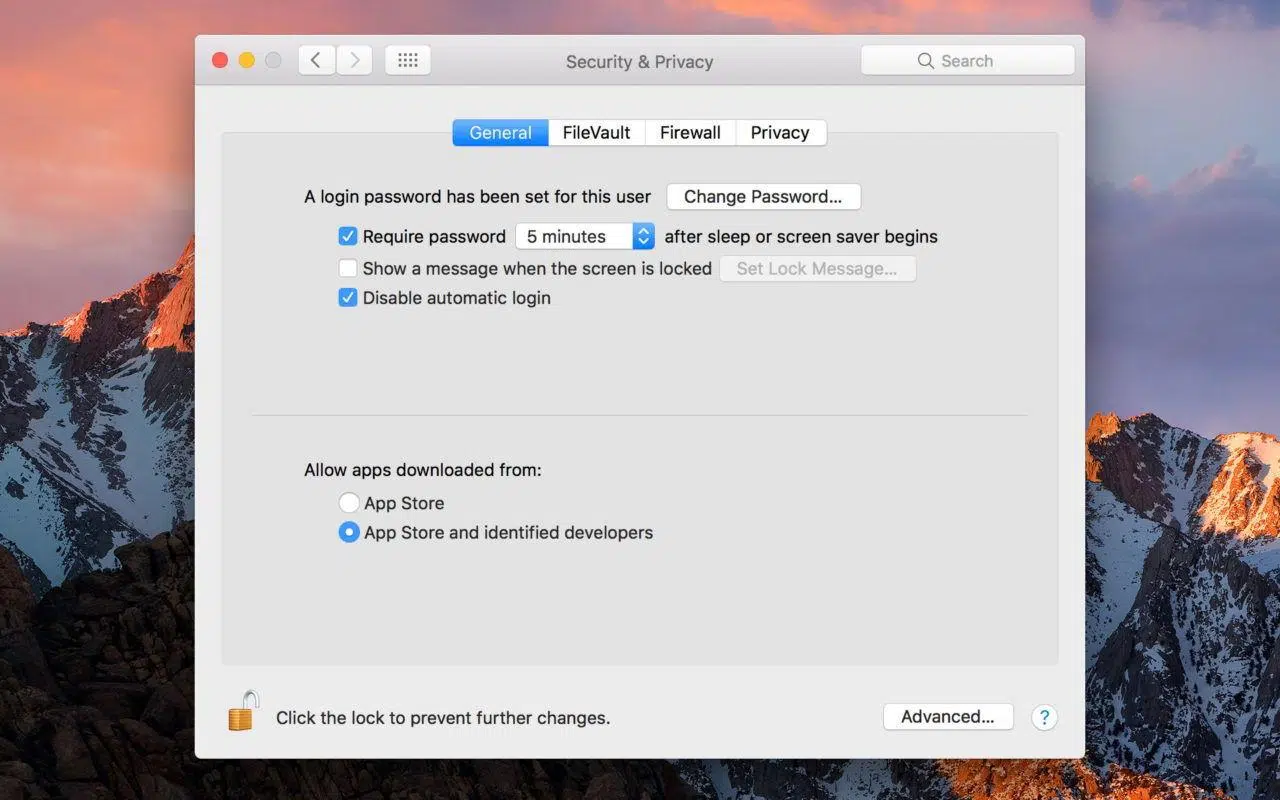
Before you start installing anything, it's crucial to understand that for PlayCover to work, you'll have to modify two macOS security mechanisms: Gatekeeper and, in many cases, SIP (System Integrity Protection). It's not extremely dangerous if you know what you're doing, but it's best to be aware of this and proceed with caution.
Gatekeeper is a macOS feature that blocks applications from unidentified developers by default . Its purpose is to prevent potentially malicious programs downloaded from outside the Mac App Store or without an official signature from running. Since PlayCover is distributed outside of this channel, macOS will prevent you from opening it unless you change this setting.
To disable Gatekeeper, you need to use the Terminal app , which you can find in Launchpad or in the Utilities folder within Applications. By running a specific command, you're telling the system to stop its strict application filtering, allowing you to open apps like PlayCover without receiving the typical "cannot be opened because it comes from an unidentified developer" message.
To disable Gatekeeper, you need to use the Terminal app , which you can find in Launchpad or in the Utilities folder within Applications. By running a specific command, you're telling the system to stop its strict application filtering, allowing you to open apps like PlayCover without receiving the typical "cannot be opened because it comes from an unidentified developer" message.
The command used is the following:
sudo spctl --master-disable
When you press Enter, Terminal will ask for your Mac's administrator password . Although you won't see anything on the screen while typing (this is normal Terminal behavior for security reasons), the keys are being registered. Enter the password, press Enter again, and if everything goes well, you shouldn't see any error messages. From that point on, Gatekeeper will be disabled.
On the other hand, some iOS apps require you to disable SIP to function correctly through PlayCover. SIP (System Integrity Protection) is a low-level security layer in macOS that prevents even administrators from modifying certain critical parts of the system. Disabling it allows for greater flexibility, but also increases risks if you download files from dubious sources.
The process to disable SIP involves restarting your Mac in Recovery Mode, opening Terminal from there, and running the corresponding commands. Many official guides and videos detail the process step by step, and it's recommended to follow an up-to-date tutorial specific to your macOS version , as recovery menus have changed over time.
In any case, if you only want to try some simple apps, you might not need to touch SIP, but you should know that certain games and more complex applications require this change to function correctly . If you're not comfortable disabling SIP, consider whether that level of system modification is really worth it.
If you decide to proceed and disable SIP, be sure to download PlayCover and .ipa files only from trusted sources and consult resources on emulator security . Avoid dubious websites, pirated downloads, or unverified repositories, as these would drastically reduce several of the security barriers that normally protect you on macOS.
How to disable Gatekeeper on macOS step by step
Now that we understand Gatekeeper's role, let's take a step-by-step look at how to disable it before installing and using PlayCover . This step is almost essential for macOS to allow you to run the app without issues.
1. Open the Launchpad from the Dock or with the trackpad gesture you have configured.
2. In the search box, type Bus Terminal to locate the macOS command-line application.
3. Click on Terminal to open it. You will see a window with a dark background and a text prompt.
4. Type the following command exactly, respecting spaces and hyphens: sudo spctl --master-disable.
5. Press the Enter key. The system will ask you for the password for your user account with administrator privileges.
6. Type the password (even though nothing is displayed on the screen) and press Enter again.
If no error message appears, you can assume that Gatekeeper has been successfully disabled . From that point on, the system will be less restrictive with applications downloaded from the internet, including PlayCover and any other similar tools.
If you want to revert this change later, simply open Terminal again and use the opposite command, something like re-enabling security policy control. It's recommended that, once you've finished installing and configuring what you need, you consider reactivating Gatekeeper to maintain a reasonable level of protection.
How to download and install PlayCover on your Mac with Apple Silicon
With Gatekeeper out of the way, you can now move on to the interesting part: downloading, installing, and running PlayCover on your MacBook or iMac with an M1, M1 Pro, M1 Max, or similar chip. The procedure is quite simple if you follow a few basic steps.
From your Mac, go to the official PlayCover website. There you'll see a prominent button, usually purple, with the text "Download for Apple Silicon" or something similar. That's the link you need, as this version is specifically designed for Apple Silicon processors.
When the download is complete, you'll have a compressed file in your Downloads folder. Double-click it to extract the contents . Inside, you'll find the PlayCover installer, usually in .DMG format , which is the type of disk image macOS uses for installing applications.
Open the .DMG file by double-clicking it. A virtual drive will mount, and you'll see a window with the PlayCover icon and, in many cases, a shortcut to the Applications folder. On macOS, you typically drag the PlayCover icon to the Applications folder to install the app on your system like any other.
The first time you try to run PlayCover, the system may ask if you're sure you want to open an application downloaded from the internet. If you've already disabled Gatekeeper, simply accept the prompt . On that first launch, the app itself may ask you to install Xcode Command Line Tools or other development tools necessary for everything to work. Accept the installation and let the process finish; it may take a few minutes depending on your internet connection and the speed of your Mac.
Install and run iPhone apps (.ipa) with PlayCover
With PlayCover installed and running, it's time to add the iOS apps you want to use on your Mac . Remember that the tool works with .ipa files, so you'll need to have those installation packages available separately.
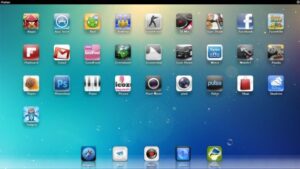
Once you have the .ipa file of the app or game you're interested in, open PlayCover. In the main window, you'll see an area that says something like "Drag .ipa file here" or a similar message. Simply drag the .ipa file from Finder and drop it onto that area.
At that point, PlayCover will begin processing the file. This process can take anywhere from a few seconds to several minutes , depending on the app's size and the complexity of its content. The tool then prepares everything necessary for the iOS application to run within the macOS environment with the appropriate settings.
When the process is complete, you should see the installed app in a folder called PlayCover , which is created in your Documents directory. From there, you can open it like any other application on your Mac, even though internally it's still a binary designed for iPhone or iPad.
The beauty of PlayCover is that, once the app is installed, you have access to various configuration options to adjust controls, assign keyboard keys, map controller buttons, and even fine-tune mouse behavior . This makes a huge difference compared to Apple's native support, which is limited to interpreting mouse clicks as screen taps without going much further.
When do you need to disable SIP on your Mac?
As we mentioned earlier, not all applications require you to disable System Integrity Protection (SIP) , but some do. Generally, the more complex the game or app, the more likely it is to require access to parts of the system that SIP protects by default.
Disabling SIP isn't something you can do from a normal macOS session; it requires restarting your computer in Recovery Mode . From there, you open a special Terminal window and run the commands that modify the SIP status. Apple documents this process for developers who need to test software at a low level, and many video tutorials provide step-by-step guidance depending on the specific macOS version (Monterey, Ventura, Sonoma, etc.).
The general recommendation is to only disable SIP if you absolutely need a specific app to function and you understand the risks . Keeping SIP enabled provides an extra layer of security against malware that attempts to modify critical system components or inject itself into protected processes.
If you decide to go ahead and disable SIP, be sure to download PlayCover and .ipa files only from trusted sources and consult resources on the topic. Avoid dubious websites, pirated downloads, or unverified repositories, as you would be drastically reducing several of the security barriers that normally protect you on macOS.
Once you've finished configuring and testing everything you need with PlayCover, you can always reactivate SIP by repeating the process in recovery mode and restoring the protection to its original state . It's a good habit: make only the necessary changes, do what you need to do, and then restore the system's defenses.
User experience: keyboard, mouse, controllers and full screen
One of PlayCover's strengths is that it makes many mobile apps, especially games, much more comfortable to use on a Mac. Instead of simply simulating touches, it allows you to configure control schemes designed for keyboard, mouse, and gamepads , closely resembling the experience of a native PC game.
For example, in an action or shooting game, you can assign the WASD keys for movement, the mouse for aiming and shooting, and other keys for jumping, reloading, or switching weapons . If you prefer a controller, you can map the buttons and sticks to replicate what you would do on a console. For strategy or management games, the mouse integrates more naturally than in basic touch emulation.
Full-screen mode is also a significant improvement. Many iPhone apps look ridiculous in a small window, but with PlayCover you can force a full-screen display that makes better use of your MacBook or iMac's screen. While some interfaces are designed for mobile resolutions and won't scale perfectly, the overall experience is often far superior to viewing them in a mini format.
Furthermore, the power of the M1, M1 Pro, M1 Max, and later chips ensures that most mobile games run very smoothly , even demanding titles that might struggle on some older iPhones. More RAM, a better integrated GPU, and a cooling system designed for extended gaming sessions contribute to more stable gameplay.
However, not all apps perform equally well. Some apps rely heavily on multitouch gestures, specific sensors, or deep integrations with iOS services, which may not work perfectly or be as user-friendly on a Mac . It's worth testing, and if you find the experience poor, that particular app might not be a good candidate for PlayCover.
Can I install any iPhone app on my Mac using PlayCover?
The big question many users ask is whether PlayCover allows for advanced installation of any iPhone or iPad app on a Mac , especially when the developer doesn't officially offer it for macOS. The case of specific apps, such as Bible study tools like Filament Bible, clearly illustrates this question.
From a purely technical standpoint, if you have the app's .ipa file and it doesn't have additional protections preventing it from running outside of iOS, PlayCover can attempt to run it on your Mac . However, several factors come into play: from DRM and licensing restrictions to API dependencies that only exist on iPhone or iPad.
Furthermore, legally obtaining an .ipa file isn't always straightforward. It's not as simple as going to the App Store and downloading the package , and often the tools for extracting .ipa files from an iOS device require additional knowledge or involve entering a gray area regarding terms of use.
It's also important to keep in mind that some apps rely on iPhone or iPad hardware features that your Mac doesn't have (specific sensors, cameras in a particular position, NFC chip, etc.), or use integrations that are tightly tied to the iOS system. In these cases, even if you manage to launch the app, it will likely freeze, get stuck on the home screen, or behave erratically.
Therefore, the honest answer is yes, PlayCover lets you try installing many iPhone apps and games on your Mac that aren't officially available , but there's no guarantee that absolutely all of them will work or that they'll run stably. It's best to proceed on a case-by-case basis, check compatibility in user communities, and always respect the licenses and copyrights of the applications you want to use.
Overall, PlayCover has become a very interesting option for those who own a Mac with Apple Silicon and want to break down the barriers between the iOS mobile ecosystem and the macOS desktop environment . It allows you to better leverage the power of the M1 and its successors, enjoy many mobile games with keyboard and mouse controls, and explore apps that you otherwise couldn't run on your laptop or desktop. However, all of this comes with the responsibility of understanding what you're changing in terms of security and the implications of modifying components like Gatekeeper and SIP.

Passionate writer about the world of bytes and technology in general. I love sharing my knowledge through writing, and that's what I'll do on this blog, show you all the most interesting things about gadgets, software, hardware, tech trends, and more. My goal is to help you navigate the digital world in a simple and entertaining way.