- Windows Hello allows you to use fingerprint, face, and PIN to log in quickly and securely to Windows 10 and 11.
- The fingerprint reader only appears if the hardware and drivers are compatible and properly installed.
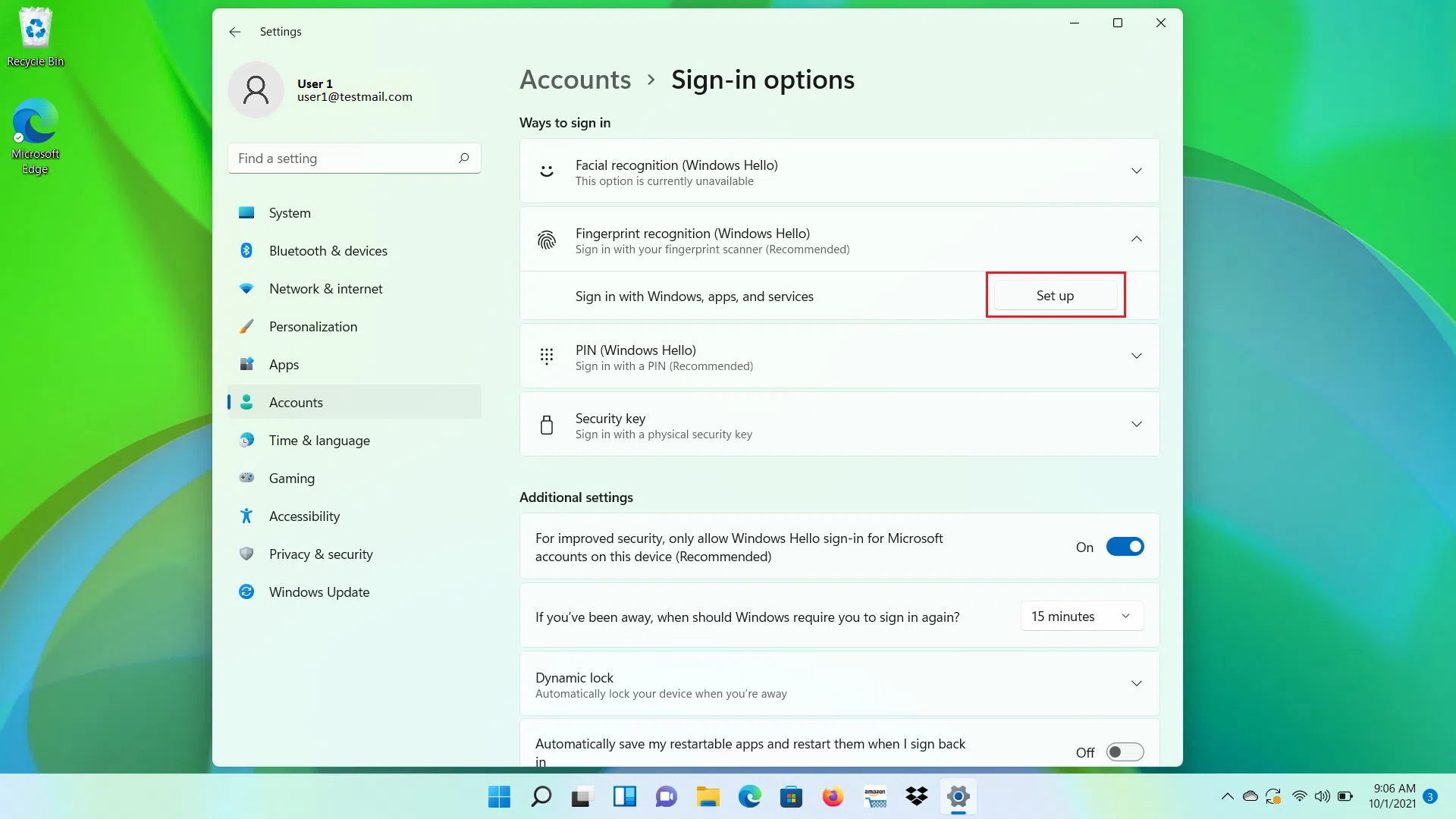
- The configuration is done from Accounts > Login options, registering one or more fingerprints per user.
- Extra features such as dynamic locking and FIDO2 security keys further enhance the protection of the equipment.
If you're tired of typing your password over and over, installing and configuring a fingerprint reader in Windows is one of the most convenient and secure ways to log in. These days, almost every modern laptop (and many desktops) includes a fingerprint sensor or allows you to connect one via USB , and Windows 10 and Windows 11 are more than ready to take advantage of this with Windows Hello.
Throughout this guide, you'll see how to activate fingerprint login step by step , what hardware requirements you need, the types of fingerprint sensors and how they integrate with Windows Hello, the minor differences between Windows 10 and Windows 11, and some tips to ensure everything works smoothly. Specific examples from brands like ASUS, Acer, and Dell are also included, so you can easily find the right instructions even if your computer is different.
What is Windows Hello and how does the fingerprint reader work?
Windows Hello is Microsoft's biometric authentication system that lets you log in using your face, fingerprint, or a PIN instead of a traditional password. The idea is to make accessing your computer faster and more secure by using something you are (biometrics) or something you know (PIN) linked only to that computer.
When you activate Windows Hello, the system creates secure credentials associated with your device . The PIN you set doesn't travel over the network or get stored like a traditional password; instead, it's stored locally on your PC's security chip. This means that even if someone steals that PIN, it will only work on that specific computer.
In the case of the fingerprint reader, Windows saves a mathematical template of your fingerprint , not a photo of your finger. This template is used to compare future sensor readings and validate your identity. The entire process is encrypted and isolated, without uploading your fingerprint to any cloud.
Windows Hello offers several ways to sign in: facial recognition with an IR camera, fingerprint, and PIN . You're not required to use all of them: you can use just your fingerprint and PIN, or just your PIN if your device doesn't have biometric sensors.
The next time you start or unlock your PC, instead of typing your account password, you can place your finger on the fingerprint reader or use the camera, if you've set it up. If the reader fails for any reason, you'll always have your PIN as an alternative.
Hardware requirements for using a fingerprint reader in Windows
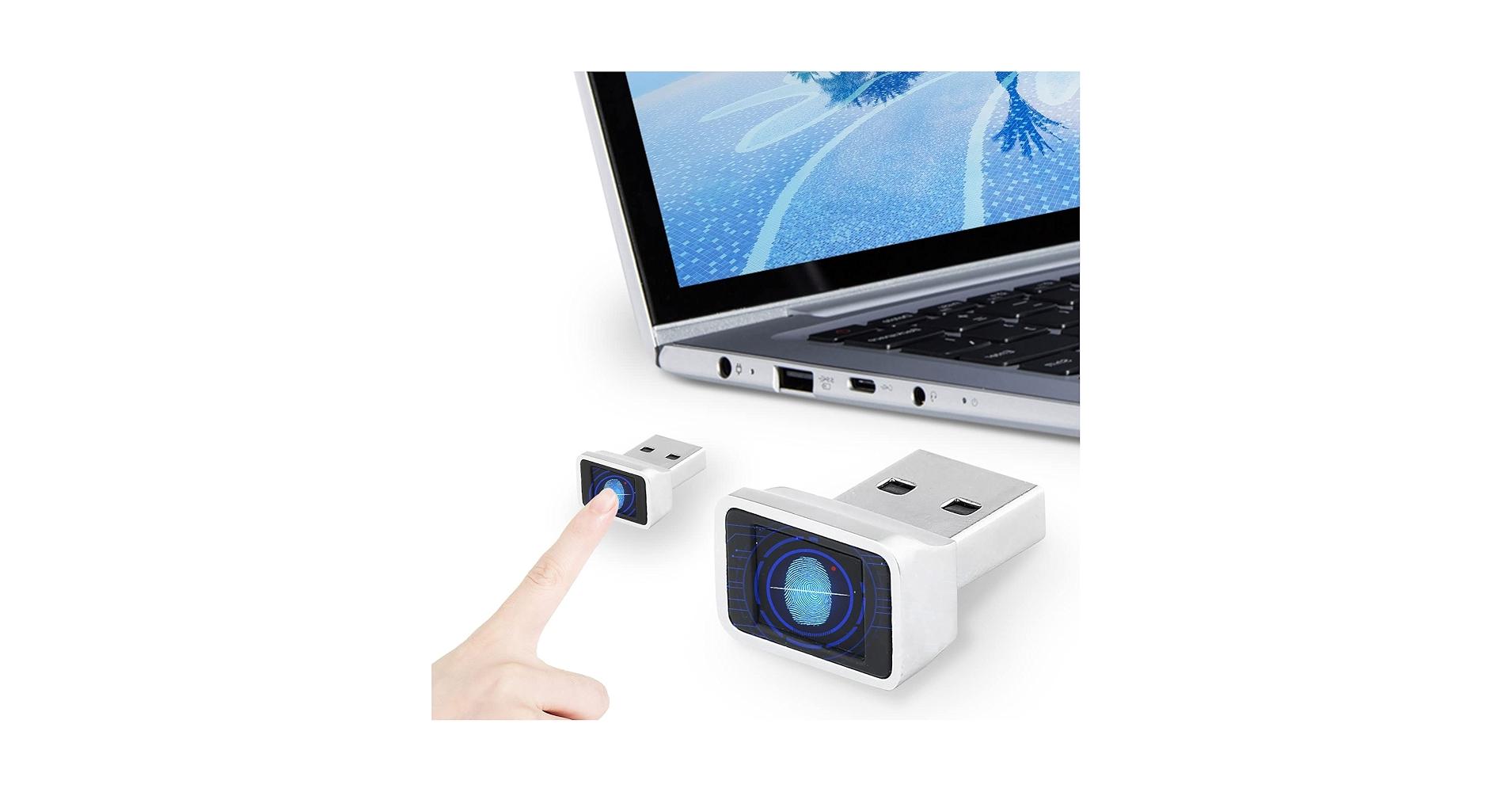
Before you start configuring anything, it's important to check that your computer actually has a fingerprint reader compatible with Windows Hello . Not all computers come with one built-in, and some require an external device.
On many modern laptops from brands like ASUS, Acer, Dell, Lenovo, and similar manufacturers, the fingerprint sensor is usually integrated near the touchpad or into the power button itself . In specific ASUS models, for example, the manufacturer indicates that the sensor may be located around the touchpad or integrated with the power button, and the same is true for other manufacturers.
If you're unsure whether your device has this feature, the best approach is to consult the official specifications on the manufacturer's website or review the user manual. In the case of ASUS, detailed lists are provided for laptop, desktop, All-in-One, Mini PC, and workstation models that are compatible with Windows Hello (both face and fingerprint recognition), and even specific Mini PC models such as PN50, PN52, PN64, etc., are listed.
You can also open Windows Device Manager to check if the system recognizes a biometric sensor. In Windows, simply right-click the Start button and select "Device Manager" ; there, check if anything appears under "Biometric devices," "Fingerprint readers," or a similar heading. If you don't see anything, your computer likely doesn't have a built-in reader or the drivers are missing.
Keep in mind that Windows Hello options vary depending on the hardware : if there's no fingerprint sensor, you won't see the option to set up a fingerprint; if there's no infrared camera, facial recognition won't appear. In those cases, you can always use the traditional PIN, but fingerprint recognition will only be available if the reader is present and the driver is properly installed.
Setting up Windows Hello on Windows 11 step by step
In Windows 11, Microsoft has slightly reorganized the Settings app, but the process for setting up your fingerprint with Windows Hello remains simple. However, if it's your first time, the system will require you to create a security PIN.
The first step is to open the sign-in settings. You can get there in two ways: from the Start menu by searching for "Sign-in options" or by going to Settings > Accounts > Sign-in options. Both paths take you to the exact same panel where you manage your login methods.
Within “Sign-in methods” you will find several entries: “Facial recognition (Windows Hello)”, “Fingerprint recognition (Windows Hello)” and “PIN (Windows Hello)” , among others such as “Security key” or “Password”. Each one has its own button for settings, removal, and additional options.
If your device has a compatible IR camera, you can also configure facial recognition. In that case, Windows will ask you to place your face within the frame that appears on the screen to analyze your features and, optionally, repeat the process with and without glasses using the "Improve recognition" option.
On devices with a fingerprint reader, the section we're interested in is "Fingerprint recognition (Windows Hello)." From there, by clicking "Set up" and then "Get started," the system will ask you to enter your current PIN to verify your identity and then guide you through registering your finger: you'll need to place it on the reader several times, slightly moving its position so that the edges are captured properly.
When you complete the process, you'll see that the option to add extra fingers (for example, the index finger of your right and left hand) is enabled, making it convenient to log in even if one hand is occupied or you have a small injury.
Setting up Windows Hello on Windows 10 step by step
In Windows 10, the philosophy behind Windows Hello is the same, but the names of some options change slightly. Even so, the basic path is very similar: Settings > Accounts > Sign-in options , where you'll see all the available methods depending on your hardware.
To set up facial recognition in Windows 10, the option appears as “Windows Hello Face .” If your laptop or desktop has a compatible IR camera, you can click “Set up” and then “Get started” to register your face. Once recognized, the setup wizard will usually suggest you set a PIN in case the camera fails.
Regarding the fingerprint reader, Windows 10 displays the option as "Windows Hello Fingerprint ." If you don't see this text or receive the message "This option is not available," it's almost certain that your computer doesn't have a built-in reader or that the driver is missing. On ASUS laptops, for example, the sensor is usually located around the touchpad or integrated into the power button.
When the option is available, simply tap "Set up," then "Get started," and follow the on-screen instructions. The assistant will ask you to place your finger on the sensor, lift it, and place it again several times , trying to cover different areas of your fingerprint. It will then suggest creating or confirming a PIN as a backup method.
Just like in Windows 11, once the first fingerprint is registered, you will have a function available to add more fingers , useful if you share the computer with another person or if you simply want to have several fingers recognized for your own account.
How to set up the fingerprint reader on an Acer laptop
On Acer laptops, the procedure for activating the fingerprint reader follows the same basic principles as Windows Hello, but the manufacturer explains a very clear sequence. First, go to the Windows Settings app, click on "Accounts," and then on "Sign-in options ." If you didn't have a PIN, the system will require you to create one before continuing.
Once you've created your PIN, you'll see the fingerprint section in Windows Hello. Simply click "Set up" in the fingerprint reader section and then click "Get started" to launch the step-by-step setup wizard. The wizard will ask for your PIN again to verify that you are indeed the account owner.
In the Windows Hello setup window, the system will guide you through when to press your finger on the sensor, hold it there for a moment, and then lift it . This process is repeated a few times until Windows successfully reads your fingerprint completely, including the edges.
Once the assistant confirms it's finished, you can log in simply by placing your finger on the reader , instead of always typing your password or PIN. The interface will also allow you to select "Add another" to register additional fingerprints (ideal for registering, for example, both index fingers or your thumb).
If the Acer laptop has multiple user accounts, each can be configured with its own fingerprint access . Windows can distinguish which finger belongs to which account and automatically switch between users when an authorized finger touches the sensor.
Using the fingerprint reader on ASUS laptops and computers
ASUS provides quite precise details on using Windows Hello with fingerprint recognition on its laptops, desktops, All-in-Ones, Mini PCs, and gaming devices. To begin, it emphasizes that this feature is only available on certain models with an integrated fingerprint scanner ; if "Fingerprint recognition (Windows Hello)" doesn't appear in the login options, or you see a message stating that the option is unavailable, it means your device doesn't include the sensor.
On most ASUS laptops, the fingerprint reader is located near the touchpad or integrated into the power button . In some designs, the sensor is a small square, and in others it's perfectly concealed within the power button, so you can turn on and authenticate with a single gesture.
The sign-up process is very similar to the standard one: from the Windows "Sign-in options", select "Fingerprint recognition (Windows Hello)," click "Set up," and then "Get started." After entering your account PIN, the system will prompt you to ensure your fingers are clean and dry , and then lift and place your finger on the sensor several times.
In the final part of the process, Windows asks you to position your finger at different angles to capture the edges of your fingerprint , ensuring reliable recognition even if you don't always place your finger in the same position. Once it's finished, an option appears to add more fingers, in case you want to register multiple fingerprints.
ASUS also notes that if the card reader doesn't appear in the system, it may be helpful to check Device Manager and update the drivers from their support website. For MiniPCs and other specific devices, certain models (PN50, PN52, PN64, PN80, etc.) are listed as supporting Windows Hello, both for face and fingerprint authentication.
Advanced security management: PIN, dynamic lock, and security keys
In addition to the fingerprint reader and facial recognition, Windows Hello includes other useful security features. The most basic of these is the Windows Hello PIN, which is required to use biometrics . The PIN is linked only to that device and serves as a backup in case the sensor or camera fails.
Another feature worth enabling is Dynamic Lock (useful for locating and locking a stolen laptop). This function allows your PC to lock automatically when it detects you're moving away, typically using a paired Bluetooth device, such as your mobile phone. In the login options settings, you'll see a checkbox that says something like "Allow Windows to automatically lock your device when you're not around."
If Windows displays a message such as “Dynamic Lock isn't working because your PC doesn't have a paired phone,” you'll need to go to the Bluetooth & devices section and pair your smartphone or other wireless device. Once paired, the system monitors whether it remains nearby; when it moves a few meters away and loses the connection, the computer will lock shortly afterward.
For work or educational environments, Windows also includes support for physical security keys (FIDO2) . These are small USB keys or NFC devices that, along with a specific PIN, allow users to log into corporate accounts with a higher level of security than a simple username and password.
Activating these keys is usually done through the "My Account" or "My Profile" page in Microsoft's business services, where you'll find the "Security Key" option. There, you'll need to choose whether your key is USB or NFC, insert it or hold it near the reader , and set a PIN for it. Additionally, some guides explain how to use your mobile phone as a FIDO2 authenticator for Windows sessions.
How to delete or modify fingerprint data and other login methods
You can decide at any time that you no longer want to use your fingerprint or face to log in to Windows. To do this, simply return to Sign-in options in Settings > Accounts and find the section for Windows Hello.
If you want to disable facial recognition, simply select "Facial recognition (Windows Hello)" or "Windows Hello Face" (depending on whether you're using Windows 11 or 10) and click "Remove." The face login method will disappear until you configure it again.
The process is just as simple with fingerprints: choose “Fingerprint recognition (Windows Hello)” or “Windows Hello Fingerprint” and click “Remove.” Windows will delete the stored biometric templates and will no longer ask for your fingerprint at startup.
In the case of security keys, if you've lost one or simply no longer wish to use it, you can delete it from your account's security information page . There you'll find a "Delete" link next to each key's name; clicking it will stop that key from working with your user account, although the internal information will remain on the key itself until you reset it.
To completely reset a physical security key, you can do so from the Windows Settings app: go to Accounts > Sign-in options > Security key, and click "Manage." From that screen, you can restore the key to its factory settings , erasing all stored credentials, or assign a new PIN.
Recommendations and solutions to common problems
If your fingerprint reader is giving you trouble, there are a few basic checks that usually resolve most issues. The first is to make sure your fingers are clean and completely dry before attempting recognition; traces of lotion, sweat, or dirt can prevent the sensor from reading your fingerprint correctly.
Another good practice is to register the same fingerprint, making sure the assistant captures the edges properly . When Windows asks you to change the position of your finger, take the opportunity to move it slightly, tilting it to the side. This way, the sensor will have more information and will recognize you better if you place your finger at a slight angle.
If the fingerprint option doesn't even appear in the login options, check Device Manager to see if the reader is detected. If it's not listed or appears with a warning icon, the driver is likely missing or it's a hardware problem . In that case, download the drivers from the manufacturer's website (ASUS, Acer, Dell, etc.) and reinstall them.
In situations where Windows Hello won't let you configure biometrics, the type of account you're using can be a factor. The Windows "built-in administrator" account, for example, may have restrictions on enabling Windows Hello in some scenarios. If this happens to you, the best solution is to use a standard user account with administrator privileges, and if you work in a corporate environment, consult with your IT department.
For work laptops managed by an organization, it's common for security policies to prevent the use of the camera or fingerprint reader. If you see messages indicating that your organization doesn't allow a certain login method , you'll need to speak with your system administrator to adjust the policies or find alternatives.
Adopting a fingerprint reader in Windows, supported by Windows Hello, represents a leap in convenience and security: with a couple of taps you configure your fingerprint, add a PIN linked to the computer, activate features such as dynamic lock or even physical security keys for work, and from then on daily access to your PC becomes almost instantaneous and much more difficult to compromise than with a simple handwritten password.


Passionate writer about the world of bytes and technology in general. I love sharing my knowledge through writing, and that's what I'll do on this blog, show you all the most interesting things about gadgets, software, hardware, tech trends, and more. My goal is to help you navigate the digital world in a simple and entertaining way.