- The critical importance of avoiding abrupt shutdowns in NAS systems to prevent data corruption and RAID failures.
- The fundamental difference between USB HID communication for homes and the SNMP protocol for professional environments.
- The need to adapt the UPS power and the type of waveform (simulated or pure) according to the hardware and power supply of the equipment.
- The ability to manage the coordinated shutdown of multiple devices using network servers and specialized software.

If you have a NAS at home, whether it's a Synology or a QNAP, you know it's the heart of your files. But of course, leaving it plugged directly into the wall outlet is like playing Russian roulette with your data. A micro-outage of just a few seconds might seem trivial, but it's more than enough to corrupt a file system or ruin a RAID array while the device is writing data.
To avoid these scares, the solution is to install an Uninterruptible Power Supply (UPS). It's not just about keeping the device powered on for a while; the UPS communicates with the NAS and tells it, "Hey, we've lost power. Start shutting down the drives safely before the battery runs out." In this article, we'll see how to set up the whole system to keep both your PC and your storage server safe.

Why is a NAS more sensitive than a regular computer?
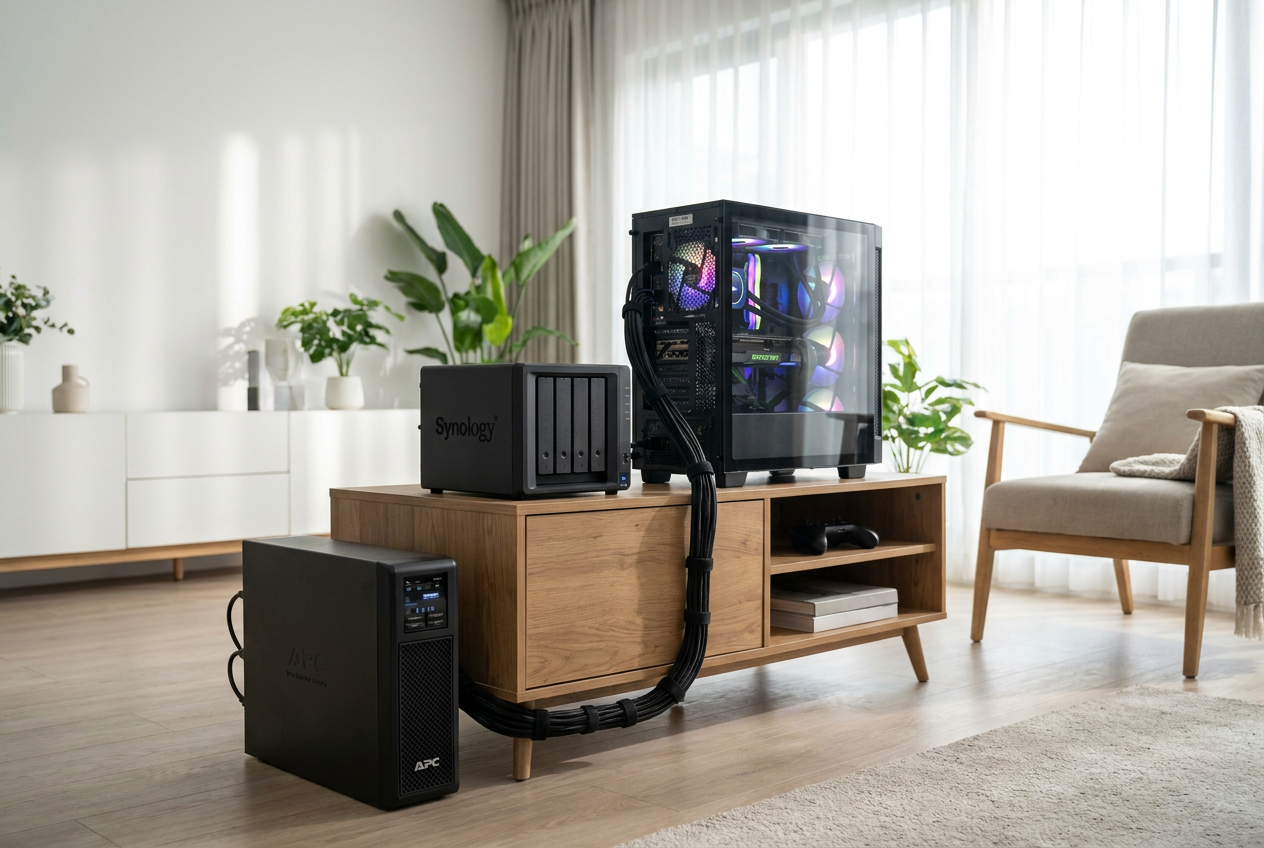
Many people make the mistake of installing a UPS on their gaming PC and leaving their NAS unprotected. It's actually the opposite. If your PC suddenly shuts down, you'll most likely lose any unsaved documents, and Windows will perform a disk check upon restart. However, NAS devices use complex file systems like Btrfs, ext4, or ZFS that constantly write data.
A sudden power outage can cause physical damage to the disk platters (the infamous head crash) if the read/write head doesn't park properly, or leave the RAID array in an inconsistent state, forcing you to rebuild everything for hours. Furthermore, modern NAS devices store a lot of data in the RAM cache; if the power goes out, that data, not written to the disk, is lost forever.

Types of communication: USB HID vs. SNMP
For automatic shutdown to work, the UPS and the NAS must be compatible. The most common option for home users is the USB HID protocol . This simply involves connecting a USB cable and having the system recognize it instantly, without any complications.
- USB HID: Ideal for homes or small offices. plug and play and allows a device to manage its shutdown.
- SNMP: It is used in professional environments with racks. It allows sending shutdown commands over the local network to multiple servers at once using a dedicated network card.
How to choose the right UPS for your hardware
Not all UPS systems are created equal. The first step is to calculate power consumption. A 2-bay NAS consumes little (between 15 and 40W), but a 6- or 8-bay NAS can reach 100W. To this, you must add the power consumption of the router, the switch, and, if connected, the PC. Ideally, you should add up all the wattages and include a safety margin of 20% or 30%.
Another key point is the output waveform. Most budget UPSs use a simulated sine wave , which is fine for most NAS devices. But if you have a gaming PC or a high-end NAS with an active PFC power supply , you need to choose the ideal power supply and a pure sine wave UPS to avoid electrical noise or your equipment shutting down even with the UPS on.

Step-by-step setup on Synology and QNAP
The physical installation is simple: plug in the UPS, let the battery charge, and connect the USB cable to the NAS port. Now comes the software part:
In Synology DSM , you need to access the Control Panel, go to Hardware and Power, and find the UPS tab. There, check the box for "Enable UPS support" and select the USB connection type. It's highly recommended to configure the standby time (around 3 or 5 minutes) and enable the option to shut down the NAS when the battery is low.
If you're using QNAP QTS , the process is similar: Control Panel, System, Power, and then UPS. Enable the UPS, select USB, and set the standby time. Once you've done this, it's best to perform a real-world test by unplugging the UPS to confirm that the NAS enters standby mode correctly.
The challenge of protecting PC and NAS simultaneously
This is where many people get confused. UPS systems typically have only one USB data port, so they can only be physically connected to one device . If you connect it to the NAS, the PC won't know when to shut down. To solve this, there are two ways:
The first option is to use the NAS as a network UPS server . In Synology's settings, for example, you can enable this option so that other devices on the same network know the battery status. The second, more technical option is to use software like WinNUT on Windows . This program allows the PC to act as a "slave" to the NAS. By configuring the NAS's IP address and credentials (which in some cases are the default username "admin" and password "123456 "), the PC can perform a safe shutdown a few minutes after the NAS detects a power failure.
For those with specific models like the APC Back-UPS Pro, it's important to know that the Ethernet input and output ports are typically for network traffic and do not replace USB management communication . Therefore, the USB connection must be made to the device that will act as the "master" on the network.

Having a properly configured power protection system is the only way to sleep soundly knowing your files are safe. From choosing a model with the correct power and waveform to coordinating shutdowns between your PC and NAS via USB or network software, every detail counts to prevent a simple power outage from turning into a data recovery nightmare.

Passionate writer about the world of bytes and technology in general. I love sharing my knowledge through writing, and that's what I'll do on this blog, show you all the most interesting things about gadgets, software, hardware, tech trends, and more. My goal is to help you navigate the digital world in a simple and entertaining way.