- Understanding the differences between official packs, DLC, custom content, and mods is key to managing them smoothly.
- Official packs are installed and uninstalled from the Origin/EA app or the platform store, while CC is placed in the Mods folder.
- It is essential to activate custom content in the game options and keep it updated after each patch.
- Proper folder organization and regular backups prevent errors and loss of save data when using additional content.

If you've been playing The Sims 4 for a while, sooner or later you'll want to take it a step further and add extra content to expand and personalize the game . Between official packs, expansions, downloadable content (DLC), and custom community content (CC and mods), the possibilities are practically endless.
This guide explains in detail how to install additional content in The Sims 4 : from official packs purchased on Origin/EA App or Steam to custom content downloaded from external websites. You'll also learn what happens to your save files if you uninstall a pack, how to activate modified content within the game, and what common problems arise when doing this.
Types of additional content in The Sims 4
Before we get started, it's important to understand that The Sims 4 has several completely different types of extra content , and they are not all installed in the same way.
On one hand, there are the official EA packs : large expansions, content packs, stuff packs, and kits. All of this is official paid DLC that can be purchased from digital stores (Origin/EA app, Steam, or physical retailers that sell codes).
On the other hand, we have what is called custom content or CC (Custom Content) , which includes clothing, furniture, hairstyles, makeup, eyes, skins, poses and a long etcetera, created by the community and distributed in the form of files that you put in the Mods folder.
Finally, there are mods and scripts , which are more in-depth modifications that change the game's behavior, add new mechanics, or fix bugs. Although technically they also go in the Mods folder, they require specific in-game configurations and more attention to compatibility after each update.
What happens to your save files when you remove or add packs?
A very common question when tinkering with additional content is what happens to your saved game if you uninstall a pack or stop loading it . The game is designed not to break, but there are consequences to consider.
If your Sims lived in a world belonging to a pack that you've deactivated or uninstalled, the household isn't lost. Your Sims will still appear in the "Manage Households" menu , even though they no longer have a lot in that world because it's no longer available.
From that menu, you can take that family and move them to another available lot or merge them with another household . In other words, you can "relocate" them to any other neighborhood or house you have active in your game, so the household itself doesn't disappear.
What is directly affected are the specific elements of each pack . Objects, clothing, hairstyles, or Create A Sim traits from that pack will disappear from the game until it's loaded. If your Sim was wearing a dress from that pack or using an exclusive trait, the game is forced to remove those references.
Keep in mind that these items and traits won't work again until you reinstall or reactivate the pack in the same save file . Once the content is available again, you can use it, but anything the game has "replaced" or removed won't magically be restored; you'll have to readjust it if needed.
How to install official packs and expansions for The Sims 4
Official packs are by far the easiest type of additional content to install , because the client itself (Origin/EA app or Steam) takes care of almost the entire process for you.
Buy and install packs from Origin or EA app
If you play The Sims 4 on PC or Mac through Origin or the EA app, you can purchase expansions and other packs directly from the digital store or using codes you've acquired from a trusted retailer or website. If you need to install Origin, see the best way to download Origin for Windows 10.
After completing the purchase or redeeming the code, the pack appears in your Sims 4 library. The EA client usually starts the download automatically and proceeds with the installation without you having to do anything except wait for it to finish.
If at any time you want to uninstall or reinstall an official pack, just go to The Sims 4 page on Origin or the EA app and there you will see the different types of content separated: Expansion Packs, Game Packs and Stuff Packs (in addition to kits and other extras, if any).
From that same menu, you can select which content you want installed . Enabling it will cause the client to download the necessary files; disabling it will free up disk space, although the pack will remain yours and you can reinstall it whenever you want.
Install official packs if you play on console
On consoles ( PlayStation and Xbox ), the process is similar, but it's done through the console's own store . You buy the pack, the console downloads it, and links it to your account.
You don't have to manually move files or access internal folders, as the system handles installation, updates, and uninstallation . However, you won't be able to use custom content (CC and mods) like on PC, which is something to keep in mind.
Install custom content (CC) in The Sims 4
Custom content is what truly makes the game feel different: fan-made clothing, amazing houses, designer furniture, realistic hairstyles … All created by the community and distributed on sites like The Sims Resource, Mod The Sims, creator blogs, Patreon, and similar platforms.
Check requirements and compatibility before installing CC
Before filling the Mods folder with files, it's a good idea to make sure your computer and game are ready to handle extra content smoothly.
First, check that your PC or Mac meets The Sims 4 system requirements with a little extra margin. Custom content isn't usually large on its own, but if you accumulate hundreds or thousands of files, the game may take longer to load or run poorly.
You also need a stable internet connection (Wi-Fi or wired) to download the CC from the various websites. Nothing special is required, but you should avoid interruptions during the download, as these can corrupt the files.
Finally, keep in mind the differences between platforms and versions . Custom content and mods only work on the PC version ( Windows and macOS), not on consoles. Furthermore, some mods are designed for a specific version of the game and will stop working (or cause errors) after a major update.
Step by step: Installing CC on Windows and macOS
The basic process for adding custom content in The Sims 4 is very similar on both Windows and Mac, because the game uses the same folder structure in Documents.
1. Download the custom content from a trusted website. You will usually download compressed files (.zip, .rar, .7z) or .package files, which are the ones the game uses.
2. Locate the game folder in your user directory. By default, it's usually in Documents > Electronic Arts > The Sims 4. Inside that folder, you'll see another one called "Mods".
3. If the creator gives you the compressed files, decompress them with the program you usually use (WinRAR, 7-Zip, macOS utilities, etc.) and keep the .package files (and .ts4script if they are script mods ).
4. Copy or move those files to the Mods folder. You can organize them into subfolders (for example, Clothes, Furniture, Hairstyles); the game will still read everything inside, as long as there isn't more than one level of extreme depth or scripts where they shouldn't be.
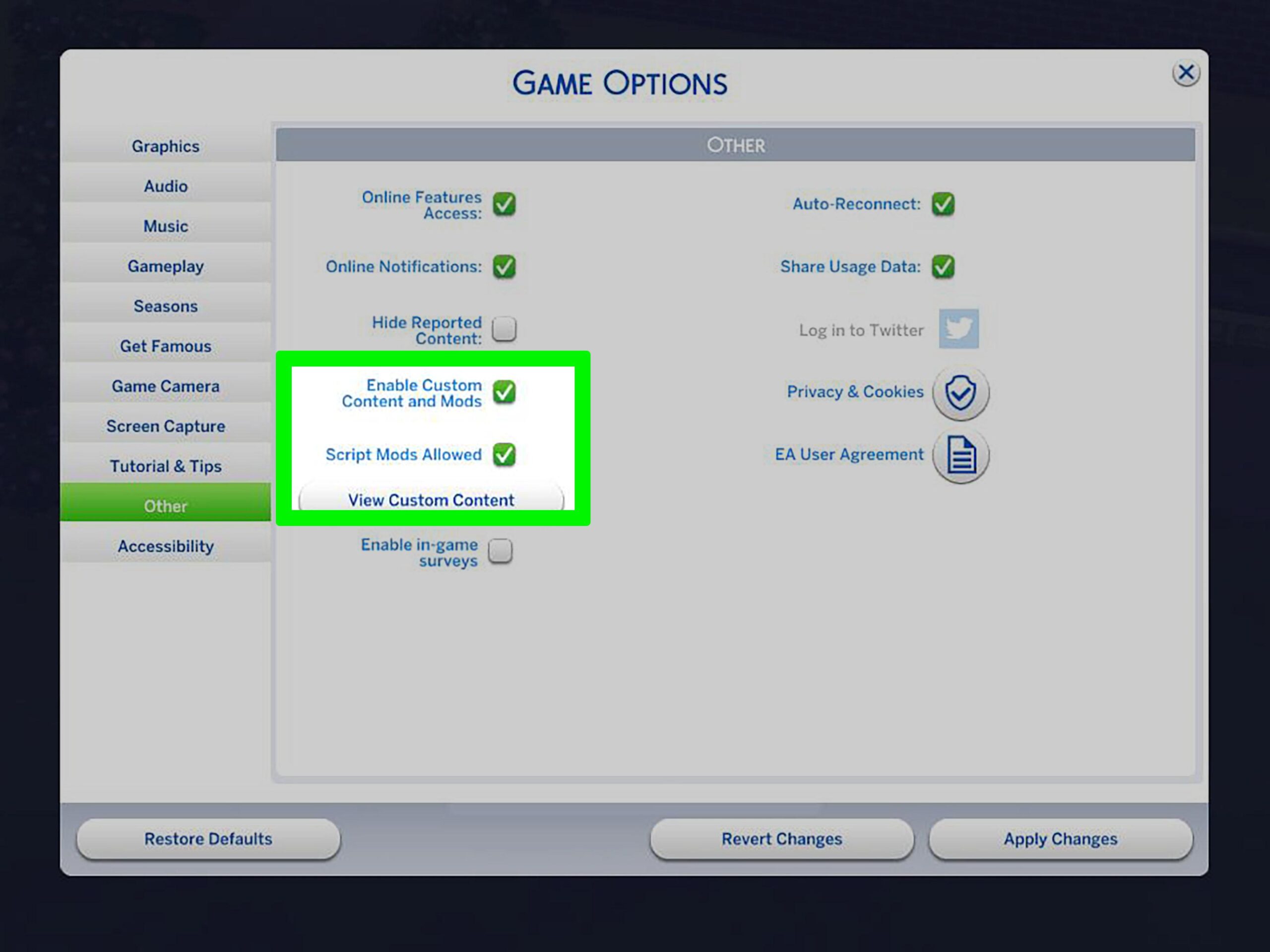
5. Launch The Sims 4. From the main menu, go to Game Options > Other and make sure the boxes for “Custom Content & Mods” and, if you use scripts, “Allow Script Mods” are checked. If you change anything, you will need to restart the game for the changes to take effect.
Upon restarting, the game should display a small window indicating that it has detected installed custom content . In Create a Sim and Build/Buy mode, you should see the new clothing, objects, and other custom content functioning normally.
Troubleshooting problems with personalized content
While installing custom content is usually straightforward, it's common to find that the content doesn't appear, causes errors, or the game crashes . There are several basic checks you should perform before you panic.
If, after following the steps above, the custom content (CC) is not visible in the game, the first thing to do is verify that the files are actually in the correct Mods folder and not in a different location. Also, make sure you haven't left them inside an unextracted .zip file (except in very specific cases where creators explicitly indicate otherwise).
Another key step is to check in the options menu that the custom content and mods box is enabled. Often, after a major update, the game disables mods for security reasons , and you'll need to re-enable the option and restart the game.
If you're still having problems, try removing the entire Mods folder, starting a clean install of the game, and then adding the content back in one by one to locate the problematic file . You can also check the help section of the creator's website, where they usually indicate if their custom content has become outdated.
In terms of performance, too much custom content can cause incredibly long loading screens or make the game feel sluggish. If you experience stuttering or crashes, consider cleaning up your Mods folder, removing unused content , and updating your core mods after each major patch.
Manual installation of DLC with EA and Steam versions
There's a rather unusual case that has raised many questions: people who have The Sims 4 installed on both the EA app/Origin and Steam simultaneously . In other words, two different installations of the same game on the same computer.
This situation arises because during some promotions the base game was free or very cheap on various platforms, and some users ended up with one copy on EA and another on Steam. The problem is that, when managing DLC and packs, many found that the content didn't appear correctly in either version.
After one of the most well-known methods for "unlocking" DLC (the so-called Anadius DLC Unlocker) disappeared from the internet, many people tried to replicate the process manually and encountered errors, incomplete installations, or packs that simply did not appear.
The guide circulating among the community focused primarily on users who have both copies installed (EA Games and Steam) and wanted the packs to be recognized on both. The key point is that it's not enough to modify just one installation ; you have to work on both game paths.
The manual procedure described usually includes steps such as opening both game installation folders (e.g., “:\EA Games\The Sims 4” and “:\SteamLibrary\steamapps\common\The Sims 4”), keeping them open in the background, running an external tool such as DLC Unlocker to generate certain settings, and then copying the DLC files to both installations in duplicate.
Even so, it's important to emphasize that using DLC unlocking tools is a sensitive issue. In public communities (such as some Sims subreddits), distributing or linking to these types of programs is expressly prohibited , and it's generally recommended that anyone who decides to use them should do their own research and assume the risks involved, both legally and in terms of game stability.
If you only have one copy of the game (either on Steam or the EA app), it's recommended to install and manage the packs in the "normal" way through the official platform , without resorting to shortcuts that could leave your game unstable or with errors that are difficult to locate.
Best practices and maintenance of additional content
When you start installing packs, custom content, and mods, it's easy for your game folder to become a mess. To avoid problems, it's a good idea to follow some basic best practices from the beginning.
The first thing is to maintain an organized structure within the Mods folder. Create subfolders with clear names (Clothes, Furniture, Toys, Hairstyles, Scripts, etc.) so you can quickly locate any file if it ever causes problems or you want to delete it.
It's also a good idea to make regular backups of your entire Sims 4 folder (located in Documents > Electronic Arts), especially before major game updates. That way, if something goes wrong, you can always revert to a previous version that was working properly.
With more complex mods, such as those that change gameplay or add entire systems, it's advisable to follow the creator on their website, Patreon, or social media to be notified when they release updated versions compatible with the latest patch . Using outdated mods is one of the most common causes of unusual bugs.
Finally, always try to download additional content from reputable and secure sources . While most downloads are harmless, it's always a good idea to scan downloaded files with antivirus software and avoid suspicious websites that might overload your PC with extra installers or intrusive ads.
Customizing The Sims 4 with official expansions, custom content, and mods allows the game to evolve with you and avoids becoming repetitive, but it does require a minimum of organization: knowing how your game files behave when you remove packs, understanding how to download and install DLC from the store, knowing where each custom content file goes, and keeping track of what you've added. With a little organization and by following the guidelines you just saw, it's easy to enjoy a much more complete game without struggling with bugs or losing your favorite families along the way.


Passionate writer about the world of bytes and technology in general. I love sharing my knowledge through writing, and that's what I'll do on this blog, show you all the most interesting things about gadgets, software, hardware, tech trends, and more. My goal is to help you navigate the digital world in a simple and entertaining way.
Table of Contents
- 1 Types of additional content in The Sims 4
- 2 What happens to your save files when you remove or add packs?
- 3 How to install official packs and expansions for The Sims 4
- 4 Install custom content (CC) in The Sims 4
- 5 Troubleshooting problems with personalized content
- 6 Manual installation of DLC with EA and Steam versions
- 7 Best practices and maintenance of additional content