- There are several ways to bypass TPM 2.0 and CPU restrictions using the Windows Registry or automated scripts.
- Installing on older hardware can cause system instability, security risks, and problems with updates.
- Viable alternatives are presented, such as migrating to Linux distributions for computers that do not support the new operating system.

You've probably experienced this: when trying to upgrade to the latest version of Windows, you're met with the annoying message that your computer doesn't meet the minimum requirements. It's a frustrating situation, especially when you have a machine that performs perfectly but, according to Microsoft, is "too old" because it lacks the TPM 2.0 chip or a cutting-edge processor.
The truth is, there's a lot of conflicting information out there, and it's normal to feel lost among so many tutorials. Some tell you to modify the registry, others to use modified ISOs, and still others to simply buy a new PC. In this article, we're going to break down all the available options so you can try Windows 11 on your old computer, knowing exactly what you're getting into and how to do it most effectively.

The main obstacles: TPM 2.0 and the Processor
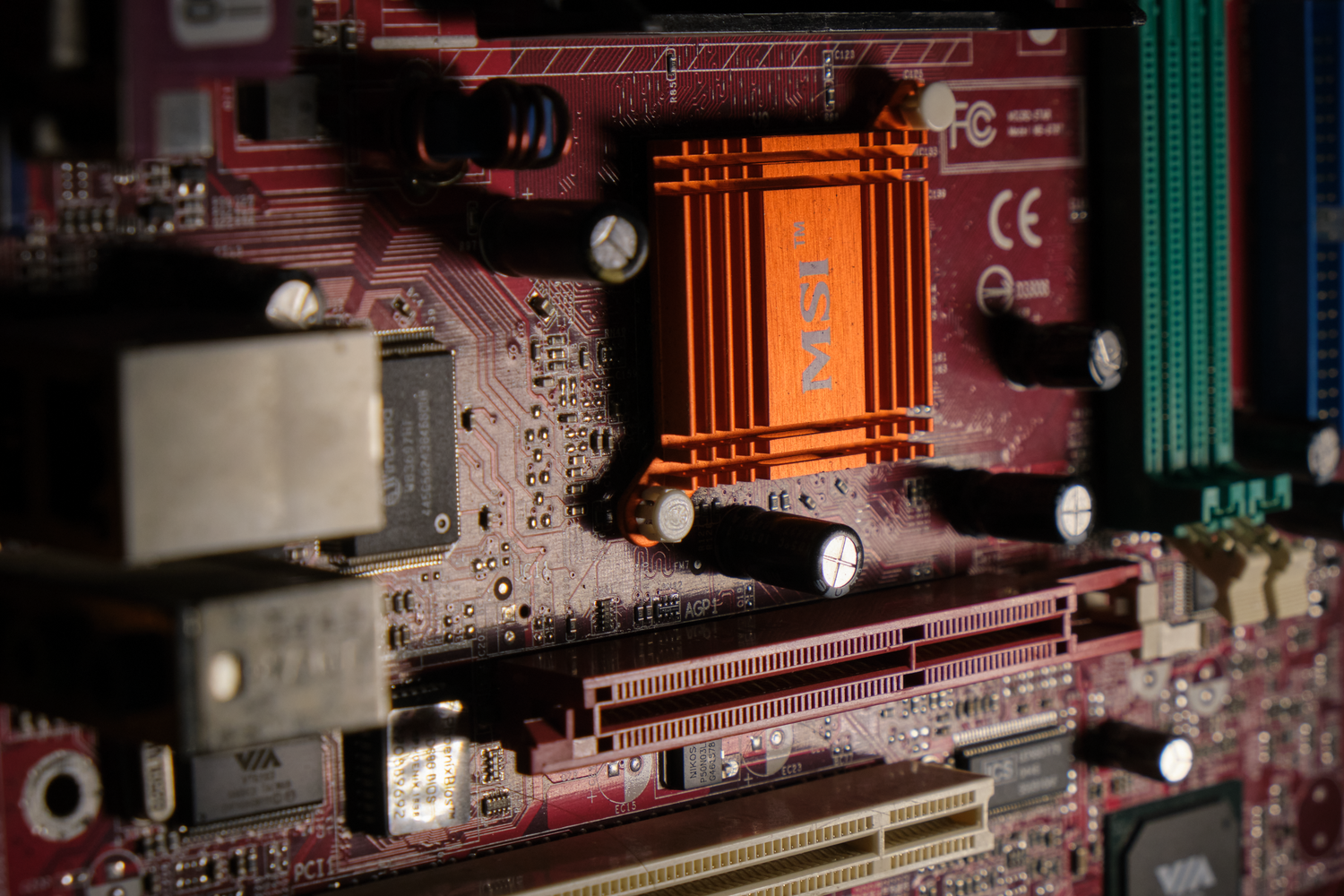
For Windows 11 to "officially" run, Microsoft requires things like 4 GB of RAM, 64 GB of disk space, and a DirectX 12 graphics card. But the real headache is TPM 2.0 and CPU compatibility . Many computers from just a few years ago only have TPM 1.2 or don't even have UEFI, which blocks a standard installation.
If you decide to force the installation, be aware that you might experience performance issues in the medium term, as the system requires more resources. Furthermore, by forgoing TPM 2.0, which is essentially a security chip, you could encounter instability in data encryption or less robust protection against advanced malware.

Methods to bypass restrictions

Depending on whether you want to upgrade from Windows 10 or perform a clean installation, the steps vary. Here are the most common paths:
Manual modification of the Registry (LabConfig)
For those trying to install the system and getting stuck during the system requirements check, there's a classic trick. It involves opening the Registry Editor at HKEY_LOCAL_MACHINE\SYSTEM\Setup and creating a folder (key) called "LabConfig". Inside this folder, add two 32-bit DWORD values named BypassTPMCheck and BypassSecureBootCheck , setting both to 1. This tricks the installer into ignoring the missing TPM and Secure Boot.
The MoSetup method (For updates)
If you're already using Windows 10 and want to upgrade without losing your data, there's a method that Microsoft itself has mentioned. You need to go to the path HKEY_LOCAL_MACHINE\\SYSTEM\\Setup\\MoSetup and create or modify the value AllowUpgradesWithUnsupportedTPMOrCPU , setting it to 1. This allows the installation wizard to ignore the CPU model and TPM 2.0 (although it still requires at least TPM 1.2).

Automation using PowerShell Scripts
If you don't feel like manually messing with the registry, there are community-created tools available. One example is the use of PowerShell scripts that, when run as administrator, can enable Windows Update on unsupported computers , remove the annoying watermark warning that the hardware isn't supported, and disable telemetry. These scripts often allow you to choose the specific version of Windows 11 you want to install, such as 24H2.
Common problems and installation errors

It's not all smooth sailing. Some users have reported strange errors when trying to upgrade without formatting. For example, messages indicating a "Windows Server installation failed" or warnings about insufficient space to continue, even when the disk is empty. This usually happens when trying to use parameters like /product server in the installation executable, a method that used to work but that Microsoft has been patching.
It's important to note that, since early 2025, Microsoft has removed some official guides on how to circumvent these requirements. It has even been reported that Windows Defender might detect some of these circumvention methods as threats, even though they are actually system modification tools, and it may be necessary to fix update errors in Windows 11 to stabilize the process.

What to do if you don't want to take the risk?
If you find the process too cumbersome or are worried about leaving your PC vulnerable, you have other options. One is to buy an inexpensive computer that comes with Windows 11 pre-installed. However, if your PC is old and you want it to run much faster, many experts suggest migrating to Linux . Distributions like ZorinOS have a very similar look and feel to Windows and consume far fewer resources, making them the most secure option once Windows 10 reaches its end of life in October 2025.
Installing Windows 11 on unsupported hardware is possible through registry entries or scripts, but it carries security and stability risks. While bypass methods allow you to circumvent the TPM and CPU, the reality is that performance can suffer and updates may fail, making switching to Linux or upgrading your hardware more sensible long-term alternatives.


Passionate writer about the world of bytes and technology in general. I love sharing my knowledge through writing, and that's what I'll do on this blog, show you all the most interesting things about gadgets, software, hardware, tech trends, and more. My goal is to help you navigate the digital world in a simple and entertaining way.