- The drivers act as a bridge between the GPU hardware and the operating system.
- Certain recent versions of NVIDIA have caused critical signal failures and black screens.
- Windows Safe Mode allows you to remove corrupt drivers when there is no image on the monitor.
- Manually installing older versions is the most effective solution to software errors.
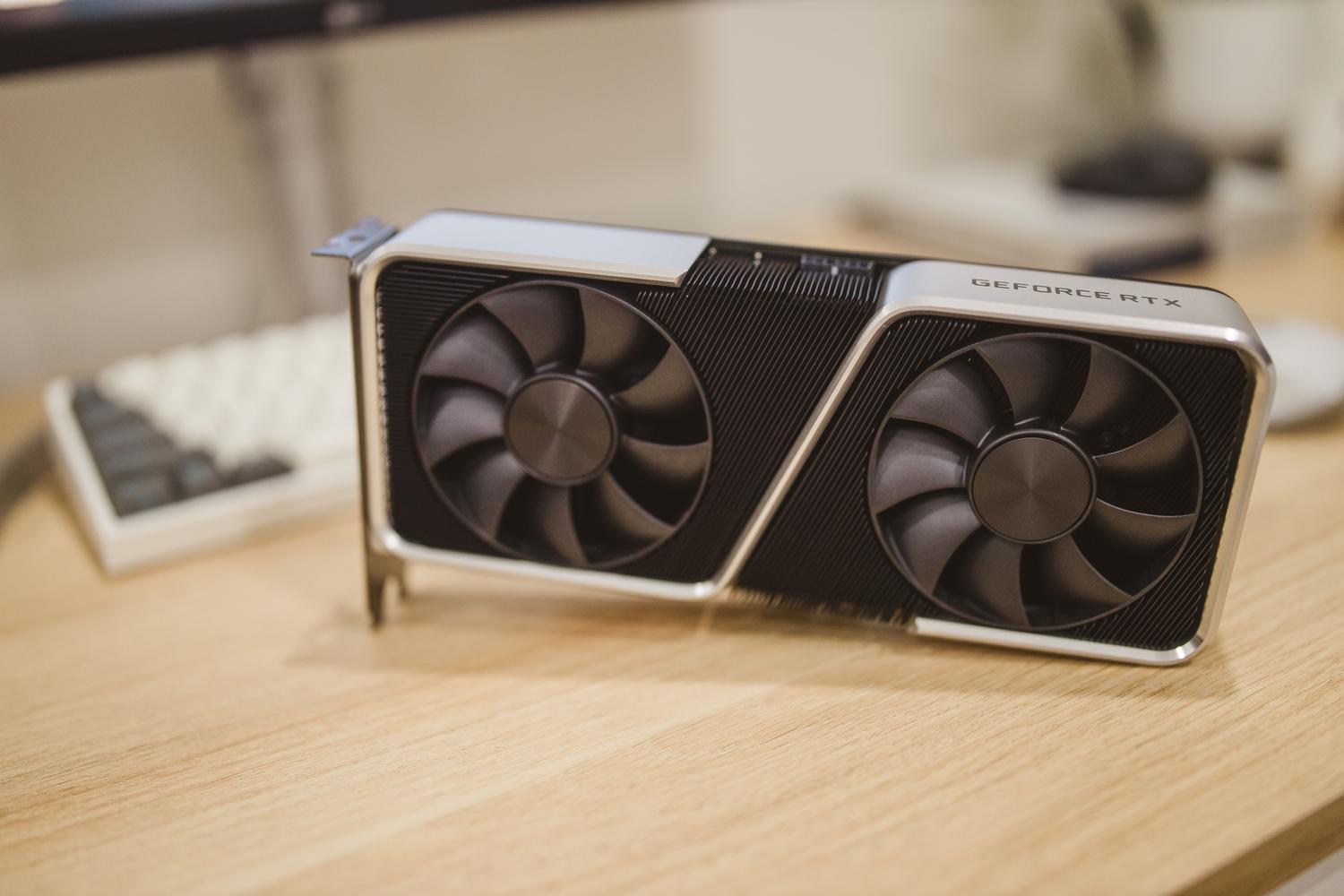
Keeping your computer in top condition and with up-to-date drivers is essential for smooth gameplay and demanding applications to run without problems. However, sometimes what seems like a routine maintenance task can turn into a real nightmare, leaving you with a completely black screen just when you need your PC the most.
If you've experienced a monitor that suddenly stops working after updating your NVIDIA graphics card, don't panic. While it might seem like you've broken the hardware, most of the time it's a software issue that can be resolved if you know where to start and how to fix it.

What exactly are drivers and why do they cause problems?
To put it simply, drivers are the communication bridge between the operating system and your computer's hardware components. Without them, Windows wouldn't know how to tell the GPU to render an image, resulting in basic graphics or no signal at all . Keeping them updated usually brings performance improvements, security patches, and compatibility with the latest releases, but it's not always a smooth process.
The problem arises when a specific driver version contains factory errors. Recently, versions like 572.60 and 572.83 have wreaked havoc on Windows 10 and 11 users, particularly affecting NVIDIA 40 and 50 series cards. In these cases, the screen goes black during installation or after restarting, leaving the user in the dark even though the PC remains powered on.
Step-by-step guide to updating your drivers correctly
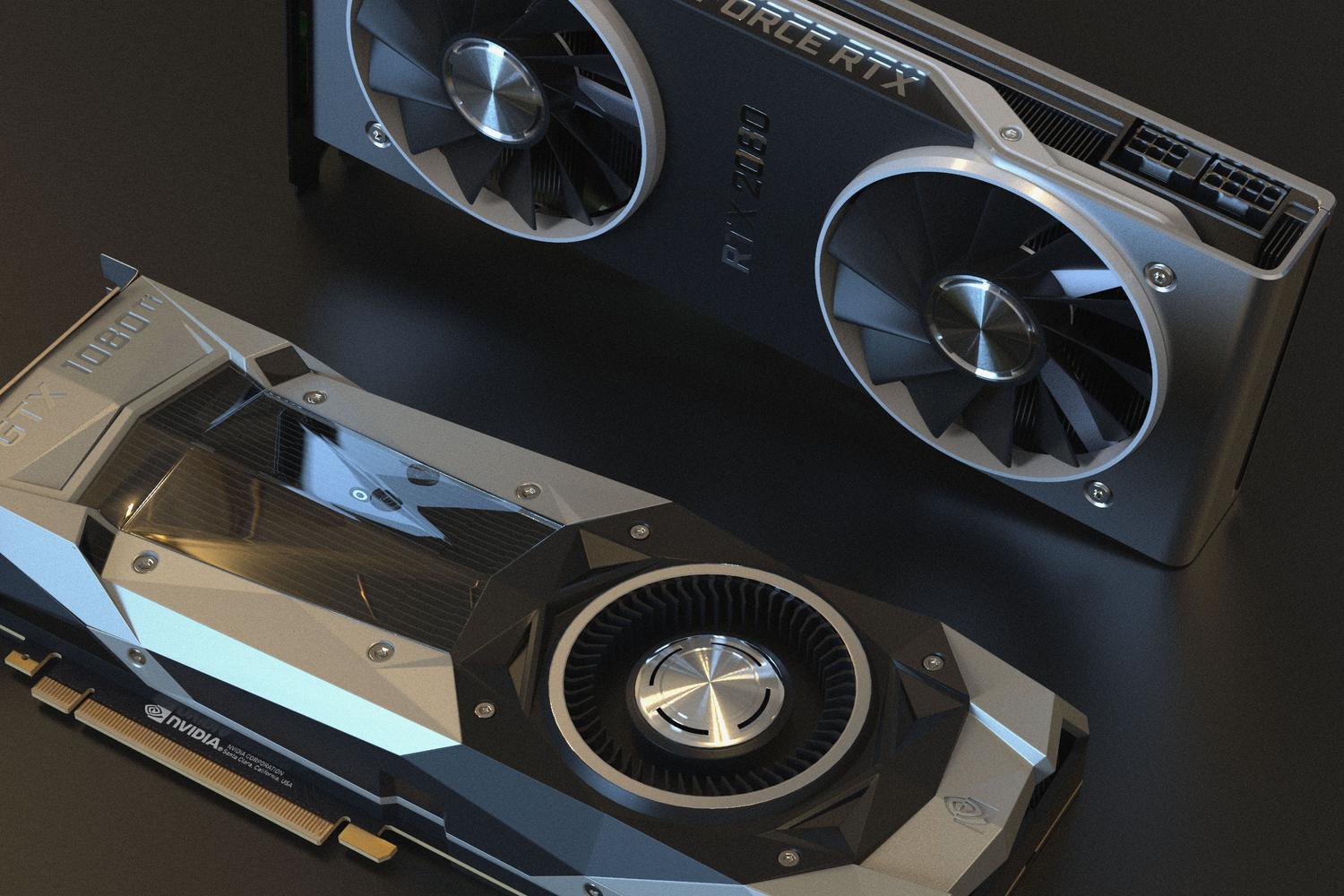
To avoid surprises, it's best to first identify exactly what hardware you have by consulting the NVIDIA graphics card specifications . You can do this by opening Device Manager and expanding the Display adapters section. Once you've confirmed your GPU, you have several options for updating:
- Windows Update: It's the most convenient way through Settings, although sometimes it takes forever to receive the latest versions.
- NVIDIA App or GeForce Experience: These are the official tools that automate the search and allow a quick InstallHowever, this is where failures usually occur if the current version is corrupted.
- Manual download: It's the safest method. Go to the NVIDIA website, select your exact model, download the .exe file, and install it manually.

How to get out of the hole: Fixing the black screen
If you've already fallen into the trap and see nothing on the monitor, the trick is not to despair. First, you can try the Win+Ctrl+Shift+B command to restart the driver, although it doesn't always work. If the problem persists, the definitive solution is to enter Windows Safe Mode.
To do this, you must force your PC to restart three times in a row until the system activates the automatic repair tool . From there, access the restart options, select safe mode, and uninstall the problematic driver . Once the system is clean, restart normally and download a stable version to fix the black screen error and restore the image.

Other common mistakes and survival tips
It's not all black screens; sometimes you might encounter blue screens of death (BSODs) or games that crash. If you don't want to uninstall the driver, some users have managed to stabilize the system by disabling G-Sync or frame rate reduction , or by lowering the monitor's refresh rate to 144 Hz or less.
To prevent this from happening again, I recommend creating a system restore point before any major updates. Also, you don't need to obsess over installing every driver that comes out on day one; updating every two or three months is usually sufficient, unless you've just bought a game that requires specific optimization.
The key to maintaining your GPU's health is combining prevention with knowing how to roll back. If an update renders your PC unusable, uninstalling in safe mode and reverting to a previous, known good version is the most reliable way to restore your battle station's functionality.


Passionate writer about the world of bytes and technology in general. I love sharing my knowledge through writing, and that's what I'll do on this blog, show you all the most interesting things about gadgets, software, hardware, tech trends, and more. My goal is to help you navigate the digital world in a simple and entertaining way.