- Choosing the right deployment model and trust type (cloud Kerberos, key, or certificate) is key to making Windows Hello work in a domain.
- The Kerberos trust in the cloud simplifies hybrid deployments because it does not require PKI and relies on Microsoft Enter Kerberos.
- Windows Hello for business needs properly configured MFA, device registration, and key synchronization to provide secure SSO.
- Configuration is done with CSP or GPO and requires compliance with operating system requirements, patches and, in some models, Microsoft Entra ID licenses.
If you have field technicians or users with laptops and tablets who are constantly using touchscreens, they're probably tired of typing their passwords over and over again. Windows Hello for Business was created precisely for that purpose: to replace passwords with more convenient and secure login methods, such as PINs, fingerprints, or facial recognition, while maintaining integration with your domain and Microsoft Entra ID (formerly Azure AD).
The problem is that when you start reading official documentation, concepts like deployment models, trust types, Kerberos in the cloud, PKI, AD FS, MFA, key synchronization, and so on appear , and it's easy to get overwhelmed, especially if you don't want to mess with domain controllers too much. In this guide, we'll break it all down calmly, explaining what you really need to implement Windows Hello in a domain environment (including hybrid) and which parts you can ignore depending on your actual scenario.
What is Windows Hello for Business and how does it differ from the "normal" Windows Hello?
Windows Hello for Business is the enterprise version of Windows Hello that replaces passwords with public key credentials linked to the device . It's not just for unlocking the computer: it's also used for authentication with Active Directory and/or Microsoft Entra ID.
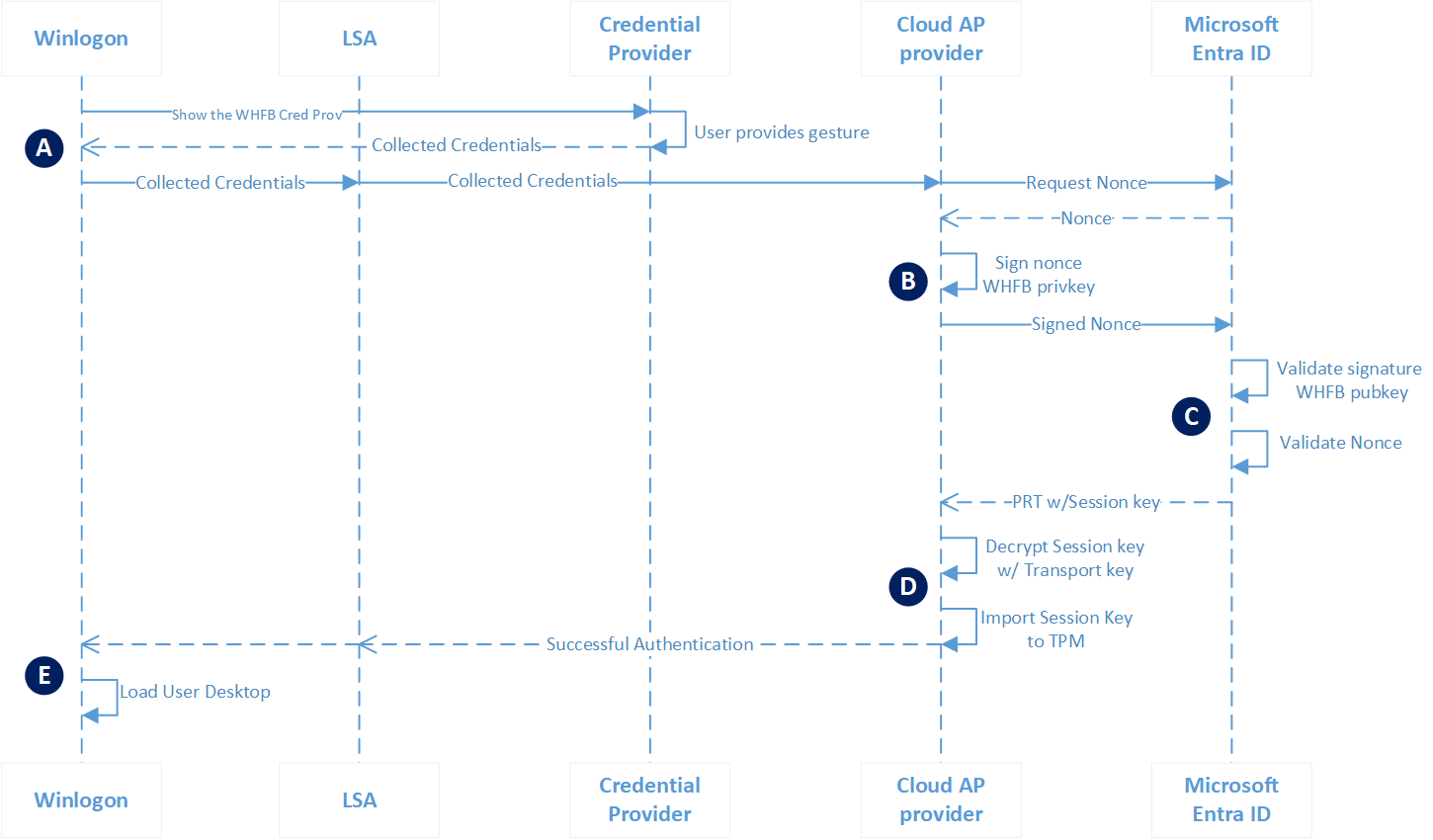
In practice, the user logs in using a PIN, fingerprint, or facial recognition , but underneath, Windows uses a pair of asymmetric keys stored and protected on the device (preferably in the TPM) to authenticate to the identity provider (IdP): it can be just Microsoft Entra ID, a hybrid environment, or a purely local environment with AD FS.
The private key never leaves the computer; the public key is registered with Microsoft Entra ID or AD FS during enrollment. From there, the user can perform SSO against cloud and/or on-premises resources, depending on the deployment model you choose.
Windows Hello deployment models for businesses
Before modifying GPOs or Intune, it's important to understand which deployment model best suits your environment. Windows Hello for Business distinguishes three main scenarios, depending on where identities and resources reside:
Cloud-only : Organizations that only have Microsoft Entra ID identities and do not access on-premises resources. Devices join Microsoft Entra (Azure AD join) or register, and everything the user needs (SharePoint Online, OneDrive, SaaS apps, etc.) is in the cloud. There are no on-premises domain controllers or need for certificates for VPNs or other on-premises services.
Hybrid : Companies that synchronize identities between on-premises Active Directory and Microsoft Entra ID. They typically have devices joined to a traditional domain, Azure AD-joined devices, or hybrid devices, and they want SSO to both on-premises resources (file servers, legacy applications) and cloud resources. This is the most common and interesting scenario when you're wondering how to implement Windows Hello in a domain without breaking anything.
On-premises : Organizations without cloud identities or Microsoft Entra ID applications. Everything resides in Active Directory, and apps are integrated with AD or AD FS. However, they can leverage Windows Hello for Business for a passwordless , single sign-on (SSO) experience within their on-premises environment.
The model you choose determines which services you need (for example, Microsoft Entra Connect, AD FS, PKI, Kerberos in the cloud, etc.) and what type of trust you will use to talk to Active Directory.
Types of trust: how Windows Hello authenticates against the domain
The trust type defines how Windows Hello for Business clients authenticate to Active Directory. It's a key concept when you want users to be able to use a PIN or fingerprint on a domain-joined PC to access on-premises resources.
Important: This trust type only applies when there is a local Active Directory . To authenticate with Microsoft Entra ID, Windows Hello always uses a key (not a certificate), except in specific smart card scenarios in federated environments.
The three types of trust you can choose from are:
1. Cloud Kerberos Trust
In this model, users obtain their Active Directory TGT through Microsoft Enters KerberosMicrosoft Entra ID issues a ticket that local domain controllers accept, and these then continue issuing Kerberos service tickets and performing authorization. This is the same mechanism used for login with FIDO2 security keys.
The key advantages of Kerberos trust in the cloud are:
- You don't need to deploy a PKI nor touch your existing certificate infrastructure.
- There is no need to synchronize public keys between Microsoft Entra ID and Active Directory for the user to access local resources, so there is no delay between Windows Hello enrollment and the ability to authenticate to the domain.
- Enables login with FIDO2 security keys with a very lightweight additional configuration.
However, Kerberos cloud trust requires that you implement Microsoft Enter Kerberos and meet minimum versions of Windows and Windows Server (we'll see this later in system requirements).
2. Key trust
In this case, users authenticate against the local Active Directory using a key linked to the device created during Windows Hello enrollment. The client requests a Kerberos TGT using that key. For this to work, certain certificates to domain controllers, since Kerberos will use certificate-based authentication to the DC.
This model does not issue end-user certificates: the user credential remains the asymmetric key protected by the device, but the DCs need certificates for Windows computers to recognize them as trusted entities.
3. Certificate trust
Here they go a step further: they broadcast authentication certificates for usersDuring enrollment, the user requests a certificate using a device-linked key (generated by Windows Hello). Afterward, login and Kerberos TGT requests are based on that user certificate, backed by your corporate PKI.
This model requires a well-configured enterprise PKI and a certificate authority (CRA). In federated deployments, AD FS typically acts as the CRA. Additionally, in hybrid environments, device writeback must be enabled in Microsoft Entra Connect.
Important point: none of these trust types is inherently more secure than another; the choice depends on your current infrastructure, whether you already have PKI, whether you want to add AD FS, and how willing you are to tamper with domain controllers.
PKI requirements according to the model and type of trust
One of the typical questions when discussing Windows Hello in a domain is whether a full PKI is required for it to work. The answer depends entirely on your deployment model and the type of trust chosen.
Kerberos trust in the cloud is the only hybrid option that doesn't require certificates . If you can adopt this model, you avoid having to deploy corporate CAs for domain controllers and users. This makes it especially attractive for environments that don't want to deal with PKI.
However, in hybrid models based on Key trust or Certificate trust , as well as in purely local models, you do need PKI:
- The domain controllers Hybrid and on-premises environments need a certificate so that Windows clients can trust them when validating certificate-based authentication.
- If you use certificate trustYou need an enterprise PKI and a certificate registry authority (CRA) to issue user certificates. AD FS acts as the CRA in many deployments.
- In some hybrid environments you will need to issue VPN certificates to users, if their access to local resources goes through tunnels that depend on certificates.
Therefore, if you're hesitant to touch the domain controller and your environment is already synchronized with Microsoft Entra ID, the most practical solution is usually to opt for Kerberos in the cloud , which greatly simplifies the infrastructure.
Authentication with Microsoft Login ID
Windows Hello for Business is also used to authenticate users with Microsoft Entra ID , regardless of how you communicate with Active Directory. Two main options come into play here: federated authentication (for example, with AD FS) or cloud authentication (PHS/PTA).
Depending on the implementation model and type of trust, certain requirements are imposed:
- Cloud onlyCloud authentication is used by default. You can opt for federated authentication with a third-party IdP if you wish, but Windows Hello works seamlessly with standard cloud authentication.
- Hybrid with Kerberos cloud trust or Key trustYou can use password hash synchronization (PHS), pass-through authentication (PTA), or federation (AD FS or other IdPs), depending on your current design.
- Certified hybrid: Requires federated authentication with AD FS; does not support PHS or PTA. AD FS is central to this.
If your tenant is already set up with PHS or PTA and you don't want to modify AD FS, Kerberos cloud trust or the Key Trust model are a better fit. However, if you already use AD FS federation for everything, certificate trust might be a natural choice.
Device registration according to model
Another key block is the device registry , which determines who controls the equipment to issue tokens and enable SSO.
In local environments , the server with the AD FS role handles device registration. It manages the trust relationship with the devices and issues the tokens necessary for Windows Hello for Business to function within the on-premises domain.
In hybrid or cloud-only environments , devices must register with a Microsoft Entra ID, either as:
- Microsoft Azure AD joined.
- Microsoft joins hybrids (hybrid AD join).
- Microsoft Login for registered users (common in BYOD).
The type of join determines what capabilities you have: for example, hybrid devices allow SSO to both the cloud and on-premises without the user having to juggle different credentials.
Multi-factor authentication (MFA) in provisioning
One of the main goals of Windows Hello for Business is to move away from traditional passwords , providing a strong credential backed by secure devices. To achieve this, the provisioning process requires two-factor authentication.
The idea is that weak credentials (username and password) are used only as the first factor, while the second factor is provided by an MFA solution . Windows does not generate the Windows Hello for Business credential until the user successfully completes MFA.
In hybrid and cloud-only environments, you can use:
- Microsoft enters MFA integrated.
- Third-party MFA solutions, either as an external authentication method in Microsoft Enter ID or through a federated IdP.
In local environments without Microsoft Entra ID, you'll need an MFA option that integrates as an AD FS MFA adapter . Microsoft and other vendors offer dedicated adapters for this purpose.
Additionally, in federated domains you can adjust the branding FederatedIdpMfaBehaviorThis tells Microsoft Entra ID whether to accept, require, or reject the MFA coming from the federated IdP. This setting is reviewed and modified using PowerShell commands such as Get-MgDomainFederationConfiguration y Update-MgDomainFederationConfiguration.
Policy configuration: GPO vs CSP
To enable users to use Windows Hello for Business on their devices, you need to configure the appropriate policies . There are two main mechanisms:
- Configuration Service Provider (CSP)Ideal for devices managed via MDM, such as Microsoft Intune. It allows you to push Windows Hello policies using configuration profiles, and even with provisioning packages.
- Group Policy (GPO): used for domain-joined computers that are not managed by MDM or where you prefer to continue with traditional on-premises management.
In any model (cloud-only, hybrid, or on-premises), you can use CSP, GPO, or a combination, depending on how you manage your devices. For example, you can manage domain-joined laptops using Intune (hybrid) while simultaneously applying some baseline configuration via GPO or secure remote administration.
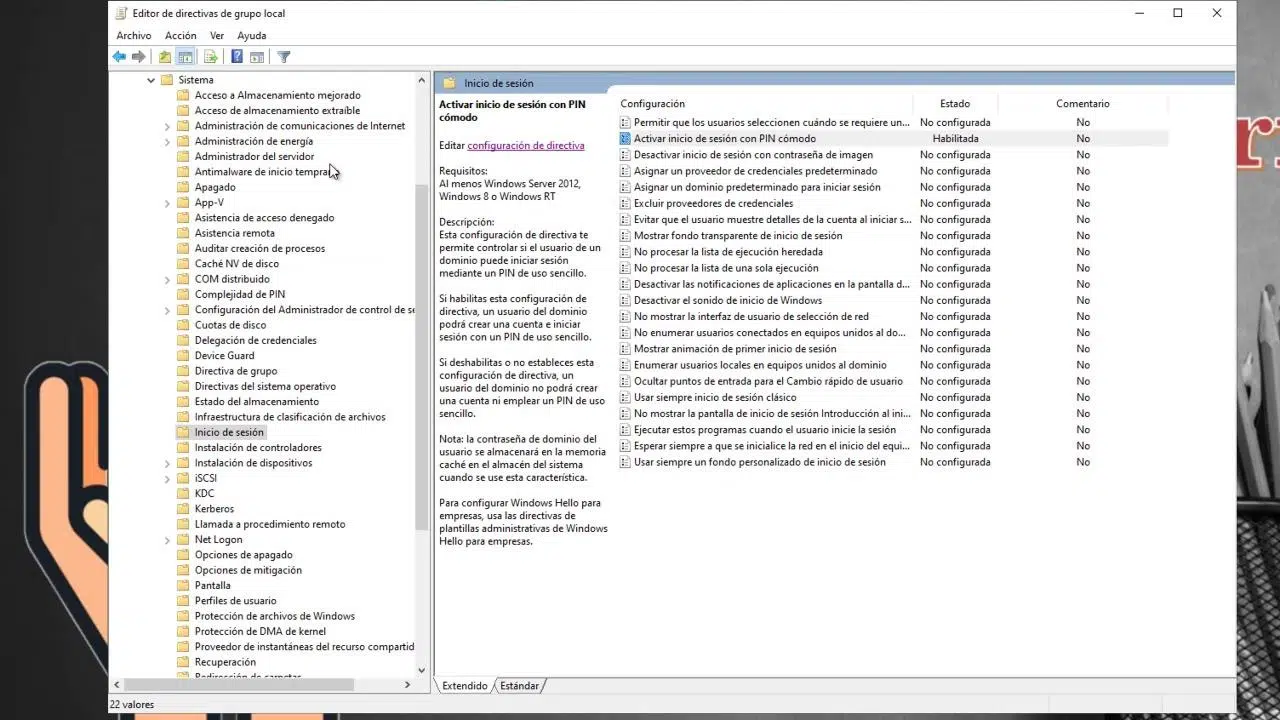
In a classic GPO deployment, there is one mandatory key policy to enable Windows Hello for Business in a key trust model, and another highly recommended policy:
- Team route: Computer configuration → Administrative templates → Windows components → Windows Hello for Business → Use Windows Hello for Business (enabled).
- User path: User configuration → Administrative templates → Windows components → Windows Hello for Business → Use Windows Hello for Business (enabled if you want to force it per user).
- Additional: Use a hardware security device, to enforce the use of TPM and improve key protection.
If you apply the setting on the Computer node, all users who log on to those devices will be forced to attempt to enroll in Windows Hello for Business. If you apply it on the User node, only the intended users will see the enrollment experience. In case of conflict, user policies take precedence over computer policies.
Group Policy Objects (GPOs) can be linked to the domain or specific Organizational Units (OUs), filtered by security groups, or even by WMI filters to precisely segment which machines are included in the deployment. In addition to these basic options, there are a number of detailed Windows Hello policies (e.g., PIN complexity, lock timeout, biometric usage) that you can adjust according to your company's security policy.
Registration process and user experience
From the user's perspective, the Windows Hello for Business setup process is fairly guided. Provisioning begins immediately after the user profile loads and before they see the desktop, provided all infrastructure and policy prerequisites are met.
If you want to check whether the pre-checks have been passed, you can review the user device administrator log In Event Viewer: Application and Services Logs → Microsoft → Windows. Another option is to use dsregcmd.exe /status on a console to view the device registration status and its relationship with Microsoft Enter ID.
The steps that the user follows during registration are usually:
- If the device supports biometric authentication (fingerprint reader, compatible camera), Windows will prompt the user to configure a biometric gestureThis gesture will unlock the device and authenticate users with resources that accept Windows Hello for Business. The user can skip this step if they prefer to use only a PIN.
- Windows informs you that it will use Windows Hello with the corporate account and the user must accept.
- The phase begins multi-factor authenticationWindows informs the user that it is attempting to reach them through the configured MFA method (for example, mobile app, call, or SMS). Provisioning does not continue until the MFA completes, fails, or expires. If the MFA fails or expires, the user receives an error message and is prompted to retry.
- After a successful MFA, the system prompts the user to Create and validate a PINThis PIN must comply with the configured complexity directives (minimum length, restriction of repeated digits, etc.).
- Finally, Windows requests a asymmetric key pair For the user, ideally generated and protected within the TPM (or required if specified in the policy). Once the keys are generated, Windows registers the public key with the IdP (Microsoft Entra ID or AD FS, depending on the model). Upon completion of key registration, the wizard informs the user that they can now use their PIN or biometrics to log in, and the user closes the provisioning app and accesses the desktop.
Official documentation typically includes sequence diagrams and videos illustrating these steps, including examples with custom MFA adapters for AD FS. These are helpful for understanding the calls between the client, the IdP, the DCs, and the MFA service.
Key logging and directory synchronization
At the heart of Windows Hello for business is the creation and registration of the asymmetric key pair . Provisioning generates a private key linked to the device (typically stored in the TPM) and registers the public key with the appropriate identity provider.
- Cloud-only modelsThe public key is registered in Microsoft Login ID.
- hybrid modelsIt also registers with Microsoft Entra ID; then, Microsoft Entra Connect Sync takes care of synchronizing the public key with Active Directory.
- Local modelsThe public key is registered in AD FS, which acts as the identity provider for the on-premises environment.
In hybrid models, Microsoft Entra Connect not only synchronizes users and devices, but also Windows Hello public credentials , allowing the user to gain SSO against local resources using that strong credential, without needing to use the password again.
In purely local models that use Azure MFA as a multi-factor solution, directory synchronization can be used to import users from Active Directory to the Azure MFA server, which in turn communicates with the MFA cloud service to validate the second factor.
Operating system requirements
Regarding Windows versions, all client versions officially supported by Microsoft can use Windows Hello for Business . However, Kerberos trust in the cloud does have specific minimum requirements:
- Windows 10 21H2 with update KB5010415 or later.
- Windows 11 21H2 with update KB5010414 or later.
For other types of trust (Key and Certificate) in hybrid or local models, all supported client versions of Windows are valid, provided they receive security updates.
Regarding domain controllers, Windows Hello for business works with all supported versions of Windows Server, but Kerberos trust in the cloud again has minimum requirements:
- Windows Server 2016 with KB4534307 or later.
- Windows Server 2019 with KB4534321 or later.
- Windows Server 2022.
- Windows Server 2025.
In any case, the minimum forest and domain functional level must be Windows Server 2008 R2 for all deployment models. If you still have domains with earlier functional levels, you will need to upgrade them before considering a serious Windows Hello for Business deployment.
Licensing and cloud service requirements
In terms of licensing, Windows Hello for Business itself does not directly require a Microsoft Entra ID P1 or P2 . However, some related features (such as automatic MDM enrollment, certain conditional access policies, or device writeback) may require P1/P2 levels.
Some key licensing points are:
- You can deploy Windows Hello for business with the free tier Microsoft Sign In ID. All free accounts can use Microsoft Sign In MFA for passwordless Windows features.
- Devices managed via MDM (Intune or others) do not require P1/P2 simply because they use Windows Hello; however, without P1/P2, MDM enrollment may not be automatic and users will need to register manually in the MDM solution.
- If you use the model of certificate trust In hybrid, you will need at least Microsoft Enter ID P1 to enable features such as device writeback and certificate enrollment through the AD FS registry authority.
- In local environments, if you decide to use Azure MFA as a multifactor solution, you will need to have the corresponding Azure MFA licenses or packages that include it.
In summary: for many hybrid deployments with Kerberos in the cloud or Key trust, P1/P2 subscriptions are not mandatory, but if you want to take full advantage of modern management, advanced conditional access, and device writeback, these subscriptions become relevant.
How does all this fit into a real-world scenario: hybridly connected tablets
In a typical field technician environment with hybridly connected Windows tablets, the following is usually the case:
- The devices are joined to the domain and registered with Microsoft Login ID (hybrid AD join).
- The configuration is managed with Intune, GPO, or a mix of both.
- You want to enable Login with fingerprint or PIN to avoid typing passwords on a touchscreen.
In this context, it's usually more advisable to opt for Kerberos in the cloud than for models that require a full PKI. You don't have to "break" anything on the domain controllers beyond installing the necessary patches and configuring Microsoft Entra Kerberos, and you avoid the hassle of user certificates and CRA.
If you've already created a configuration profile in Intune to enable Windows Hello and you see that the system offers to configure a PIN or biometrics, but then you get the error "Your credentials could not be verified" when trying to use Windows Hello, it's most likely because:
- Don't have Trusted backend completed (Kerberos in the cloud/Key/Certificate) to talk to the domain.
- Or the configuration is not working correctly hybrid implementation model following the official guidelines (for example, the specific guide for hybrid cloud Kerberos trust).
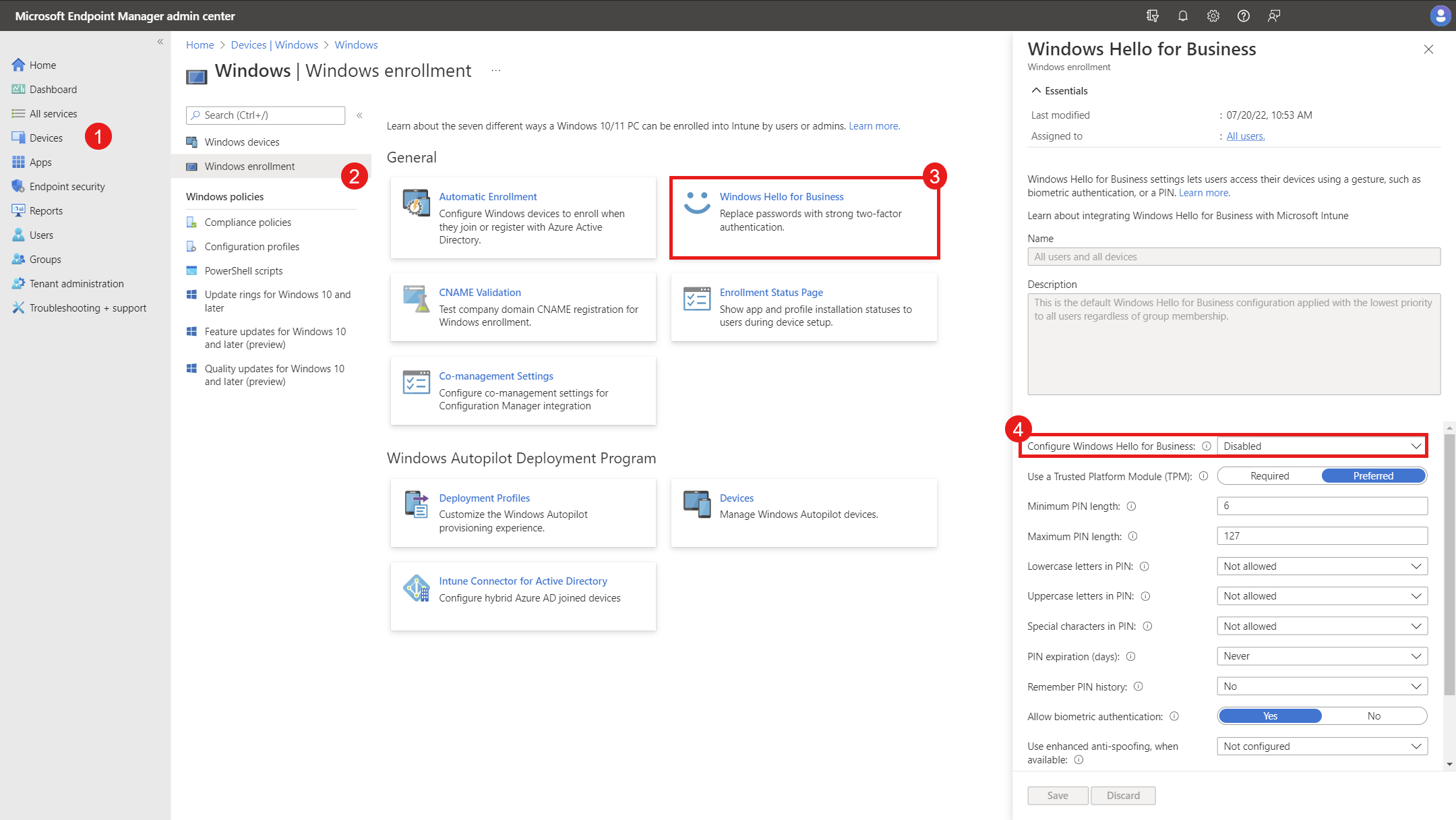
The global configuration under “Enroll devices → Windows enrollment” in Intune activates Windows Hello at the tenant level, but it doesn't replace the underlying infrastructure requirements (trust type, Microsoft Entra Kerberos, directory synchronization, etc.). That's why you see the wizard on the client, but the server-side authentication fails when validating credentials.
The sensible thing to do in these cases is to review step by step the Windows Hello for Business deployment documentation and its hybridization with Kerberos in the cloud, making sure that the devices appear correctly registered (via dsregcmd /status), that Microsoft Entra Kerberos has been configured in the correct forest and that the policies (CSP/GPO) are applied to the appropriate users and computers.
With all these pieces properly aligned—a clear deployment model, the right trust type, working MFA, correct device and key registration, and well-applied policies—Windows Hello for Business ceases to be a "pain in the neck to set up" and becomes a rather convenient way for your users to log into the domain with a PIN, fingerprint, or face instead of struggling with endless passwords on touch keyboards.


Table of Contents
- 1 What is Windows Hello for Business and how does it differ from the "normal" Windows Hello?
- 2 Windows Hello deployment models for businesses
- 3 Types of trust: how Windows Hello authenticates against the domain
- 4 PKI requirements according to the model and type of trust
- 5 Authentication with Microsoft Login ID
- 6 Device registration according to model
- 7 Multi-factor authentication (MFA) in provisioning
- 8 Policy configuration: GPO vs CSP
- 9 Registration process and user experience
- 10 Key logging and directory synchronization
- 11 Operating system requirements
- 12 Licensing and cloud service requirements
- 13 How does all this fit into a real-world scenario: hybridly connected tablets