
If you anticipate extreme weather conditions, send weather alerts from your iPhone carrier directly to the lock screen of your unlocked device.
Get weather alerts on your iPhone lock screen
In addition to the Home Screen Weather widget in the Notifications heart, you can also add a Weather widget to your iPhone's Lock screen using Do Not Disturb mode.
This optional lock screen weather widget only appears when your iPhone is locked and the Do Not Disturb interval has ended on your device.
So, to enable the weather alert on the iPhone lock screen, you need to tap a Do Not Disturb interval on your iPhone and allow the weather app to track your location and allow notifications.
Once these conditions are met, your iPhone will start offering daily weather alerts, right on your device's lock screen.
Step 1: Set Do Not Disturb Schedule on iPhone
Go to Settings > Focus > Do Not Disturb > scroll down and click on Add a schedule or automation option.

On the next screen, choose the Time option.
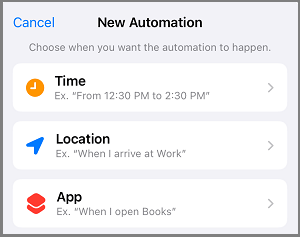
On the time display screen, use the From & Fields button to select the Start & Arrival Time from a short, deliberate pause of "Do Not Disturb" on your iPhone and tap Run On.
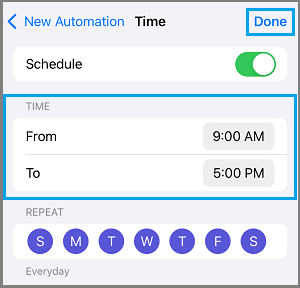
For example, if you normally leave for work at 6:30 a.m., you can choose From: 6:00 a.m. to 6:10 a.m.
This way, your iPhone can be in Do Not Disturb mode for 10 minutes and the weather alert will appear on your iPhone as soon as the Do Not Disturb interval ends (anytime after 6:10).
Step 2: Enable location-based business for the Weather app
Next, make sure the Weather App has access to your location data by going to Settings > Privacy > Business Locations.
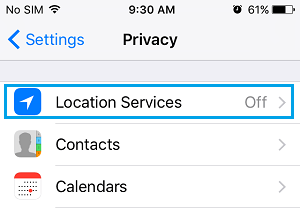
On the Location Providers view screen, scroll down and click on the Weather App.
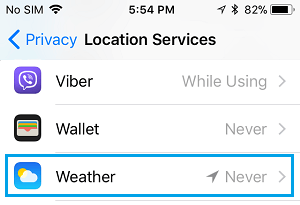
On the next screen, select the All times option.

Step 3: Turn on weather notifications
Open the Weather app on your iPhone and tap the 3 lines located in the back menu.
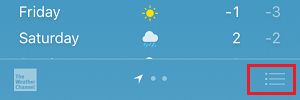
If you immediately see the "Authorization Notification", choose the License option or tap Continue to grant Local weather App the necessary permission to provide notifications on your computer.

Next, you need to figure out the weather alert that appears every morning on your device's lock screen. The Weather widget will disappear as soon as you unlock your device and reappear at the same time the next day.
This way, you will continue to receive weather alerts on your device every day, without having to unlock it and open the notification center.
What happens if you put your iPhone in “Do Not Disturb” mode?
If you select your iPhone during scheduled Do Not Disturb mode, you'll see a "DO NOT DISTURB" message with a moon icon.
Once the Do Not Disturb interval is over, you’ll see your iPhone greet you with weather data on its lock screen.

In general, most customers want to see the Weather widget when they wake up in the morning. However, you can also have the Weather widget at any time on your iPhone's lock screen.
- How to turn on Do Not Disturb for certain contacts on iPhone
- How to activate Do Not Disturb mode when driving on iPhone
Table of Contents
