- Reviewing notification permissions on your mobile device and in the watch app is essential for WhatsApp reach the wrist.
- Do Not Disturb mode, theater mode, and battery restrictions often block notifications without the user noticing.
- The Galaxy Watch 8 and 9 allow you to use WhatsApp as a native app, while on the Apple Watch it works with mirrored notifications or apps Of third parties.
- Good connectivity and careful privacy settings ensure fast and secure messaging on the smartwatch.
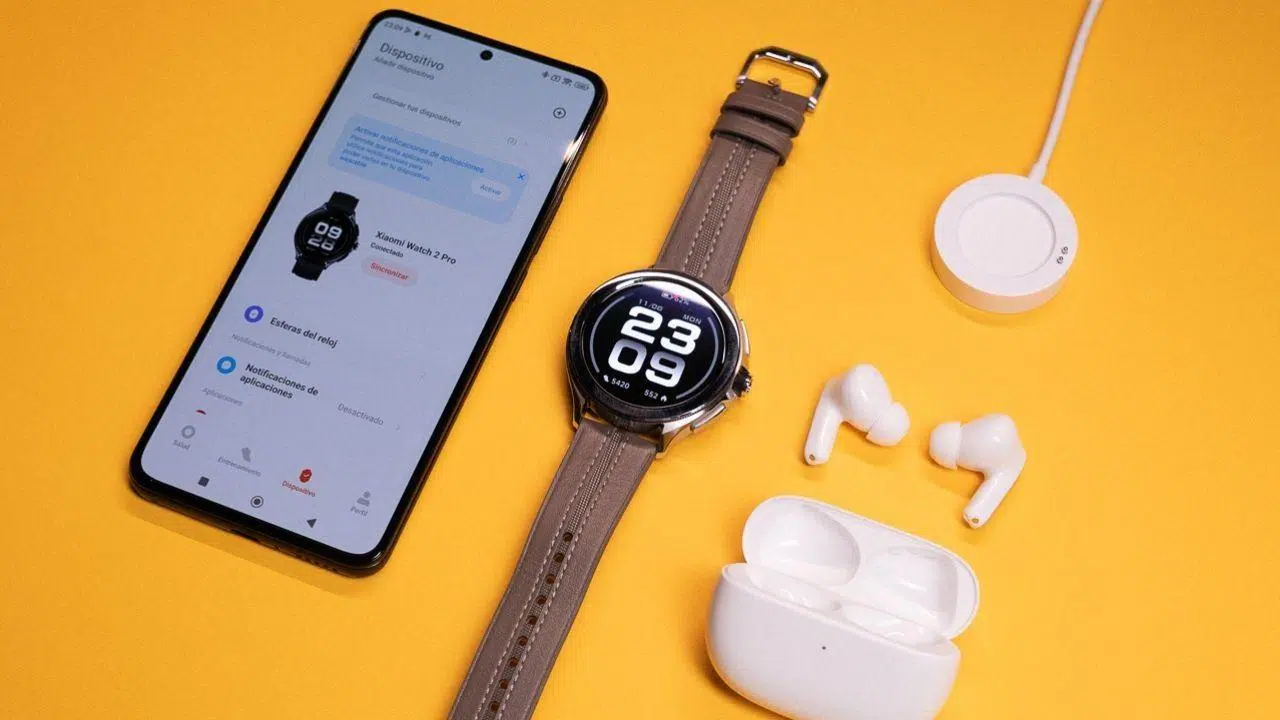
If you have a smartwatch and suddenly WhatsApp messages have stopped arriving on your watch , it's normal to feel a little frustrated. After all, one of the main reasons for wearing it on your wrist is being able to see notifications without taking your phone out of your pocket. The good news is that, in most cases, the problem can be fixed by tweaking a couple of incorrectly configured settings.
In this guide, you'll find a clear, step-by-step explanation of all the possible reasons why WhatsApp isn't appearing on your smartwatch and how to fix them, whether you're using Android (Wear OS, Galaxy Watch, Xiaomi watches, OPPO, etc.) or have an Apple Watch paired with an iPhone . You'll also see how to install the WhatsApp app on compatible watches, what limitations it has on Apple Watch, and some tricks to ensure notifications arrive quickly and without interruption.
Why WhatsApp messages aren't reaching the watch: the most common causes
Most WhatsApp problems on your smartwatch are due to notification settings or battery issues , rather than serious device malfunctions. Before you panic, check out these common reasons why you might not be receiving anything on your wrist.
One of the most common reasons is that you haven't properly configured notification permissions in the watch app . Many smartwatches require you to specifically configure which apps can send notifications to the watch through the companion app on your phone (Wear OS, Galaxy Wearable, Mi Fitness, etc.). If WhatsApp isn't enabled, you won't receive any notifications, even if it works perfectly on your phone.
It's also very common for notifications to be disabled on the phone itself . If your phone isn't showing WhatsApp alerts (because you've blocked them, have Do Not Disturb mode enabled, or are in extreme power-saving mode), the watch won't display them either. In almost all cases, the smartwatch only reflects what's happening on the phone.
Another source of headaches is battery and background activity restrictions . Many manufacturers automatically limit the energy consumption of certain apps, and if the watch app or WhatsApp goes to sleep to save power, they stop sending real-time notifications to the smartwatch.
Finally, we must never forget the connectivity problems between watch and mobile : unstable Bluetooth, too many paired devices, the phone being too far away, or even temporary internet failures that prevent WhatsApp from receiving messages on the smartphone itself.
Review permissions and notifications on your watch and mobile device
The first key step is to check that WhatsApp has permission to send alerts to the watch , both within the smartwatch's companion app and in the phone's notification settings.
For watches with their own app (Wear OS, Galaxy Wearable, Mi Fitness, Zepp, etc.), open the app for the watch you normally use on your mobile device . Once inside, locate the section usually called "My Watch," "Devices," "Paired Watches," or something similar, and select the model you have connected if you manage more than one.
On that screen, look for the Notifications, App Notifications, or App Permissions menu . There you should see a list of apps that can send notifications to the watch. Check that WhatsApp is enabled and that the watch has permission to display its notifications; if not, enable it. The specific steps vary depending on the manufacturer, but the principle is always the same.
Just as important is confirming that WhatsApp notifications are also enabled on your mobile device . On Android, the process is usually very similar:
- Open Settings on your mobile phone.
- Go to “Apps & notifications” or “Apps”.
- Tap on “Notifications”.
- Tap on “App notifications”.
- Search for WhatsApp and make sure that It does not appear as blocked. and that it has all alert categories activated.
Also, check that you don't have Do Not Disturb mode, Airplane mode, or other concentration modes that silence notifications activated, because if the phone doesn't vibrate or ring, the watch won't either, unless it has a separate WhatsApp app and its own connection.
On iPhone, the process is similar: go to Settings > Notifications > WhatsApp and turn on "Allow Notifications" if it's turned off. Then, adjust the notification style ( lock screen , notification center, banners) to your liking, but always with notifications enabled.
Notification settings within WhatsApp
It's not enough to just activate system notifications; you should also check WhatsApp's internal settings , because you may have accidentally touched something and be blocking what reaches your watch.
On Android and iPhone, open WhatsApp and go to Settings > Notifications . There you'll find different sections for individual messages, groups, and calls. Make sure you haven't disabled sounds, banners, or pop-up notifications if you want the watch to display them.
One important setting is "High priority notifications" (on Android), which makes alerts appear at the top of the screen. In some cases, this priority can interfere with how notifications are copied to the watch. You can try turning this option on or off for both individual and group chats, and ask someone to send you a test message after each change.
If you're still having problems, in that same WhatsApp notifications menu you can tap the three dots in the upper corner and select "Reset notifications ." This returns everything to its original state, as when you first installed the app, and often fixes strange glitches that prevent notifications from appearing correctly on your smartwatch.
On iPhones, you can also reset system notification settings if you've changed too many things and can't remember what you've altered. In extreme cases, you can even restore the watch to factory settings to eliminate any conflicting configurations, although it's best to leave this step until last.
Prevent your phone from closing the watch app to save battery.
One of the most frustrating reasons why notifications are lost on the watch is due to the aggressive battery-saving policies of some manufacturers. The system "kills" background apps to conserve energy, and among them, the very app that maintains the connection with the smartwatch can be among those killed.
On Xiaomi, Redmi, or POCO phones with HyperOS (or MIUI in earlier versions), press and hold the clock app icon and tap App info . Go to the battery or power saving section and select the "No restrictions" option so the system doesn't limit its activity or close processes necessary for notifications.
On Samsung phones with One UI, go to Settings > Apps , find the clock app (for example, Galaxy Wearable, Wear OS, or your brand's app), and enter the "Battery" section. Change the mode to "Unrestricted" or similar to prevent the system from pausing the clock when the screen is off.
On OPPO, Realme, and OnePlus phones, the quickest way is usually to press and hold the clock app icon, go to App Info , and under "Battery," allow foreground, background, and auto-start activity . This ensures the app can launch automatically, stay active, and receive data from WhatsApp at all times.
If you use an iPhone with an Apple Watch, there aren't as many aggressive restrictions as on Android, but it's still a good idea to check that, in Settings > General > Background App Refresh , the watch app has refresh enabled so that it continues to sync notifications even when you don't have it open.
Check the connectivity between watch, mobile phone and Internet
Without a good connection, notifications won't reach the watch, no matter how well you've configured it . Three elements come into play here: the mobile phone's internet connection, the Bluetooth link with the watch, and, in some models, the smartwatch's own Wi-Fi or LTE connection.
The first thing to do is make sure WhatsApp is receiving messages correctly on your phone . Open a browser and go to any website (for example, a news site) to see if you have an internet connection. If you're in an area with poor coverage or a weak Wi-Fi network, messages may take a long time to arrive or may not arrive at all, and therefore won't appear on your wrist either.
Next, check the connection between your watch and smartphone. Make sure your phone's Bluetooth is turned on and your watch appears as connected . If you have many paired devices, there may be interference; removing old or unused gadgets often helps stabilize the connection.
Keep in mind that Bluetooth typically has a range of around 10 meters indoors , and walls or furniture can reduce it. If your phone is far away, on another floor or inside a metal cabinet, the watch may lose connection and stop receiving notifications until you're back within range.
On Wi-Fi or LTE-enabled models, the watch can still receive WhatsApp notifications even when the phone isn't nearby , as long as it has its own connection. However, this depends on whether the WhatsApp app is natively installed on the watch (as is the case with many modern Wear OS devices) or if it only reflects notifications from the phone, as is the case with the Apple Watch when you don't use third-party apps.
Special clock modes: cinema room, theater, and Do Not Disturb
Many users are going crazy looking for the problem, and it turns out that the watch is in a mode that blocks notifications , such as cinema mode, theater mode, or simply Do Not Disturb, which turns off the screen and silences vibrations.
Watches with Wear OS have a theater mode . When active, the screen stays off, doesn't turn on with a wrist raise, and notifications aren't displayed. To turn it off, if your watch has a power button, press it once. If it doesn't, try tapping the screen repeatedly until it turns back on and you can access the quick settings.
In addition to the movie theater mode, check that you don't have Do Not Disturb or a manufacturer-specific theater mode activated . This is usually accessed from the watch's quick panel by swiping up or down on the watch face and tapping the corresponding icon (generally a moon, a mask, or a similar symbol).
Remember that some watches sync Do Not Disturb mode with your phone : if you activate it on your phone, the watch will also adopt it and stop vibrating. If you want to receive notifications on your wrist even when your phone is on silent, you'll have to disable this sync or configure exceptions, provided the system allows it.
Finally, it's worth noting that certain watch faces or very "clean" configurations can hide notification icons, giving the impression that no alerts are arriving when in reality they are, but are barely visible. Switching watch faces briefly can help rule out this type of interface issue.
Reboots, updates, and factory resets
Before resorting to drastic solutions, it's worth trying the classics: restarting, updating, and, as a last resort, restoring . Many temporary glitches with WhatsApp and the watch disappear with a simple restart of both devices.
To restart your watch, on most models simply swipe down and tap "Restart" or go to Settings > System > Restart. On watches with Wear OS 2 or later, you can also do this from the settings menu. On your phone, turn it off and then back on normally.
If the problem persists after restarting, check that your phone, watch, and the WhatsApp app are all updated to the latest stable version . Often, notification delivery errors or synchronization issues are resolved with updates that fix known bugs.
If you notice the problem started right after updating the system or the watch app, it's also possible that a permissions policy or battery settings were changed. In that case, it's worth reviewing all notification and power-saving settings , as well as reinstalling the watch app or WhatsApp itself if necessary.
Finally, if nothing works, you can reset the watch to factory settings . Keep in mind that this will erase all apps, data, and settings, leaving it just like it was when you first took it out of the box. After setting it up again and pairing it with your phone, double-check all the notification, Bluetooth, and WhatsApp permissions settings.
WhatsApp on Samsung Galaxy Watch 8 and 9 with Wear OS
The Galaxy Watch 8 and 9 are among the few watches that allow you to install WhatsApp as a full app on the smartwatch itself , with support for messages, voice notes and even calls, especially in the LTE versions.
To install WhatsApp from your wrist, press the crown or home button on your Galaxy Watch and open the Play Store directly on the watch . Use the keyboard or voice search to find "WhatsApp" and tap "Install." Once the download is complete, open the app and follow the instructions that appear on your watch screen.
During the initial setup, the watch will ask you to link it to the same WhatsApp account you use on your phone . You'll need to confirm from your phone that you allow the linking and mirroring of messages and calls. It's important to accept all the requested permissions, such as notifications, contact access, microphone, and calls, to enjoy all the features.
Once paired, you should see messages arrive on your watch within 1 to 3 seconds of opening your phone, provided you have a stable Wi-Fi, Bluetooth, or LTE connection. You can send yourself a test message from another phone or ask a contact to message you to verify.
If your Galaxy Watch 8 or 9 is an LTE model with an active eSIM, you can use WhatsApp even when your phone isn't nearby , thanks to the watch's independent data connection. Keep in mind, however, that data usage on the smartwatch will be deducted from your data plan, and that in Spain, most carriers offer specific eSIM plans for these watches.
WhatsApp options on Apple Watch
On Apple Watch, including recent models like Apple Watch 11, there is no official WhatsApp app natively installed on watchOS, so the options are to mirror iPhone notifications or use third-party companion apps.
The easiest way is to use duplicate notifications from your iPhone . To do this, on your phone go to Settings > Notifications > WhatsApp and make sure "Allow Notifications" is turned on. Then open the Watch app on your iPhone, go to the "Notifications" section, and enable the "Duplicate iPhone Alerts" option for WhatsApp.
With this setup, every time you receive a message on your phone, your Apple Watch will display an alert on your wrist . In most cases, you can reply directly from that notification using dictation, emojis, or predefined responses, although you won't be able to easily navigate the entire chat without using an additional app.
If you want to take it a step further, you can install a companion WhatsApp client on your Apple Watch from the App Store (for example, apps that act as a "mirror" of WhatsApp Web). The process is usually very similar: you install the app on your iPhone and on your watch, open it on your wrist to display a QR code, and then, in WhatsApp on your phone, go to Settings > Paired Devices > Pair a device to scan the code.
In this way, the Apple Watch functions as another linked device for WhatsApp , similar to a browser with WhatsApp Web, allowing you to read and reply to messages more easily. However, since these are third-party applications, it's advisable to choose trusted developers and carefully review the permissions they request.
Compatibility, software requirements and connection
Not all watches or systems allow the same level of integration with WhatsApp , so it's important to be clear about what to expect in each case before racking your brain looking for a setting that may not exist.
For the Samsung Galaxy Watch 8 and 9, Wear OS with fully functional Google Play Services and an updated version of WhatsApp on the paired phone are required. Some features (such as WhatsApp calls from the watch) may depend on the region and the specific app version.
The Apple Watch Series 11 requires watchOS 11 and an iPhone with iOS 17 or later . Although there's no official app, mirrored notifications and quick replies work seamlessly as long as WhatsApp notifications and mirroring are enabled on the iPhone in the Watch app.
In terms of connectivity, most smartwatches operate via Bluetooth with a range of approximately 10 meters . If the smartwatch has Wi-Fi, it can extend coverage to your entire home or office, provided everything is on the same network. Models with LTE and eSIM can operate independently of your phone, although you will still need your phone to initially set up your WhatsApp account and link it to the watch.
It's also a good idea to check your mobile carrier's roaming and data limits . Some plans significantly reduce speed after a certain data allowance (for example, 10 or 25 GB), which can cause delays in receiving WhatsApp messages or calls when using your watch abroad.
Installation and management of applications on smartwatches
To ensure WhatsApp and other apps work properly on your smartwatch , it's helpful to know how to install, update, and manage permissions on the main smartwatch systems.
On Samsung watches with Wear OS, press the home button and open the Play Store directly on the watch . From there, you can search for apps by name, use voice commands, or browse by category. Once you've installed an app like WhatsApp, go to Settings > Apps > Permissions to ensure it has access to notifications, microphone (for voice notes), and contacts.
You can also install apps from your Android phone by going to the Play Store and selecting the watch as the target device when you tap "Install." This is usually more convenient when you type long app names.
On Apple Watch, apps are installed from the watch's App Store or the Watch app on your iPhone. On the watch, press the Digital Crown, open the App Store, search for the app you want, and tap "Get"; confirm by double-clicking the side button. On your iPhone, go to Watch > My Watch > Available Apps and tap "Install" next to the compatible apps.
Regardless of your platform, it's important to occasionally review the permissions of each application , especially those related to notifications, microphone, calls, and background data, to avoid blocks that cause messages to disappear from your watch.
Performance, data usage, and privacy in WhatsApp for smartwatch
Using WhatsApp on a smartwatch has an impact on battery, data, and privacy , although in most scenarios the consumption is quite moderate if daily use is not excessive.
In terms of data usage, light use of about 50 to 100 messages per day only takes up a few megabytes. A short text of up to 200 characters usually occupies less than 2 KB, while a 30-second voice note ranges between 150 and 300 KB approximately, depending on the codec and compression applied.
Regarding battery life, the biggest drain comes from the always-on display, vibrations, and voice calls . If you want to extend battery life during busy days, you can turn off the always-on display, reduce the vibration intensity, or limit WhatsApp calls from the watch to only what's absolutely necessary.
In terms of security, WhatsApp messages remain end-to-end encrypted , even when using a Wear OS watch. The smartwatch app replicates your phone's identity and uses the same encryption keys, so the level of chat protection isn't reduced by viewing them on your wrist.
However, it's advisable to carefully adjust the notification content settings . On iPhones, you can configure WhatsApp to show previews only when the device is unlocked, and on Android, you can disable sensitive notifications so that message content isn't displayed on the lock screen. Many smartwatches also allow you to hide the text of notifications and show only the sender's name.
Finally, it's a good idea to use codes or locking methods on the watch if you're concerned about privacy, so that if someone picks up your wrist or the watch is left charging away from you, they can't read your conversations just by turning on the screen.
With all these settings checked —permissions, notifications, battery, connectivity, software versions and special watch modes— WhatsApp messages should now appear without problems on your smartwatch , whether it's a Galaxy Watch with a native app, a Wear OS from another brand, or an Apple Watch using iPhone notifications, allowing you to look at your wrist again and stay informed without having to be glued to your phone.


Passionate writer about the world of bytes and technology in general. I love sharing my knowledge through writing, and that's what I'll do on this blog, show you all the most interesting things about gadgets, software, hardware, tech trends, and more. My goal is to help you navigate the digital world in a simple and entertaining way.
Table of Contents
- 1 Why WhatsApp messages aren't reaching the watch: the most common causes
- 2 Review permissions and notifications on your watch and mobile device
- 3 Notification settings within WhatsApp
- 4 Prevent your phone from closing the watch app to save battery.
- 5 Check the connectivity between watch, mobile phone and Internet
- 6 Special clock modes: cinema room, theater, and Do Not Disturb
- 7 Reboots, updates, and factory resets
- 8 WhatsApp on Samsung Galaxy Watch 8 and 9 with Wear OS
- 9 WhatsApp options on Apple Watch
- 10 Compatibility, software requirements and connection
- 11 Installation and management of applications on smartwatches
- 12 Performance, data usage, and privacy in WhatsApp for smartwatch