- Native options and plugins to generate QR codes in Word
- External alternatives and tips for sharing and customizing your codes
- Differences between static and dynamic QR codes and their usefulness

Have you ever wondered how to add a QR code to your Word documents? This feature is incredibly useful, allowing you to share information quickly and easily, connect the physical and digital worlds, and add a touch of professionalism to your proposals, presentations, or internal documents. QR codes have experienced a resurgence in recent years , and more and more users are looking for ways to integrate them into Word without technical complications.
We'll review step-by-step all the available options for generating QR codes in Word, from built-in tools to external solutions, including key tips for customizing, sharing, and even troubleshooting . This article provides the most comprehensive and up-to-date information, leveraging the best online resources and tricks , so you won't miss a single detail about working with QR codes in Word.
What is a QR code and why should you use it in Word?
A QR code (short for Quick Response code) is a type of two-dimensional barcode capable of storing information in digital format for quick reading by any device with a camera. Originally developed in the Japanese automotive industry for inventory management and streamlining processes , with the rise of smartphones and the surge in digitalization, their use has expanded to all kinds of fields.
Today, a QR code in a Word document can be used to direct a user to a website, display a digital menu, facilitate document downloads , share contact information, and even serve as a marketing or customer service strategy. Since the COVID-19 pandemic, its use has exploded, and there is no business or sector that doesn't benefit from its advantages.
Benefits of inserting QR codes into your Word documents
Adding QR codes to Word files has multiple advantages :
- Ease of sharing information: Simply scan the code to access the linked website, document or resource.
- Greater professionalism: Ideal for resumes, presentations, manuals, advertising, or digital restaurant menus.
- Boosting digitalization: allows to reduce paper use and facilitates the transmission of information in hybrid environments.
- Interactivity: The user can interact with the content immediately by linking to forms, videos or social networks.
These codes even allow people to continue accessing the associated digital content after the document has been printed . It's a powerful, easy-to-use tool that makes a real difference in current business and educational communication.
How to create a QR code in Word? All the options explained.
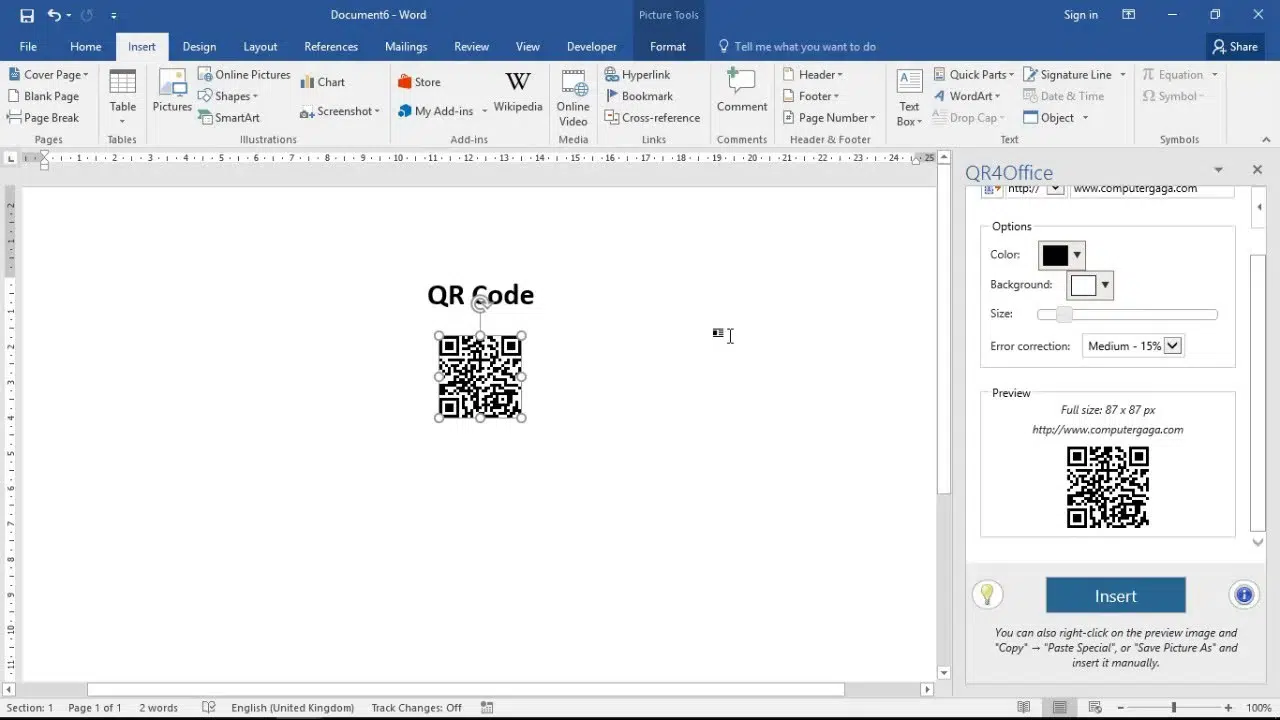
There are several ways to generate a QR code directly in Word . You can use official add-ins, lesser-known native methods, or use external generators and then insert the image.
We'll cover all the options, highlighting the advantages and steps of each so you can choose the one that best suits your situation.
Option 1: Create a QR code in Word using add-ins
The most practical and recommended option for most people is using Word add -ins, which you can easily install from the application itself if you have an internet connection.
QR4Office is currently the most popular and reliable add-in. It allows you to design, customize, and insert QR codes into your Word document in just a few easy steps.
- Open Word and create a blank document.
- Go to the tab "Insert" in the top menu.
- Click on "Get Add-ons" (or “Store” in some versions).
- In the add-ons store, type QR4Office in the search bar.
- Select the add-on and press "Add".
- Accept the terms and continue with the installation.
After a few seconds, the QR4Office panel will be available on the side of the document, ready to create your QR code.
How does QR4Office work?
After installing QR4Office, a vertical editor will appear on the right side of your document. Here are the steps to create and customize your QR code :
- Enter the information to be encoded: You can enter a web link (http or https), an email address, phone number, location, or just text.
- Customize the color of the Symbols and the background: Click the color boxes to select your preferred color for both the code and the background.
- Adjust the size: Use the “Size” bar to define how large your QR code will be on the document.
- Error correction level: You can choose between levels L, M, Q and H depending on the resistance you want against possible damage to the printed QR code.
Once you have everything set up, simply press the "Insert" button and the QR code will appear in the document as an image, allowing you to move, resize, or edit it just like any other graphic object in Word.
Other alternative plugins
Although QR4Office is the most popular, other options exist, such as QR Generator, Easy QR Code and Barcode Generator, and QR and Barcode Generator . However, some of these add-ins have low ratings, limited customization features, or frequent technical issues. Therefore, if you're looking for reliability , it's best to create QR codes in Word using add-ins.
Another way to install QR4Office is through the official Microsoft Store , although it's usually faster and more direct to do it from Word.

Option 2: How to create a native QR code with fields in Word
Few people know this trick, but Word includes a field system that allows you to manually create barcodes and QR codes. This method requires more patience and is primarily intended for users and businesses that use advanced templates or need automation through custom properties.
The procedure involves the following:
- Press Ctrl + F9 to insert a field into your document.
- Write DisplayBarcode followed by a space.
- With the cursor inside the field, go to Insert > Quick Parts > Field.
- Choose the custom document property you want to link (for example, DocProperty).
- Type “QR” to tell Word to display as a QR code.
This method allows the QR code to update automatically using document properties, perfect for dynamic templates. However, the interface isn't as visual, and sometimes you need to manually update the field to see the changes.
One major drawback: it doesn't allow the same aesthetic customization or editing as external add-ins , and it can cause problems in viewers or readers that don't support advanced QR code display in Word.
Option 3: Use external QR code generators and then insert them into Word
If you prefer not to add plugins or deal with the native fields, you always have the option of using online QR code generators and, once you have downloaded the QR code, manually inserting it into your Word document.
The advantages of these services are advanced customization, the variety of available formats and, in some cases, the ability to generate dynamic QR codes or codes with passwords.
Some of the best known and most useful generators are:
- QR Code Generator: Allows you to create codes that link to websites, social profiles, text, email, files MP3 or image galleries.
- QRCodeMonkey: Offers QR customization with logo, colors, shapes and multiple content types.
- Unitag QR: Ideal for generating codes with pre-designed templates and custom styles.
- QR stuff: No registration required, fast, and supports a wide variety of data types and color options.
- beaconstac: Perfect for professional uses, it allows dynamic QR, tracking, advanced customization and integration options apps, email, or geolocation. Some features require payment.
The process is as easy as generating the QR code online, downloading it in PNG or JPG format (preferably with a transparent background), and then using the "Insert > Image" menu in Word to place it wherever you want. The advantage is that you can resize the code, embed it in designs, print it, or reuse it on different media.
How to convert a Word document into a QR code?
A common question is how to make the Word document itself the resource that the QR code points to . The key here is that the QR code cannot store the file itself, but rather a download or viewing URL.
Therefore, you must:
- Upload the Word file to the cloud (OneDrive, Google Drive, Dropbox, etc.)
- Get the access or download link (you can choose whether it is public or only for users with a password).
- Generate the QR code using that link through one of the online generators or with QR4Office.
- Place the QR code on the document, email, poster or physical media that you prefer
This solution is common in companies, educational centers, or businesses that want to share catalogs, presentations, menus, or instructions without distributing physical files.
What are the differences between a static and a dynamic QR code?
When creating your code, you'll find that virtually all online generators offer two options:
- static QR codes: Once the QR is generated, the recorded information is immutableIf you point to a link, that will be the destination forever. They're ideal for sharing stable content and don't require additional services.
- dynamic QR codes: The QR stores a short URL that redirects to a server, from where you can change the destination or update the content later (for example, changing the Word document it's linked to). They also often offer usage statistics, passwords, expiration dates, and extra features, although they often require a fee.
For complete control, you can opt for a ; for everyday use, static ones are usually sufficient.
Customizing QR codes in Word
In addition to the basic function of linking to a resource, the appearance and design of QR codes can be customized to fit your branding or personal style.
From QR4Office and the main external generators you can:
- Choose custom colors for modules and the QR background.
- Resize to fit your design.
- Insert a logo or central image that represents your brand (especially in premium external generators).
- Decide the level of error correction based on the desired strength.
Remember that contrast is key : to ensure readability, avoid color combinations that make it difficult for the camera to read. Whenever you customize it, test it by scanning the code with several devices before printing or sharing it.
How to share, copy, or save your QR code created in Word?
Once you have inserted the QR code into your Word document, you can:
- Copy the QR code to other documents: Left-click on the image, then right-click and select "Copy." Paste the QR code into any other Word, PowerPoint, Excel, email, or chat document.
- Save the QR image: Right-click on the QR code in Word and choose “Save Image As…” to create a separate file (PNG or JPG), ideal for social media, the web, or printing as a sticker or poster.
- Share the full document in Word format or PDF, sending it by email, uploading it to the cloud or printing it according to your needs.
The inserted QR code behaves like any other image, so you can resize, rotate, or place it on backgrounds and designs to your liking.
What to do if the QR4Office add-in doesn't work?
Although QR4Office has provided a stable service for years, it can occasionally experience errors (such as startup failures, Word file crashes, or problems loading QR codes). This can occur due to incompatibilities, lack of updates, or connection issues.
If you experience these errors:
- Try reinstalling the add-on from the official store.
- Make sure you have an updated version of Word and an internet connection.
- Contact the developer (the link to their website appears on the app's listing in the Microsoft Store).
- If you can't solve this problem, try one of the alternative generators recommended above.
The community and official support usually respond with quick solutions, but if the problem persists, website builders cover the need without relying on plugins.
Alternatives to Word for creating QR codes
While Word is a convenient option for many, there are software and web alternatives capable of creating and customizing QR codes for free . Among the best known are:
- Free web generators such as QR Code Generator, QRCodeMonkey, Unitag QR, QR Stuff or Beaconstac (depending on the free and premium options).
- Graphic design editors like Canva, which integrate modules or plugins for QR codes.
- Specific document management tools or marketing, which create QR codes associated with digital assets and allow tracking of their use.
These services often offer advanced customization options, dynamic QR codes, integration with data analytics or retargeting, and even allow you to set passwords for access.
Microsoft Edge: Integrated QR Generator
A little-known but very useful feature if you use the Microsoft Edge browser is its built-in QR code generator for any website you visit. All you have to do is:
- Open the page you want to share in Edge.
- Right-click on the page and select "Create QR code for this page."
- The code will be generated instantly, you can download it and then insert it into your Word as a PNG image.
The limitation of this tool is that it does not allow customization of colors or sizes , but it is very fast and useful for creating QR codes that link directly to online resources.
Scan QR codes from different devices
To fully leverage the power of QR codes embedded in Word, it's essential that users can easily scan them. These days, most smartphones ( iPhone , Samsung, Xiaomi, Huawei, etc.) include QR code readers built into their cameras . Simply open the camera app and focus on the QR code. If your device doesn't recognize it, you can install free apps like QR Droid, Bar Code, or even use the QR code reader found on social media platforms like Facebook and Twitter, or in browsers like Opera.
On Apple and Samsung devices, this feature is usually enabled by default : simply scan the QR code and tap the notification to access the content. Always verify that the QR code is legible and functional before printing or sharing it widely.
Practical uses of QR codes generated from Word
The versatility of QR codes generated in Word is enormous:
- Digital menus for bars and restaurants: offering contactless and upgradeable cards.
- Promotional material and flyers with additional information, forms, promotions or discount coupons.
- Labels, stickers or packaging for products, including instructions, videos or after-sales services.
- Corporate signage with direct access to internal manuals, presentations or customer service channels.
- Curriculum vitae with links to portfolios, personal websites or LinkedIn profiles.
The ease of creating and integrating them means you can adapt the use of QR codes to any communication or marketing strategy.
Tips for printing and distributing your QR code
Before publishing or printing your QR code created in Word or from any generator, always verify that the code is readable and links to the correct URL or resource . Perform several scan tests with different devices and distances. If you're going to print it, choose a size that's neither too small nor too large; for example, 7×3,5 cm stickers usually work well for menus or promotions.
Place QR codes in visible locations: shop windows, tables, labels, flyers, packaging… even on vehicles or corporate materials. Remember that the easier it is for the user to scan, the greater the impact.
It's clear that creating QR codes in Word is an accessible process for any user, with multiple options to adapt to your needs. Whether using add-ins like QR4Office, web generators, or taking advantage of native Word and Edge features, you have everything you need to digitize your documents and share information without limits. Customize your QR codes, verify their functionality, and make the final leap to paperless communication.

Passionate writer about the world of bytes and technology in general. I love sharing my knowledge through writing, and that's what I'll do on this blog, show you all the most interesting things about gadgets, software, hardware, tech trends, and more. My goal is to help you navigate the digital world in a simple and entertaining way.