Is Windows 11 resisting the easy removal of a program? You're not alone: sometimes an uninstaller fails, other times the program doesn't even appear in the list, and occasionally remnants remain that prevent reinstallation or updates. In this guide, you'll find, gathered and carefully explained, all the effective methods for removing stubborn software without putting your computer at risk.
Let's get straight to the point: we'll first look at standard uninstallation methods, then official Microsoft tools for fixing common problems, the Safe Mode trick, techniques using third-party uninstallers (when the standard methods aren't enough), manual file and registry cleanup, and alternatives like System Restore. We've included clear warnings to help you avoid breaking anything along the way.
Why some programs won't uninstall
Uninstalling should be as simple as installing, but it isn't always. During a typical installation, the program copies files to various locations and records changes that the uninstaller must then revert; if that "roadmap" fails, the uninstallation will stall.
This is what usually happens under the hood: the installer places the application in C:\\Program Files or C:\\Program Files (x86), uses shared libraries located in "Common Files", may copy drivers to C:\\Windows\\System32\\drivers and leave data in C:\\Users\\YourUsername\\AppData or in C:\\ProgramData (hidden folders by default).
Furthermore, it modifies the Windows Registry to save settings and, very importantly, adds a key to the uninstallation section that Windows uses to display them in the program list. Without this key, the app may remain installed "de facto" even if it doesn't appear in the list.
The uninstaller relies on a change log generated during installation: if that log file or the uninstaller itself disappears or becomes corrupted, the uninstallation fails and leaves scattered registry entries, services, files, or drivers.
Note that not everything can be deleted: there are components integrated into Windows 11 that cannot be removed, and in some cases, it is advisable to try the Repair or Modify option first instead of uninstalling, if the problem is that "it is not working properly".
Standard ways to remove programs in Windows 11
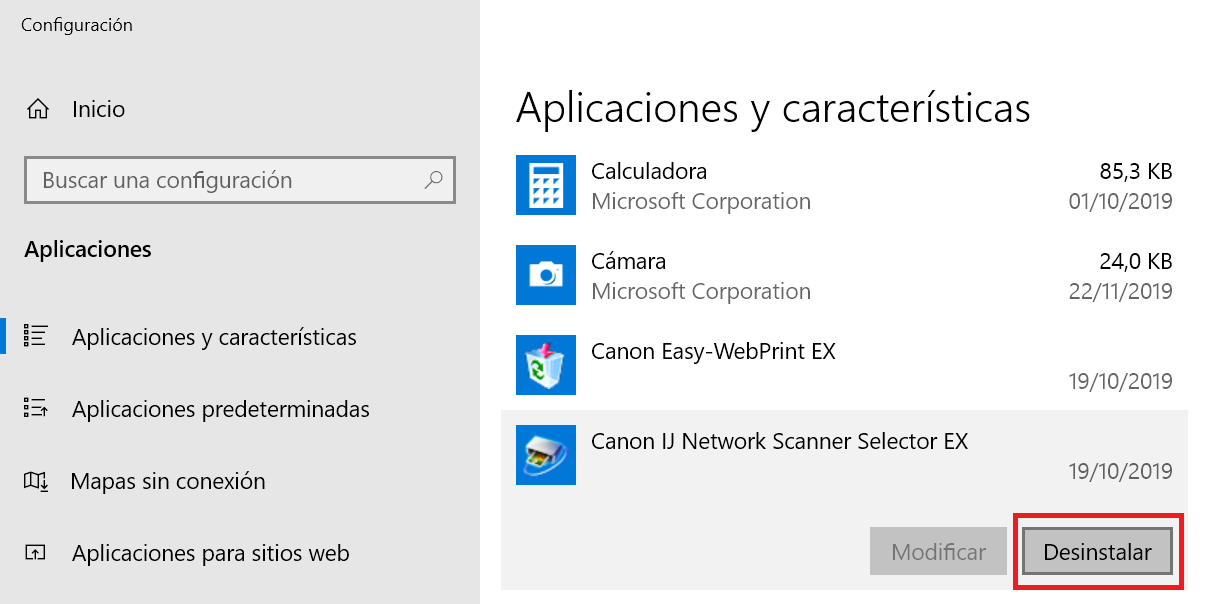
Always start with official routes: they are safe, fast, and sufficient for most applications.
From Settings
- Open Settings from the Start menu (search for “Settings” if you don’t see it pinned).
- Go to Applications and go to “Installed Applications”.
- Locate the program, click on the three dots on the right and select “Uninstall”.
- Confirm in the pop-up window and follow the instructions of the uninstaller itself.
Advantage: This view usually shows both UWP apps and Win32 programs and MSIX packages , and if the app supports "Repair" or "Modify", you'll see those options.
From the Start menu
- Find the app pinned or by typing its name in Start.
- Right click on the app and choose “Uninstall”.
This shortcut is very useful for quickly removing modern apps or programs that expose the option directly in the menu.
From Control Panel
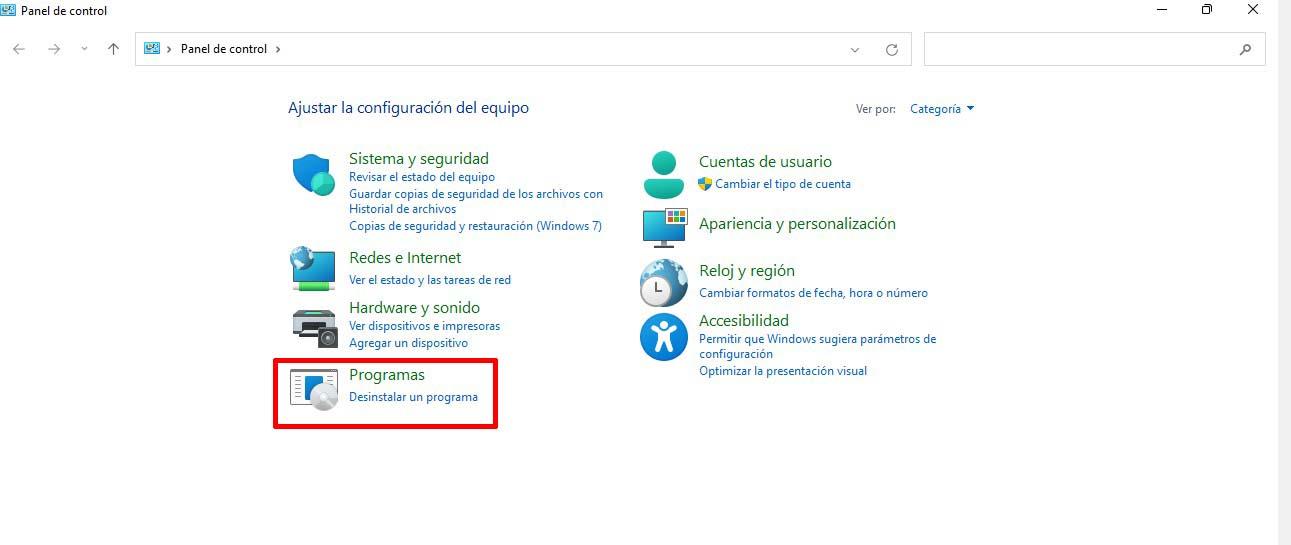
- Open Control Panel (search for it in Start) and go to “Programs and Features”.
- Select the program from the list and press “Uninstall” or “Uninstall/Change”.
- Follow the wizard from the uninstaller until finished.
This classic view can list programs that don't appear in Settings, especially those installed with MSI or older.
Microsoft Program Installation and Uninstallation Troubleshooter
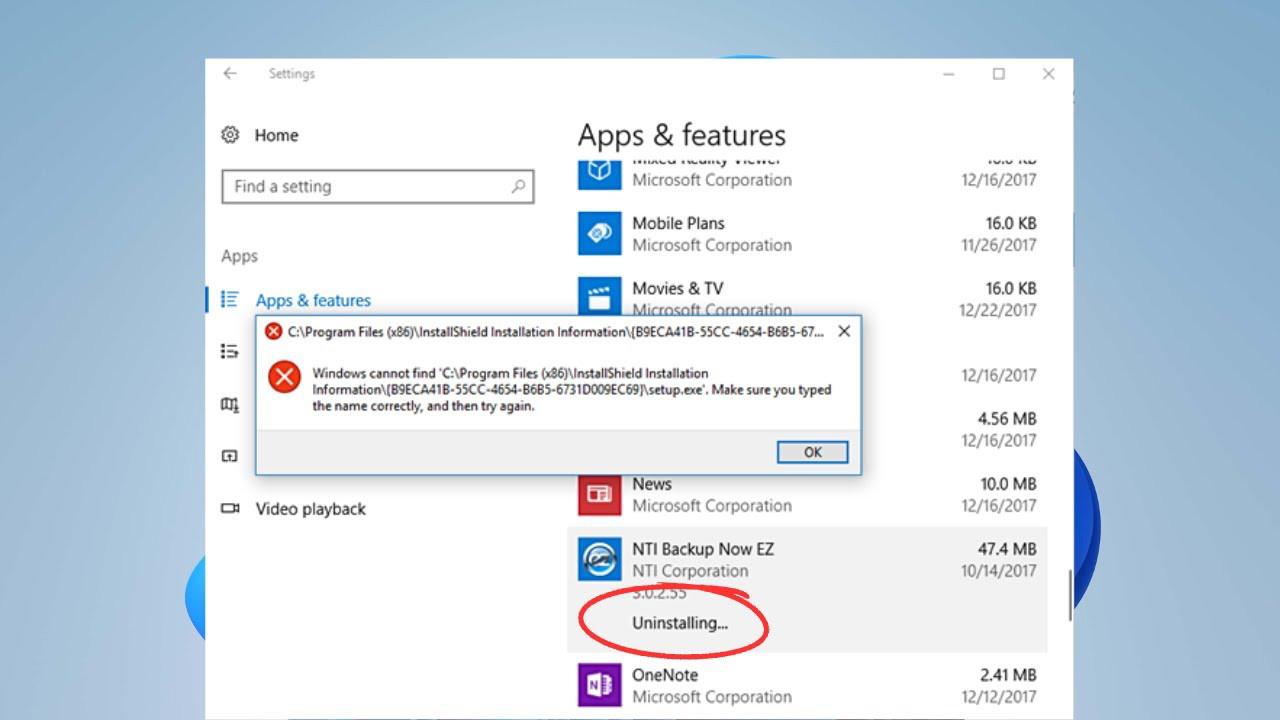
If uninstallation fails, try the official Microsoft tool. The "Program Installation and Uninstallation Troubleshooter" fixes corrupted Registry keys and common errors that prevent software from being installed, updated, or removed.
What exactly it fixes: corrupted Registry entries (including on 64-bit systems), broken update data, blocks that prevent installation or uninstallation, and issues that cause a program to not appear in "Add or Remove Programs".
How to use it: Download it, run it, and follow the guided steps. If the program doesn't appear in the uninstallation options, the tool may ask for the Product Code from the MSI file; this is usually obtained using utilities for reading MSI packages (aimed at technical users).
Compatibility note: Although it indicates support for Windows 10, in practice it often works on Windows 11. If it doesn't let you continue, run the latest version and try with administrator privileges.
If you suspect malware , don't rely solely on this tool: run Windows Security or an antivirus suite and, if necessary, Microsoft's malware removal tool.
Uninstall in Safe Mode
Safe Mode is very effective when third-party services or processes interfere with the uninstallation. In Safe Mode, only essential drivers and services start.
- Press Windows + R, type msconfig and accept to open System Configuration.
- Go to the tab start and check “Safe boot” (Minimum).
- Apply and restart when the system asks for it.
- Once in Safe Mode, try uninstalling from Settings, Start or Control Panel as in the previous sections.
Important: When finished, return to msconfig and uncheck Safe boot to return to normal mode.
Forced uninstallation with third-party tools
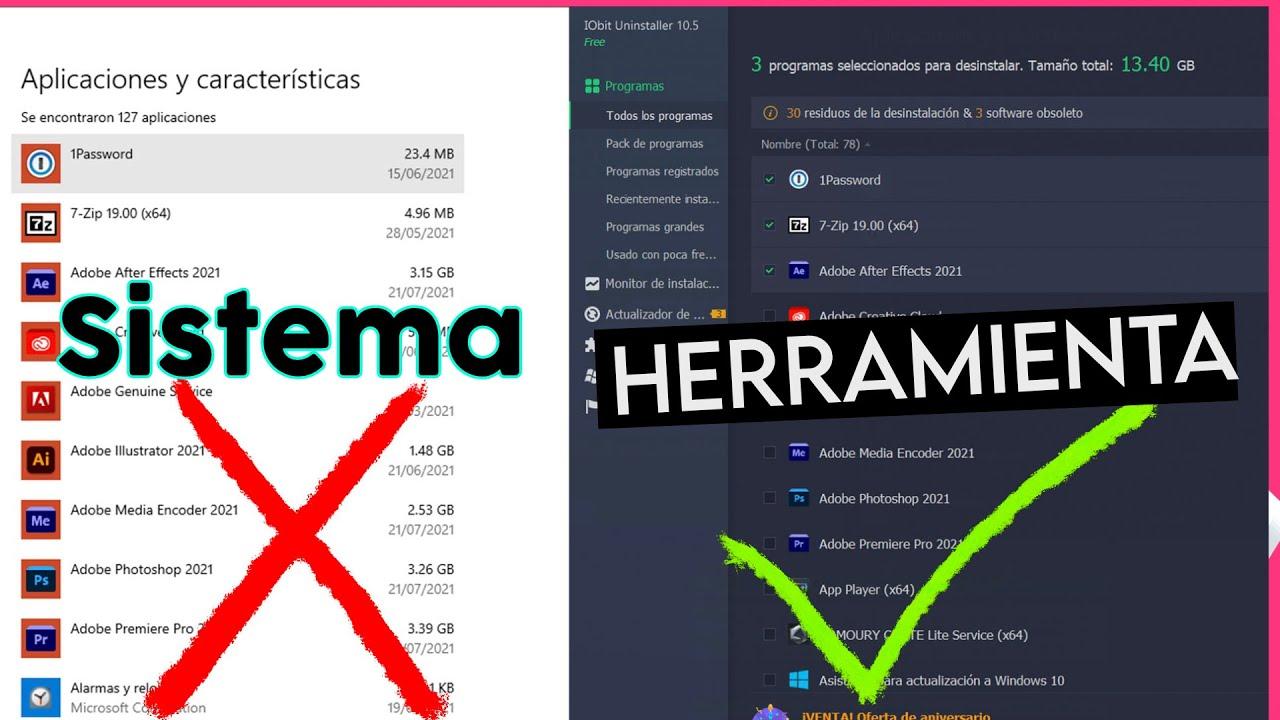
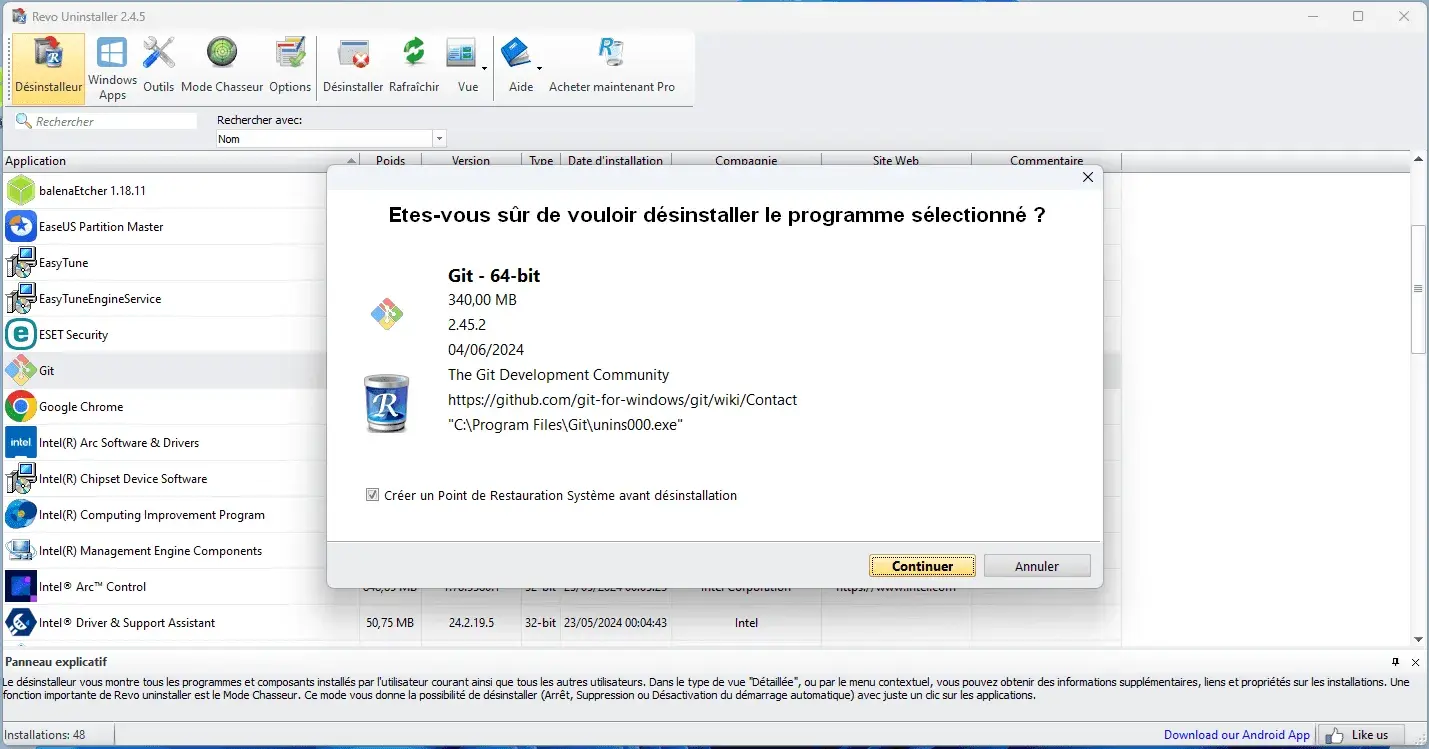
When the official uninstaller doesn't respond or has broken down, a specialist uninstaller can force the uninstallation and safely clean up any remaining debris.
Revo Uninstaller Pro (Forced Uninstall)
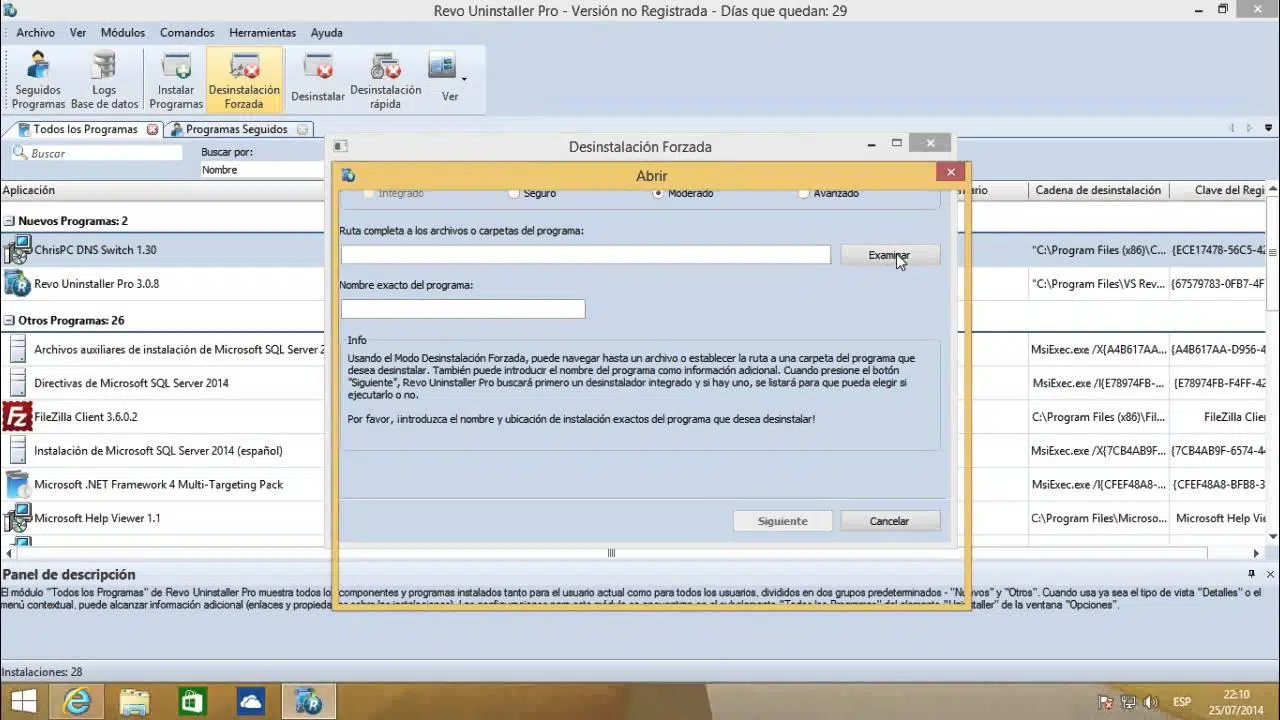
Revo's Forced Uninstall feature is designed to remove programs that no longer appear as installed or that are left uninstalled incomplete. It allows you to specify the program's folder or name, runs uninstallation routines, and scans the system to remove residual files, registry keys, and associated data.
When to use it: if the app is not listed, if the uninstaller closes with an error, or if you need to reinstall and leftover files are blocking the installation.
IObit Uninstaller (Software Health Management)
Practical recommendation: Use reputable tools, check what you are going to delete, and create a restore point before applying deep changes.
Manually delete remnants: Registry and files
If nothing else works or you want to complete the cleanup, you'll need to remove traces manually or use registry cleaning tools like Auslogics Registry Cleaner . Do this carefully: incorrect deletion in the Registry or System32 can cause serious problems.
Uninstall Registry Entries
- Open Registry Editor with Windows + R, type regedit and confirm.
- Navigate to the uninstall keys:
- For 64-bit (native 64-bit programs): HKEY_LOCAL_MACHINE\\SOFTWARE\\Microsoft\\Windows\\CurrentVersion\\Uninstall
- For 32-bit programs in 64-bit: HKEY_LOCAL_MACHINE\\SOFTWARE\\WOW6432Node\\Microsoft\\Windows\\CurrentVersion\\Uninstall
- Find the program subkey by product name, publisher name, or GUID. Check DisplayName, Publisher, and UninstallString.
- Export the key as a backup (File > Export) and then delete the subkey if you confirm that it belongs to the target program.
- Restart the computer to consolidate changes.
Legal and precautionary notice: Editing the Registry is an advanced user action; if you are unsure, create a restore point first and document each change for future reference.
Leftover files and folders
- Check out the classic routes: C:\\Program Files, C:\\Program Files (x86) and only deletes folders that are unambiguously related to the program.
- Activate the view of hidden elements in Explorer to inspect C:\\Users\\YourUser\\AppData\\Local, C:\\Users\\YourUser\\AppData\\Roaming and C:\\ProgramData.
- use the search from Explorer to locate by program, publisher, or package name.
- Avoid touching System32 Unless you know exactly which drivers or DLLs belong to which software, this is a sensitive area.
An extra tip: many programs create logs or cache folders; if you have any doubts, rename them first and verify that everything is working correctly before deleting them permanently.
PowerShell: what to use and what not to use
PowerShell is powerful, but be careful with certain classes that reconfigure MSI packages. Specifically, the Win32_Product class (Get-WmiObject/Win32_Product) can relaunch MSI repairs and cause side effects.
Use it as a support, not as the main tool: it serves to list installed software and locate paths or identifiers, and then apply the methods above (your own uninstallers, manual cleaning or specialized tools).
If you need to automate, prioritize methods that call registered uninstallers (UninstallString) or compatible package managers, and avoid actions that unnecessarily "reconfigure" the entire MSI ecosystem.
System Restore and other recent cards
If you recently installed and created a restore point, rolling back can be the quickest and cleanest way to undo both the program and its system changes.
- Open System Protection from Control Panel or by searching for “Restore Point”.
- Choose System Restore, select a point prior to the problematic installation and complete the wizard.
For malware cases, perform a scan with Windows Security or another anti-malware solution and, if necessary, the Microsoft Malicious Software Removal Tool before uninstallation.
When everything indicates that the uninstallation is not progressing , combining several techniques (Safe Mode + Microsoft tool + third-party uninstaller) is often effective in solving stubborn situations.
With these methods and precautions, you cover most common scenarios: from simple and safe uninstallation, to using specific tools when there are obstacles, manual cleaning to finish things off, and the restore point to revert changes if something goes wrong.

Passionate writer about the world of bytes and technology in general. I love sharing my knowledge through writing, and that's what I'll do on this blog, show you all the most interesting things about gadgets, software, hardware, tech trends, and more. My goal is to help you navigate the digital world in a simple and entertaining way.