- Clearing the cache and data of both the Play Store and Google Play Services is the most effective solution.
- Insufficient storage space and date and time desynchronization can cause instability in the application.
- Updating the Android System WebView and uninstalling faulty updates from the store resolves critical software errors.

I'm sure it's happened to you: you're about to download an app you desperately need, and suddenly, the Google Play Store closes without a word. It's a frustrating situation, especially when it seems like your phone has decided to go on strike at the worst possible moment, but don't worry, it's not the end of the world, and it doesn't mean your device is broken.
Most of the time, these unexpected crashes have nothing to do with the hardware; they're simply temporary system conflicts or corrupted files. We'll thoroughly analyze all possible solutions, from the simplest to the most advanced, so you can get your app store up and running smoothly again.
Be mindful of storage space
It might sound silly, but if your storage is running low, Android starts acting strangely. When there's very little free space left (especially if you have less than 1 GB), the system might stop downloads or even cause the app to crash completely. If you start seeing "storage full" warnings, it's a clear sign that you need to clean up.
To fix this, go to Settings and check the Storage section. Ideally, you should keep between 10% and 15% free space so the system can breathe. Delete large WhatsApp videos, remove apps you haven't used in months, or empty your Downloads folder to give your device some breathing room.
The problem of cache and corrupted data

This is by far the most common cause. The cache stores temporary data to make everything load faster, but sometimes these files become outdated or corrupted , causing the app to close as soon as you try to open it or leaving the screen blank.

- To clear the cache: Go to Settings > Apps > Google Play Store > Storage and tap on Clear cacheThis is completely safe and does not delete your personal data.
- To delete the data: If the above doesn't work, select from the same menu Delete dataThis will reset the store settings, but it won't remove your Google account from your phone.
One vital detail: don't forget to do the exact same thing with Google Play Services . The Play Store isn't an island; it depends entirely on these services to authenticate your account and manage updates. If there's an error with Google Play Services , the store will go down with it.
Critical system settings and connectivity
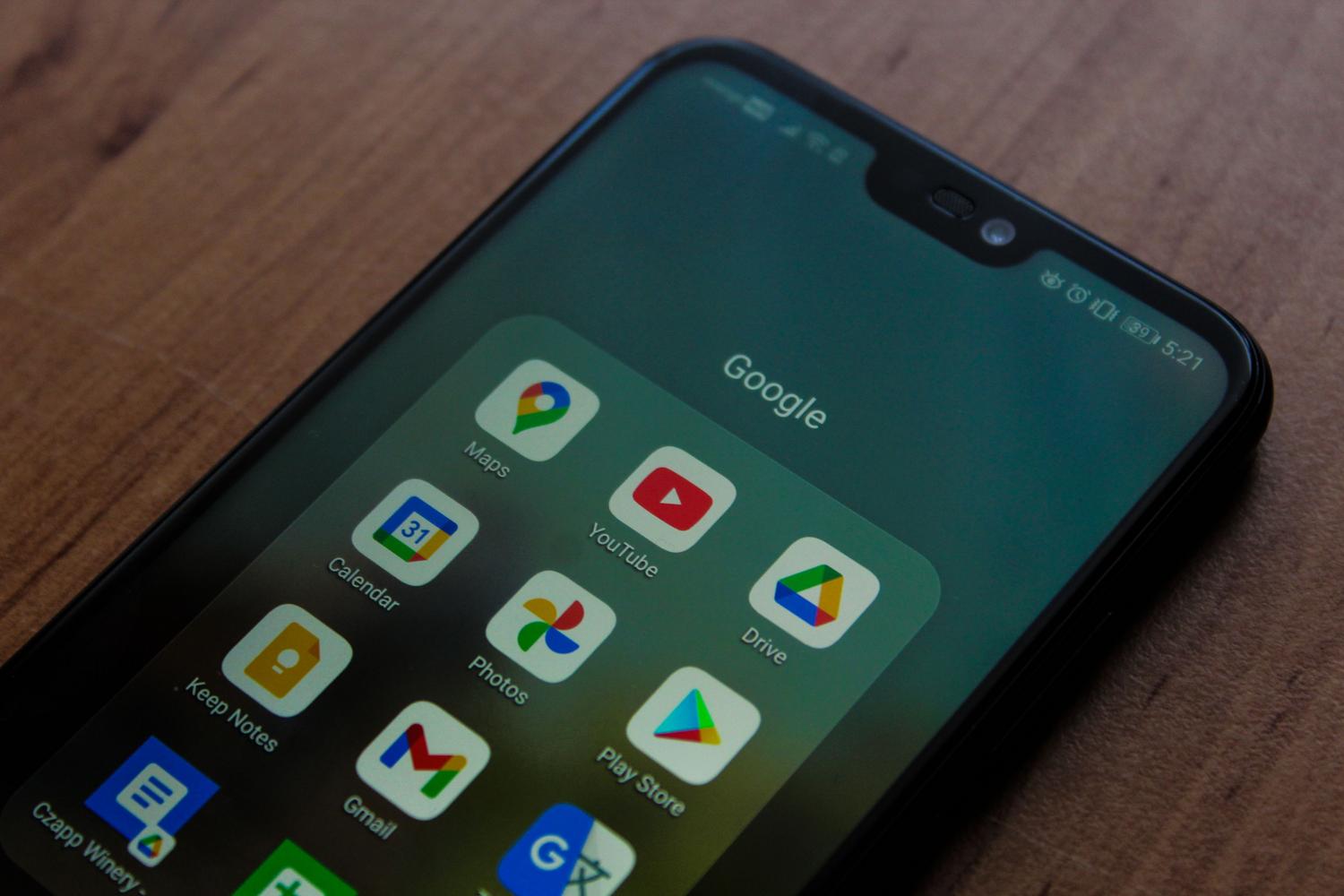
Sometimes the problem is more subtle. For example, if the date and time are incorrect , Google's servers will reject the connection for security reasons, and the app may crash or close. Make sure the " Set time automatically" option is enabled in your System settings.
On the other hand, your internet connection can cause problems. A poorly configured VPN or a public Wi-Fi network with restrictions can lead to synchronization conflicts. If you experience instability, try switching between mobile data and Wi-Fi or resetting your network settings to rule out external issues.

Advanced solutions for rebellious cases
If none of the above has worked, it's time to try more drastic but effective measures:
- Force stop: Sometimes the app gets stuck in an error loop in the background. Go to Settings > Apps > Google Play Store and select Force stop to restart the process from scratch.
- Uninstall updates: The latest version of the store may have a bug. Look for the option to Uninstall updates In the app settings, revert to the factory version and let it update cleanly again.
- Manage Android System WebView: This component is what allows you to view web content within apps. If it's outdated, it can cause problems. several applications close simultaneously. Update it from the store or delete its data.
If you suspect a third-party app (like a battery optimizer or aggressive antivirus) is causing the conflict, start your phone in Safe Mode . If the Play Store works fine in this mode, then you know the culprit is a program you recently installed.
Last resorts before surrendering
If you've tried everything and the problem persists, you can try removing your Google account from the Users and Accounts menu, restarting your device, and then adding it again. This forces a complete resynchronization of your profile with the servers.
It's also essential to check that your Android system is up to date. Go to Software Update and make sure you don't have any pending versions, as compatibility issues are usually resolved with the manufacturer's monthly patches.
Keeping your system updated, avoiding miracle cleaning apps, and ensuring your storage isn't full are the best ways to prevent the store from crashing. Most of these issues can be resolved simply by clearing the cache or restarting background services, restoring stability to the Android ecosystem without needing to format your phone.


Passionate writer about the world of bytes and technology in general. I love sharing my knowledge through writing, and that's what I'll do on this blog, show you all the most interesting things about gadgets, software, hardware, tech trends, and more. My goal is to help you navigate the digital world in a simple and entertaining way.