- The error occurs when communication between the browser and the server is abruptly interrupted.
- The causes usually vary between router failures, security software interference, or corrupted network configurations.
- The solution involves gradual steps ranging from hardware resets to clearing temporary browser data.
- In persistent cases, it is necessary to reset the operating system's TCP/IP and Winsock protocols.

Have you ever been browsing peacefully and suddenly a page freezes and displays that dreaded ERR_CONNECTION_RESET message ? It's quite frustrating because, basically, the browser is telling you that communication with the server has been abruptly cut off, as if someone had hung up the phone just as you were about to say something important. It's not that the website has disappeared, but rather that the connection has been restarted abruptly.
The good news is that, although the error name sounds like something out of a computer engineering manual, most of the time it can be fixed with a couple of simple adjustments. This problem can stem from many sources: from a router that's frozen or an overly protective antivirus program, to an issue with your own computer's network protocols. Let's take a closer look at what's happening and how you can fix it in no time so you can get back to browsing without any surprises.

What actually happens when this error appears?
For you to view a website, your device and the server hosting the page must establish a digital "handshake." The browser requests the information, and the server responds by sending the data. When ERR_CONNECTION_RESET occurs, it means that this communication channel has been unexpectedly interrupted . The server is unable to transmit the data, or something along the way has forced the session to close.
Although it's very common in Google Chrome, you'll also see it in other browsers like Firefox, Edge, or Safari, though they might change the message to something like "Your connection has been reset" or "This site can't be reached ." In the vast majority of cases, the problem lies on the client side (your computer or your network) and not with the website itself.

Most common causes of the problem
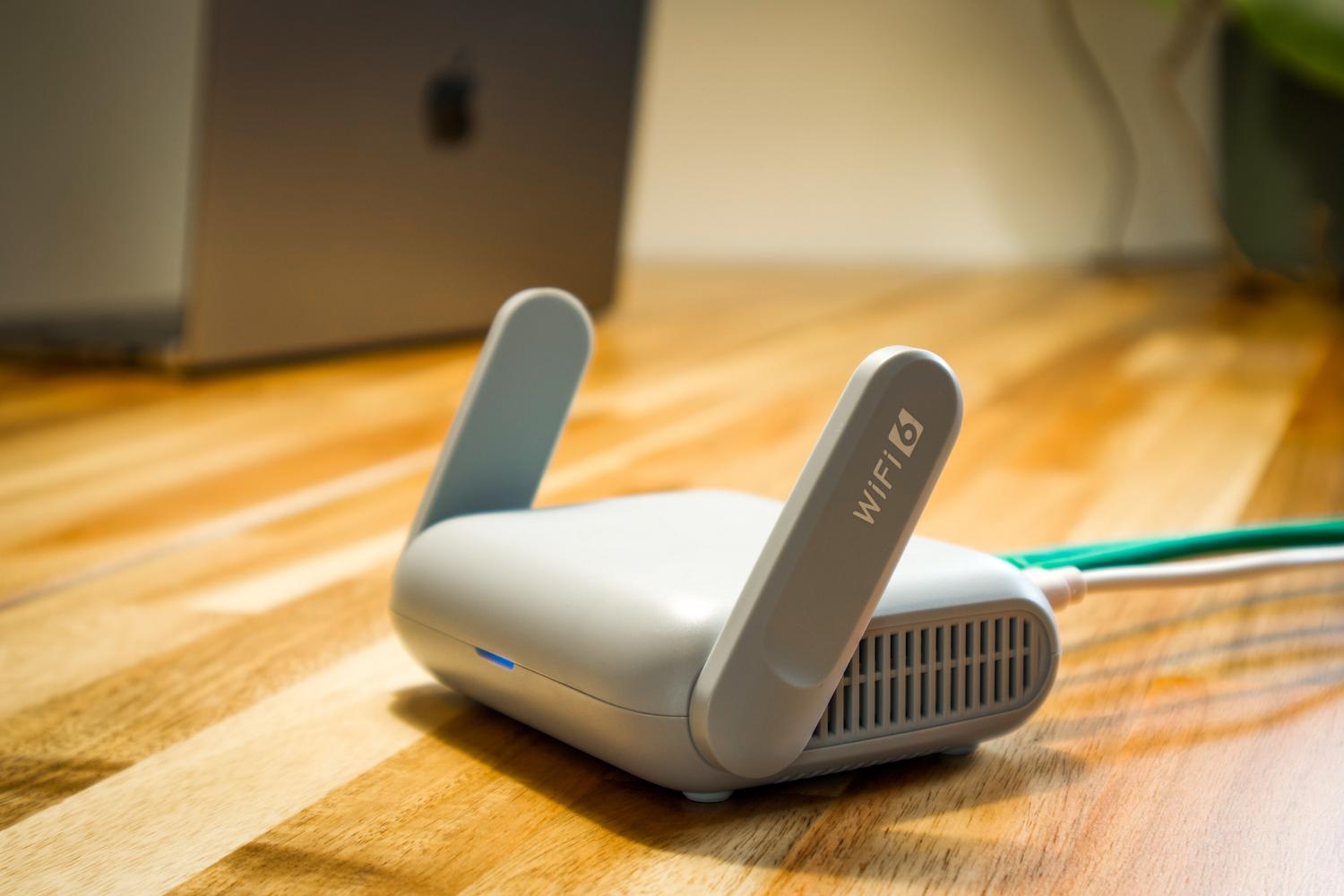
Before we get started on solutions, it's vital to understand why this is happening. Among the most frequent culprits are an overheated router or modem , or one overloaded with devices. It's also very common for security software , such as firewalls or antivirus programs, to mistake a secure website for a threat and block access as a precaution.
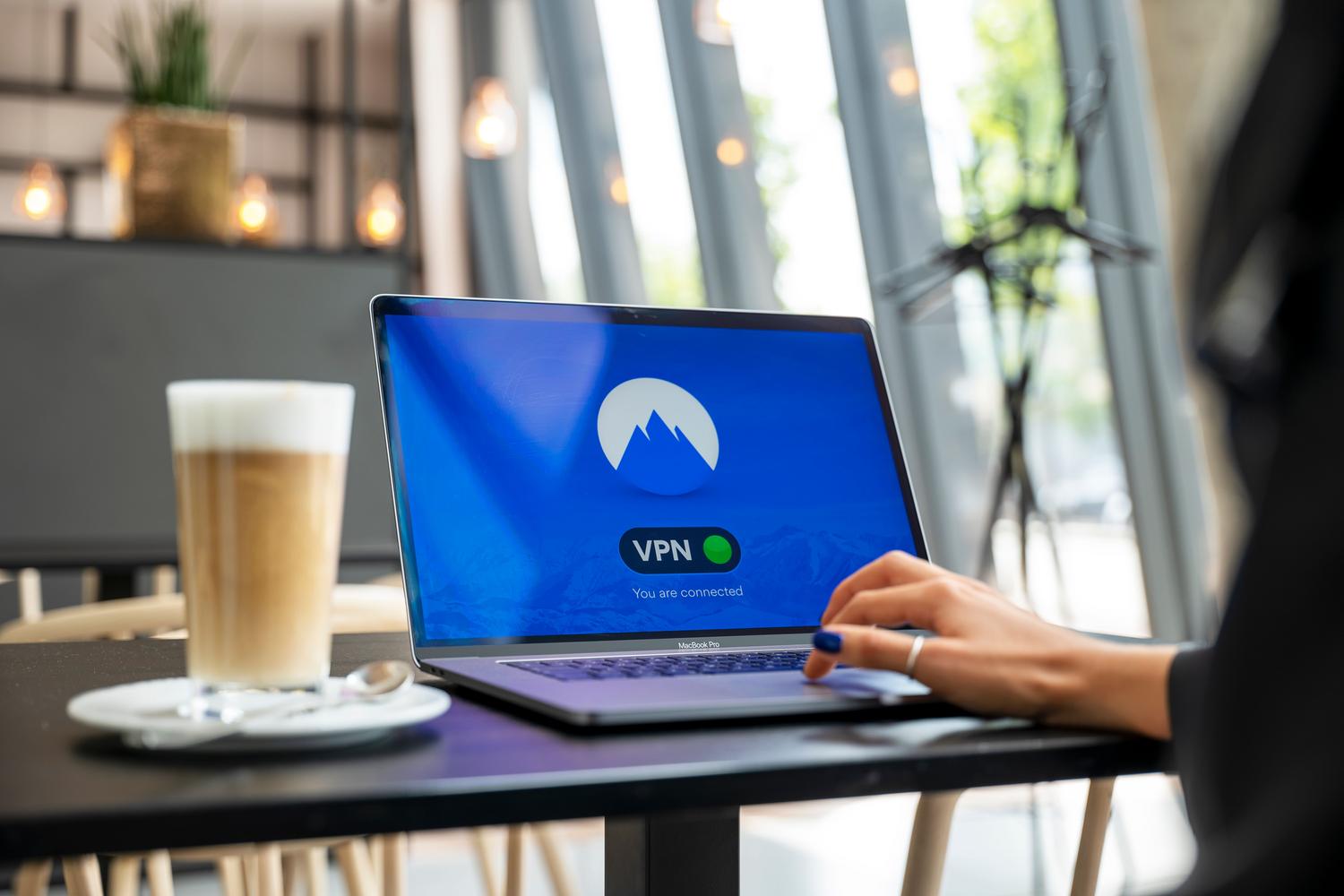
Other causes include the use of unstable VPNs or proxy servers , or corrupted browser cache data that conflicts with the current website version. On a more technical level, there could be a problem with your TCP/IP configuration , which is the fundamental language computers use to communicate with each other over the internet.

First steps: Rule out external faults
Before you drive yourself crazy messing with settings, the smartest thing to do is find out if the problem is only on your end or if the website is down for everyone. You can use online tools like Is It Down Right Now? or DownForEveryoneOrJustMe. If the tool tells you the website is down, don't worry: the problem is on the server, and all you can do is wait for the administrators to fix it.
Another quick and effective test is to try accessing the page using your smartphone's mobile data . If the website loads perfectly with 4G or 5G, then you have confirmation that the problem lies with your Wi-Fi network or your computer's settings.

Practical and detailed solutions

- Restarting the network equipment: Sometimes your router just needs a break. Unplug the power cord, wait about 30 seconds for the capacitors to discharge, and plug it back inThis clears temporary IP assignment errors and may be the definitive solution.
- Clearing cache and cookies: The browser saves copies of websites to load faster, but if those files become corrupted, they cause errors. In Chrome, go to Settings, then Privacy and security, and select Clear browsing dataMake sure to check "Cached images and files" and choose the "All time" range.
- VPN and Proxy Management: If you use a VPN for privacy or work, disable it temporarily. If the error disappears, the VPN server was failing. The same applies to proxies; on Windows, you can go to Network & Internet and disable the proxy server to allow the connection to be direct and automatic.
- Antivirus and Firewall settings: Although necessary, sometimes they're too heavy-handed. Try this: disable real-time protection for a few minutes. If the website loads, add the site to your security program's "whitelist" or exceptions so it doesn't get blocked again.

Advanced solutions for more technical users
If none of the above has worked, the problem may lie with the network protocol stack. On Windows, you can reset the TCP/IP and Winsock configurations using the Command Prompt (CMD) running as administrator. You must enter the following commands one by one, pressing Enter after each: `netsh winsock reset` , `netsh int ip reset` , `ipconfig /release`, `ipconfig /renew`, and finally, `ipconfig /flushdns` to flush the DNS cache.
On macOS, the process is different. You need to go to System Preferences, enter Network, select your active connection, click Advanced, and on the TCP/IP tab, click Renew DHCP Lease . This forces the system to request a new network configuration, eliminating potential conflicts.
Other ideas to get out of a tight spot
If you're still blocked, you can try changing your DNS servers . Instead of using your internet provider's, try Google's (8.8.8.8 and 8.8.4.4) or Cloudflare's (1.1.1.1). It's also a good idea to check your system's hosts file to make sure there aren't any outdated rules redirecting traffic from that website to the wrong IP address.
Finally, if the problem persists in only one browser, try creating a new user profile or disabling all extensions. Sometimes, a poorly updated plugin is responsible for the connection constantly resetting.
To prevent these problems from recurring, it's best to keep your operating system and browser up to date, avoid using unstable public Wi-Fi networks, and perform regular router maintenance . If you've followed all the steps, from restarting your router and clearing the cache to resetting network commands and checking firewalls, you'll have covered all the technical possibilities for restoring communication with any web server.


Passionate writer about the world of bytes and technology in general. I love sharing my knowledge through writing, and that's what I'll do on this blog, show you all the most interesting things about gadgets, software, hardware, tech trends, and more. My goal is to help you navigate the digital world in a simple and entertaining way.