- The main cause of strange symbols in subtitles is an encoding conflict between the SRT file and the player.
- Changing the subtitle encoding (UTF-8, UTF-8 with BOM or ANSI) usually fixes errors in accents, ñ and special symbols.
- The player and device influence how subtitles are displayed and can even ignore advanced styles and positions.
- Using simple editors like Notepad allows you to quickly fix most problems without complex tools.

If you've ever watched a TV show or movie and your subtitles started displaying strange symbols, broken accents, or the letter ñ replaced by odd characters , don't worry, you're not alone. It's one of the most common problems when downloading subtitles or using SRT files with different media players.
The good news is that it's almost always solved by adjusting a very specific setting: the subtitle file encoding or how the player interprets them. With a few simple changes, in a matter of minutes you can see the dialogue with accents, question marks, ñ's, and special symbols as they should have appeared from the start.
Why do the subtitles appear with strange symbols or not at all?
To understand the problem, it's important to know that an SRT file is simply a plain text file with a very basic format : line numbers, timestamps , and the subtitle text. The only things that distinguish it from a regular .txt file are the .srt extension and the way the information is organized.
The problem arises when character encoding comes into play . There are different standards (ANSI, UTF-8, UTF-16, "UTF-8 with BOM", etc.) that specify how each letter, symbol, or accent is stored within the file. If the subtitle is saved in one encoding and the player tries to read it as if it were another, the infamous strange characters appear where there should be accents, tildes, or punctuation marks.
In Spanish, this is very noticeable with letters like ñ and accented vowels . Instead of seeing "canción" (song), you might see something like "canción" or "español" (Spanish), or even squares, diamonds, or question marks. This is a typical sign of a conflict between the file's encoding and what the player expects.
These days, it's common for subtitles to be in UTF-8 format because it's a modern standard that supports almost all languages and symbols without issue. It works well with most modern media players like VLC , streaming services, text editors, and operating systems. A well-made subtitle will typically be in UTF-8 and display perfectly on up-to-date computers and applications.
In some specific cases, especially with older programs or unusual configurations, the player expects the file to be encoded not only in UTF-8, but also to include a small mark at the beginning called a BOM (Byte Order Mark) . When we save the file as "UTF-8 with BOM", we are adding this initial signature that some players need to correctly detect the encoding.
On the other hand, there's ANSI , an older and more limited encoding that's heavily dependent on the language or region configured in the system. Many older players or outdated TV firmware still expect ANSI subtitles, and if you give them a UTF-8 file, they misinterpret it, resulting in the typical corrupted characters like accents and ñ's.
The important thing to understand is that there isn't a single option that works for everything. Depending on the player, the program version, and even the operating system, the best option might be UTF-8, UTF-8 with BOM, or ANSI . Therefore, the solution usually involves trying two or three variations until you find the one that makes the subtitles display correctly again.
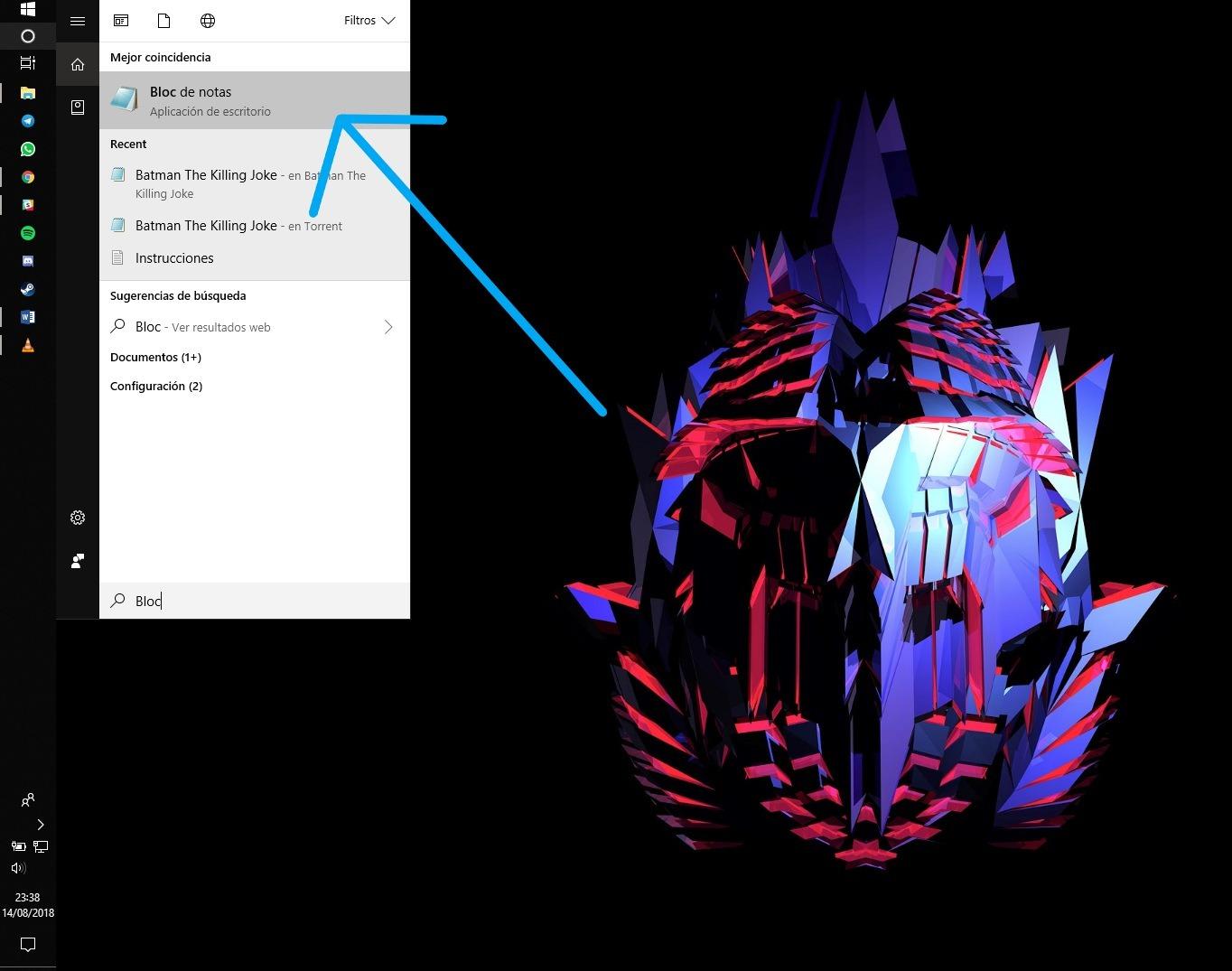
How to correct subtitles with strange characters step by step
The quickest and most universal way to fix a broken subtitle is to open the SRT file with a basic text editor (like Notepad on Windows) and save it again, changing the encoding. There's no need to edit the dialogue lines or adjust the timing, just modify how it's saved internally.
On Windows, the standard process would be something like this: position the cursor over the .srt file, right-click on the file, and choose "Open with" → Notepad . This will display all the contents: line numbers, timings, and dialogue. You don't need to edit anything inside unless you want to correct a typo.
Once you've opened the SRT file in Notepad, go to File → Save As… . In the window that appears, in addition to the name and destination folder, you'll see a drop-down menu with the "Encoding" option. That's where the key to the whole thing lies.
The first logical test is to save the file in UTF-8 . If it's already selected, you can try changing it to ANSI, and if your editor allows it, to "UTF-8 with BOM". It's very helpful to add something to the filename, for example "Subtitle-UTF8.srt" or "Subtitle-ANSI.srt", so you know which version you're testing in your player.
After saving the file with the new encoding, simply reload the subtitles in your player and check if the accents, the letter ñ, and special symbols are now displayed correctly. If they still appear incorrectly, repeat the process, trying a different encoding until you find one that works on your specific device.
What to do if the accent marks and the ñ keep failing
In some cases, even after changing the encoding, problems with accents, inverted question marks, or the letter ñ persist. This usually indicates a specific mismatch between what the player expects and the exact way the text editor saves the file.
If saving as UTF-8 doesn't improve things, it's worth trying the "UTF-8 with BOM" option , which is becoming increasingly necessary in certain programs. Some media players, if they don't find the BOM at the beginning of the file, assume the characters are in a different encoding or mix up internal settings, and this triggers corrupted characters.
The opposite can also happen: the original subtitle file might be correctly formatted in UTF-8, but your older player might expect ANSI files configured for Spanish . In these cases, converting the file to ANSI using a text editor will allow the player to correctly interpret accents and the letter ñ.
Another helpful tip is to compare which devices display the subtitles correctly and which don't. If everything looks perfect on a computer with a modern player like VLC or similar, but strange symbols appear on a TV or an older player, it's quite likely you'll need to generate an ANSI SRT copy specifically for that device.
However, if the file looks bad on different players and platforms from the start, it's possible the SRT file was saved incorrectly from the beginning (for example, edited in an encoding that doesn't support Spanish characters). In that case, you might need to review the file with a more advanced editor that clearly shows its encoding and allows you to convert it without loss.
Influence of the player and device on subtitles
The problem isn't always with the file itself: often it's the player or app you're using to watch the video that's causing the issue. Each program interprets text encoding, subtitle styles, and even their on-screen position in its own way.
On modern systems, updated players, and popular apps, there is usually good compatibility with UTF-8 and with subtitles embedded within MKV, MP4 , or similar video files . However, on some Smart TVs or receiver apps (the typical TV "app receiver"), support is much more limited, and they force their own way of displaying text.
This is especially egregious in the case of anime, fansubs, or subtitles for "signs and songs ," where the text must appear alongside Japanese signs, overlaid on the image, or remain on screen while a sign is still visible. Many of these subtitles have precisely defined styles and positions within the file.
When the player decides to ignore those styles and impose its own, the result is that the subtitles end up piled up at the top, overlapping, flickering, or disappearing too soon . The file itself might be perfectly fine and look good in more comprehensive players, but that particular app doesn't respect its settings.
Unfortunately, in these cases there's usually no miracle solution from within the SRT file itself, especially if the problem lies with the device's subtitle engine or the application . Sometimes you can improve things slightly by converting the subtitle type (for example, from an advanced format to simple SRT), but if the receiver insists on forcing specific styles, the most effective option is usually to switch players or send the content to the TV in a different way.
Special symbols in subtitles: &, %, @ and so on
Besides the classic problems with accents and tildes, there's another issue that often worries translators and subtitle editors: the use of special symbols like &, $, %, @, #, and similar characters . Whether or not these characters can cause errors in certain players has long been debated.
Many collaborative translation projects established strict rules limiting the use of certain symbols for fear they would break subtitles on older devices. Users were asked to report any unusual symbols they included so the team could check for problems and, if necessary, correct them before publishing final versions.
Experience over the past few years has shown that, in most modern media players, standard symbols like & or % do not cause serious errors and can be used without major issues, provided the file is encoded correctly (primarily UTF-8 or ANSI, depending on the case). However, it is still advisable not to overuse them and to respect spelling rules.
A separate issue concerns certain less common symbols, unusual combinations, or creative uses that deviate from the norm. These can lead to occasional incompatibilities, which is why many subtitling groups prefer to maintain a symbol usage guide , only including symbols when they add value and monitoring whether any users report errors on specific players.
The use of opening ellipses (which some prefer to use at the beginning of each sequence to indicate continuity) is also often treated differently , as it's unclear whether they might affect certain systems and, moreover, they can visually clutter subtitles without adding much value. This topic is frequently debated in internal threads and forums to decide whether to allow, regulate, or prohibit them.
Subtitles embedded in MKV and styles that are not respected
Another common scenario involves MKV videos with embedded subtitles that display perfectly on a desktop player but are ruined when sent to a Smart TV or a specific app. In these cases, we're not just talking about text encoding, but also advanced styles and positioning.
Many embedded subtitles, especially in anime, movies with on-screen titles, or highly visual content, use formats that allow you to position the text in specific places , change colors and sizes, use special fonts, and keep certain lines on screen while things are happening in the background.
If you view the MKV file on a player that supports those styles (for example, on a computer with a program that properly supports the format), everything appears correctly. However, when you send that same file to a Smart TV app, the receiver might completely ignore the styles and convert everything to simple subtitles , centered or piled on top, with incorrect durations and without respecting the original intent.
The typical symptom is that the text that should appear next to a Japanese caption all appears on a single line at the top , overlaps each other, or flickers for a second and disappears prematurely. This doesn't mean the file is corrupted, but rather that the player isn't designed to handle that type of subtitle as intended.
In this situation, the most effective solution is to find a playback method that maintains control over the subtitles : use an external player connected to the TV, a different app that better supports subtitle styles, or even convert the subtitles to a simpler format if necessary. Unfortunately, if the TV's app decides to disable subtitle styles, there's little that can be done from the SRT or MKV file itself.
Using Notepad to change the SRT encoding
Returning to the practical side, one of the great advantages of SRT files is that they can be edited with very basic tools like Notepad , without the need for specialized subtitling software. This makes changing the encoding an accessible process for any user.
When you open the file with Notepad, you'll see each block with a number, a time range, and one or more lines of text. The important thing is not to modify the structure if you only want to fix the unusual characters: changing the times or deleting numbers could mess up the entire file.
The trick is to go directly to File → Save As… and pay attention to two things: the name (to avoid overwriting if you don't want to) and the "Encoding" dropdown menu. There you can select between different formats, usually ANSI, UTF-8, and, depending on the version, "UTF-8 with BOM" or similar.
It's a good idea to have a backup of the original subtitle file before you start experimenting. You can save versions like "movie-is-utf8.srt", "movie-is-ansi.srt", or "movie-is-utf8-bom.srt" and then try each one in your player until you find the one that correctly displays accents and other characters.
If, after several attempts with different encodings, the subtitles still display incorrectly on a particular device, the problem is most likely with the player itself or the system's regional settings . In these cases, checking language , region, or subtitle source settings, or even searching for software updates, may help .
In short, most subtitle errors with unusual symbols can be fixed with a couple of quick encoding changes and a little patience trying different variations. Once you find the format your usual player understands best, simply repeat the same process with future subtitles to forget about the problem for a long time.


Passionate writer about the world of bytes and technology in general. I love sharing my knowledge through writing, and that's what I'll do on this blog, show you all the most interesting things about gadgets, software, hardware, tech trends, and more. My goal is to help you navigate the digital world in a simple and entertaining way.
Table of Contents
- 1 Why do the subtitles appear with strange symbols or not at all?
- 2 How to correct subtitles with strange characters step by step
- 3 What to do if the accent marks and the ñ keep failing
- 4 Influence of the player and device on subtitles
- 5 Special symbols in subtitles: &, %, @ and so on
- 6 Subtitles embedded in MKV and styles that are not respected
- 7 Using Notepad to change the SRT encoding