- Identifying common error codes related to file locks, expired tokens, and server synchronization failures.
- Managing autosave options and the Force Save function to prevent data loss in environments like ownCloud.
- Resolving permission conflicts and synchronization problems between the cloud editor and local storage or external clients.

If you've ever been working hard on a document and suddenly the editor throws up a cryptic message saying it can't be saved, you know how frustrating that is. There's nothing worse than feeling like hours of work could vanish because the system has crashed or tells you the file is read-only without you really understanding why.
The reality is that working with cloud-based office suites comes with technical challenges that can sometimes be quite unexpected, from server connection problems to version conflicts when multiple people work on the same file. To help you avoid getting caught off guard, we'll break down these errors step by step and explain how to resolve them without losing your cool or your data.

Deciphering the most common error messages

When ONLYOFFICE crashes, it usually displays codes or messages that might seem like gibberish, but they actually give us a clue as to what's happening. For example, if you see that the document is locked, it's likely that another user has it open in exclusive mode, which forces you to save a local copy if you need to continue editing at that moment.
There are other, more technical errors, such as those related to the security token. If you see a message indicating that the JWT token has expired , the problem lies in the Document Server configuration. In this case, you'll need to contact the administrator to update ONLYOFFICE in all its components or adjust the token's lifetime in the local.json file. Version errors, on the other hand, are usually less serious: the system detects that there's a file update on the server and simply reloads the page to prevent you from working with an outdated version.
There are more critical cases where the editor suggests using the "Download as" option. This happens when there's an unrecoverable session error . In these cases, don't continue trying to save normally because you could lose everything; it's best to download a backup to your computer immediately to save the content.
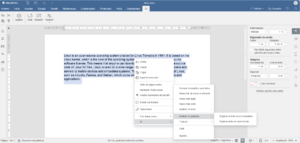
The saving dilemma: Autosave vs Force Save

To understand why changes sometimes don't appear, it's important to know that, by default, ONLYOFFICE saves everything in a Document Server cache . Only when you close the file are those changes permanently sent to your storage, whether it's Nextcloud, ownCloud, or your own server. If the process is interrupted, the changes are lost.
If you use integrations like ownCloud, there's an option called "Force Save." Enabling it means changes are written directly to storage instead of being cached . This is a lifesaver if you have an intermittent internet connection, as it prevents the file from depending on a properly closed session to save the data.
Synchronization problems and read-only files

A very common problem is opening a file and discovering it's read-only, forcing you to save it with a different name repeatedly. This usually happens due to permission conflicts in the folder or because the previous session wasn't properly closed and the server thinks the file is still in use. Sometimes, logging out of the account and logging back in, or even a quick computer restart, resolves these temporary authentication issues.

Another complex scenario is when changes are visible on the web but not when downloading the file. This frequently occurs in Docker and Nextcloud installations. The symptom is that the editor is working on a copy in a temporary space and not overwriting the original file in the cloud. To resolve this, it's essential to check write permissions and verify that the callback URL is accessible from the document server.
How to report problems if nothing works

If you've tried everything and the error persists, the smartest thing to do is report it to the technical team. If you have a paid license, the ticketing system is the fastest way. For users of the free version, GitHub is the ideal tool , specifically the "Issues" section of the relevant repository. It's vital that the report is submitted in English so that the developers can process it more quickly.
To get real help, don't just write "it doesn't work." You need to detail the exact steps that led to the error , attach screenshots, and specify your operating system version and browser. The more technical information you provide, the more likely they are to find the bug and release a patch soon.
The complexity behind online publishing
It's no coincidence that these errors occur. Creating an editor that maintains the DOCX or XLSX format without a single comma being moved is an engineering nightmare. The use of Operational Transformation (OT) is what allows multiple people to edit simultaneously without breaking the file, but even a minor network outage can cause a synchronization conflict.
Furthermore, performance plays a significant role. With very large documents, memory consumption increases and the browser can become overloaded, causing saving to time out. Therefore, it is advisable to optimize files, avoid excessively large images, and ensure that the server hosting ONLYOFFICE has sufficient resources to handle the workload.
To avoid problems, it's best to combine autosave settings with regular server permission checks. If you notice files becoming unstable, verify the connection between your storage and document server, ensuring no firewalls are blocking traffic. Keeping your software up to date and understanding error codes will allow you to react quickly and ensure your work is always safe in the cloud.

Passionate writer about the world of bytes and technology in general. I love sharing my knowledge through writing, and that's what I'll do on this blog, show you all the most interesting things about gadgets, software, hardware, tech trends, and more. My goal is to help you navigate the digital world in a simple and entertaining way.