- Review of silent modes and application-specific permissions.
- Battery settings to prevent the system from closing background apps.
- Operating system maintenance, storage and network connection.
- Restoration and restart methods for persistent software errors.

There's nothing more frustrating than realizing, after a couple of hours, that your phone is full of messages and notifications that never even popped up on your screen . You feel completely disconnected from the world, as if your smartphone has decided to take an unannounced vacation, leaving you out of urgent conversations or important appointments.
This bug, which can occur on both Android and iOS, is often a real headache because the causes are so varied. Sometimes it's a silly setting we accidentally changed, and other times it's the operating system itself trying to save power at the expense of our connection. Let's take a closer look at how to fix this mess so you don't miss a single alert again.

Basic settings: the first thing you should look at
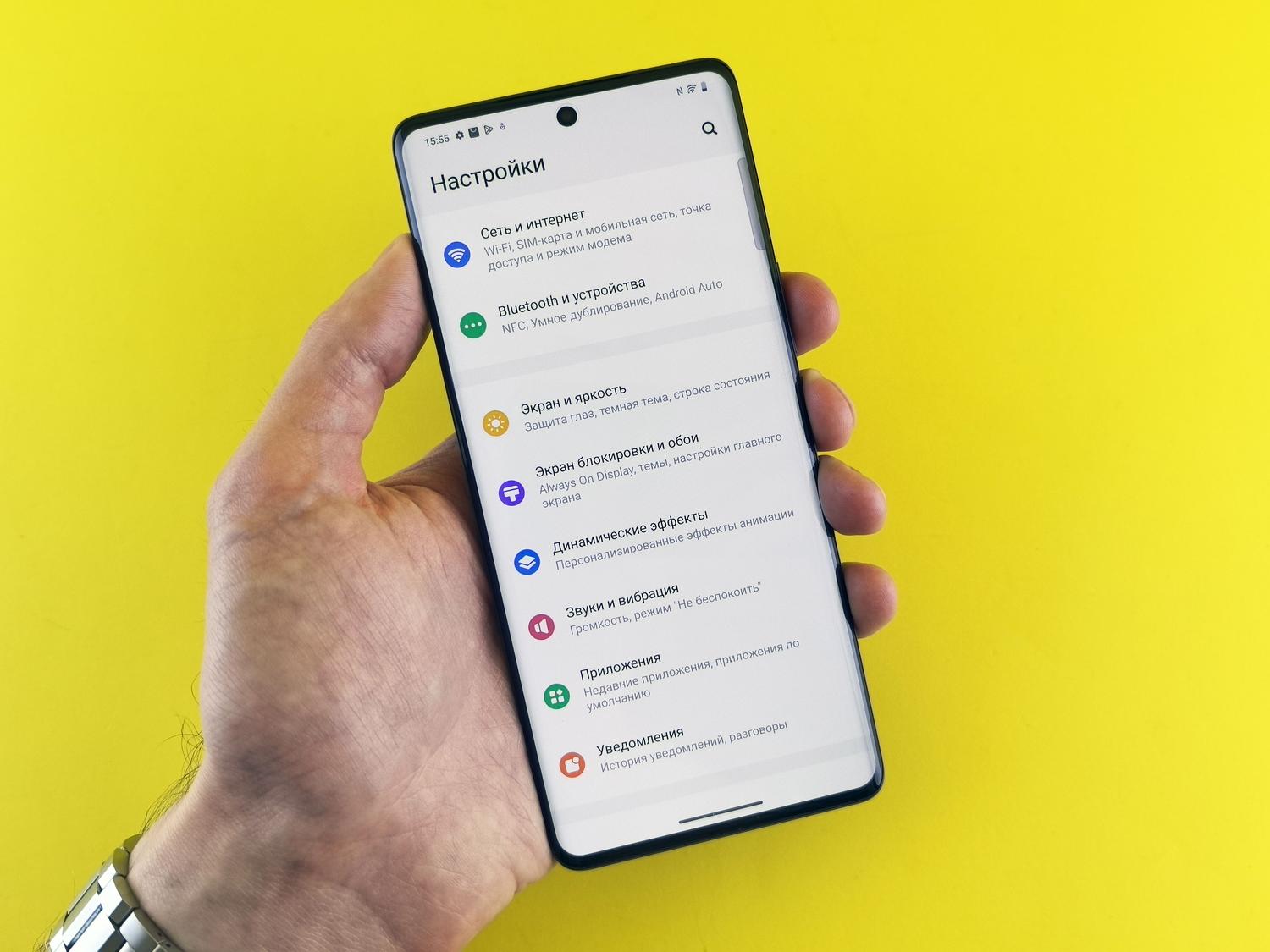
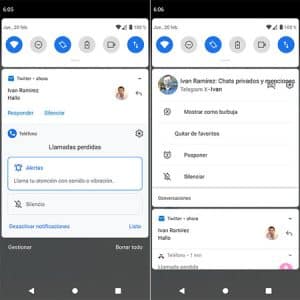
Before delving into complex settings, it's worth checking the usual suspects. The most common culprit is Do Not Disturb mode , which silences everything so you can concentrate or sleep, but sometimes gets left on by mistake or through an automatic schedule. On Android, simply swipe down the quick settings panel and disable the corresponding icon, or go to the Sound menu.
Another critical point is the individual permissions of each application . It's possible that, after an update or simply due to an oversight, the app may have lost permission to send push notifications. To fix this, you can reset the permissions of all apps on Android or go to the Applications section in settings, select the app causing the problem, and ensure that the master notification switch is turned on. Also, check the subcategories (such as chats or system alerts), as some may be disabled while others are enabled.
The fight against energy saving and the battery
Android is known for being quite aggressive with battery management, especially on brands like Xiaomi, Samsung, and Huawei. The system closes background processes to extend battery life, but this prevents apps from communicating with real-time notification servers . To avoid this, you should look for the Battery Optimization option and set the affected app to No restrictions.
On some devices, in addition to optimization, there's the concept of automatic startup . If an app doesn't have permission to launch automatically when you turn on your phone or after closing it, you're unlikely to receive alerts until you manually open the app. Enabling automatic startup and optimizing WhatsApp's battery and data usage on Android is essential for messaging apps like WhatsApp or Telegram.
Network, storage, and system problems
It seems obvious, but an unstable Wi-Fi connection or accidentally activated airplane mode can disrupt data flow. If you notice that Wi-Fi is connected but web pages aren't loading, the problem could be with your router. On the other hand, if your internal storage is nearly full (less than 10% free), the system may start malfunctioning erratically, including blocking notifications because there isn't enough space to process temporary information.

It's also vital to keep your operating system updated . An outdated Android device may have bugs that have been fixed in newer versions, directly affecting push services (like Firebase Cloud Messaging). If everything seems fine but you're still not receiving anything, try restarting your device to re-establish the connection with Google or Apple servers, or even uninstalling and reinstalling the faulty app, as this often clears persistent errors from the app's database.
Specific cases and advanced solutions
Some apps have their own internal settings menus. For example, in WhatsApp, you might have accidentally muted a specific group or individual conversation. Always check the app's internal settings before blaming the operating system. Also, if the problem is widespread, there might be a synchronization issue with your Google account ; in that case, forcing a manual synchronization from the Accounts menu is usually the solution.
If you've tried everything and your phone is still unresponsive, there are more drastic measures. A forced restart (by holding down the power button and the volume down button) can clear frozen processes. If that fails, resetting your network settings will erase your Wi-Fi passwords but resolve connectivity issues. As a last resort, a factory reset will eliminate any deep software errors, although it requires a backup beforehand to avoid losing your files.
Most of these issues can be resolved by adjusting battery management, disabling silent modes, or simply updating apps and the system. From checking that storage isn't full to reinstalling the problematic app or restarting Google account services, there are multiple solutions that can restore full connectivity and prevent your smartphone from becoming a silent brick.


Passionate writer about the world of bytes and technology in general. I love sharing my knowledge through writing, and that's what I'll do on this blog, show you all the most interesting things about gadgets, software, hardware, tech trends, and more. My goal is to help you navigate the digital world in a simple and entertaining way.