- System performance optimization by disabling background processes and telemetry.
- Advanced startup application management and cloud synchronization to free up RAM and CPU resources.
- Methods for repairing and resetting the Copilot application to correct execution errors.
- Technical adjustments to virtual memory and disk maintenance to improve the overall smoothness of the computer.
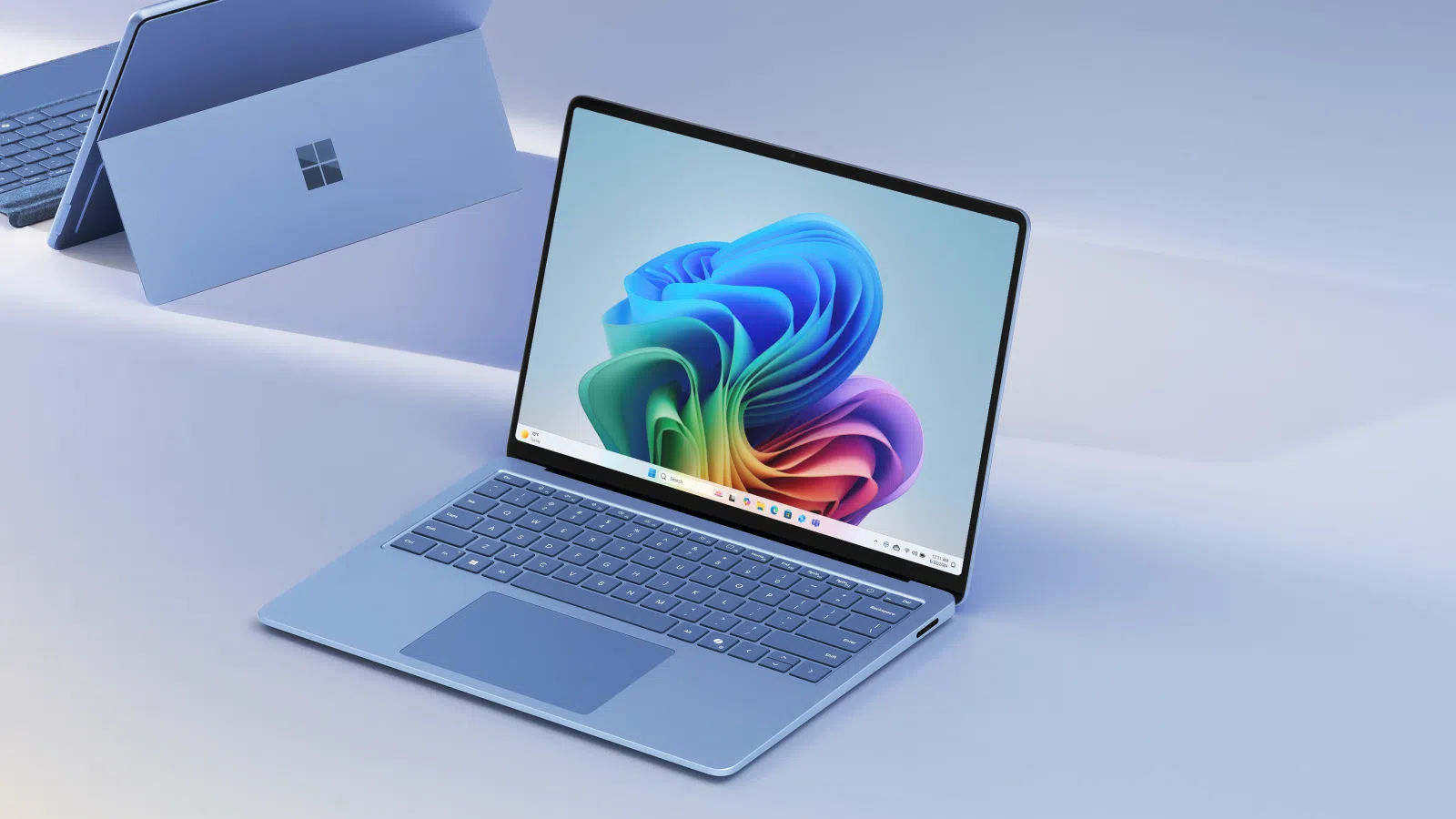
I'm sure it's happened to you: you update the system with great enthusiasm, and suddenly your laptop becomes slower than a snail . You start noticing that applications take forever to load and that the system has strange stutters or lags that weren't there before, especially on machines that don't have enormous raw power, as is the case with many Samsung models.
Many users have discovered that the culprit is Copilot, Microsoft's artificial intelligence, which seems to have infiltrated every corner, even where it's not needed, like File Explorer. It's not that AI is inherently bad, but when it runs unchecked in the background , it can stifle your machine's resources, forcing you to close processes from Task Manager to give your computer some breathing room.
How to deal with Copilot and its execution errors
Sometimes the problem isn't just slowness, but that the Copilot app simply won't start or crashes . If you find yourself in this situation, the simplest thing to do is start with the basics: restart your system and check that your internet connection is stable, since this agent depends entirely on the network.
If restarting doesn't help, you can try repairing the software. Just go to Settings, then Apps, and look for Microsoft Copilot. Under Advanced options , you'll see the Repair button. If that fails, the next step is to reset the app , which will return the program to its original state without erasing your data.
For those who want to go a step further, there are built-in tools available. You can use the Microsoft Store troubleshooter in the System menu to rule out store errors. Additionally, it's recommended to run the command `sfc /scannow` from Command Prompt as administrator to repair any corrupted Windows files that might be affecting AI.
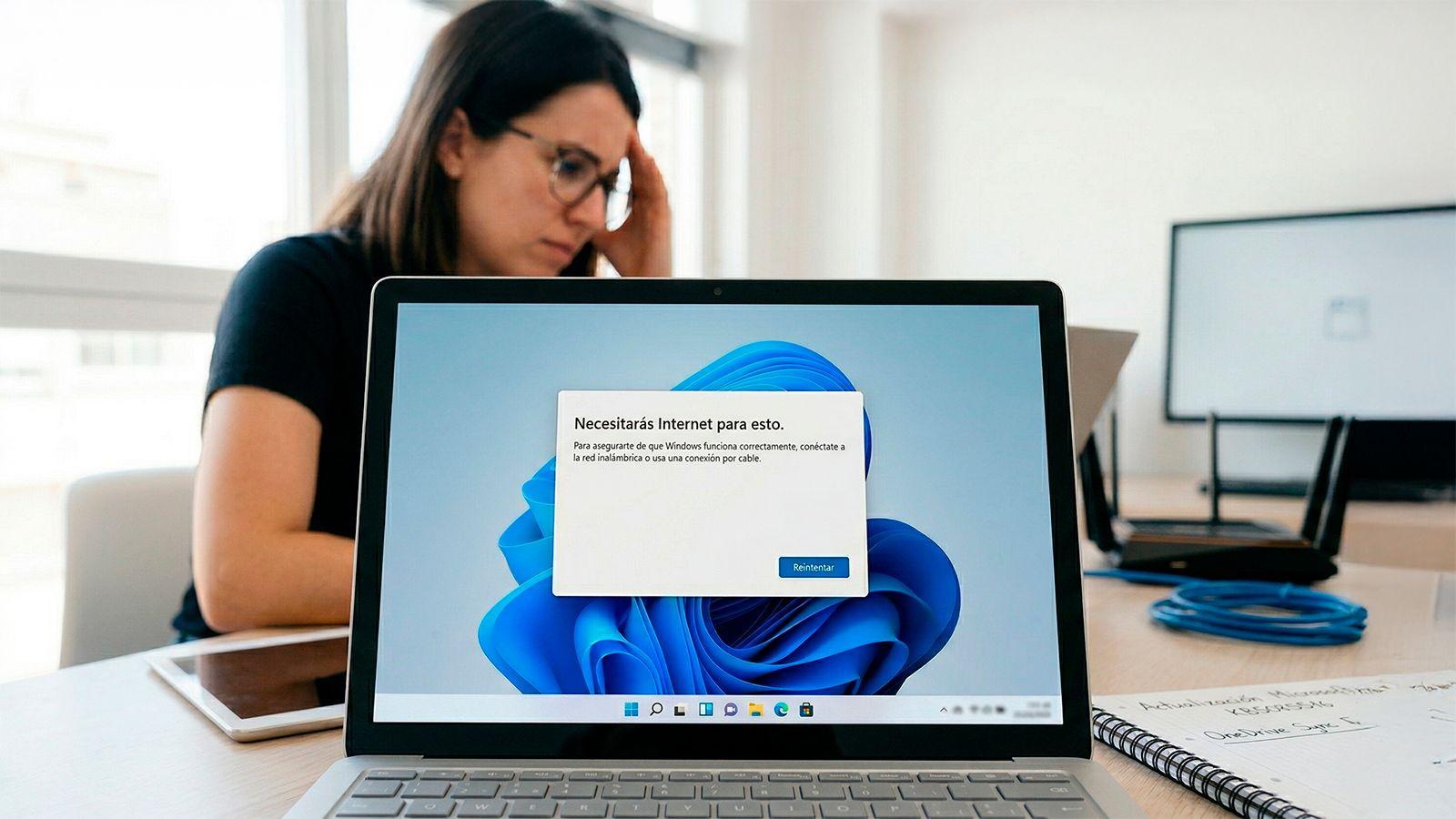

Removing the burden from the system: Telemetry and Privacy
A common mistake almost everyone makes is clicking "Next" on everything during installation. This enables optional telemetry , which essentially causes your PC to constantly send diagnostic data to Microsoft. This constant flow of information consumes bandwidth and keeps the hard drive working nonstop, slowing down the entire system.
To stop this at the root, navigate to Privacy and Security and look for the Diagnosis and Feedback option. There you should disable the sending of optional data and also personalized experiences, which are nothing more than suggestions and advertising based on your behavior that only serve to take up space and resources.
Controlling startup and the cloud
Chaos at startup is another major culprit. Programs like Spotify, Teams, and Adobe Creative Cloud are configured to launch automatically, consuming up to 30% of your RAM before you even open your first browser. To fix this, open Task Manager and, in the Startup Applications tab, disable anything that isn't essential.

On the other hand, we have OneDrive. Microsoft has integrated it so deeply that it sometimes starts automatically syncing large Desktop or Documents folders. If you have very large files, this can cause spikes in CPU usage and potentially overload your connection. Ideally, you should go to your cloud settings and disable backups for folders you don't need online.
Technical adjustments to restore fluidity
If after cleaning up startup and privacy settings the system still doesn't satisfy you, you can try some more technical but safe adjustments. A good measure is to optimize virtual memory . By accessing sysdm.cpl and going to Performance > Advanced options, you can check the box to have Windows automatically manage the paging file size, thus optimizing RAM management.
Maintaining disk cleanup is also essential. Disk Cleanup is a classic but effective tool for deleting temporary files and system remnants. If you suspect physical or logical errors on your storage, running the CHKDSK command can help correct issues causing slow performance.
Don't forget to check that your power plan is set to High Performance mode instead of Power Saving, especially on laptops. Finally, keeping your drivers updated and performing a full malware scan will ensure that no malicious processes are hiding and contributing to the slowdown caused by the new AI features.
Ultimately, the key to making Windows 11 fly is cutting out everything unnecessary , from intrusive telemetry and apps that start automatically to aggressive OneDrive synchronization, complementing this with basic disk and virtual memory maintenance so that Copilot and the rest of the system can coexist without causing lag.


Passionate writer about the world of bytes and technology in general. I love sharing my knowledge through writing, and that's what I'll do on this blog, show you all the most interesting things about gadgets, software, hardware, tech trends, and more. My goal is to help you navigate the digital world in a simple and entertaining way.