- Pre-update system and kernel to avoid version conflicts.
- Use automatic detection tools to install the recommended driver.
- Differentiation between Game Ready, Studio and production branches.
- Manual configuration of persistence and reinstallation of DKMS modules in critical cases.

Dealing with NVIDIA drivers on Linux can be a real headache, especially when you encounter the infamous " nvidia-smi cannot communicate with GPU" error. It's a frustrating situation, as you could have tried half a dozen distributions like Ubuntu, Mint, Pop!_OS, or Bazzite and still feel like your graphics card has gone to sleep and refuses to wake up.
If you have a laptop, as is often the case with Dell G3 models, the problem usually lies in the system not recognizing the hardware component or in a mismatch between the kernel and the driver module. Don't worry, although it may seem like a maze, there are specific steps you can follow to get your 1660 Ti or other similar models performing properly in the Linux world.
Preparing the ground for installation
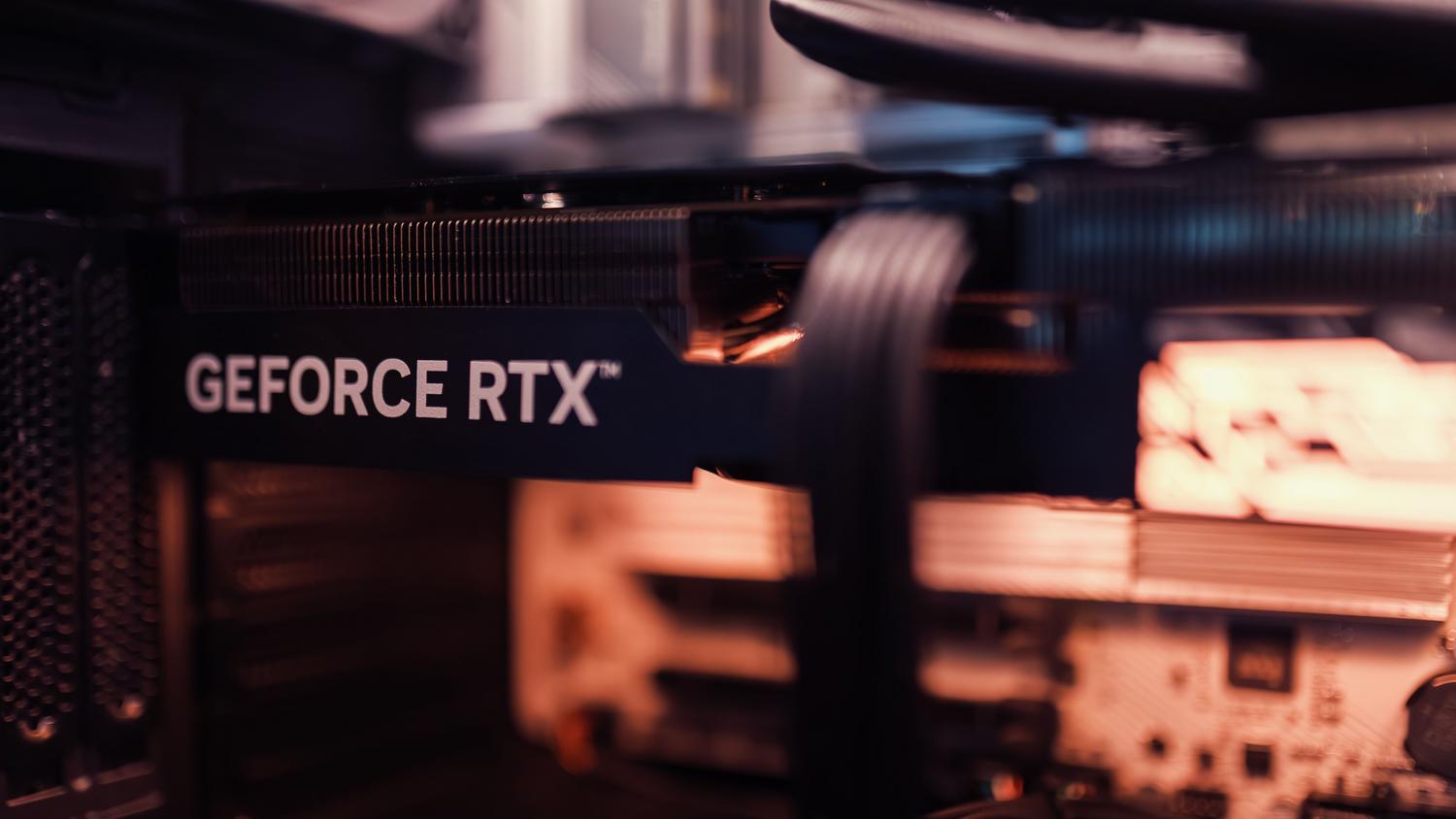
Before you start installing anything, the first thing to do is get the system working perfectly. It's essential to perform a full package update To prevent conflicts between older and newer versions, open the terminal and run sudo apt update && sudo apt upgrade -yIf you see that the system kernel has been updated, it's best to restart your computer before proceeding, to ensure that everything loads on the latest version.
How to choose and install the right controller

In Ubuntu-based distributions, there is a very useful tool called ubuntu-drivers which analyzes your hardware and tells you exactly which driver you need. When you run ubuntu-drivers devicesThe system will then give you a list showing which one is the recommended version (for example, the 570). You have two ways to install it:
- Automatic route: If you don't want complications, use
sudo ubuntu-drivers autoinstalland let the system choose for you. - Manual route: If you need a specific version due to CUDA or stability issues, use
sudo apt install nvidia-driver-XXX, replacing the x's with the version number suggested by the tool.
Once the installation is complete, you must restart your computer . Without restarting, the driver will not activate and you will continue to see the same error.
Understanding NVIDIA Driver Types
Sometimes, when searching for drivers, you'll encounter a jumble of letters that can be confusing. It's important to know what each acronym means to avoid installing something unsuitable: WHQL indicates that the driver has passed Windows quality assurance tests, while Game Ready (GRD) drivers are optimized for playing the latest games. Studio (NSD) drivers, on the other hand, are for those who work in design or video and require maximum stability.
If you're a more advanced Linux user, there are production branches (PB/ODE) that offer long-life support , ideal for professional environments. There are also Beta or New Feature Branches (NFB), which are great for testing the latest features, but can be unstable and cause the occasional system crash.
Advanced solutions for persistent errors

If after all the above nvidia-smi If it continues to fail or you see DKMS errors in the system logs, you may need to force persistence. On systems like Debian or Devuan, a trick that works is to install the kernel headers corresponding to your exact version and then run the command sudo nvidia-smi -pm 1 to enable persistence manually.
To finish the job and make sure the modules are in place, you can try reinstall the DKMS package with sudo apt install --reinstall nvidia-kernel-dkmsThis forces the system to rebuild the controller module to perfectly match your current core, thus eliminating those annoying communication errors between the software and the GPU.
Getting your GPU working on Linux sometimes requires a bit of patience and running the right commands, from updating the system and choosing the recommended driver to manually managing persistence and DKMS modules to prevent the hardware from becoming invisible to the operating system.

Passionate writer about the world of bytes and technology in general. I love sharing my knowledge through writing, and that's what I'll do on this blog, show you all the most interesting things about gadgets, software, hardware, tech trends, and more. My goal is to help you navigate the digital world in a simple and entertaining way.