- AirPlay stability depends critically on all devices sharing the same Wi-Fi network frequency and having up-to-date software.
- External interference, power-saving settings, and firewall restrictions are often the hidden culprits behind frequent disconnections.
- There are alternative cross-platform transmission and physical connections when Apple's wireless ecosystem experiences persistent errors.

There's nothing more frustrating than enjoying a movie or giving an important presentation and suddenly having the screen go black or the audio start skipping. AirPlay is a wonderful tool when it works, but when it decides to act up, it can turn a relaxing afternoon into a real headache.
The truth is that most of these problems aren't due to a broken device, but rather minor configuration issues or interference that often go unnoticed. If you're struggling with your iPhone, Mac, or Apple TV, don't worry; here's a detailed roadmap to get it working perfectly again and prevent future signal drops.
First things first: Basic checks
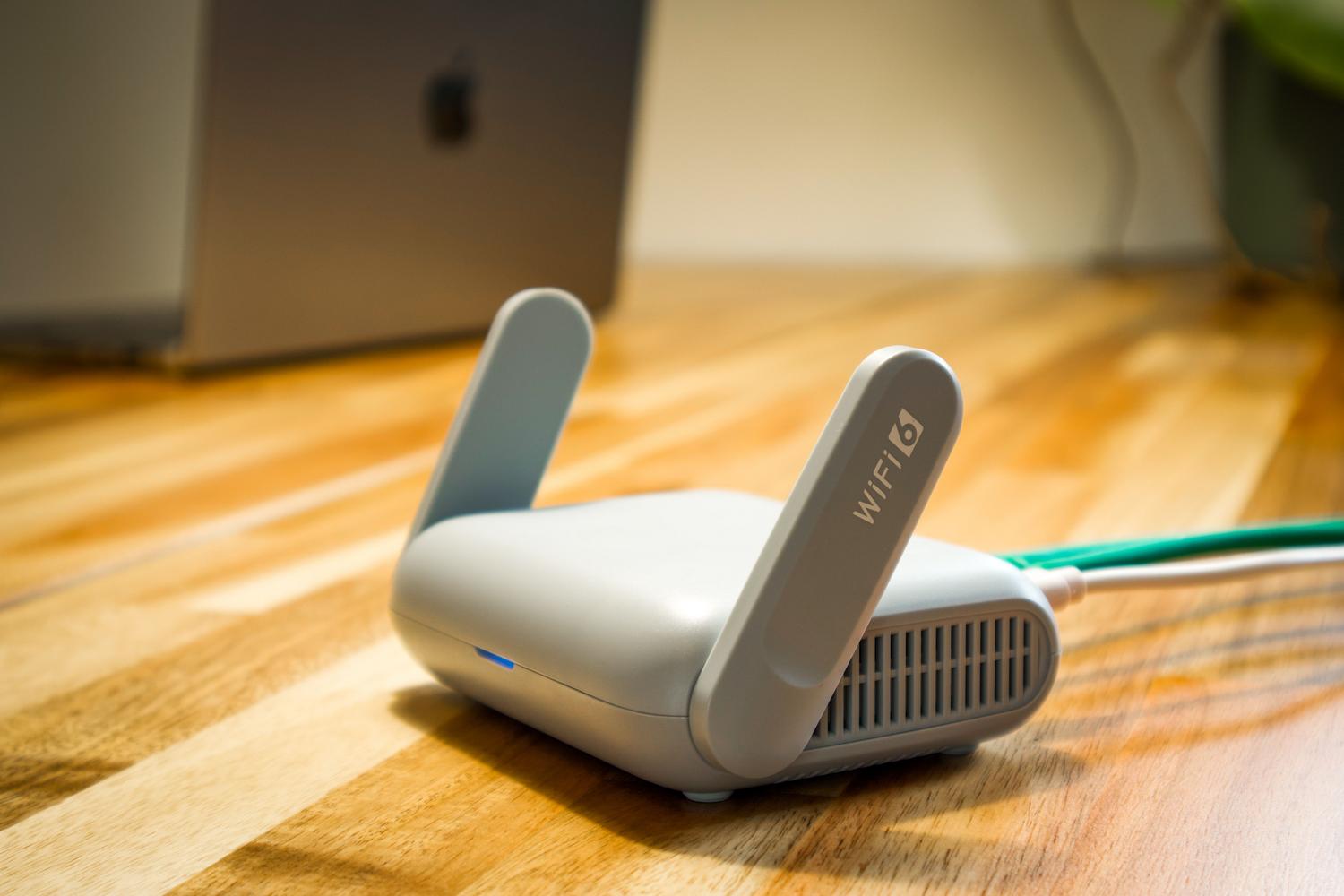
Before getting into technical details, check out the usual suspects. It seems obvious, but your Wi-Fi network is at the heart of it all. Make sure both the broadcasting and receiving devices are connected to the exact same network. Be aware of this: if you have a router with separate 2.4GHz and 5GHz bands, or a guest network, and the devices are on different networks, AirPlay simply won't work.
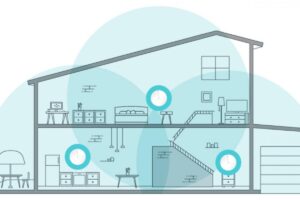
Another critical point is that the devices are turned on and close enough . Although the theoretical range is good, walls and furniture act as barriers that weaken the signal. If you notice an unstable connection, try moving your iPhone closer to the receiver or relocating the router to a more central area of your home.
Don't neglect updates. Outdated software is the number one enemy of stability. Go to Settings > General > Software Update on your Apple device and do the same on your Smart TV or Apple TV. An outdated version can cause the communication protocol to fail for no apparent reason.
Detailed steps to restore the connection
If the basics haven't worked, let's delve into some specific settings. First, verify that AirPlay reception is enabled. On your iPhone, go to Settings > General > AirPlay & Continuity , while on your Mac, look for it in System Settings > General > AirDrop & Handoff.
Sometimes the system freezes, and a simple restart is the magic solution. Turn off your iPhone, Apple TV, or TV, wait about 30 seconds , and turn them back on. This clears temporary memory and fixes momentary network errors.

If you use the Home app, check for any active restrictions. Open the app, tap the More button, go to Home Settings, and then to TV & Speakers . There may be a rule blocking content from streaming to those specific devices.
Why does the signal cut out every few minutes?

If your connection drops frequently, the problem is usually more structural. A very common cause is the iPhone's Low Power Mode , which limits the power of the wireless antennas to save battery. Turn it off if you're going to be streaming for an extended period.
Another culprit is the automatic screen lock. Some users have noticed that when the screen turns off, the connection weakens. Change the timeout to "Never" in the display settings to prevent the device from entering a sleep state that interrupts the data flow.

In areas with many neighbors, Wi-Fi channels can become congested. If you're comfortable navigating your router's settings, try switching to channel 1, 6, or 11 on the 2.4GHz band , or between 36 and 48 on the 5GHz band. Changing your ISP's DNS servers to Google's (8.8.8.8) or Cloudflare's (1.1.1.1) can also improve name resolution on your network.
How to combat lag and buffering
Image or audio lag is often a sign of congestion. If you have too many devices connected at the same time, bandwidth is shared and AirPlay suffers. Close any background apps you're not using to free up resources on both the sender and receiver.
If you're using a VPN, turn it off. These tools route your traffic through external servers, which adds significant latency and can make streaming unplayable or impossible to watch. The same goes for strict firewalls on your Mac; try disabling them temporarily to see if the streaming improves.

For the most demanding users, the best option is to reduce interference by enabling Bluetooth on both devices, as this helps with the initial pairing process. And if you really want total stability, connect the Apple TV or Smart TV using an Ethernet cable . Removing Wi-Fi from the equation on the receiving device usually eliminates lag completely.
Specific problems: Black screens and audio
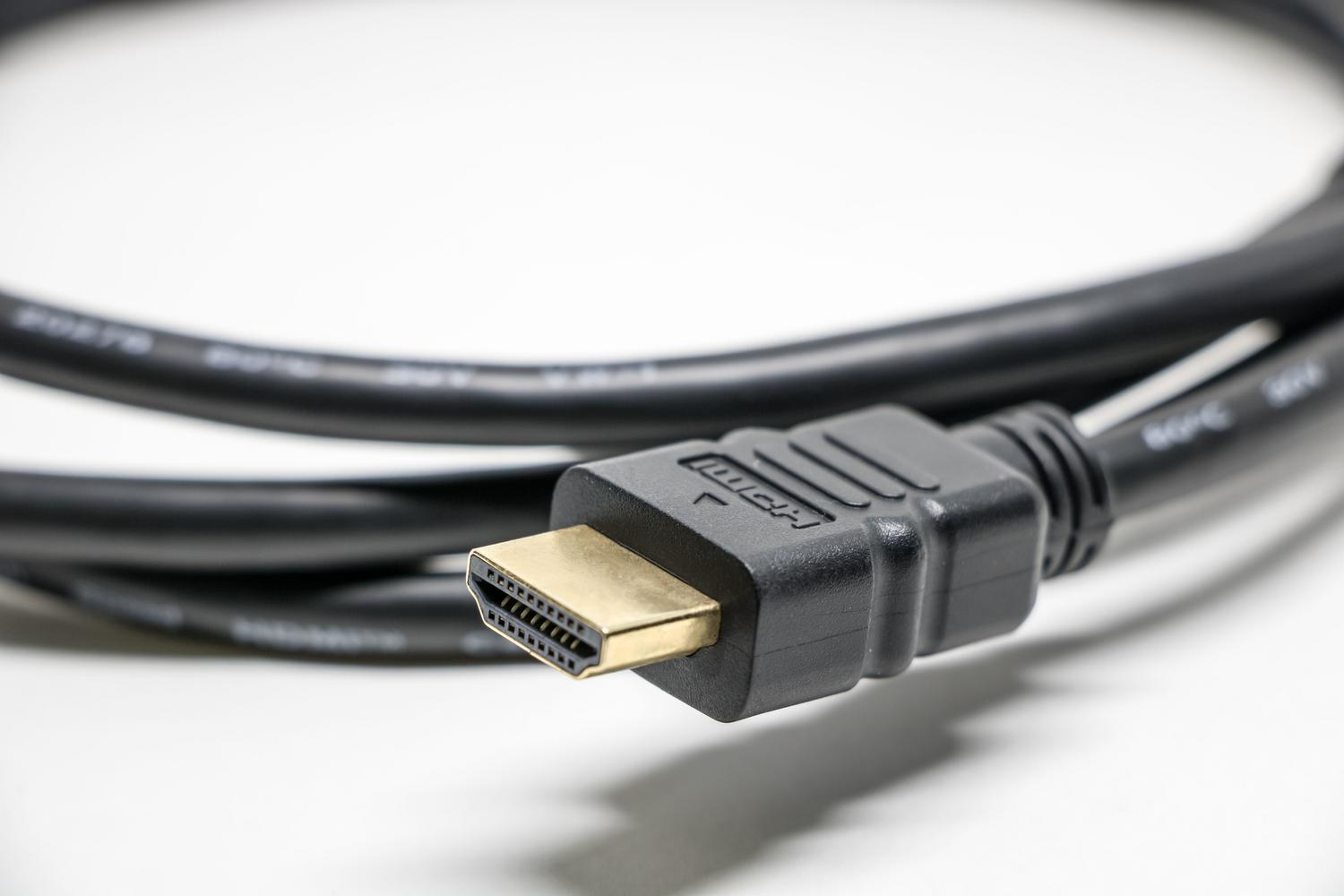
If you hear sound but the screen is black, you might have an HDCP protection issue . Some streaming services block screen mirroring to prevent illegal copying. In these cases, it's best to use the native app installed on your TV instead of mirroring your phone's screen.
If your Spotify audio keeps cutting out, remember that Spotify Connect is much more stable than AirPlay for music. Use the app's built-in feature to send the song to your speaker. On YouTube, if you notice the video buffering, try lowering the quality to 720p to avoid overloading your wireless connection.
Alternatives when AirPlay fails
If you're still having problems after all this, don't beat yourself up. There are third-party tools like PigeonCast or AirDroid Cast that allow you to mirror your screen even on non-Apple devices, such as Android TVs or Windows PCs. These are great options if the native ecosystem is giving you trouble.
And if you need 100% reliability for a work presentation, play it safe with a cable . A Lightning or USB-C to HDMI adapter eliminates any possibility of interference, dropouts, or delays, ensuring your content looks perfect without relying on reliable Wi-Fi.
To keep everything running smoothly long-term, it's best to restart your router once a month, keep the firmware updated, and prioritize the 5GHz band whenever possible. Ultimately, the key is to address the problem in layers : first the network, then the software, and finally the advanced hardware configuration, ensuring there are no interferences or power restrictions that could hinder data flow between your devices.

Passionate writer about the world of bytes and technology in general. I love sharing my knowledge through writing, and that's what I'll do on this blog, show you all the most interesting things about gadgets, software, hardware, tech trends, and more. My goal is to help you navigate the digital world in a simple and entertaining way.