- The exact version is identified by the LMP code in the advanced properties of the Bluetooth adapter within Device Manager.
- There is an equivalence table that translates the LMP number to the commercial version of the Bluetooth protocol.
- If the hardware is missing or faulty, the problem can be solved by updating drivers or purchasing an external USB adapter.
- Windows 11 introduces LE Audio to improve energy efficiency and sound quality, provided the hardware and drivers are compatible.

I'm sure it's happened to you before: you want to connect new headphones or a game controller, and suddenly the device won't pair or it's incredibly slow. Often the problem isn't that the device is broken, but rather that there's a version gap between your PC's Bluetooth and the accessory's, which causes some functions to fail or the connection to be unstable.
Knowing exactly which Bluetooth version you have installed on your Windows 11 computer isn't as intuitive as checking your processor model, but it's essential for ensuring full compatibility . In this article, we'll explain step-by-step how to find this information and what to do if your computer doesn't have Bluetooth or if it's causing you problems.
How to find out the Bluetooth version in Windows 11
To clear up any doubts, there's no need to install unusual programs or complicate things. The key lies in Device Manager , where Windows stores all the technical information about your hardware. Follow these steps to find your version:
- Right-click on the Start button and choose the option Device administrator.
- Look in the list for the category called Bluetooth and click on the arrow to expand all components.
- Here you will see several names. You must locate the one that is the Bluetooth radio (the physical adapter). It usually includes the manufacturer's name, such as Intel(R) Wireless Bluetooth(R) o Realtek Bluetooth Adapter.
- Right-click on that specific adapter and enter Properties.
- Go to the tab Advanced.
- Look for the section Firmware versionThere you will see a code called LMP (Link Manager Protocol), followed by a number. That number indicates the actual version of your hardware.
Since the LMP number is not the commercial version (for example, it doesn't say "5.2"), you have to use the following equivalence table to translate it:
| LMP | Bluetooth version |
| LMP 0 to 2 | Versions 1.0b through 1.2 (now discontinued) |
| LMP 3 | Bluetooth 2.0 + EDR |
| LMP 4 | Bluetooth 2.1 + EDR |
| LMP 5 | Bluetooth 3.0 + HS |
| LMP 6 | Bluetooth 4.0 |
| LMP 7 | Bluetooth 4.1 |
| LMP 8 | Bluetooth 4.2 |
| LMP 9 | Bluetooth 5.0 |
| LMP 10 | Bluetooth 5.1 |
| LMP 11 | Bluetooth 5.2 |
| LMP 12 | Bluetooth 5.3 |
| LMP 13 | Bluetooth 5.4 |
| LMP 14 | Bluetooth 6.0 |
It's important to remember that Bluetooth is backward compatible . This means that if you have a modern version, you can connect older devices, but if you try to use a state-of-the-art accessory on a PC with an older Bluetooth module, it's very likely that the functionality will be limited or that the device won't even be recognized.
What if Bluetooth doesn't appear on my PC?
Sometimes we panic when we don't see the blue icon in the taskbar, but its absence doesn't necessarily mean the hardware isn't there. It might simply be disabled , or the driver might be causing problems. The first thing to check is in Settings > Bluetooth & devices to see if the switch is turned on.
If Bluetooth isn't listed in the settings, go back to Device Manager. If the category isn't there, the driver might be faulty. Try right-clicking on the component and selecting Update driver . If you have a custom-built desktop computer, keep in mind that many motherboards don't include Bluetooth unless the model specifically mentions Wi-Fi (AX or Wi-Fi versions). If you're unsure, you can look up your motherboard model on the manufacturer's website or ask an AI to confirm the hardware specifications .
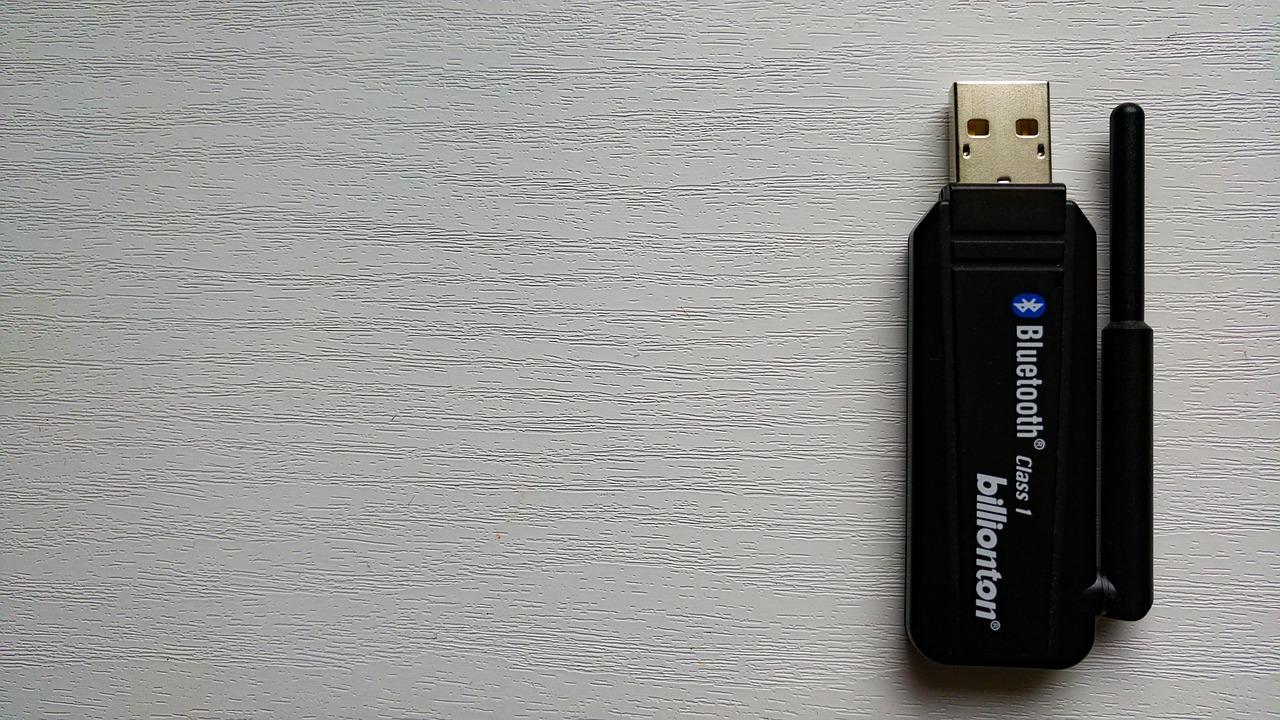
If after all the tests you confirm that your PC doesn't have the integrated chip, the solution is very cheap and simple: buy a USB Bluetooth adapter (dongle) . Just plug it in and Windows will almost always recognize it instantly, allowing you to connect any wireless peripheral.
Solving common problems and optimization
If Bluetooth is present but not working properly, Windows 11 has a very useful tool. Go to Settings > System > Troubleshooting > Other troubleshooters and run the Bluetooth troubleshooter. This will automatically diagnose and fix common configuration errors .
If you're still having pairing problems, try changing the device discovery settings . In your Bluetooth settings, look for the Discovery drop-down menu and select Advanced . This will allow Windows to find devices that it would normally filter out as uncommon.
Another critical point is the drivers. If you've just updated Windows, the old driver might be causing conflicts. Ideally, you should go to the manufacturer's official website (HP, Dell, ASUS, Intel, etc.) and download the latest driver version. If none of this works, an effective technique is to uninstall the Bluetooth adapter from Device Manager and restart your PC; Windows will attempt to reinstall the device cleanly upon startup.
The world of LE Audio in Windows 11
For those who are most demanding when it comes to sound, there's Bluetooth LE Audio (Low Energy Audio). Unlike classic Bluetooth, this system uses the TMAP profile to offer better voice quality and significantly lower battery consumption. Having Bluetooth 5.0 isn't enough; you also need a PC running Windows 11 (version 22H2 or later), hardware that's LE-compatible, and drivers from the manufacturer that support it.
To see if you can take advantage of this feature, go to Settings > Bluetooth & devices > Devices . If you see the option "Use LE audio when available ," you're in luck. If it doesn't appear, your current hardware or drivers don't support this technology, although you might gain support in the future through firmware updates.
Having control over your computer's Bluetooth version allows you to avoid unnecessary peripheral purchases and optimize the connection of your gadgets. From checking the LMP code in Device Manager to installing a USB dongle or updating drivers, there are multiple ways to ensure your wireless communication is seamless and takes full advantage of your system's available technology.

Passionate writer about the world of bytes and technology in general. I love sharing my knowledge through writing, and that's what I'll do on this blog, show you all the most interesting things about gadgets, software, hardware, tech trends, and more. My goal is to help you navigate the digital world in a simple and entertaining way.