- Apple allows the complete download of data in XML format through the user profile in the Health app.
- To analyze information in spreadsheets, it is necessary to convert the XML to CSV using Python scripts or specialized apps.
- It is possible to automate sending metrics to Google Sheets using iOS Shortcuts and Google Apps Script.

Having an iPhone or an Apple Watch is great for monitoring our health, but there comes a time when we want to extract that data from the Apple ecosystem to analyze it in depth or simply store it in a more accessible location. The problem is that, although the option exists, Apple doesn't exactly make it easy, often leaving you with a file that looks like it's written in alien code that you can't open in just any program.
If you're frustrated because you want to track your steps, sleep, or heart rate in a spreadsheet and end up with a giant XML file that cripples your phone , don't worry. There are several ways to solve this headache, from the official, tedious method to more technical tricks or using apps that do the dirty work for you.
The official way: Native XML export
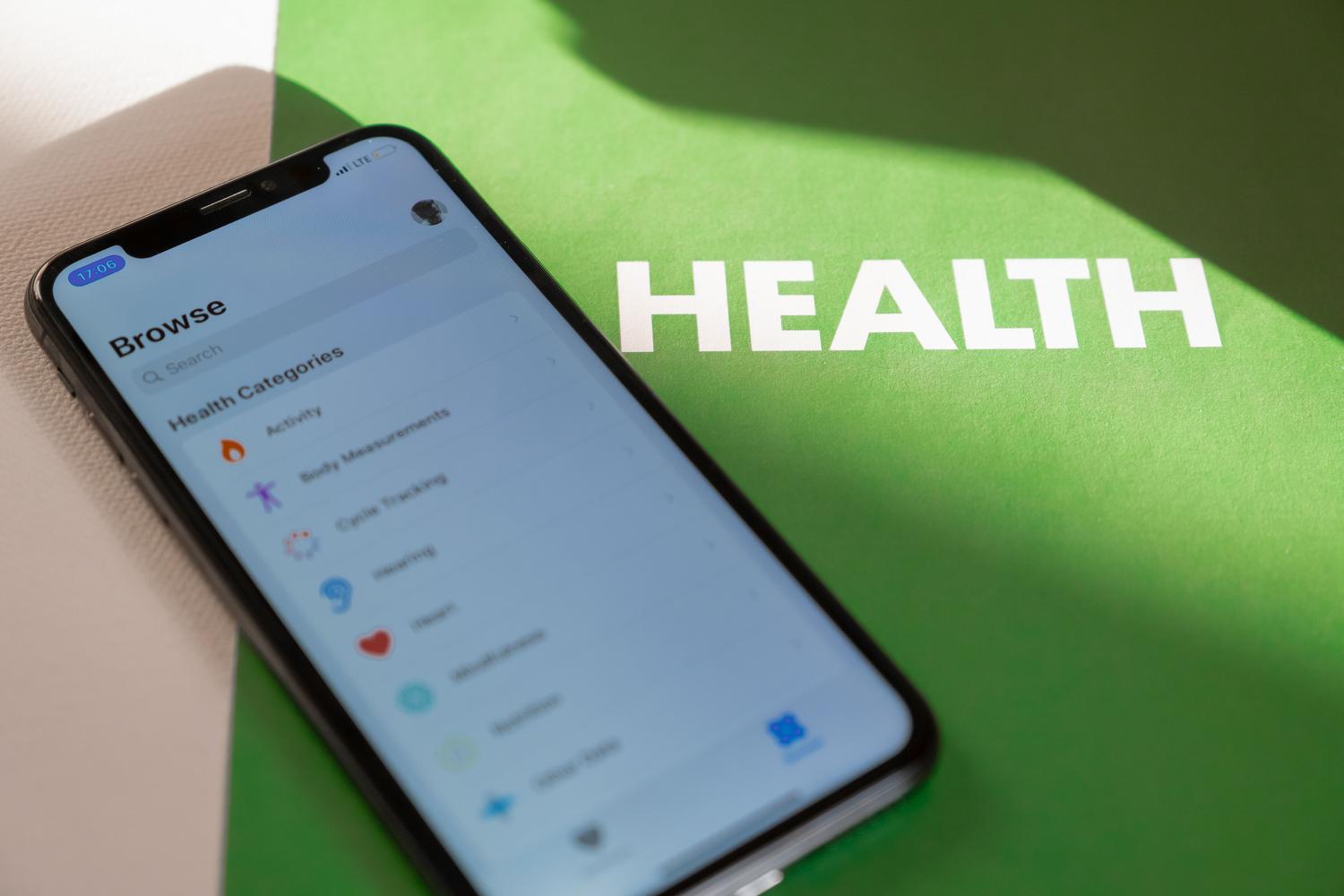
The standard method offered by Apple is the most comprehensive, as it downloads absolutely every stored record, including data from third-party apps that have permission to write to Health. To do this, simply open the Health app, tap on your profile picture or initials, and look for the option to Export All Health Data . Be patient, because if you've been accumulating metrics for years, the process may take a few minutes.
The result is a ZIP file containing a document called export.xml and a folder with your training GPS routes. The major drawback is that XML is not readable for the average user; it's a raw data structure that cannot be directly imported into Excel or Google Sheets without an intermediate conversion step.
How to convert that XML into something usable (CSV)
To make sense of that data in a table, we need to convert it to CSV format. This is where things get interesting, and you have several options depending on your technical skill level:
- Python scripts: It's the preferred option for those seeking complete privacy. Installing the library Pandas and lxml On your computer, you can run scripts (many available on GitHub) that process the file locally and generate a clean CSV, removing annoying prefixes and organizing the columns by date and metric.
- Conversion apps: There are tools like QS Access or Health Auto Export that do the hard work for you directly on the iPhone, allowing you to get tables sorted by minutes or hours with ISO timestamps.
- iOS Shortcuts: For those who don't want to export their entire history, the Shortcuts app allows you to extract specific Health samples and send them to other destinations without going through the XML file.
Advanced automation for Google Sheets

If you're someone who wants a real-time dashboard , you can set up an automated system. A very effective technique involves creating a web application using Google Apps Script that receives data via POST. Then, you configure a Shortcut on your iPhone that reads health samples (such as heart rate or sleep patterns) and sends them to that URL periodically.
This workflow eliminates the need for manual monthly exports and allows you to manage data density . For example, you can schedule your iPhone to send summaries every hour while the device is charging and connected to Wi-Fi, preventing excessive battery drain.
Quick alternatives and third-party apps
For those who prefer not to complicate things with code or scripts, there are apps on the App Store designed specifically for this. HealthFit is one of the best-known among those who train, as it allows you to send Apple Watch data directly to platforms like Strava or TrainingPeaks , or save it in GPX and FIT formats in the cloud.
Options like FitMesh Sync have also emerged , acting as a bridge to visualize HealthKit data in a dedicated dashboard without the need for constant manual exports. Other simpler apps allow you to choose specific date ranges , preventing you from having to download gigabytes of data dating back to 2015 just to see what you've done in the last month.
Tips for handling large volumes of data
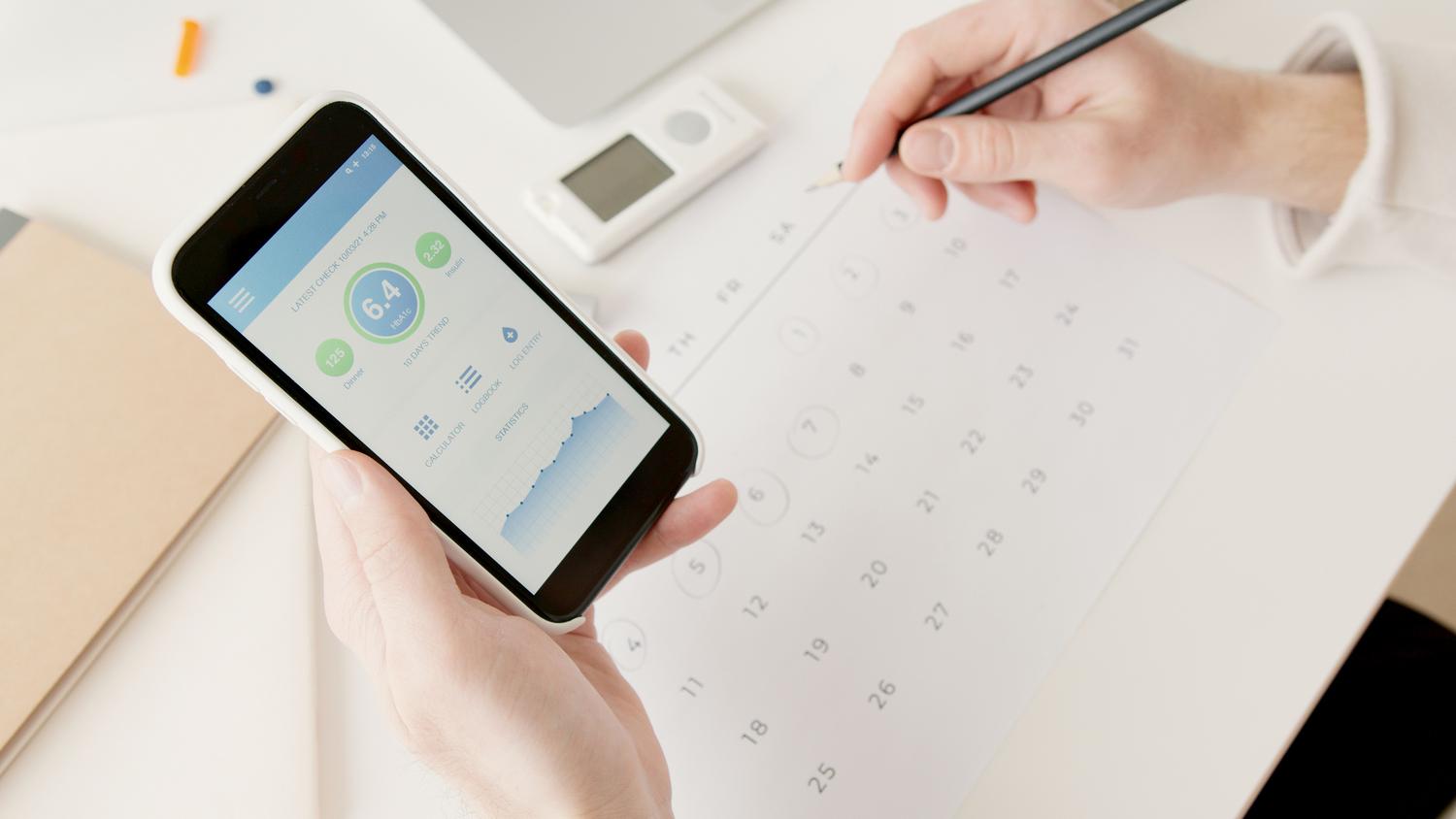
When working with health data, you'll find the number of rows overwhelming. A single training session can generate thousands of heart rate data points . To prevent Google Sheets from crashing, it's best to divide the files by metric or month, as spreadsheets have cell limits.
It is essential to pay attention to ISO 8601 timestamps . To avoid errors with time zone changes, it is best to maintain one column in UTC format and perform conversions to local time using formulas within the spreadsheet itself.
Privacy and security of your information
Remember that you're handling sensitive medical data . If you use online converters, be careful where you upload your XML. The safest way is always to process it locally on your own computer. If you use automations with Google Apps Script, make sure your web application URL is private and restrict access to the spreadsheet so that only you can see your vital signs.
Both native XML export and the use of external tools and automations with Shortcuts allow you to retrieve information from Apple Health for analysis in CSV or Google Sheets, offering everything from technical solutions with Python to simplified apps that avoid the chaos of raw files.

Passionate writer about the world of bytes and technology in general. I love sharing my knowledge through writing, and that's what I'll do on this blog, show you all the most interesting things about gadgets, software, hardware, tech trends, and more. My goal is to help you navigate the digital world in a simple and entertaining way.