- It allows you to create a temporary and isolated profile so that other people can use the mobile phone without accessing private data.
- It is usually activated through the System menu in the Multiple Users section or from the Quick Settings.
- It offers the possibility of restricting specific functions, such as making phone calls.

I'm sure it's happened to you before: someone asks to borrow your phone to do a quick search or send a message, and you get a little chilly thinking they might snoop through your photos or read your private chats. Smartphones these days are practically the diary where we keep our entire lives, and lending it out without a second thought can feel like leaving your front door wide open.
To avoid these scares, Android offers a very clever solution called Guest Mode. Basically, it's like creating a temporary, isolated space on your device where the other person can browse and use basic apps without having the slightest chance of accessing your photos, emails, or passwords. It's the perfect tool for when you want to help someone out while keeping your privacy under lock and key.
What exactly does Guest mode consist of?
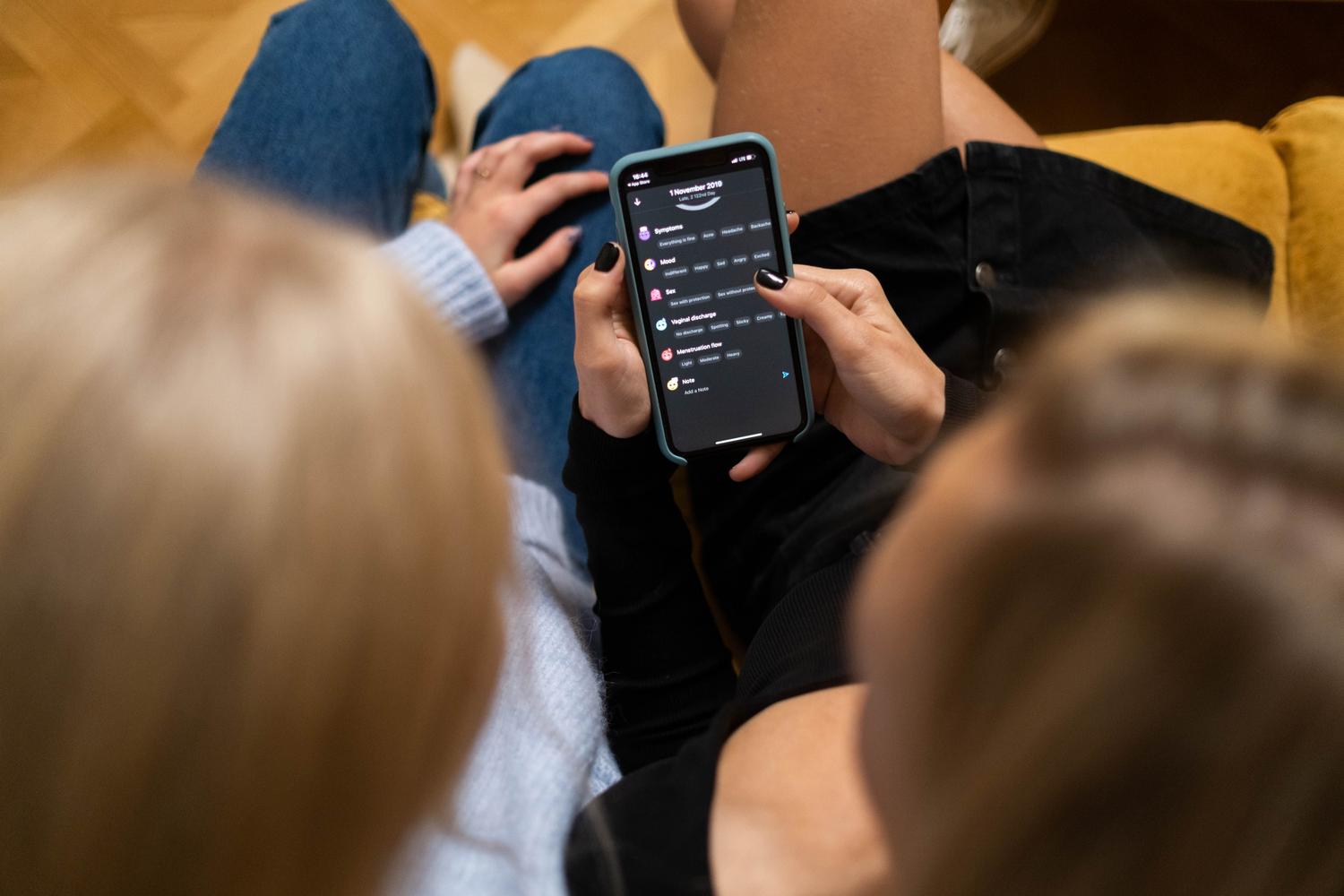
We could say that this feature is the equivalent of the user accounts we already know in Windows or macOS. When activated, the system generates a limited user profile . This means that the device behaves as if it were brand new in terms of personal data: there's no search history of yours, no open social media accounts, and your private files remain invisible.
It's important to note that to enjoy this feature, you need a device with Android 5.0 or a later version . However, there's a small caveat: some manufacturers choose to remove this option from their menus, so if you don't find it, your specific model might not support it.
Steps to activate the feature on your device

If you have a Google Pixel or a device running a stock version of Android, the process is quite intuitive. First, swipe down from the top of the screen twice to open the Quick Settings panel . Once there, tap the gear icon to access the general settings.
Within the settings menu, follow this path: go to the System section and look for the option called Multiple users . Here, you'll need to activate the "Use multiple users" switch. Once you've done this, the option to Add Guest will appear . Simply tap it, and the phone will instantly switch to that restricted profile.
If you prefer a quicker route, on many devices you can activate Guest mode directly from Quick Settings by tapping the User icon and selecting the Guest option. To return to your main profile, simply repeat the process and choose your username.
Data management and access levels
One very practical feature of this system is that the guest can log in with their own Google account to check their emails or view their synced history. Furthermore, the phone owner can customize which apps are available to the visitor, which is a huge plus if you're lending the phone to a young child.
Regarding guest privacy, Android is also generous. Anyone using your phone can delete all traces of their activity (cookies, history, and sessions) from the Remove Guest menu . This way, when you get the device back, you won't know what the other person was doing either.
Regarding limitations, the control is simple but effective. By default, the system blocks access to your data, but you can specifically decide whether or not to allow the guest to make phone calls from the user settings menu.
Special cases and alternatives

Not everything is rosy, and some brands bend the rules. For example, on Samsung devices , the traditional guest mode is often absent. For those who use these devices, the most viable alternative is Secure Folder . While not a full user profile, it creates an encrypted, PIN-protected space where you can store apps and files you want to keep safe from prying eyes.
It's also helpful to distinguish this mode from Chrome's Incognito browser . While Incognito mode only prevents browsing history from being saved in the browser, Android's Guest mode protects the entire phone ecosystem , including the gallery, messages, and system settings.
Having a temporary profile is the best strategy for sharing your smartphone safely, as it allows the visitor to use basic functions and Wi-Fi while your sensitive data remains secure . Whether it's configuring call access or clearing your data at the end of the session, Android makes lending your device a quick and secure process, transforming it from a source of stress into something more.

Passionate writer about the world of bytes and technology in general. I love sharing my knowledge through writing, and that's what I'll do on this blog, show you all the most interesting things about gadgets, software, hardware, tech trends, and more. My goal is to help you navigate the digital world in a simple and entertaining way.