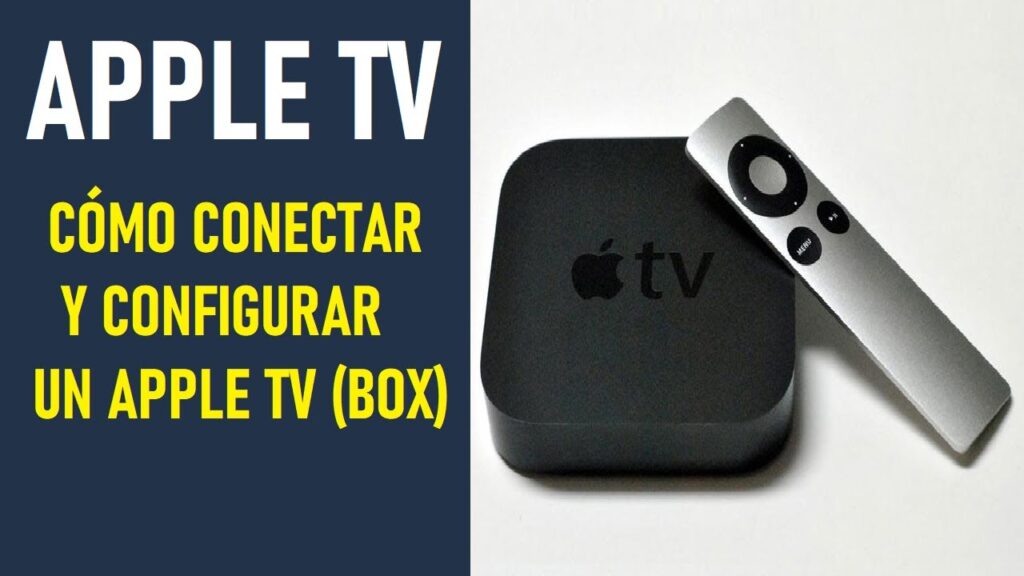
Are you new to the world of Apple TV and don't know how to sideload apps? Don't worry! In this article, we'll show you how to do it quickly and easily. Read on to learn how to get the most out of your device.
The Apple TV is an incredibly versatile device that lets you enjoy your favorite shows, movies, and games in the comfort of your own home. To get the most out of it, it's crucial to know how to download apps on Apple TV.
Here's a step-by-step guide on how to download apps on Apple TV and how to get the most out of your device.
1. Turn on and set up your Apple TV
Before you start downloading apps on your Apple TV, you must first turn on and set up your device. Follow these steps:
- Connect the HDMI cable from your Apple TV to your television.
- Connect the power cord to your Apple TV and plug it into an electrical outlet.
- Turn on your TV and select the corresponding HDMI input.
- Follow the onscreen instructions to set up your Apple TV, including connecting to Wi-Fi and signing in with your Apple ID.
Once you've completed these steps, you're ready to start downloading apps to your Apple TV.
2. Browsing the App Store on Apple TV
To download apps on Apple TV, you'll need to access the App Store . Here's how:
- On the home screen of your Apple TV, select the “App Store” app using the Siri Remote.
- Press the “select” button on the Siri Remote to open the App Store.
Within the App Store, you will find a wide variety of applications and games available for download.
3. Search for apps in the App Store
There are several ways to search for apps in the Apple TV App Store. You can browse featured categories or perform a specific search. Here's how to do it:
Browsing Featured Categories
- In the App Store, select the “Featured” tab at the top of the screen.
- Scroll through the different categories, such as “Essential Apps,” “Games,” and “Entertainment.”
- Select a category to explore available apps.
Perform a specific search
If you already know what app you're looking for, you can perform a specific search:
- In the App Store, select the “Search” tab at the top of the screen.
- Use the Siri Remote to enter the name of the app you want to search for.
- Select the app in the search results.
4. Download and install apps on Apple TV
Once you've found the app you want to download, follow these steps to install it on your Apple TV:
- Select the app in the App Store.
- Press the “select” button on the Siri Remote to open the app details page.
- If the app is free, select “Get.” If it is paid, you will see the price instead of “Get.” In this case, select the price and confirm your purchase.
- Enter your Apple ID password or use Touch ID on your Siri Remote if you have it set up.
- The app will automatically begin downloading and installing on your Apple TV.
5. Access and organize apps on your Apple TV
After you download and install an app, you can access it from the Home screen on your Apple TV. You can also organize your apps into folders here to keep everything organized. Follow these steps:
Access downloaded applications
- On the Home screen of your Apple TV, swipe to the app you want to open.
- Press the “select” button on the Siri Remote to open the app.
Organize apps into folders
- On the Home screen of your Apple TV, select the app you want to move to a folder.
- Press and hold the “select” button on the Siri Remote until the app starts to wiggle.
- Drag the app on top of another app to create a new folder.
- To add more applications to the folder, drag them onto the created folder.
- Press the “Menu” button on the Siri Remote to finish.
6. Update and delete applications
Keeping your apps up to date is important to ensure optimal performance and enjoy the latest features. Here's how to update and delete apps on your Apple TV:
Update apps
- On the home screen of your Apple TV, select the “App Store” app.
- Select the “Purchased” tab at the top of the screen.
- Scroll down to the “Updates” section and select “Update All” or choose individual apps to update.
Remove apps
- On the Home screen of your Apple TV, select the app you want to delete.
- Press and hold the “select” button on the Siri Remote until the app starts to wiggle.
- Press the “Play/Pause” button on the Siri Remote and select “Delete” from the menu that appears.
- Confirm that you want to delete the app.
With these steps, you can easily download, install, and manage apps on your Apple TV. Don't forget to check out the
How to Get Apple TV Apps – Downloading Apps from the App Store
https://www.youtube.com/watch?v=iZnSOJuSdmY
How to INSTALL Apps on HISENSE Smart TV – VIDAA OS ♣️ ✅ ?
https://www.youtube.com/watch?v=ncDltZctncg
FAQ
In this section, we'll answer some of the most common questions you might have about how to sideload apps on your Apple TV. Let's move on!
What kind of apps can I download to my Apple TV?
On your Apple TV, you can download a wide variety of apps, including entertainment, games, sports, news, and more. These apps are available in the Apple TV App Store and are designed specifically to run on the tvOS platform. Some of the most popular apps include:
- Netflix
- YouTube
- Disney +
- HBO Max
- Amazon Prime Video
- Hulu
In addition, you can find music apps like Spotify and Apple Music, as well as health and fitness apps like Peloton and Apple Fitness+. However, keep in mind that some apps may require a paid subscription to access their content.
How do I download apps on my Apple TV?
Downloading apps to your Apple TV is a simple process. Here are the steps to follow:
- Turn on your Apple TV.
- Select the App Store from the home screen.
- Use the search function or browse the categories to find the app you want to download.
- Select the app and press the “Get” or “Buy” button if it is a paid app.
- If necessary, enter your Apple ID and password to confirm the download.
Once the download is complete, the app will appear on your Apple TV Home screen.
How do I update apps on my Apple TV?
App updates on your Apple TV can be set to occur automatically or manually. To turn on automatic updates:
- Go to “Settings” on the Home screen of your Apple TV.
- Select “Applications”.
- Turn on “Automatically update apps.”
If you prefer to update your apps manually:
- Open the App Store on your Apple TV.
- Go to the "Purchased" section.
- Look for apps with an “Update” label and select them to update.
Can I delete apps from my Apple TV?
Yes, you can easily delete apps from your Apple TV if you no longer need them or want to free up space. To delete an app, follow these steps:
- Select the app you want to delete on the home screen.
- Press and hold the touch button on the Siri Remote until the app starts to wiggle.
- Press the “Play/Pause” button and select “Delete” from the menu that appears.
- Confirm the removal of the application.
Please note that deleting an app will also delete all data associated with it.
Can I download apps to my Apple TV from my iPhone or iPad?
Yes, you can download apps to your Apple TV from your iPhone or iPad if both are connected to the same iCloud account and have Automatic Purchases enabled. To enable Automatic Purchases on your iPhone or iPad:
- Go to “Settings” and tap your name at the top.
- Select “iTunes & App Store”.
- Turn on “Apps” under the “Automatic Purchases” section.
Once this feature is enabled, apps you download to your iPhone or iPad will automatically appear on your Apple TV if they're available for tvOS.
Conclusion
We hope this FAQ has helped you understand how to download, update, and manage apps on your Apple TV. With a wide range of apps available, you can enjoy endless entertainment and utilities on your device.
Share and comment!
If you found this guide helpful, feel free to share it on your social media and leave your comments! We'd love to hear your thoughts and experiences with your Apple TV. If you have any additional questions, feel free to contact the administrator of this blog. Have fun exploring all the apps your Apple TV has to offer!

My name is Javier Chirinos and I am passionate about technology. Ever since I can remember, I have been interested in computers and video games, and that passion has turned into a job.
I have been publishing about technology and gadgets on the Internet for over 15 years, especially in mundobytes.com
I am also an expert in online marketing and communication and have knowledge in WordPress development.