- Opera GX arrives on Linux as a gamer browser with resource control and extensive customization.
- The download should always be done from the official website, choosing the appropriate package for each distribution.
- Installation is easily performed from the graphical environment using the system's software installer.
- After installation, Opera GX integrates into the applications menu and allows you to adjust performance, privacy, and appearance.
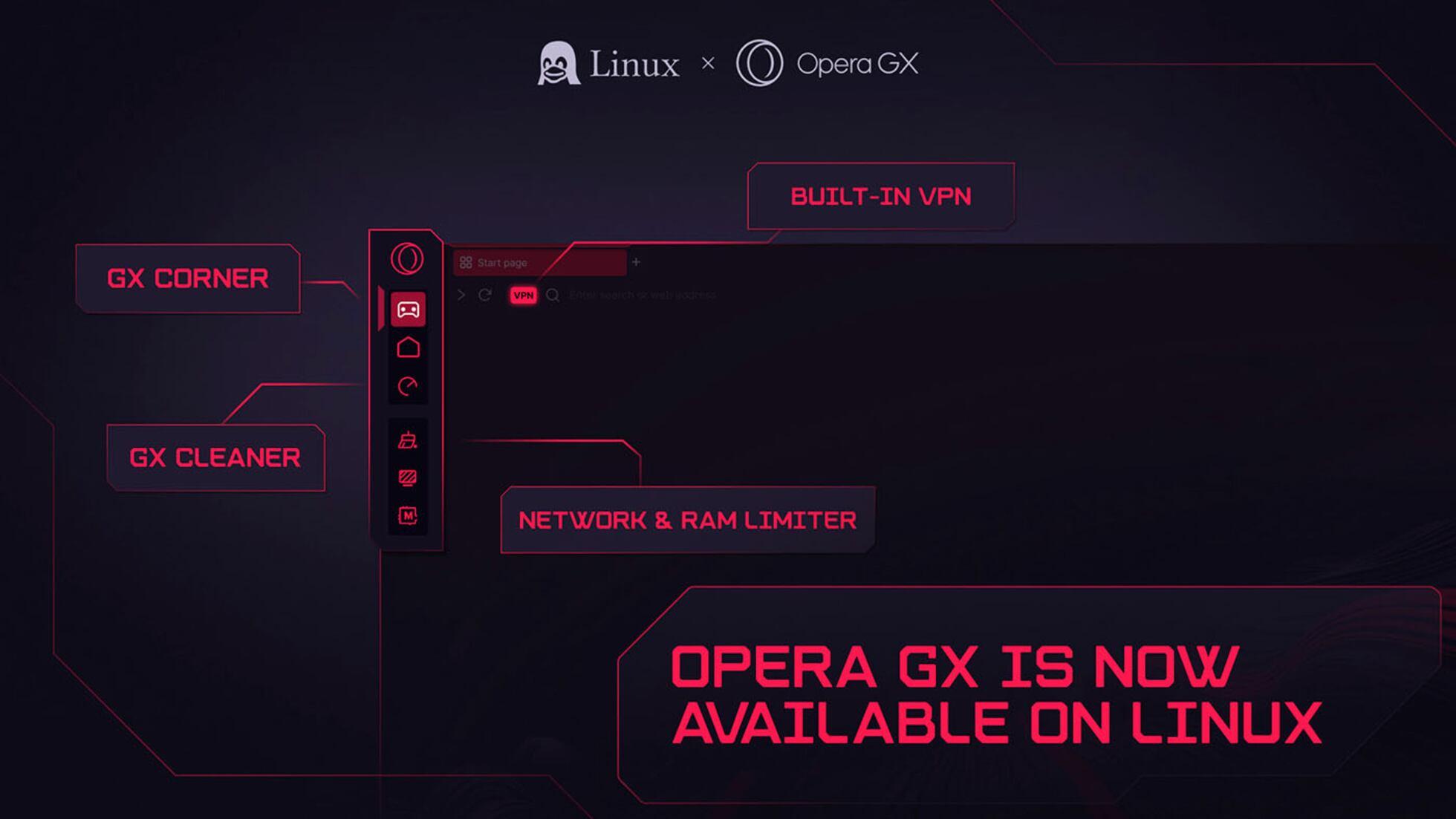
Opera GX has finally officially arrived on Linux And many users are considering giving it a try as their primary browser, especially if they spend a good part of the day gaming, consuming multimedia content, or simply want a more customizable experience than traditional browsers. If this is your case and you're a bit lost on how to download and install it correctly on your system, here you'll find a complete and very detailed guide, designed to ensure you don't miss a thing.
Although installing a program on Linux may sound more complicated than on Windows, The process for setting up Opera GX is quite simple If you follow a few clear steps: download the appropriate package from the official website, launch it with your system's installation tool, and complete the wizard by accepting the terms. In the following sections, we'll calmly and clearly explain what to do in each case, which file type to choose depending on your distribution, and some helpful tips and tricks to get it working perfectly the first time.
What is Opera GX and why is it useful on Linux?
Opera GX is a version of the Opera browser primarily aimed at players on Linux and advanced users looking for extra customization and control over system resources. Until relatively recently, it was only conveniently available on Windows and macOS, so its official arrival on Linux has been very well received, as this system is preferred by many gamers, streamers, and users who want to get the most out of their hardware.
One of the key features of this browser is that It includes specific tools for managing CPU, RAM, and bandwidthThis allows you to keep games, resource-intensive applications, or virtual machines running without the browser hogging all the resources. This is especially useful with Linux, where it's quite common to have multiple services and processes running simultaneously.
Beyond the player-oriented features, Opera GX stands out for its very polished visual appearance.With dark themes, customizable colors, effects, and a fast interface, but also practical details like a built-in ad blocker, quick access to social networks, and a side panel with services like Discord and Telegram. All of this is also available in the Linux versions.
If you're coming from other browsers like Firefox or Chrome, You'll have no problem importing your bookmarks and adjusting Opera GX to your liking.The idea is that you can have the same experience in Linux as already exists in other systems, but taking advantage of the benefits of your preferred distribution, from package management to the flexibility to integrate it with your desktop.
In this article we will focus on the practical part: How to download and install Opera GX on Linux step by stepThis will help you understand which file to choose, how to open it, what to do if your desktop environment doesn't open the installer at first, and of course, how to launch it later from the applications menu.
Download Opera GX from the official website on Linux
The first step to enjoying this browser is Access the official Opera GX page from any browser you already have installed on your Linux system.It can be Firefox, Chromium, Chrome or whichever you usually use; the important thing is that you have internet access to enter the downloadable website.
Once inside the site, You will need to locate the specific download section for LinuxGenerally, the page automatically detects your system and shows you an appropriate download button, but if it doesn't, there is usually a "Downloads" section where you can manually select your operating system.
In that section you will see that Opera GX offers different packages depending on the distribution.For Debian and Ubuntu-based systems, you'll typically find .deb files; for distributions like Fedora or openSUSE, they usually offer .rpm packages. Choosing the correct file type is essential for your package manager to handle the installation correctly.
Once you're clear on what type of package you need, Click on the download button corresponding to your distributionYour browser will ask you where you want to save the file; the easiest option is to leave it in your default downloads folder, as it will be easier to find later. Depending on your internet connection speed, the installer download will take anywhere from a few seconds to a few minutes.
Once the download is complete, check that The file has been saved successfully in your destination folder and that the process has not been interrupted. Although normally everything should go well, in case of failure you only have to repeat the download from the official website, thus avoiding any problem with a corrupted package.
Choose the right version according to your Linux distribution
When installing programs on Linux, Selecting the format that best suits your distribution is key.Opera GX is no different: the file you download defines how your system will handle all subsequent packages, dependencies, and updates, including repositories.
If you use a Debian or Ubuntu-based distribution, such as Linux Mint, Pop!_OS, or Elementary, Your best option will be to download the package with the .deb extensionThese files are specifically designed for that ecosystem and integrate seamlessly with the installation tools that come with these distributions by default.
However, if your system is based on Red Hat, Fedora, or openSUSE, Opera GX will most likely offer you an .rpm fileThis type of package is the standard for non-Debian-based distributions, and it makes it easier for the native package manager to handle both installation and future updates.
For users who use other, less common variants or versions, The official Opera GX download page usually indicates which systems are compatible. and which ones don't. If in doubt, it's always a good idea to check Opera's help or support section for specific recommendations for your particular distribution.
Once you've located the format that fits your distro, Make sure you don't mix package typesIf your system is Ubuntu or similar, stick with the .deb file; if it's Fedora or openSUSE, go for the .rpm file. Avoiding confusion at this point will save you installation errors and dependency problems later on.
Install Opera GX on Linux from the graphical environment
Once the download is complete and you have the file on your computer, The easiest way to install Opera GX is usually to use the graphical environmentYou can use the software tool that comes pre-installed on your distribution. You don't need to be a terminal expert to complete this process.
On most desktops, the first thing will be Open the file manager and go into the folder where the package has been saved.If you haven't changed anything, it will usually be in the "Downloads" folder. From there you will find the corresponding .deb or .rpm file.
By selecting the file, you can try to Double-click on it to open it directly with the software installer. of your distribution. Many systems automatically detect that it is an installable package and launch the appropriate application to manage it without you having to configure anything.
If double-clicking doesn't work or the system asks you how to open it, Right-click on the file and choose the "Open with Installation Software" option. or something similar. Each distribution and desktop environment may name this option slightly differently, but it always refers to the program responsible for installing packages.
At that point, you'll see a window appear showing information about Opera GX and the package details, and You just have to click the install buttonIt is very likely that your system will ask you for the administrator password To continue, as this is an installation that affects the entire system. Once you enter it, the process will proceed automatically.
Follow the Opera GX installation wizard
During installation, your distribution's software tool takes care of resolve the necessary dependencies and place all files in their correct locationsSo you don't have to manually check which additional packages are needed. Just let it finish and don't close the window until it tells you to.
It is common that at some point in the process The Opera GX terms and conditions of use will appearAlthough many people overlook them, it's advisable to take a quick look at them to understand what kind of data the browser can collect and what license governs the program. In any case, you'll have to accept these terms to continue.
After progressing through the wizard and confirming the installation, The progress bar will show how the necessary components are being added.The time it takes will depend on both the speed of your computer and the workload it has at that moment, but it generally shouldn't be too long a process.
When the tool indicates that it has finished, You can close the installer window with complete peace of mind.From that moment on, Opera GX should be integrated into your system, ready to be launched like any other desktop application you have installed.
If you see any error messages during installation, It's a good idea to check that you've downloaded the correct package for your distribution and architecture.And if necessary, repeat the process with a new file from the official Opera GX website, avoiding third-party websites that may include modified or outdated versions.
Open Opera GX from the Linux applications menu
Once installed, it's time to check that everything has gone well and Locate Opera GX within the applications menu of your desktop environment.The way to do this may vary slightly depending on whether you use GNOME, KDE, XFCE or another desktop environment, but the general idea is the same.
In most cases, You can open the system's main menu and type "Opera" or "Opera GX" in the search box.The browser icon should appear instantly, usually with Opera's distinctive logo adapted to the GX style.
If you prefer to browse by category, Look in sections like “Internet”, “Web” or “Browsers”This is where navigation and connectivity apps are usually grouped. You should also find the Opera GX entry there, ready to open with a single click.
The first time you run it, The browser may take a little longer to start up This will happen on subsequent occasions, as it needs to create its configuration folder, prepare the user profile, and adjust some internal options. From then on, startup will be faster and smoother.
Once up and running, you'll see GX's signature interface and You can start customizing the theme, importing bookmarks, or logging in with your Opera account. If you want to sync data with other devices, this all works very similarly to how it does on other operating systems, so you won't feel lost if you've already used it on Windows or macOS.
Alternative: Start the installation from the right-click
On certain desktops or distributions, especially when using specific file managers, Double-clicking on a .deb or .rpm package may not directly launch the software installer.If this happens to you, don't worry: there is another very convenient way to start the installation.
What you can do in those cases is Position the cursor over the downloaded file and use the right mouse button.When the context menu opens, you should see an option similar to "Open with another application" or "Open with…", which will allow you to choose which program you want to use to handle the package.
Within that list, Choose the software installation tool for your distributionThis option may be called "Package Installer," "Software," "Discover," "Software Center," or something similar, depending on your operating system. This selection will force the package to open with the appropriate program to install it on your system.
After selecting the correct application, The installation process will behave the same as if you had double-clicked from the beginning.You will see the package information, you will have to click on install, enter your administrator password and wait for the operation to complete.
If you want to save yourself this step in the future, Some distributions allow you to remember the default application for this type of file.Simply check the corresponding box when choosing the program, so that every time you open a .deb or .rpm file it will be automatically associated with the software installer without you having to select it again.
Post-installation tips to get the most out of Opera GX
Once you have Opera GX running on your Linux, It's worth spending a few minutes adjusting some of its options to align it with your preferences and your device's specifications. After all, one of its strengths is precisely customization.
Within the settings menu, You can activate and adjust CPU, RAM, and bandwidth limitersThese features are very useful if you often have a game (GOG on Linux), a video editor or heavy applications open while browsing, as this prevents the browser from using more resources than necessary.
It is also worth reviewing Privacy settings, ad blocker, and security optionsOpera GX incorporates tools to limit tracking, block intrusive advertising, and filter potentially dangerous content, giving you extra protection without having to install third-party extensions.
If you like having everything at hand, Use the side panel to pin services like Discord or TelegramThis way you can check messages, notifications or chats without leaving the tab you're on, which is especially useful if you stream or play online and want to keep communication centralized.
Finally, it wouldn't hurt to explore options to import bookmarks and history from other browsersSo, if you're coming from Firefox, Chrome, or another browser, you can migrate your favorite pages, saved passwords, and other data in just a few steps to continue in Opera GX almost as if nothing had changed.
After following this entire route, You'll find a fully functional gaming browser running on Linux.Installed via the official website, using the correct package type for your distribution and accessible from the applications menu with a couple of clicks, ready to integrate into your daily life in the most natural way possible.

Passionate writer about the world of bytes and technology in general. I love sharing my knowledge through writing, and that's what I'll do on this blog, show you all the most interesting things about gadgets, software, hardware, tech trends, and more. My goal is to help you navigate the digital world in a simple and entertaining way.