
You can disable the Microsoft Store using several methods. In this post, we'll show you how to disable the Microsoft Store app using the Registry, PowerShell , locally, and through Group Policy. The Microsoft app store has had its share of issues in recent years, but it remains a useful tool for installing apps and games or downloading music and TV shows.
However, for various reasons, you may want to disable the Microsoft Store, preventing children from downloading unapproved apps or removing bloat from your system. On the contrary, some users encounter the “Microsoft Store is blocked” or “Store app is blocked” errors.
This can happen when someone disables the Microsoft Store and doesn't realize it will affect everyone on the PC. Instead of blocking it, you can also completely uninstall the Microsoft Store as explained in the tutorial.
You might also be interested in: What is Microsoft Edge? Uses, Features, Reviews, Prices
What is the Microsoft Store?
The Microsoft Store is an application in Windows that allows you to install apps and games, purchase digital media, and buy Microsoft devices. If you're not using the Microsoft Store app on your computer, you can certainly disable it. However, some users tend to leave it enabled in the taskbar. You can also hide the Store icon from the taskbar to prevent it from launching accidentally.
Right-click the Microsoft Store icon in the taskbar and select Unpin from taskbar. But if you've decided to disable the Microsoft Store, we'll show you how to do it in several ways. Depending on your needs, you can choose any of these methods.
Most administrators prefer to disable the Store app using Group Policy. We'll use the built-in policy setting called Turn off the app to disable access to the Store app. By default, this policy is set to Not Configured.
Note: The GPO method will only work on Windows 10 Enterprise and Education editions V1511 or later. According to Microsoft, this behavior is by design. On Windows 10, versions 1511, 1809, and 1903, these policies apply only to Enterprise and Education users.
If you enable this setting, access to the Store app will be denied. Store access is required to install app updates. If you disable or do not perform this setting, access to the Store app will be allowed.
Method 1: Disable Microsoft Store locally
You can disable the Microsoft Store (the app) on a single computer by following these steps. First, on your Windows 10 computer, click Start > Run > type the command gpedit.msc.
This launches the Local Group Policy Editor. Now expand it. Click on the Store folder . Then follow the path Computer Configuration > Administrative Templates > Windows Components.
In the right-hand panel, right-click on Turn off Microsoft Store and select Edit . Select Enabled to disable Microsoft Store. Click Apply and OK.
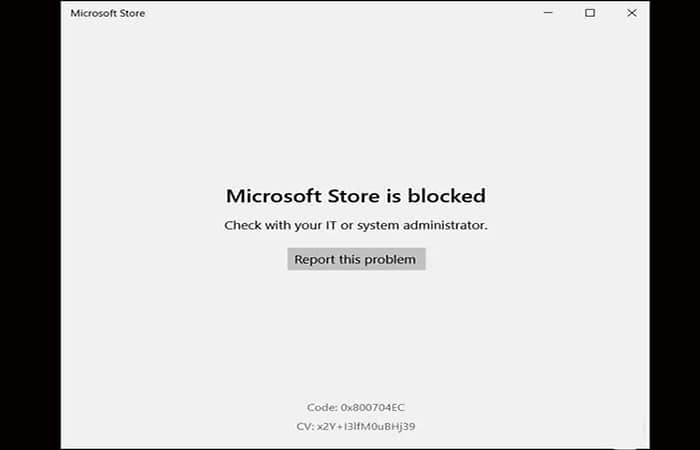
Before proceeding, run the command gpupdate /force to update the policies. Restart your computer. Sign in and try opening the Microsoft Store app . It now shows that the Microsoft Store is blocked. Consult your IT or system administrator.
You might also be interested in: Microsoft 365 (formerly Office 365): From Free to Paid
Method 2: Disable Microsoft Store using the registry
You can modify the registry to disable Microsoft Store. However, we would recommend backing up the registry before making any further changes.
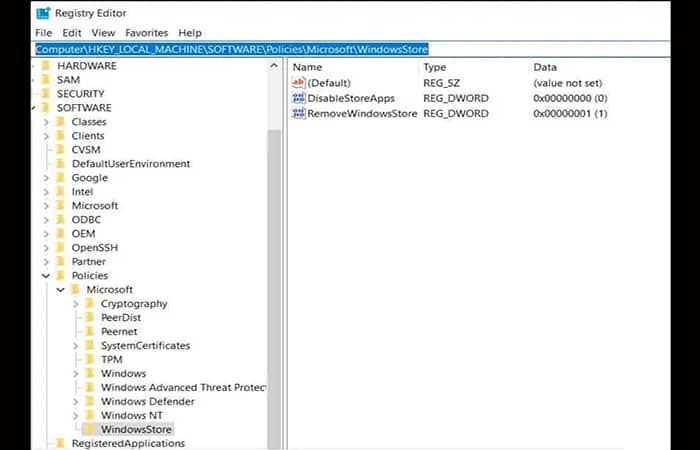
Click Start > Run and type regedit . Navigate to the following path: Computer\HKEY_LOCAL_MACHINE\SOFTWARE\Policies\Microsoft\WindowsStore . Locate the registry key named RemoveWindowsStore . By default, the value is 0.
To disable the Microsoft Store, change the value of RemoveWindowsStore from 0 to 1. Close the Registry Editor and restart your computer. You will now find that the Microsoft Store app is no longer available on your system.
Method 3: Uninstall Microsoft Store using PowerShell
To remove or uninstall Microsoft Store from your computer, try the steps below:
- Step 1: run PowerShell as administrator.
- Step 2: copy and paste the following command into the prompt PowerShell and press Enter Get-appxpackage windowsstore | remove-appxPackage.
- Step 3: Microsoft Store is now uninstalled for the current user.
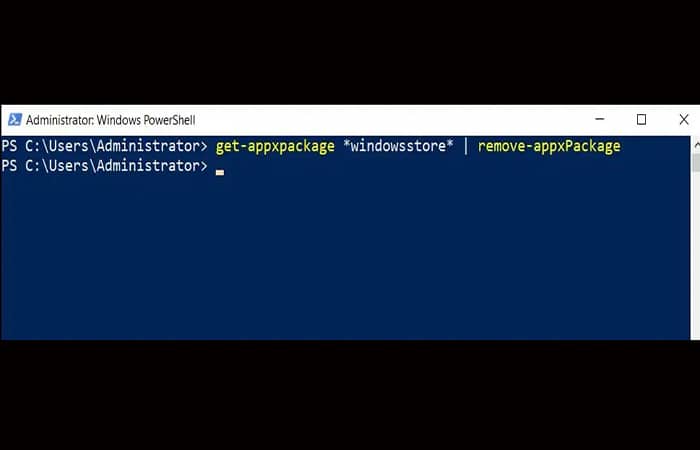
The previous command uninstalls the Microsoft Store app for the currently logged-in user. To remove the app from the Store for all users, run the following PowerShell command: Get-AppxPackage -allusers windowsstore | Remove-AppxPackage.
Suggestion: If you wish to reinstall the Windows Store, open PowerShell as administrator and run the following command: Get-AppxPackage -AllUsers | Foreach {Add-AppxPackage -DisableDevelopmentMode -Register "$($_.InstallLocation)\AppXManifest.xml"}
Method 4: Disable Microsoft Store using Group Policy
In Method 1, we disabled the Store app locally using gpedit.msc . If you want to disable the Store app on multiple computers in a domain , you can use Group Policy.
Before applying this group policy to computers in your domain, we would recommend applying it to an OU containing a few test machines. If you find that it works, you can roll it out to a larger set of computers.
Launch the GPMC console , create a new GPO , and name it "Disabling Microsoft Store." Right-click the newly created GPO and select Edit . Click the Store folder, then navigate to Computer Configuration > Administrative Templates > Windows Components.
In the right panel, right-click Disable Microsoft Store and click Edit . Select Enabled to disable the Microsoft Store app. Click Apply and OK.
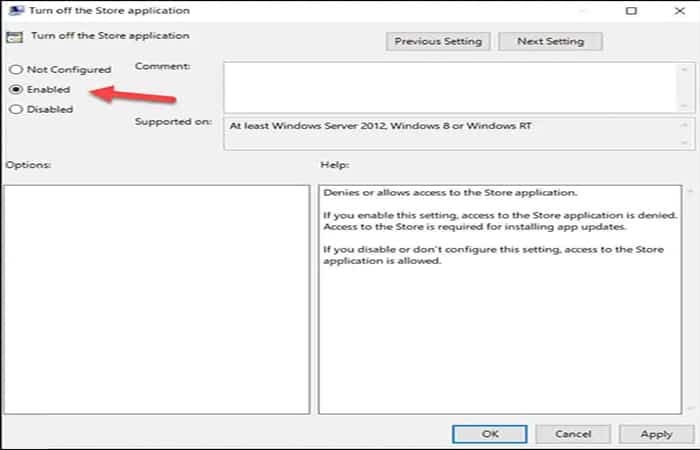
You must wait for the policy to be applied on the client machines. You can also run `gpupdate /force` on the client machines. Launching the Microsoft Store should now show that the Microsoft Store is blocked. Contact your IT or system administrator.
Final thoughts
There you have it, we now know how to disable the Microsoft Store. Unfortunately, due to a Microsoft policy change, disabling the Microsoft Store via the Group Policy Editor is now only possible through Windows 10 Enterprise and Education. You can toggle the switch in Windows 10 Pro, but it doesn't actually do anything.
However, we cover unlocking and locking the Microsoft Store using the Registry Editor and Group Policy Objects (GPOs) . Both take the policy route, meaning you might need one of the previous versions. You'll also need an administrator account to make these changes.

Comments are closed.