- Copilot's history saves both conversations and activity in Microsoft 365 apps and can be managed separately.
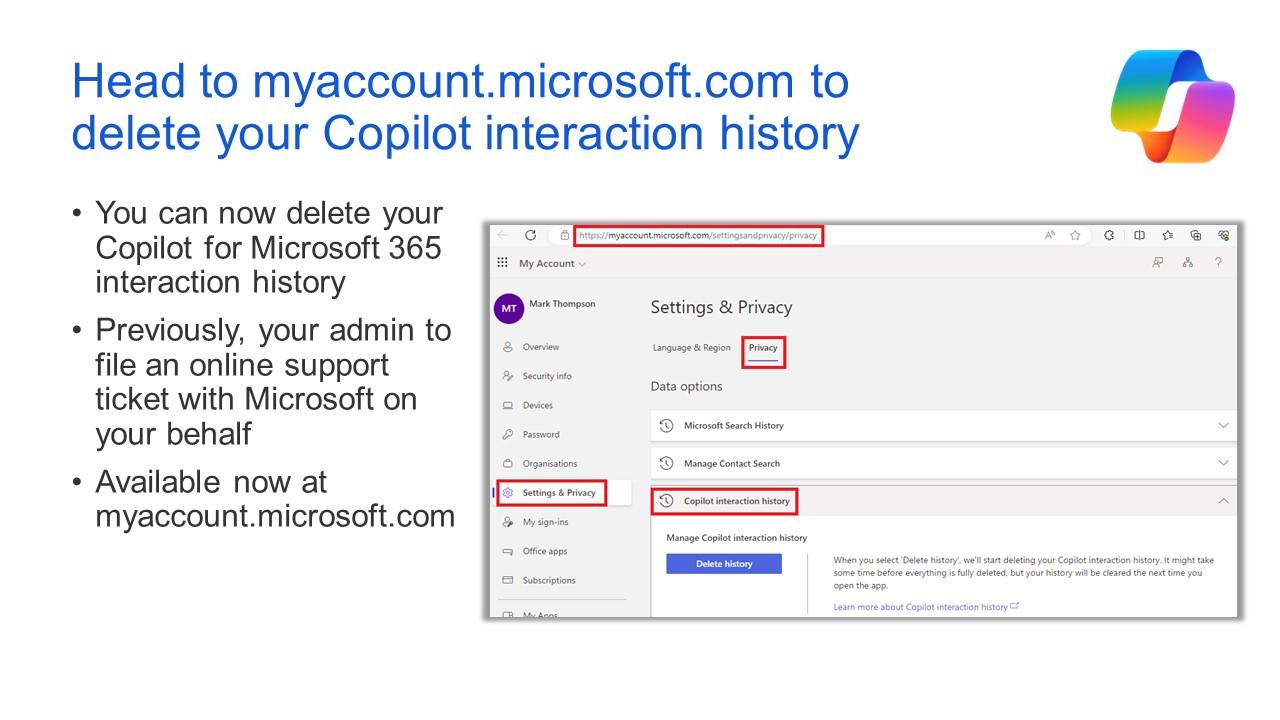
- From the Microsoft privacy portal, it is possible to export or delete the entire history of the Copilot application and Copilot in Microsoft 365.
- The deletion options do not affect documents already saved, only the interaction log stored by Microsoft.
- The conversation history can be selectively or completely cleared from copilot.com, desktop apps, and the mobile app.
Protecting what you tell an AI like Copilot has become almost as important as choosing a strong password. Every time you chat with Microsoft's assistant, you leave a trail of activity that includes your questions and the answers you receive, and it's natural to want to know how to delete it or control it in more detail.
Deleting your Copilot chat history and managing associated activity isn't as simple as clicking "delete all." It depends on whether you use Copilot in Microsoft 365 (Word, Excel, OneNote, PowerPoint, etc.), on the copilot.com website, in the desktop app, or on your mobile device, and even whether you're signed in with a Microsoft account, a work account, a school account, or an Apple ID. Let's take a step-by-step look at it carefully so you understand exactly what gets deleted and what doesn't.
What exactly is the Copilot activity history?
Copilot's activity history is a record of everything you do with the assistant : the requests you type, the instructions you give, and the AI-generated responses across the various apps and services where it's integrated. It's not just "the chat," but any interaction guided by Copilot.
In Microsoft 365 Copilot, this activity history includes, for example, when you ask it to rewrite a paragraph in Word, summarize a page of OneNote notes, or generate a to-do list from several separate items. All of these actions are saved and associated with your work or school account.
In Copilot for web, Windows, macOS, or mobile , the history takes the form of conversations: each chat with Copilot is stored as a thread with your messages and the assistant's responses. Microsoft states that it retains up to 18 months of interactions in this conversation history when you are logged in.
It's important to distinguish between activity history and file content : even if you delete the Copilot history, any documents, presentations, or notes in which you accepted AI-suggested changes and saved them will remain intact. Deletion affects the interaction log, not the saved files.
How to delete your Microsoft 365 Copilot activity history
If you use Microsoft 365 Copilot with a work or school account , you have a specific option to clear the Copilot activity history associated with those apps. This process is done through the Microsoft My Account portal, not directly from Word or Excel.
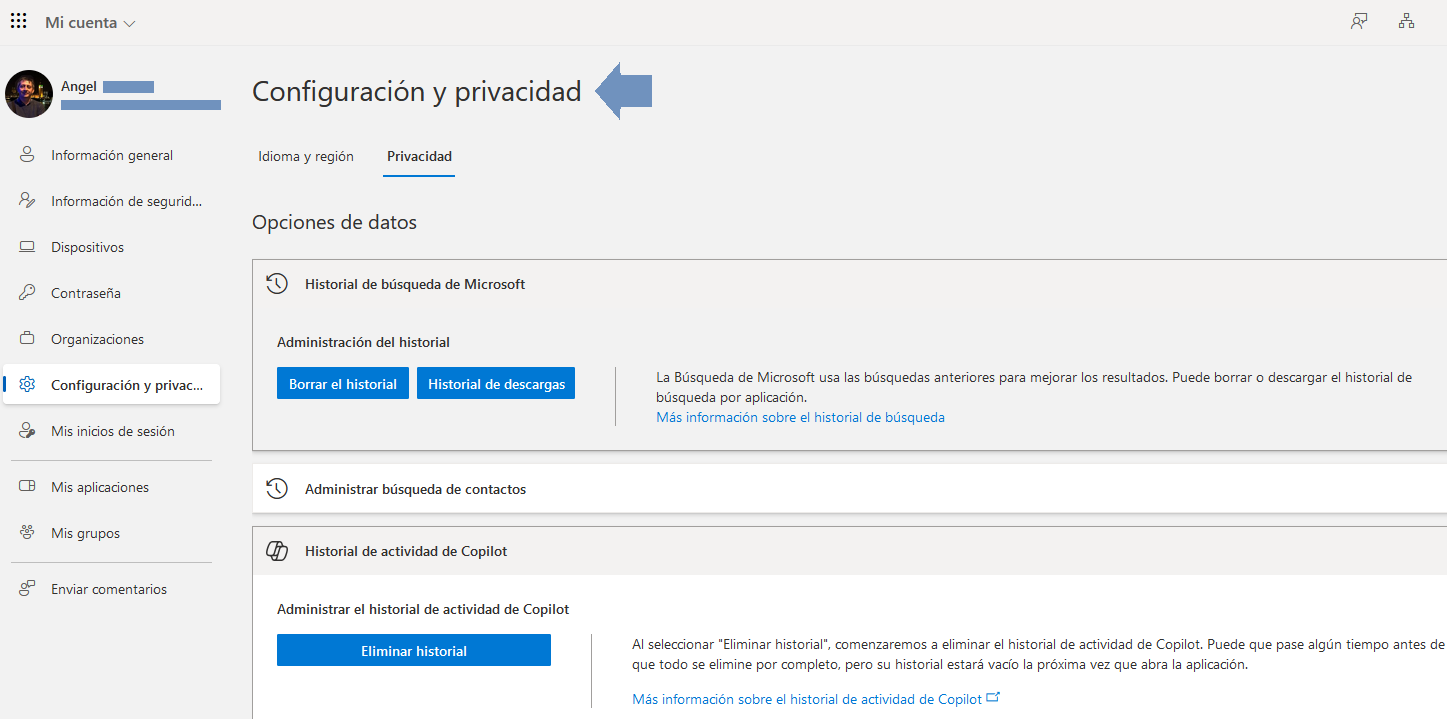
To clear your Microsoft 365 Copilot history, follow these steps: First, log in to the "My Account" portal with your work or school account. Once logged in, go to the Settings & Privacy section to access your privacy settings.
Within Settings & Privacy, go to the Privacy section and then to Data options . There you will find a specific section called Copilot activity history , which is where the management of interactions with Microsoft 365 Copilot is centralized.
When you open Copilot Activity History, you'll see the Delete History option . Selecting it will allow you to check the box for Microsoft 365 Copilot to indicate that you want to delete all history associated with this assistant in the suite's apps.
To complete the deletion, click the Delete button . Doing so sends a formal request to Microsoft to delete that activity history. This isn't an instant local deletion, but rather a process that runs on Microsoft systems and may take some time to complete.
What happens when you delete your Microsoft 365 Copilot history
Once you confirm that you want to delete your history, your request is registered on Microsoft's servers. From that moment, the system begins the process of deleting Copilot activity data associated with your account, although it may take some time for it to be completely deleted from all systems.
If you have an application open when you tap Delete (for example, Word, PowerPoint, or OneNote with Copilot), you may still see some of your recent history while the app remains open. This visible content doesn't mean the history won't be deleted; it simply means the interface hasn't updated yet.
The next time you close and reopen the app and start using Copilot again, your previous activity history will no longer appear. It's like starting with a clean session: Copilot won't show any previous interactions you had with that assistant in those apps.
Keep in mind a key distinction: deleting the history doesn't affect your documents . If Copilot helped you draft a section of a report in Word, polish some slides in PowerPoint, or structure some notes in OneNote, and you saved those changes, the saved content remains. What disappears is the record of the conversation or the intermediate steps, not the final result, which you've already chosen to keep.
Selecting Microsoft 365 Copilot in the deletion options applies the deletion globally to all Microsoft 365 apps that use the same Copilot activity history. You can't delete only Word data and leave PowerPoint data untouched: the system doesn't allow filtering by app; the cleanup is done collectively.
Microsoft 365 apps that save Copilot history
Microsoft 365 Copilot's activity history is shared across several applications in the suite, meaning that interactions with the assistant can come from different environments, but all end up centralized as part of your activity with Copilot.
Among the Microsoft 365 apps that take advantage of this history are classics like Word, Excel, PowerPoint, and OneNote , where Copilot can help with writing text, generating summaries, creating presentations, or transforming notes into tasks, among other functions.
Copilot, a feature within Microsoft 365 , also comes into play, offering a unified chat for working with data, emails, documents, and other corporate content. All this activity is also reflected in the history, which you can manage through the privacy portal.
When you select the Microsoft 365 Copilot option to clear history , the deletion applies to all these applications at once. The system doesn't allow you to delete the history of a single, individual application from the list, so it's an all-or-nothing decision at the Microsoft 365 Copilot level.
This centralized management simplifies the control of your data , but it means that if you want to keep the activity of a specific app, you won't be able to do so selectively: you'll have to resort to exporting the history before deleting it if you need to keep a local record of what you've done.
How Copilot's conversation history works on web, desktop, and mobile
When you use Copilot at copilot.com, on Windows, macOS, or the mobile app and sign in with your account, the system saves your chats as a conversation history. This allows you to review previous inquiries, pick up a conversation where you left off, or retrieve helpful answers.
Microsoft states that if you're logged in, Copilot retains up to 18 months of interactions in this conversation history. This retention period applies to chats associated with your account, not to anonymous sessions without a login, where the behavior may differ.
The chat history can be easily accessed from several locations. On copilot.com, it appears by default on the left side of the screen; if you don't see it, it usually appears when you tap the sidebar icon.
In Copilot for Windows or macOS, you'll see something very similar : a sidebar panel on the left that lists your previous conversations. If the panel isn't visible, you can also access it using the sidebar icon in the assistant's interface.
In the Copilot mobile app, you can access your conversation history from the main menu. Opening this menu displays a list of recent conversations, allowing you to enter any thread and continue typing as if you hadn't closed the app.
How to delete individual items from your conversation history
It's not always necessary to delete your entire Copilot history; often, removing a specific chat containing sensitive data or evidence you no longer want is enough. For this, you can delete individual items directly from the Copilot interface.
On copilot.com, when you have the history open in the sidebar , you'll see each conversation listed with its title or preview. Next to each item is a three-dot icon; tapping it opens a menu where you can select the Delete option to remove only that chat.
In Copilot for Windows or macOS the method changes slightly : instead of pressing a menu icon, the usual thing is to right-click on the conversation in question and also select the Delete option from the context menu that opens.
In the Copilot mobile app, the process is very similar to the web version . Open the history from the menu, locate the conversation you want to delete, tap the three dots to the right of that item, and choose the Delete option from the list of available actions.
This one-off deletion feature lets you perform selective cleaning without having to delete your entire history. It's especially useful if only some of your conversations contain sensitive information or you simply don't want them to keep appearing in the list.
Sharing Copilot conversations and their implications
In addition to deleting, Copilot also lets you share a specific conversation via a link, which is very useful if you want to show someone else how you resolved a question or what answer the assistant gave you for a specific topic.
To share an entire conversation, you'll usually see a share icon in the chat interface or within the conversation history. Tapping it generates a link that others can open to see a copy of what you see.
If you only want to share a single reply instead of the entire thread, you can also use a share button associated with that specific reply. This way, whoever receives the link will only see the part of the dialogue you want to highlight.
Before posting the link, a preview window displays the content to be shared. There you can check that the correct messages are included and that you are not exposing data you would prefer to keep private before confirming the sending or copying of the link.
The person who receives the link will see a static copy of the conversation as it was generated. If you later continue chatting in that same thread and add new questions and answers, those additional messages won't appear in the shared link, giving you pretty clear control over which part of the chat is displayed.
How to delete all Copilot chat history
If you're looking to wipe the slate clean with all your Copilot conversations , there's also the option to delete the entire app history, but the path changes slightly depending on the type of account you're logged in with.
When you sign in with a personal Microsoft account , deleting your Copilot history is handled through the privacy settings associated with your account. You need to access the Copilot activity section and locate the "Copilot app activity history" section.
Within that section, you'll see the option "Delete all activity history ." Selecting this option will delete your entire conversation history from the Copilot app, not just from a specific platform, as long as it's associated with the same Microsoft account.
If you use Copilot with an Apple ID in the mobile app , the path is different: you'll have to open the app and go to the Account menu , then go to Privacy and select the Delete My History command , which acts as a general deletion of chat activity linked to that login.
In both cases, it's advisable to carefully read the confirmation messages that appear before deleting your entire history. They usually remind you what type of data will be deleted and that once the process is confirmed, you won't be able to recover those conversations from the service itself.
Manage Copilot activity history from the privacy panel
Beyond simply deleting or not deleting data, Microsoft offers a privacy dashboard that centralizes the management of activity history from Copilot and other services. It's a kind of "control panel" where you can view, export, or delete the data that has accumulated.
To access it, you must sign in with your personal Microsoft account and go to the privacy panel. From there, in the left-hand menu, you'll find a section dedicated to Privacy , and within that, a specific section for Boost your productivity , which is where the Copilot-related options are grouped.
In the Privacy > Boost your productivity > Copilot section, you'll find the Copilot app activity history . Within that, there's a subsection called Copilot apps , where you can manage activity generated on sites like copilot.microsoft.com and similar environments.
From there you have two main options: Export all activity history or Delete all activity history . Exporting allows you to download a CSV file containing your Copilot activity; deleting, on the other hand, completely erases that history from Microsoft systems.
If you choose to Export the entire history , the system will generate a comma-separated values (CSV) file that will be downloaded to your device. You can open it with Excel, LibreOffice, or other programs to review in detail what types of interactions have been saved.
Control Copilot history in Microsoft 365 applications
The privacy dashboard also differentiates between "general" Copilot activity and activity that occurs specifically within Microsoft 365 applications, such as Word, Excel, PowerPoint, or OneNote, as well as in Microsoft 365 Copilot chat.
To manage this section, within the privacy panel, follow this path: Privacy > Boost your productivity > Copilot > Copilot app activity history > Copilot in Microsoft 365 apps . This section contains activity related to the office suite.
Once inside, you'll have several export options . You can select Export all Copilot in Microsoft 365 app activity history , which will generate a CSV file containing interactions linked to the assistant's help in Word, Excel, PowerPoint, and OneNote.
Additionally, there is the option to Export all Copilot Chat activity history , which focuses specifically on the conversations you've had with the Microsoft 365 Copilot chat, for example, in the unified Microsoft 365 app where you view and manage information for your organization.
If you prefer not to save anything and completely clear that part of the history , you can tap Delete all activity history . Before it's permanently deleted, a dialog box will appear with the message "Are you sure you want to delete your Copilot activity history?", where you can confirm or cancel the action.
Which Microsoft 365 apps are affected
Copilot management in Microsoft 365 applications has a direct impact on several key tools in the Microsoft ecosystem, where the assistant is increasingly integrated to save time and automate tasks.
Among the applications covered by these options are Word , where Copilot helps to write, correct, or rephrase text; Excel , where it can create formulas, analyze data, or generate tables; and PowerPoint , which benefits from AI's ability to create draft presentations from simple prompts.
It's also available in OneNote , where the assistant helps organize scattered notes, summarize lengthy drafts, or turn ideas into structured lists. All this activity is recorded in a dedicated history that you can export or delete from the privacy panel.
Using the history deletion options in this section clears Copilot interactions in these Microsoft 365 apps and their associated chat, provided everything is linked to the same account. Your saved documents, as we saw earlier, remain untouched.
If you need to keep a record of what you've done with Copilot in these tools , exporting to CSV beforehand is the best option: it will allow you to consult it later even if you decide to leave the history in the cloud completely empty.
Taken together, all these options give you pretty fine control over what Copilot saves and for how long, allowing you to fine-tune the balance between convenience (picking up where you left off) and privacy (not accumulating more account data on Microsoft servers than you actually need).


Passionate writer about the world of bytes and technology in general. I love sharing my knowledge through writing, and that's what I'll do on this blog, show you all the most interesting things about gadgets, software, hardware, tech trends, and more. My goal is to help you navigate the digital world in a simple and entertaining way.