- Copilot's history saves both conversations and activity in Microsoft 365 apps and can be managed separately.
- From the Microsoft privacy portal, it is possible to export or delete the entire history of the Copilot application and Copilot in Microsoft 365.
- The deletion options do not affect documents already saved, only the interaction log stored by Microsoft.
- The conversation history can be selectively or completely cleared from copilot.com, desktop apps, and the mobile app.
Protect what you tell an AI like Copilot It's become almost as important as choosing a strong password. Every time you chat with Microsoft's assistant, you leave a trail of activity that includes your questions and the answers you receive, and it's natural to want to know how to delete it or control it in more detail.
Delete Copilot chat history and manage associated activity It's not just a matter of pressing a "delete all" button and calling it a day: it depends on whether you're using Copilot in Microsoft 365 (Word, Excel, OneNote, PowerPoint, etc.), on the copilot.com website, in the desktop app, or on your mobile device, and even whether you're signed in with a Microsoft account, a work account, a school account, or an Apple ID. Let's take a step-by-step look at it carefully so you're clear on what actually gets deleted and what doesn't.
What exactly is the Copilot activity history?
The Copilot activity history is a record of everything you do with the assistant.It includes the requests you write, the instructions you give, and the AI-generated responses across the various applications and services where it's integrated. It's not just "the chat," but any interaction guided by Copilot.
In Microsoft 365 Copilot, this activity history This includes, for example, when you ask it to rewrite a paragraph in Word, summarize a page of OneNote notes, or generate a to-do list from several separate items. All these actions are saved and associated with your work or school account.
Copilot for web, for Windows, macOS or mobileThe history takes the form of conversations: each chat with Copilot is stored as a thread with your messages and the assistant's responses. Microsoft states that it retains up to 18 months of interactions in this conversation history when you are logged in.
It is important to differentiate between activity history and file contentEven if you delete the Copilot history, any documents, presentations, or notes in which you accepted and saved changes suggested by the AI will remain intact. Deletion affects the interaction log, not the saved files.
How to delete your Microsoft 365 Copilot activity history
If you use Microsoft 365 Copilot with a work or school accountYou have a specific option to clear the Copilot activity history associated with those applications. This process is done through the Microsoft My Account portal, not directly from Word or Excel.
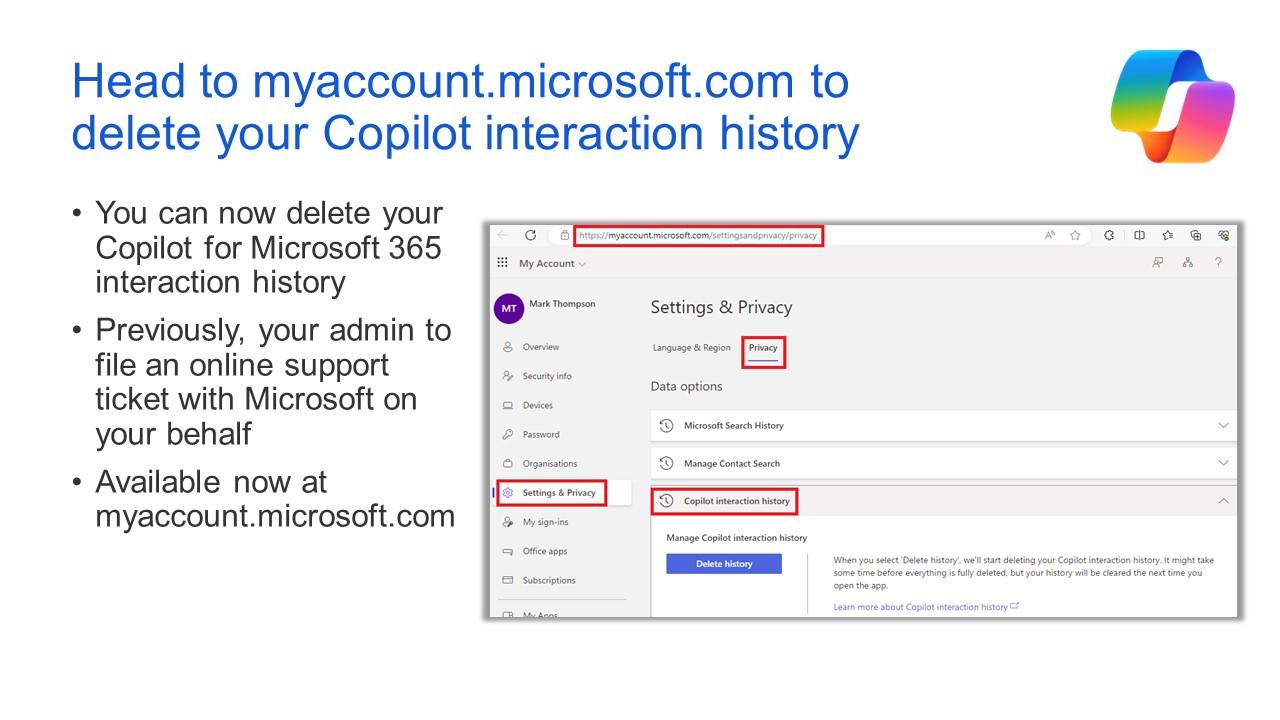
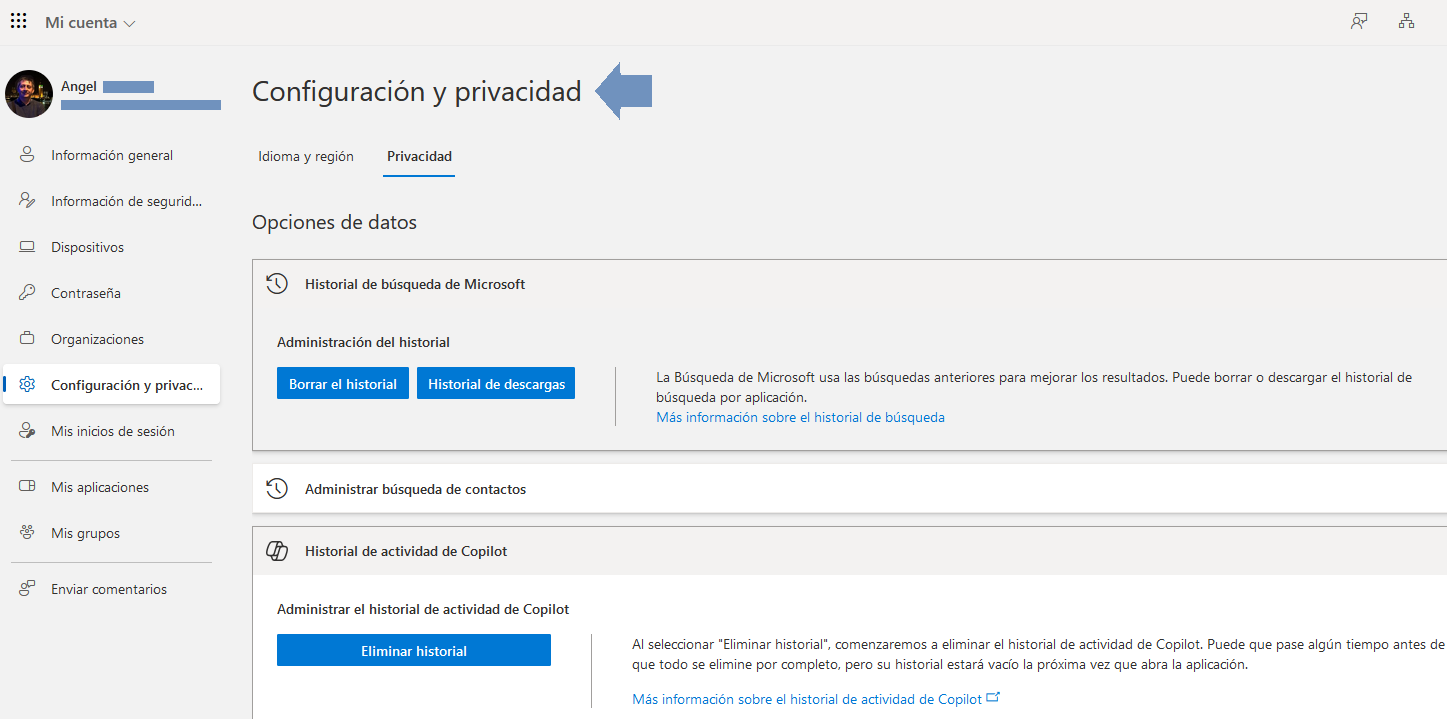
Steps to clear your Microsoft 365 Copilot history The steps are as follows: First, you need to log in to the "My Account" portal with your professional or educational account. Once logged in, go to the section... Settings & Privacy to access options related to your privacy.
Within Settings & Privacy, go to the Privacy section. and then to Data optionsThere you will find a specific block called Copilot Activity History, which is where the management of interactions with Microsoft 365 Copilot is centralized.
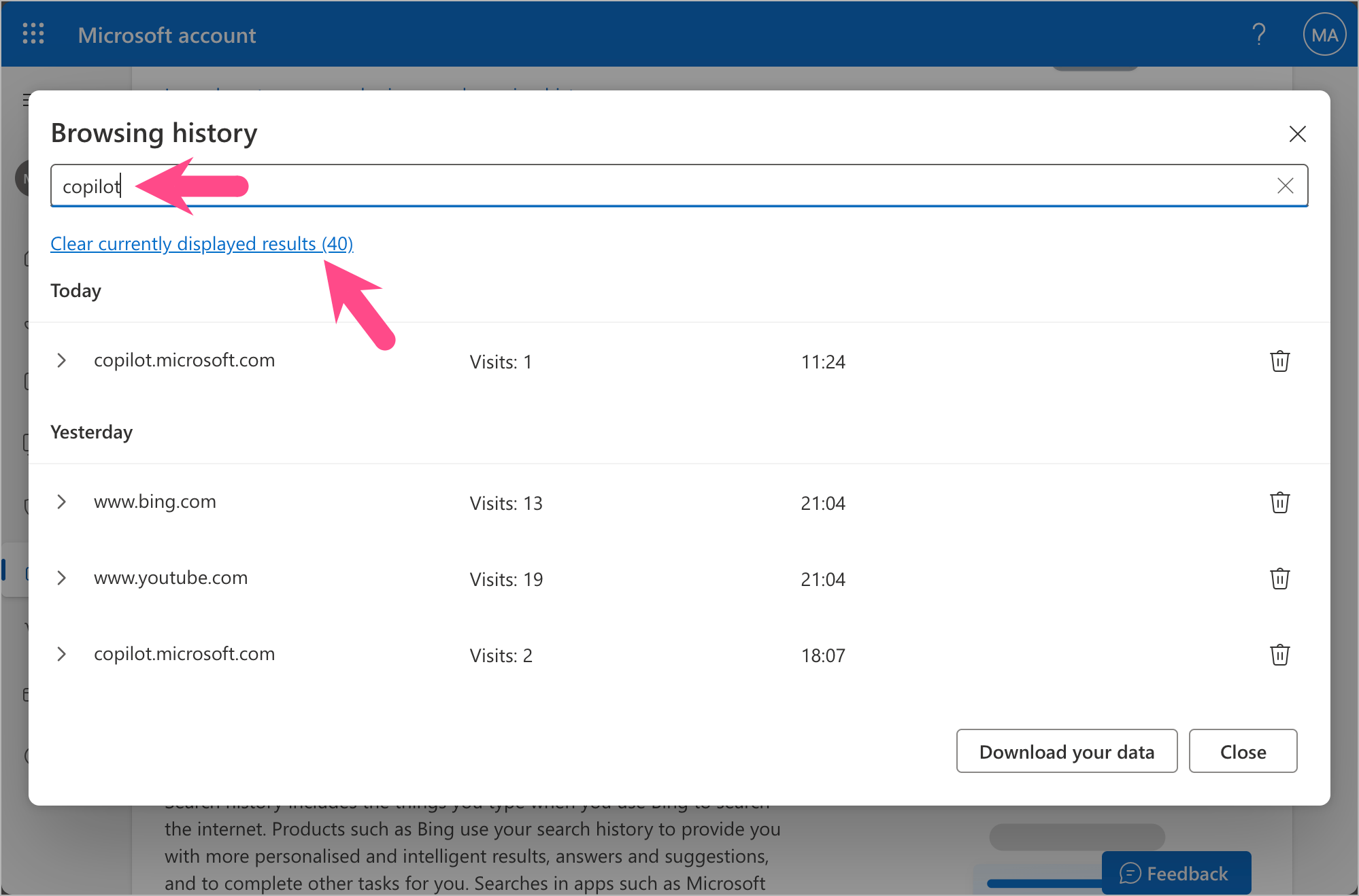
When you open Copilot Activity History you will see the option Clear browsing dataBy selecting it, you will be able to check the corresponding box. Microsoft 365 Copilot to indicate that you want to delete all history associated with this assistant in the suite's apps.
To complete the deletion, press the Delete button.Doing so sends a formal request to Microsoft to delete that activity history. It's not an instant local deletion, but a process that runs on Microsoft systems and may take some time to complete.
What happens when you delete your Microsoft 365 Copilot history
As soon as you confirm that you want to delete the history, your request is recorded on Microsoft servers. From that moment, the system begins the process of deleting Copilot activity data associated with your account, although it may take some time for it to be completely deleted from all systems.
If you have any applications open when you click Delete (For example, if you're using Word, PowerPoint, or OneNote with Copilot), you might still see some of your recent history while the app remains open. This on-screen content doesn't mean the history won't be deleted; it simply means the interface hasn't updated yet.
The next time you close and reopen the application And when you start using Copilot again, your previous activity history will no longer appear. It's like starting with a clean session: Copilot won't show any previous interactions you had with that assistant in those apps.
Keep in mind one key nuance: deleting the history does not affect your documentsIf Copilot helped you draft a section of a report in Word, polish some slides in PowerPoint, or structure some notes in OneNote, and you saved those changes, the saved content remains. What disappears is the record of the conversation or the intermediate steps, not the final result, which you've already decided to keep.
By selecting Microsoft 365 Copilot in the deletion optionsThe deletion applies globally to all Microsoft 365 applications that use the same Copilot activity history. You can't delete only Word's data and leave PowerPoint's untouched: the system doesn't allow filtering by app; the cleanup is applied to all applications.
Microsoft 365 apps that save Copilot history
Microsoft 365 Copilot activity history is shared across multiple applications of the suite, which means that interactions with the assistant can come from different environments, but all end up centralized as part of your activity with Copilot.
Among the Microsoft 365 apps that take advantage of this history classics include Word, Excel, PowerPoint and OneNotewhere Copilot can help write text, generate summaries, create presentations, or transform notes into tasks, among other functions.
Copilot itself also comes into play within the Microsoft 365 application.where you have access to a unified chat designed for working with data, emails, documents, and other corporate content. All of this activity is also reflected in the history, which you can manage from the privacy portal.
When you select the Microsoft 365 Copilot option to clear the historyThe removal applies to all these applications at the same time. The system doesn't allow for deleting any trace of a single individual application from the list, so the decision is all or nothing at the Microsoft 365 Copilot level.
This centralized management simplifies the control of your dataHowever, this means that if you want to keep the activity of a specific app, you won't be able to do so selectively: you'll have to export the history before deleting it if you need to keep a local record of what you've done.
How Copilot's conversation history works on web, desktop, and mobile
When you use Copilot at copilot.com, on Windows, macOS, or the mobile app When you log in with your account, the system saves your chats as a conversation history. This allows you to review previous conversations, pick up where you left off, or retrieve helpful answers.
Microsoft indicates that, if you're logged in, Copilot retains up to 18 months of interactions. in this conversation history. This retention period applies to chats associated with your account, not to anonymous sessions without login, where the behavior may be different.
The conversation history can be easily viewed From various locations. On copilot.com, it appears by default on the left side of the screen; if you don't see it, it usually appears when you tap the sidebar icon.
You'll see something very similar in Copilot for Windows or macOS.A sidebar panel on the left lists your previous conversations. If the panel doesn't appear, you can also access it using the sidebar icon in the assistant interface.
In the Copilot mobile app, access to the history This is done from the main menu. When you open this menu, the list of recent conversations is displayed so you can enter any thread and continue writing as if you hadn't closed the app.
How to delete individual items from your conversation history
It's not always necessary to delete the entire Copilot history; often it's enough to delete a specific chat that contains sensitive data or evidence you no longer want to see. For that, there is the option to delete individual items from the Copilot interface itself.
On copilot.com, when you have the history open on the sideYou'll see each conversation listed with its title or preview. Next to each item is a three-dot icon; tapping it opens a menu where you can choose the option. Delete to delete only that chat.
In Copilot for Windows or macOS the method changes slightlyInstead of clicking a menu icon, the usual practice is to right-click on the conversation in question and select the option. Delete from the context menu that opens.
In the Copilot mobile app, the mechanism is very similar to that of the web version.Open the history from the menu, locate the conversation you want to delete, tap the three dots to the right of that item, and choose the option Delete from the list of available actions.
This targeted removal allows you to perform selective cleaning.without having to give up your entire history. This is especially useful if only some of your conversations contain more sensitive information or you simply don't want them to continue appearing in the list.
Sharing Copilot conversations and their implications
In addition to deleting, Copilot also lets you share a specific conversation. through a link, which is very practical if you want to show someone else how you solved a problem or what answer the assistant gave you for a specific topic.
To share an entire conversation, you'll usually see a share icon. within the chat interface or conversation history. Tapping it generates a link that others can open to see a copy of what you see.
If you are only interested in sharing one individual response Instead of the entire thread, you can also use a share button associated with that specific reply. This way, whoever receives the link will only see the part of the dialogue you want to highlight.
Before posting the link, a preview window is displayed. with the content you're going to share. There you can check that the correct messages are included and that you're not exposing data you'd prefer to keep private before confirming the sending or copying of the link.
The person who receives the link will see a static copy of the conversation at the time it was generated. If you later continue chatting in that same thread and add new questions and answers, those additional messages won't appear in the shared link, giving you pretty clear control over which part of the chat is displayed.
How to delete all Copilot chat history
If you're looking to wipe the slate clean with all your Copilot conversations, you can do that.There is also the option to delete the entire app history, but the path changes slightly depending on the type of account you are logged in with.
When you sign in with a personal Microsoft accountTo completely delete your Copilot history, you can manage it through the privacy panel associated with your account. Access the Copilot activity section and locate the "Copilot app activity history" section.
Within that section you will see the option Delete all activity historySelecting this option will delete your entire conversation history from the Copilot app, not just from a specific platform, as long as it's associated with the same Microsoft account.
If you use Copilot with an Apple ID in the mobile appThe path is different: you'll have to open the application and go into the menu of Account, then go to Privacy and select the command Delete my history, which acts as a general deletion of chat activity linked to that login.
In both cases, it is advisable to carefully read the confirmation messages. These messages appear before deleting your entire history. They usually remind you what type of data will be deleted and that once you confirm the process, you won't be able to recover those conversations from the service itself.
Manage Copilot activity history from the privacy panel
Beyond simply deleting or not deleting, Microsoft offers a privacy panel. It centralizes the management of Copilot's activity history and other services. It's a kind of "control panel" where you can view, export, or delete the data that has accumulated.
To log in, you must sign in with your personal Microsoft account. and go to the privacy panel. From there, in the left-hand menu, you'll find a section dedicated to Privacy and, within it, a specific section for Boost your productivity, which is where the options related to Copilot are grouped.
On the Privacy > Boost Your Productivity > Copilot route you will see the section The Copilot application activity historyInside, there is a subsection called Copilot applicationsThis is where you can take action on activity generated on sites like copilot.microsoft.com and other similar environments.
From there you have two main options: Export all activity history or Delete all activity historyExporting lets you download a CSV file containing Copilot activity; deleting, on the other hand, completely erases that history from Microsoft systems.
If you choose to Export all historyThe system will generate a comma-separated values (CSV) file that will be downloaded to your device. You can open it with Excel, LibreOffice, or other programs to review in detail what types of interactions have been saved.
Control Copilot history in Microsoft 365 applications
The privacy panel also differentiates between “general” Copilot activity and that which occurs specifically within Microsoft 365 applications, such as Word, Excel, PowerPoint or OneNote, as well as in the Microsoft 365 Copilot chat.
To manage this block, go to the privacy panel. you must follow the route Privacy > Boost your productivity > Copilot > Copilot app activity history > Copilot in Microsoft 365 appsThis section focuses on activities related to the office suite.
Once inside, you'll have several export options.. You can select Export all Copilot activity to Microsoft 365 app activity historyThis will generate a CSV file with the interactions linked to the assistant's help in Word, Excel, PowerPoint, and OneNote.
Additionally, there is the option to Export the entire Copilot Chat activity history, which focuses specifically on the conversations you've had with the Microsoft 365 Copilot chat, for example, in the unified Microsoft 365 app where you check and manage information about your organization.
If you prefer not to save anything and completely clear that part of the history, you can click on Delete all activity historyBefore it is permanently deleted, a dialog box will appear with the message "Are you sure you want to delete your Copilot activity history?", where you can confirm or cancel the action.
Which Microsoft 365 apps are affected
Copilot management in Microsoft 365 applications has a direct impact on several key tools of the Microsoft ecosystem, in which the assistant is increasingly integrated to save time and automate tasks.
Among the applications covered by these options are included Wordwhere Copilot helps to write, correct or rephrase text; Excel, in which you can create formulas, analyze data, or generate tables; and Power point, which benefits from AI's ability to create presentation drafts from simple prompts.
It is also present in OneNotewhere the assistant helps organize scattered notes, summarize lengthy notes, or turn ideas into structured lists. All this activity is recorded in a dedicated history that you can export or delete from the privacy panel.
When using the history deletion options in this sectionCopilot interactions in these Microsoft 365 apps and associated chat are cleared, provided everything is linked to the same account. Your saved documents, as we saw earlier, are not affected.
If you need to keep a record of what you've done with Copilot in these toolsExporting to CSV beforehand is the best alternative: it will allow you to consult it later even if you decide to leave the history in the cloud completely empty.
Taken together, all these options give you pretty fine-grained control. about what Copilot stores and for how long, allowing you to adjust the balance between convenience (picking up where you left off) and privacy (not accumulating more account data on Microsoft servers than you actually need).


Passionate writer about the world of bytes and technology in general. I love sharing my knowledge through writing, and that's what I'll do on this blog, show you all the most interesting things about gadgets, software, hardware, tech trends, and more. My goal is to help you navigate the digital world in a simple and entertaining way.