
Would you like to learn how to create a query between dates in Access? Computers have become a fundamental part of various activities, due to the large number of tools offered to each person who uses them, particularly through the download and installation of programs.
Office work is one of the many activities that have been strongly influenced by the development of programs that facilitate the processing, maintenance and control of all the information that is processed on a daily basis. That is why in this article we will teach you how to create a query between dates in Access.
Methods to create a query between dates in Microsoft Access
The method to create a query between dates in any document is through one of the most well-known Microsoft tools; and it is Access. This is the most important utility in the Microsoft Office suite. But, if you still do not have knowledge on how to use this function, do not worry, here you will have everything you need to create a query between dates, so you can use dates, ranges or any other criteria you want.
You might also be interested in learning about: Microsoft Project: What It Is, Features, Advantages and More
Method 1 to create a query between dates
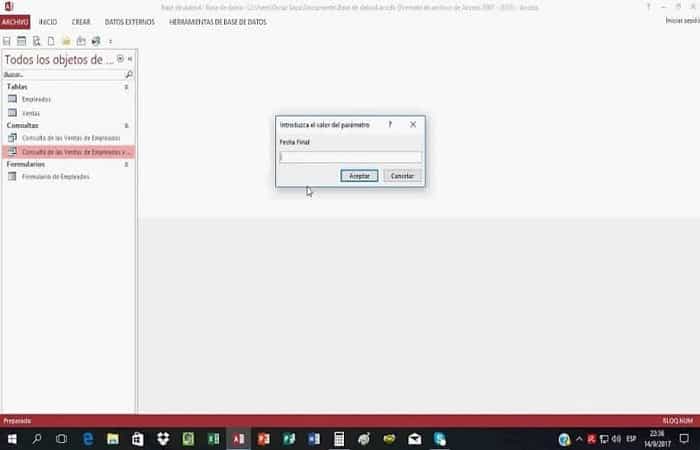
- Step 1:: The first thing you should do is create a database.
- Step 2:: Then, you need to go to the tab "Create".
- Step 3:: In the dialog box that follows, select the table you created that stores the information you will use as criteria.
- Step 4:: Closes the dialog box.
- Step 5:: Insert the criteria you need.
- NOTE: In the case of a query between dates, if you want to query dates between April 1, 2020 and May 31 of the same year, for example. You must insert the criteria: » > # 4/1/2020 # and <# 5/1/2020 #«
- Step 6: Click on the icon "Run" tab "Design".
Other methods to create a query between dates in Access
Now, let's look at some other effective methods to create a query between dates in Access:
Method 2 to create a query between dates with aggregate queries
An aggregate query, also known as a totals or summary query, is a sum, mass, or group of data. It can be a total or raw amount or a group or subset of records.
Aggregate queries can perform a number of operations. Here is a simple List that enumerates some of the ways to aggregate on a group of records.
Added Features and Description
- Sum: Adds the field values.
- Average: Average of the field values.
- Min: Lowest (minimum) field value
- High: Highest (maximum) field value
- Count: Counting values (records)
- StDev: Standard deviation of field values, including date/time fields.
- Where: Variance of field values, including date/time.
Let's start building a date query using this method:
- Step 1:: The first thing you need to do is open your database and go to the Query design and include the following tables:
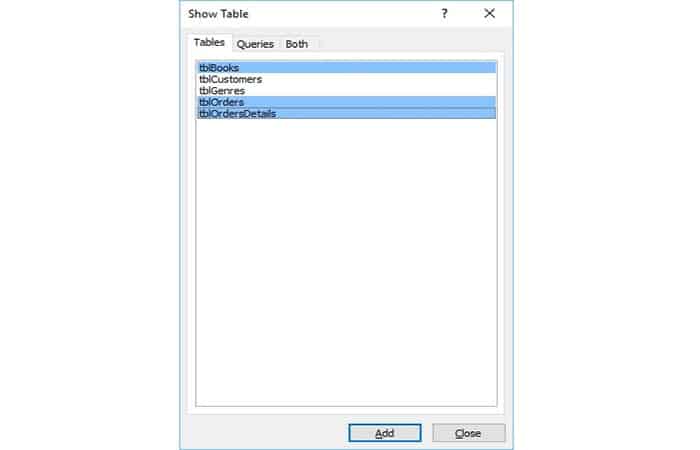
- Step 2:: Close this dialog box and the next two fields will be displayed as shown in the query grid in the following screenshot.
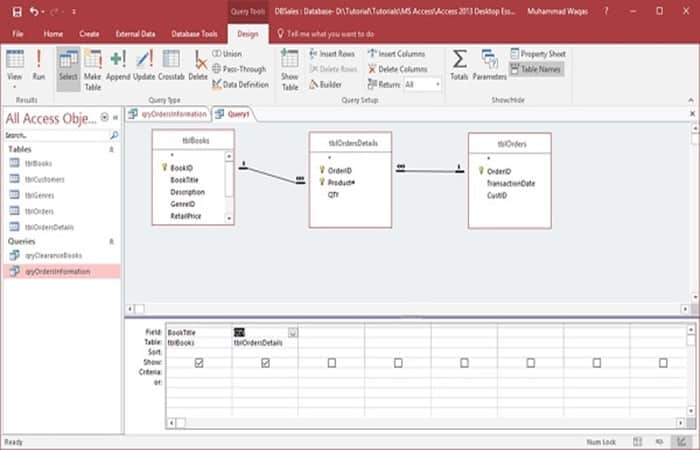
- Step 3::This is a simple query and only returns two fields: book title and quantity, and when we run it, you will see every individual order in your database.
- Step 4:: Now run this query and you will see the following results.
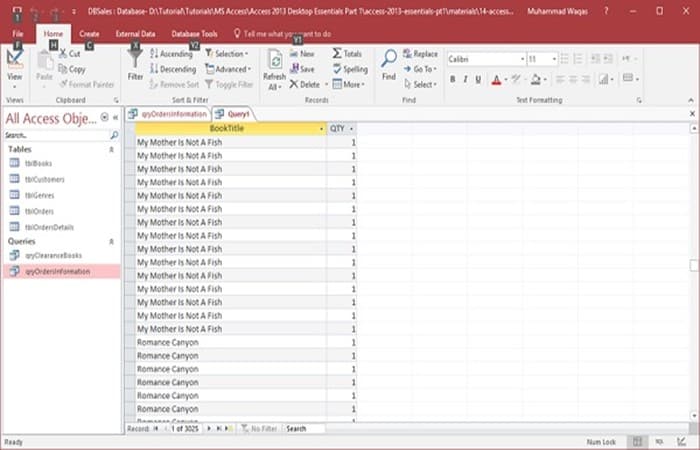
NOTE : Book titles are repeated here. Separate orders were placed for each of these books, and they were ordered in different quantities. Suppose you want to see a summary of just the title of the book that has been listed only once, and then the total quantity shown next to it.
- Step 5:: you must go now to the design view and tab Design, you will see a symbol Sigma. This is your totals button.
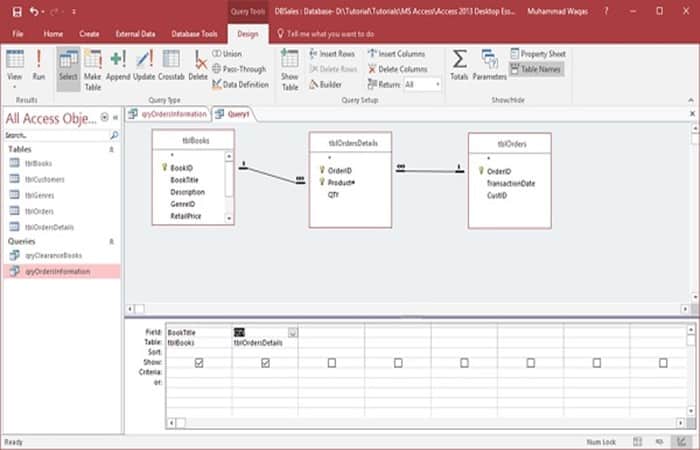
- Step 6:: Click on the symbol sigma which will open another row below your field in the table row, and from here you can specify how this query is grouping.
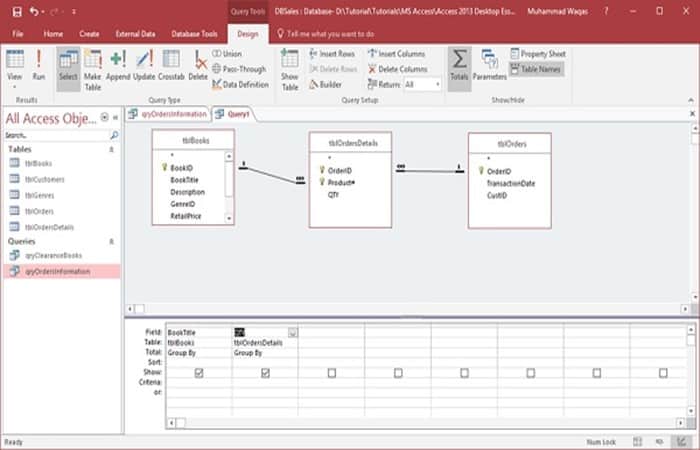
- Step 7:: Now you group by book title and you will add the quantity field.
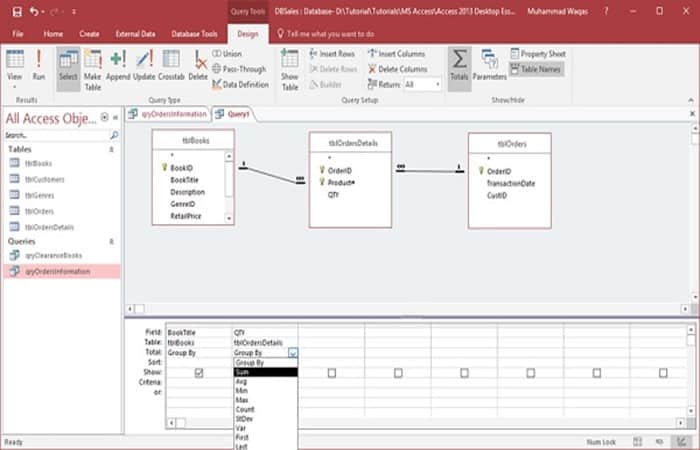
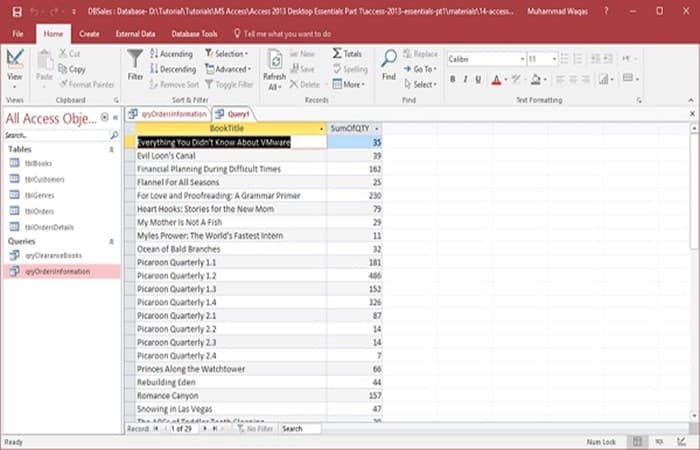
NOTE : If you click " Group by area" and then click the dropdown menu, all the options will be listed below. In this case, you must choose the "Sum" option and then run your query.
- Step 8:: You can now see each individual book and also all individual orders displayed next to the book name.
Method 3 to create a query between dates with concatenation in Access
In Method 2 you learned the normalization process to create a query between dates. But what if you want to make other types of queries? This is where the concatenation function in Access comes in, where you can combine fields. You can also display that information together by creating a calculated field that concatenates one or more strings.
To use the concatenation function, Access has two operations you can use: the ampersand (&) and the plus sign (+).
- NOTE: : The ampersand will combine two strings into one, while the plus sign will combine two strings and propagate NULL values, for example, if one value is NULL, the entire expression evaluates to null.
Example 1
Let's take a simple example to understand the process to create a query between dates in Access by designing queries. This will be a very simple query that is extracting information from the table that we have provided as an example.
- Step 1:: Add the table tblCustomers to close the show table dialog. We'll try doing some concatenations with some simple named fields.
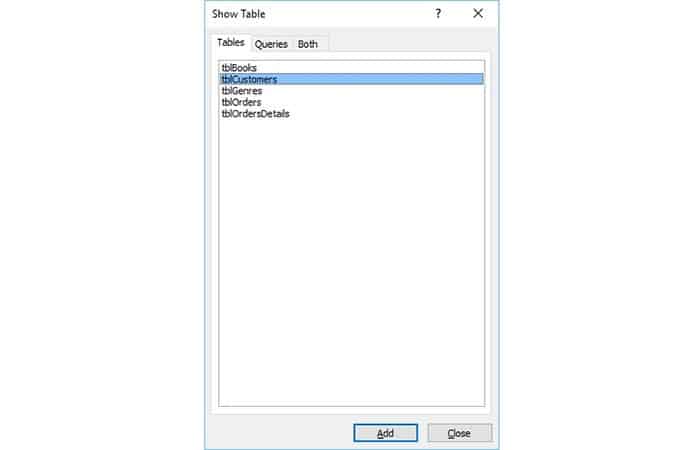
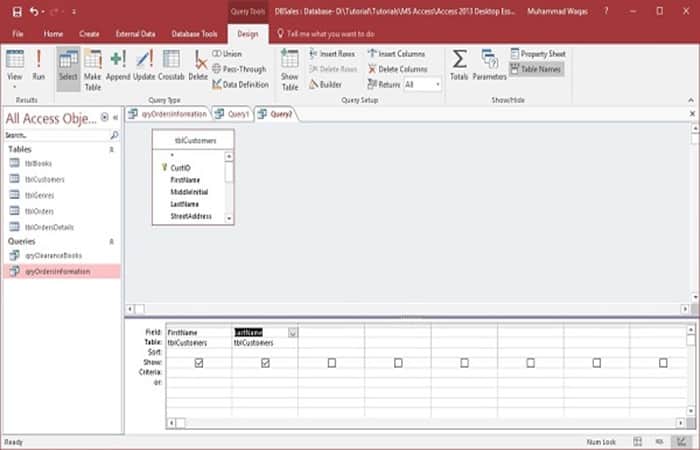
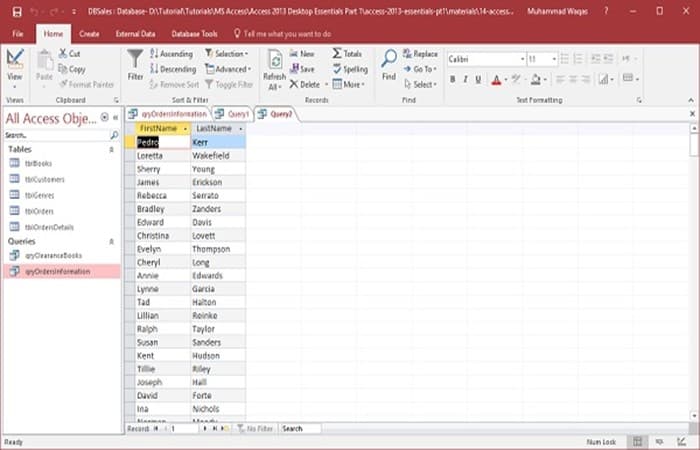
- Step 2:: Now, you need to add the graduate fields name and surname, and run the query. As you can see, the first and last name are separated into two different fields.
- Step 3:: You will need to display this information together.
- Step 4:: Now, you must return to the design view and in the third field you must start creating a new field giving it the title of (full name).
- Step 5:: Next, you need to add the full name and write the expression that concatenates those two fields.
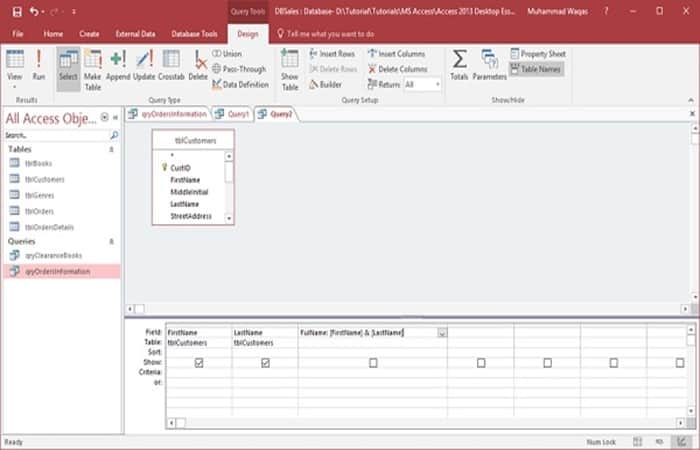
- Step 6:: Run the query and you will see a new calculated field.
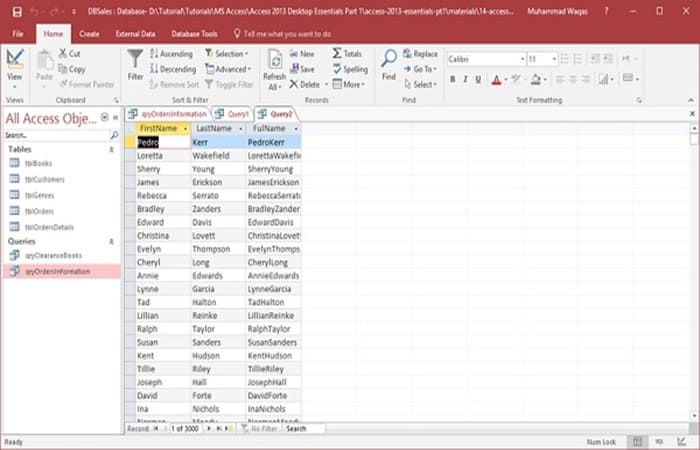
NOTE : You can concatenate the information from these two fields together, but it won't appear exactly as you want. Run all that text together because it's performing the way you requested. Now you'll need to tell Access to add a space between the information from these two fields.
- Step 7:: Now return to the design view and add another section to this expression.
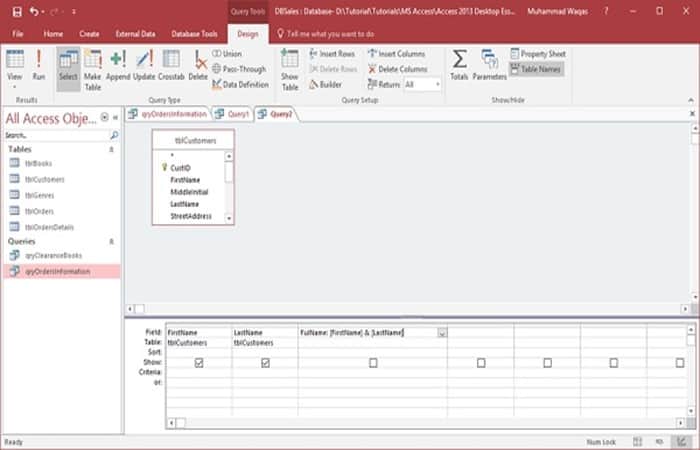
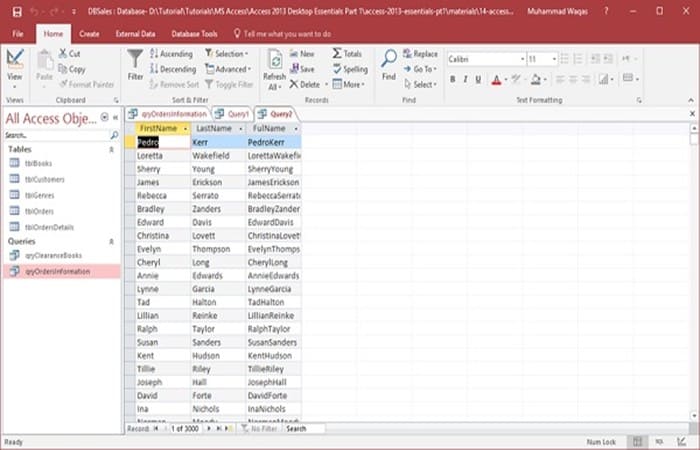
- Step 8:: Add a space between the quotation marks and another ampersand. This causes Access to take the information from that first name field; enclose it with a space and then add the information from the last name field at the end. Now, run the query again and you will see the following results.
Method 4 for a query between dates in Access with data summary
Aggregate queries are great if you're just looking for a specific number, but if you want to summarize information like a spreadsheet, you might consider trying a crosstab query. This is useful when you want to restructure summary data to make it easier to read and understand. Therefore, you should consider using a query between dates with data summary.
- A cross-date query with data summary is a kind of selective query. This can be used when you want to display the data you have searched for in a work table, this is called a cross-reference table. This datasheet has a different structure than the other types of datasheets.
- The structure of a crosstab query can make it easier to read than a simple select query that displays the same data, as shown in the following screenshot.
By far the easiest way to create a crosstab query in Access is to simply use the wizard that comes with Access to create a crosstab summary query between dates in Access. Here are the steps:
- Step 1:: first you must go to the Create tab, in the query groups and click on the query wizard.
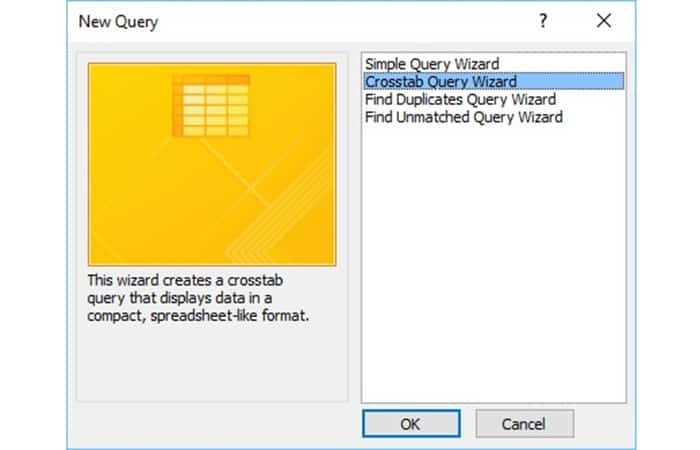
- Step 2:: In the dialog box above, you can see all kinds of special queries. You can create a simple query wizard as we have been doing so far since the design view. The second one is the one we want: the crosstab query that displays the data in a compact spreadsheet format. Now, select the crosstab query and click Accept.
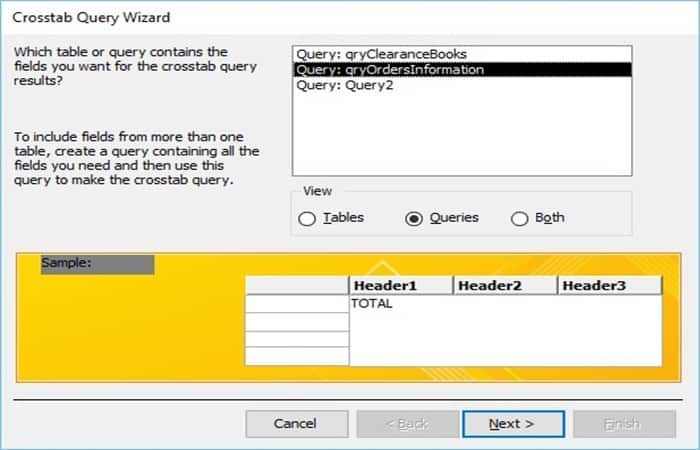
- Step 3:: The first screen of the wizard will tell you which table or query contains the fields you want for the crosstab query results. Click the button Consultations option and select qryOrdersInformation; this is the one you created earlier that contains the subtotal, sales tax, etc. Click on Next.
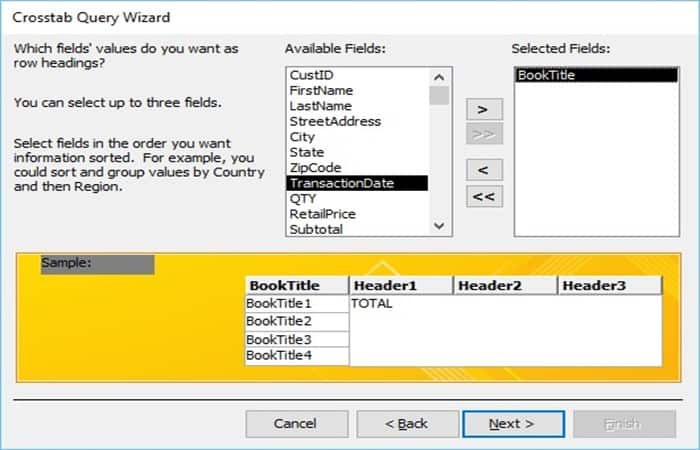
- Step 4:: Now you will see the available fields from that query. It will ask you to enter the field values that you want as row headers. Let's say you want a simple list of all our different book titles. Now select the book title fields and send it to the selected field area and click on Next.
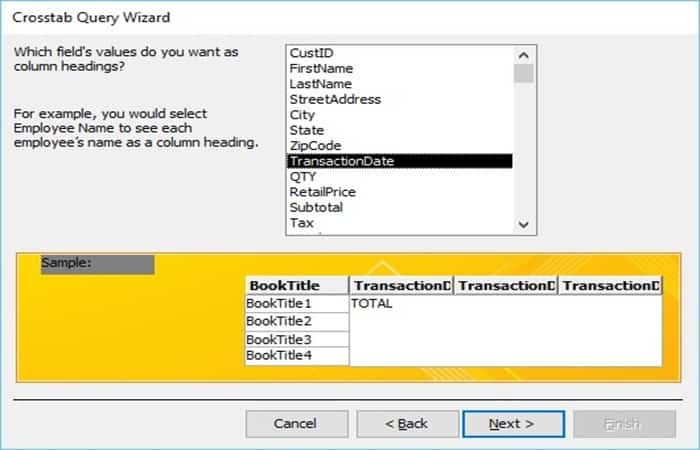
- Step 5:: In the dialog box above, the question is what you want to use as column headers and that really depends on what you want to evaluate. Suppose you want to see the sales by date, here you must choose TransactionDate and click on Next.
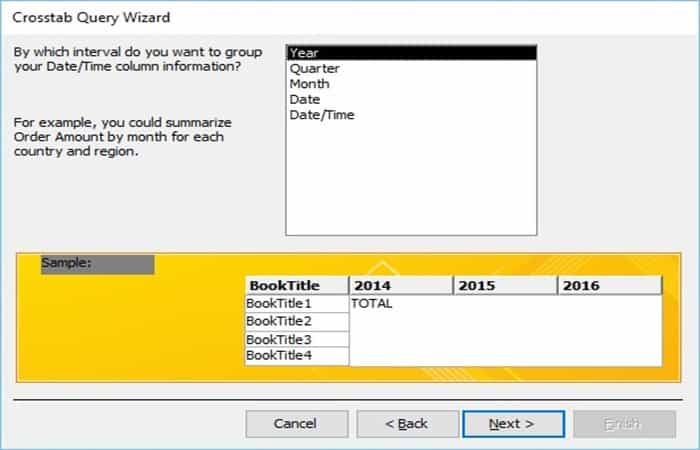
- Step 7:: The question in the dialog box above is a specialized question based on the field you selected previously, as you choose a date and time column. It will ask you if you want to group the date and time column information by a specific range. Select the year option and click Next.
- Step 8:: The next question in the dialog screen above asks what number you want calculated for each column at the intersection of rows. In this case, you can go by the number of books sold by selecting quantity (QTY) and Add the functions and click on Next.
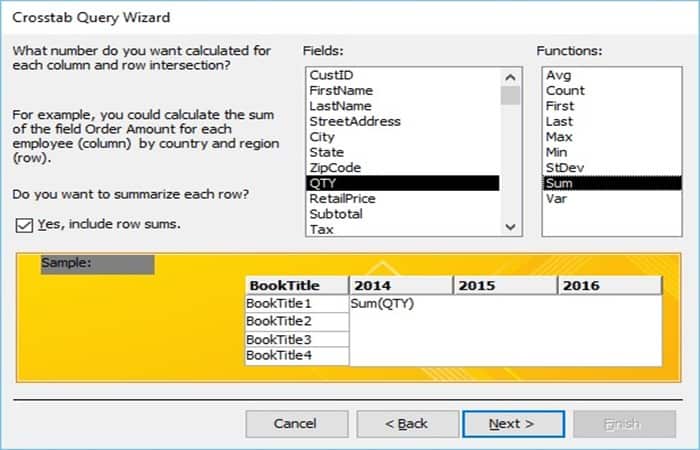
- Step 9:: The last screen of your assistant will ask you How do you want to name your query?Then, you need to click on Finalize all with see that query.
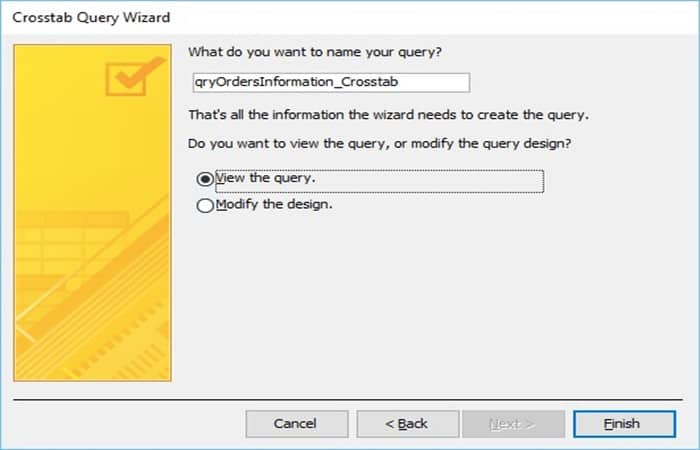
NOTE: You now have book-by-book information and also information about total sales, such as when each of those sales occurred.
Microsoft Programs
Each company may have different preferences for specific software, however, it is no secret that the programs preferred by many companies are those that are part of the Microsoft Office suite.
Word and Excel are widely discussed , undoubtedly being among the most used office programs in the world. Each has tools that allow you to create and structure different types of documents and files.
The emergence of Access
However, there are some programs that have gone unnoticed, even though they are used quite frequently by thousands of users. Of course, being part of a select group of programs such as those that make up Microsoft Office and standing out is no easy task.
Such is the case with Microsoft Access , software developed and launched in 1992 that has since become a fundamental tool for businesses and entrepreneurs who need greater and better control over the information stored in a database. Its development has been so extensive that now any user can install this office suite on their smartphone.
What is that?
When defining Access, there isn't much to add beyond what was mentioned earlier. Microsoft Access is the perfect tool for you if you need to manage a database easily and efficiently for any reason.
You might read or hear a lot that this kind of thing can also be done with Word and Excel… and that's true. Both programs have such extensive functionality that the variety of things you can do with them is simply astounding. However, nothing beats using this program that's truly specialized in data management and administration.
Advantages of use
There may be limitations in the use of this software, especially when it comes to its use in large companies, where the data processing capacity may be too demanding for this program.
However, its positive impact on entrepreneurs and small and medium-sized businesses is enormous. Among this series of advantages, the following stand out:
- A truly intuitive interface that will allow you to use it without any major difficulties if you learn how to use it.
- Efficient at import data.
- The creation of consultations, is presented as a fundamental pillar of data management, being one of the most useful tools of the program in terms of creating, updating and deleting data.
You can also read about: Office Document Imaging Download and Installation
As you can see, creating a query between dates in Access is not as difficult as some people say. You just need to be willing to investigate and learn about the topic in order to use Access. Therefore, we recommend that you use these examples to practice and manage your own database. We hope we have helped you.

My name is Javier Chirinos and I am passionate about technology. Ever since I can remember, I have been interested in computers and video games, and that passion has turned into a job.
I have been publishing about technology and gadgets on the Internet for over 15 years, especially in mundobytes.com
I am also an expert in online marketing and communication and have knowledge in WordPress development.