
Would you like to learn how to create a direct download link ? If you want to upload a file to a server and then distribute it to other people, this is called direct uploading . The problem is that you need a fast server to host your many files.
Once your document has been uploaded, you automatically receive a link to the file, which you can then distribute. Here we'll show you the alternatives you can use to create a direct download link.
There are hundreds of services to create a direct download link.
There are a multitude of services that allow you to create a direct download link. Here we will show you which are the best ones you can use:
You might be interested in learning about: How to Download Protected Books from Google Books
Method 1: Create a direct download link via classic cloud hosting
Web hosting platforms are a way to create a direct download link, the most used and popular are:
- Google Drive.
- Microsoft OneDrive.
- iCloud.
These services focus more on personal storage and file sharing with:
- Friends
- Family members.
- Coworkers
The advantages of these platforms are that each of them is:
- Simple and intuitive.
- They are free and have enough space to store a large amount of files.
- You can create a direct download link to share with your friends.
Other specialized file hosting options
Also websites that allow you to create a direct download link like:
- rapidgator
- MEGA
- ZippyShare
They are best suited for creating a direct download link. However, some of these sites have paid versions, and some limit the number of downloads per day. The good thing is that this type of hosting creates your links, and you can access them from anywhere.
The disadvantages of general private services
Some of the drawbacks include:
- Each page is dedicated to downloading the file with ads (which sometimes contains fake download buttons)
- It forces you to solve a Captcha for each file you want to download or when you want to create a direct download link.
- They have a download speed limit if you are not subscribed.
Services to create a direct download link
To solve most of these problems, we've listed 7 free file hosting services where files can be uploaded via direct links and you can also create a direct download link.
Google Drive and Microsoft OneDrive
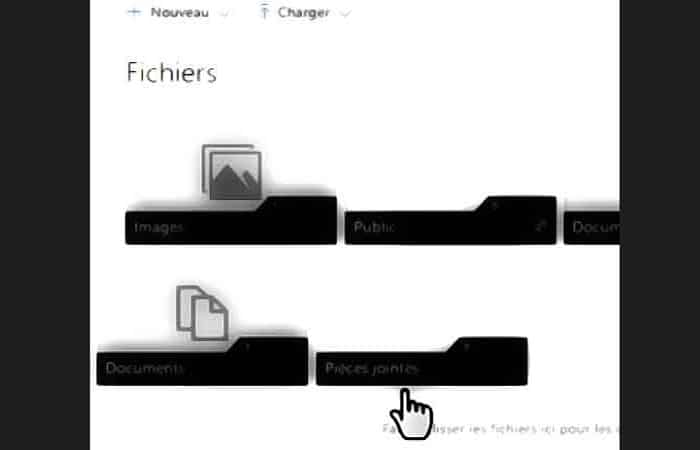
Most people who use Windows , regardless of version, are already aware that each of these platforms is included with their Gmail (Google) or Microsoft (Outlook) accounts for free. While these web servers don't offer direct links by default, there is a way to change the shareable links. These downloads can redirect your friends to your personal link. The websites listed below will do this automatically.
1. Create a direct download link on Google Drive
GDDLG This will only work for files you upload to Google Drive. It will not work for documents, presentations, etc. created within Google Drive. If you want to link directly to these documents, first download them to your computer and then upload this file to Google Drive again. You will then be able to create a direct download link in Google Drive.
- Step 1:: Just paste the link
- Step 2:: click Create direct link
- Step 3: and copy the direct download link obtained
2. Create a direct download link by synchronizing with the other technologies
This is another way to create a direct download link that works with Google Drive, OneDrive, and DropBox. It is a platform that has multiple document support features and allows you to add other large files. To use it you must do the following:
- Step 1:: Upload your file to your account Google Drive, OneDrive
- Step 2: Make your file public and get your share link.
- Step 3: Paste your file link to the above address and click
- Step 4: Your file will be available for direct download.
3. Create a direct download link with the Drive Explorer extension
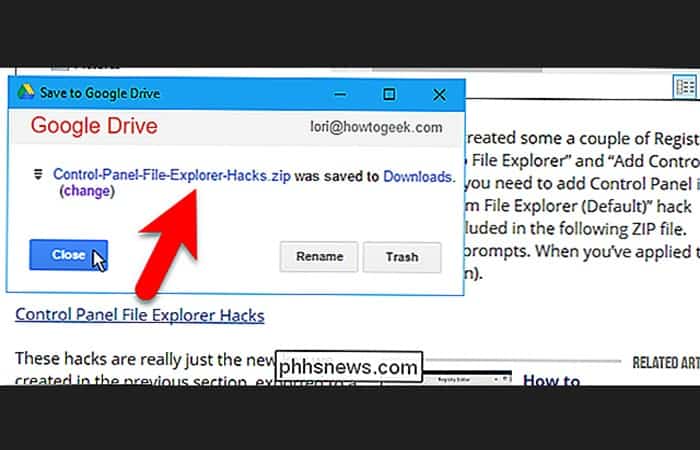
You can also install the Drive Explorer extension for Google Chrome to create a direct download link. This extension allows you to select folders/files from your Google Drive, share them, and generate a direct download link.
NOTE : Do not abuse these methods with Google Drive or OneDrive, as your download could be blocked or even your entire account could be suspended if you abuse the service.
If you are going to freely share your direct download, it would be best to create an account for this sole purpose.
4. Create a direct download link with AnonymousFiles
AnonymousFiles was born from a simple observation: many file-sharing sites track your activities, view your files, and share your data with the world. Anonymous Files started from the premise that your anonymity should be respected.
In return, you agree not to download harmful software. All files uploaded to the site are scanned for viruses. This service has a strict no-logs policy: your IP address, browsing history, and identity are never recorded.
Furthermore, your direct download speed will not be limited in either direction, nor will the amount of bandwidth you use. Finally, the service is completely free up to 5 GB of data.
Create a direct download link anonymously
AnonymousFiles states on its homepage that it does not store or record your data, monitor you, or share your files. The secret is that its servers are located abroad, outside the jurisdictions of the European Union and the United States . Therefore, your data is supposed to remain untransmitted to third parties.
- The manual is simple: Simply drag and drop a file into the download box, or click the box to select a file to download.
- Uploaded files will be retained for as long as possible. AnonymousFils only deletes files that have not been viewed or downloaded for more than 6 months.
Therefore, you will not be able to delete a file once it has been downloaded, unless you have set an expiration date for this file to be deleted after a maximum of 6 months.
How to create a direct download link on AnonymouFile
- Step 1:: To upload to AnonymousFiles, drop a file into the “Drag and Drop» on the home page.
NOTE : You can also click the box to choose a file to upload manually.
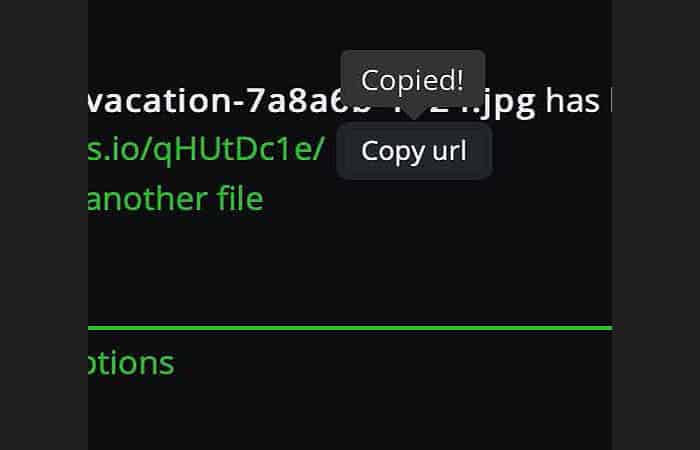
- Step 2:: Once the file has downloaded, click on the URL to open the download window in another tab.
- Step 3:: Right click on the “Click to download” button.
- Step 4:: Copy the link to get the direct download link.
How to create a temporary downloadable file
If you open the options window on the main page, you can choose an expiration date.
NOTE : This expiration date may range from 1 hour to 6 months.
- Warning: Search engines will be able to read your folder or file. If you want Google to be unable to read the file, use the «Noindex».
The Noindex checkbox is in the options; it prevents Google from detecting your file and therefore makes it invisible in search engines. If you leave it unchecked, anyone will be able to find your direct download link.
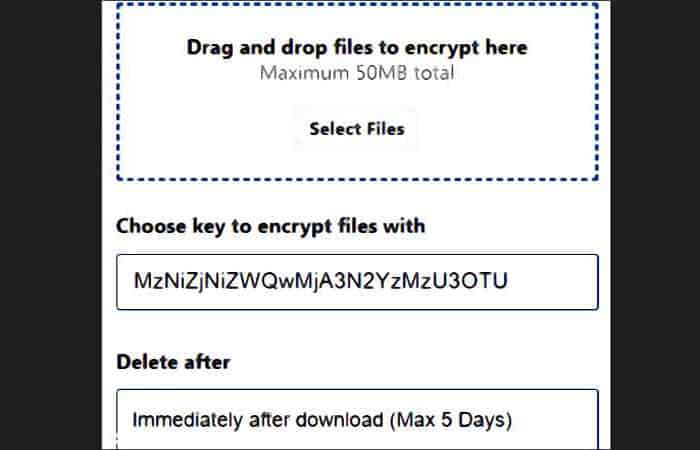
5. File.io: an ephemeral direct download
Simple and straightforward, File.io simply lets you create a direct download link that will only work once for the file you uploaded, just like on Snapchat.
You can enter the site from here
- NOTE: : Each file can only be downloaded once, then it will be deleted. So don't try to test the download by yourself…
The maximum file size is 5GB and you can upload up to 100 per day. There are paid plans but the prices are quite high and are intended for professional users or webmasters.
How to use
- Step 1:: Drag one or more files to the arrow "Rise" on the main page or add them manually via the button
- Step 2::Each direct download will be uploaded with its own unique direct link.
- Step 3:: Then press the button Copy linkto place the direct link of the file in your clipboard
NOTE : Please note that there is a manual option that allows you to set a time limit for the file to be deleted even if it is not downloaded.
File Transfer
image
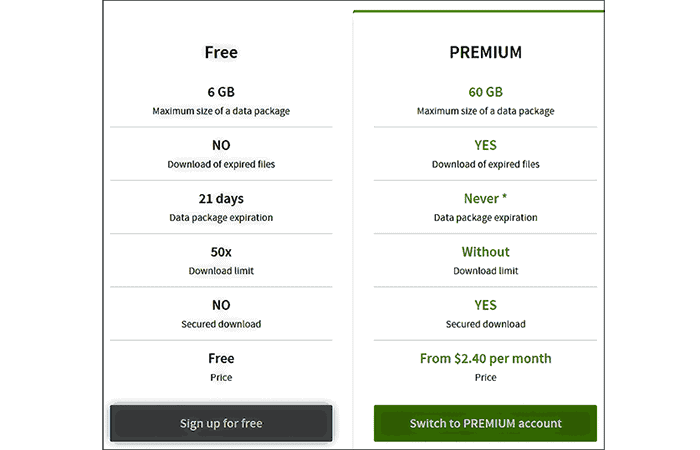
FileTransfer is free, with limitations displayed on the homepage.
Limitations of FileTransfert
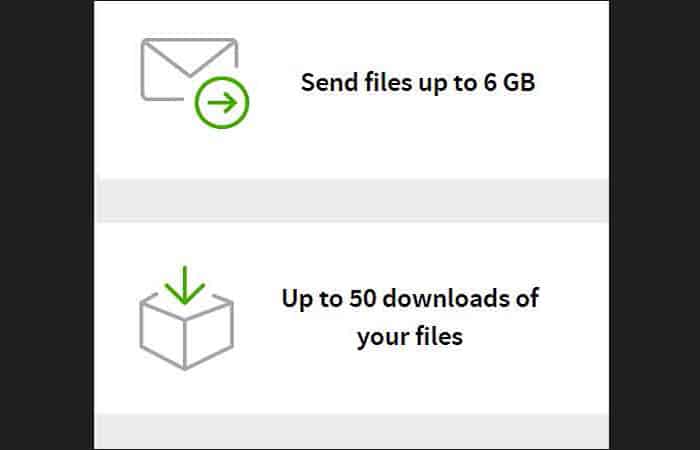
- You can upload files up to 6 GB in size.
- will be available for download for 21 days.
- They can be downloaded 50 times in total.
- A paid Premium account removes these limitations.
How to use
To create a direct download link with FileTransfer you must do the following:
- Step 1:: Click Upload files.
- Step 2:: Drag a file into the browser window or select it manually via the File Browser.
- Step 3:: If you select multiple files at once, they will be compressed into a package for direct download.
- Step 4:: If you want to create a direct download link for each file, download them individually.
- Step 5:: When the download process is complete, click on the tab Copy link.
6. FileSend
The Filesend service is very easy to use and has no additional features. Simply download a file and get the link. Files are uploaded with a time limit, after which the file will be deleted.
You can enter the official site from here
The authorized deadlines are the following:
The deadline days for authorization when creating a direct download link are:
- 7 days
- 14 days
- 21 days
- 30 days
NOTE : Please be aware that AtOnline Drive , linked to the right of the homepage, is a different online storage service that requires registration.
How to use
- Step 1:: FileSend supports drag and drop or clicking a button and selecting it via a file browser.
- Step 2:: You can drop or select one or more files with Ctrl o Shift + click.
- Step 3:: Once the file is downloaded, do not click on Copy linkInstead, right-click the icon where the file name and size are located, and then copy the link. You will be able to copy the download button link for a single file, but not for multiple files.
NOTE : Unlike the direct download services mentioned above, FileSend does not limit the maximum file size.
7. AnonFile
Anonfile is a fairly simple service that offers a generous upload limit of up to 20 GB per file. The absolute maximum that can be downloaded per day is 5.000 files or 100 GB in total. These limits are more than sufficient for most users.
Anonfile is connected to another service called Bayfiles (you can access it via this LINK ). These two sites function identically, so you can use either one to create a direct download link; only the visual themes differ.
You can access the service from here
How to use
- Step 1:: To download a file, simply click on the button Download
- Step 2: Select one or more files at a time by pressing Shift o Ctrl + click.
- Step 3: The file will download and display the download link.
- Step 4: Click on the Copy to copy the link.
- Step 5: Paste it into your browser to visit the download page.
File length
Files can be left on the server - they will be available for download permanently, but will be deleted if certain conditions are met.
- Downloads that violate the terms of service may be removed.
- Files that are older than 3 months and have never been downloaded
- Files older than 6 years that have not been downloaded for more than 5 years.
The advantages of the Premium account
- It is possible to create an account that saves the files you have downloaded.
- Another advantage of the Premium account is that download links and files can be deleted, simply by pressing the button X next to your link.
Warning : Only a username and password are required to create an account, so don't forget this information. Emails are not used, meaning there is no password recovery option.
How to protect the files we share?

To ensure the security of your file sharing sessions when creating a direct download link you should take the following considerations into account:
- Choose a direct download service that offers end-to-end encryption.
- If this is not possible, opt for encryption software.
- Encryption protects you from outside hackers.
- Encryption prevents the host itself from seeing your data.
- Always check your permission settings.
- If the service offers a public sharing option, that means anyone with the right link can get to your files.
- Check your files to see who is accessing them
- If a file is no longer needed, delete it completely from your cloud system
We also recommend using the following sites to protect your data when creating a direct download link:
1. Nordlocker
Nordlocker is a private file/folder encryption software. Once you have passed your file through the application's engine, it will be undecryptable to anyone (military-grade, secure encryption).
You can then share it with confidence: when opening it, the user will be asked for the password that only you have. Again, as with many applications, there is a free version (anyone can open files for free) and a Premium version.
You can enter the site from here
2. NordVpn
When you upload your file to a hosting site, your IP address may be logged. If the authorities require the site to obtain your IP address, they will obtain it.
Then, with your IP address, the authorities can ask telephone operators to request your contact information.
To avoid this, NordVpn is a software that, when opened, changes your IP address to one of the thousands of servers it has:
- You can choose the IP address of any country
- some city
- and change as many times as you want
NordVpn, which is based in Panama, is outside the jurisdiction of any Five-Eyes member.
You can access this website from here
Professionals
- It allows you to transfer large files over a simple network connection
- Facilitates collaboration with others around the world.
- Reduces the need to maintain a central file server
Cons
- The amount of bandwidth needed for the upload.
- It's difficult to track what happens to a file after it's been shared publicly.
- Increased risk of acquiring a virus or other type of malware from a remote file.
You might also be interested in: 5 Best VPN Programs for PC That You Can Install
As you can see, creating a direct download link is not as complicated as many people think, nor is it expensive, since there are alternatives like the one we show you in the article. We only recommend using the most recognized platforms to prevent your data and information from being hacked. We hope we have helped you.

My name is Javier Chirinos and I am passionate about technology. Ever since I can remember, I have been interested in computers and video games, and that passion has turned into a job.
I have been publishing about technology and gadgets on the Internet for over 15 years, especially in mundobytes.com
I am also an expert in online marketing and communication and have knowledge in WordPress development.