- UTF-8 encoding is essential for preserving special characters and non-Latin alphabets when working with CSV files.
- Google Sheets natively exports CSV in UTF-8, making it easier to manage multilingual data compared to older versions of Excel.
- Excel 2010 and similar programs have limitations with CSV in UTF-8, so Google Sheets or other suites are often used for support.
- Establishing good practices and a clear policy for using UTF-8 reduces errors when exchanging data between applications and systems.
Working with data in multiple languages can become a real headache when it comes to exporting it to CSV and preserving characters like accents, ñ's, or completely different alphabets, such as Cyrillic. Many users run into the same problem: they save a file from Excel as a CSV, open it, and suddenly all those special characters appear as strange symbols or question marks.
The aim of this article is to explain in detail how to convert Google Sheets spreadsheets to UTF-8 encoded CSV files without losing a single character. We'll also delve into common Excel problems, the limitations of some older versions, and alternative solutions for working with multilingual data. You'll also learn why Google Sheets and other tools are so convenient for this purpose and what to do if your company doesn't allow you to install add-ons or additional software.
What is a CSV and why is UTF-8 encoding so important?
A CSV (Comma Separated Values) file is a text file where the data in each row is separated by commas (or semicolons, tabs, or other delimiters). It's an extremely simple and universal format used by countless applications: Excel, Google Sheets, database systems, CRMs, ERPs, marketing tools, etc., for example, to export contacts to CSV.
The key is that a CSV file is simply plain text with a specific encoding . This encoding determines how the characters are represented internally. For many years, applications like Excel have worked by default with locale code pages (Windows-1252 in Western Europe, for example), which was fine for simple Latin alphabets, but fell short when languages like Russian, Chinese, Arabic, or even combinations of several languages appeared in the same file.
UTF-8 and UTF-16 are Unicode encodings capable of representing virtually all characters from all the world's alphabets . In other words, with UTF-8 you can mix Spanish characters with accents, German characters with diacritics, Russian Cyrillic characters, Japanese characters, and any other language in the same file without the symbols breaking. That's why most modern web services, APIs, and online tools use UTF-8 as their standard.
When you save a CSV file in an encoding other than UTF-8 or UTF-16 and then open it in an application that interprets the file with a different encoding, you'll see typical strange characters : question marks, empty boxes, unintelligible symbols, etc. This doesn't mean the data is completely lost, but it does mean it's being interpreted with the wrong character encoding.
In multilingual environments and international companies , always working with UTF-8 has become almost mandatory. Automations, integrations with other systems, and ETL processes often assume that CSV files will be in UTF-8, which is why mastering the correct export from your spreadsheets is so critical.
The typical problem: Excel 2010 and CSV files with Cyrillic or other alphabets
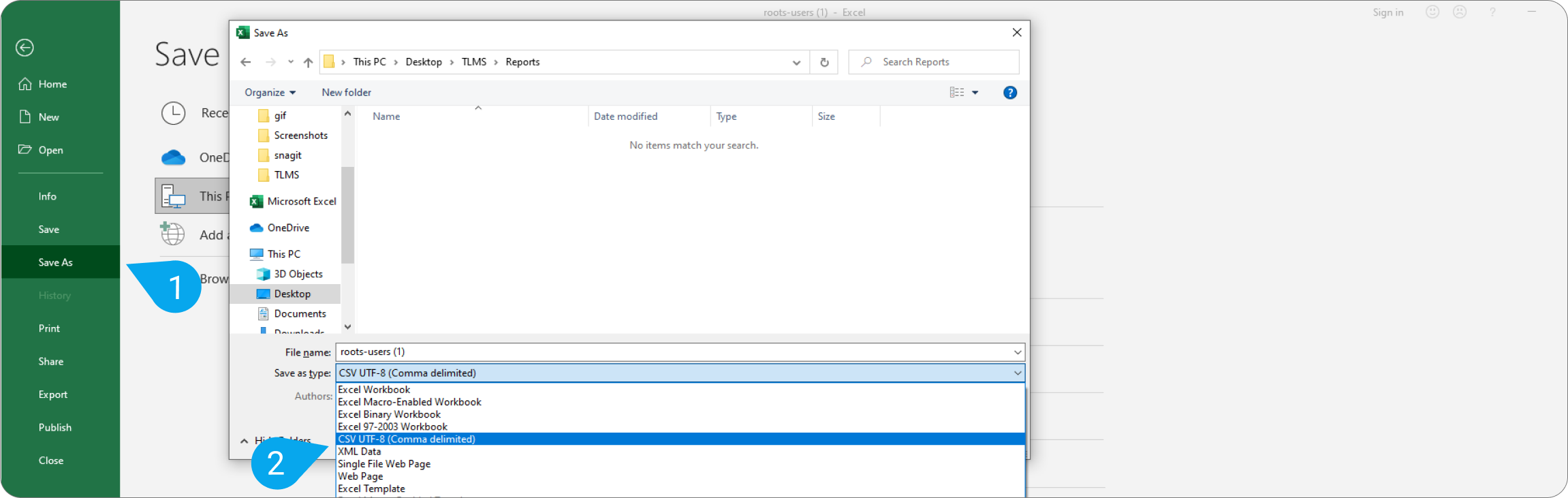
One of the most common scenarios involves users working in Excel 2010 (or older versions) who need to save a CSV file while preserving text in Cyrillic, Chinese, or other non-Latin scripts. When they try to do this using "Save As," they discover that none of the available options directly generate a UTF-8 CSV file.
In these cases, many end up using the " Unicode Text " option, which saves the file as Unicode-encoded text (usually UTF-16). The content is preserved perfectly, but the problem is that this format doesn't use commas or other standard delimiters between columns, but rather tabs, and it also includes a BOM header and other details that make it different from the typical CSV file that many applications expect.
The result is that this "Unicode Text" file, even though it preserves Cyrillic characters or any other language, cannot be used as a "classic" CSV file for imports that require commas, semicolons, or simpler text formatting. This makes it practically useless for many workflows that require pure CSV.
Advanced users have tried all sorts of combinations in Excel 2010: trying different save formats , changing the encoding from "Tools → Web Options → Encoding", changing the operating system language to Russian or the source language of the data, etc. However, these options usually affect the display or HTML encoding, not how Excel generates a CSV file.
Some have even resorted to macros in VBA using the argument TextCodePage and other related properties, which in more modern versions of Excel or in certain contexts are obsolete or simply ignored. This is even more frustrating because Excel doesn't seem to offer fine-grained control over CSV encoding in environments where the company's IT policy is very restrictive and doesn't allow the installation of add-ins, plugins, or alternative software.
Why Google Sheets has become the easy solution
Unlike some versions of Excel, Google Sheets stands out for its ease of exporting to CSV with UTF-8 encoding, eliminating the need for users to grapple with advanced configurations. As a web-native tool, the default encoding across virtually its entire ecosystem is UTF-8, and this is also reflected in the export process.
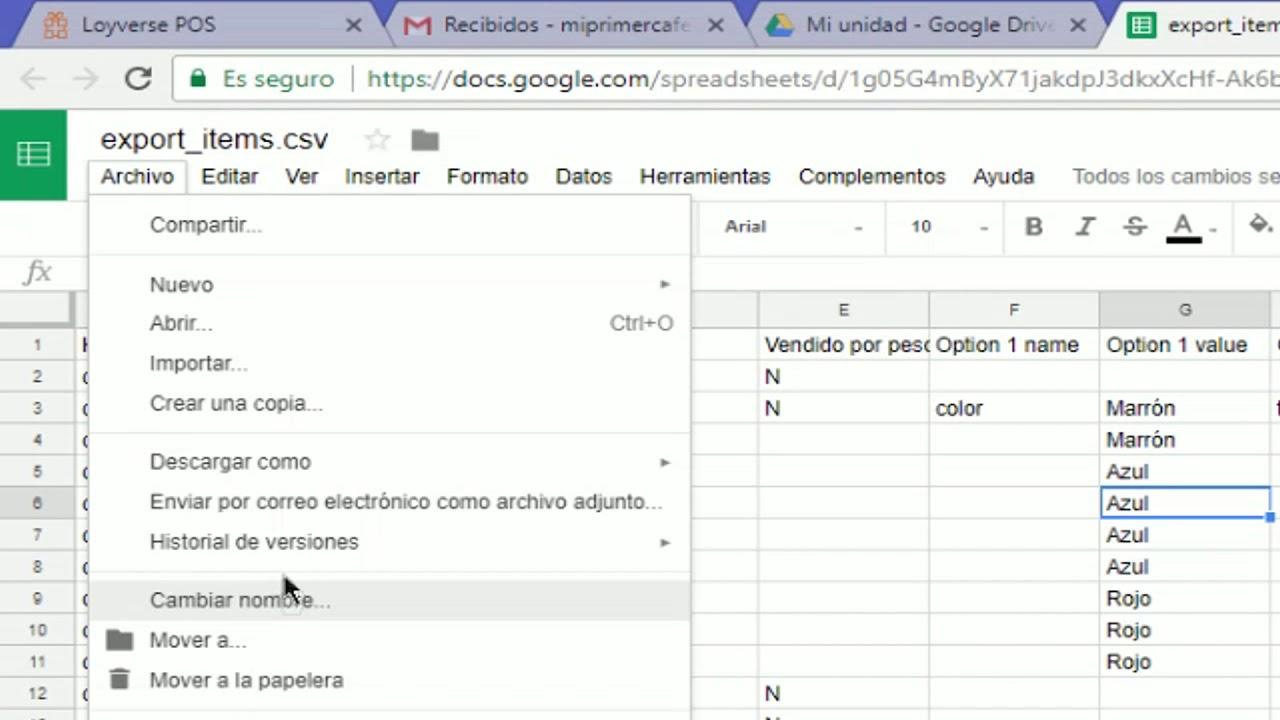
Many users who were having trouble exporting from Excel have resorted to a very effective trick: first upload the file to Google Drive , open it with Google Sheets, and then download it as a CSV file. The resulting file retains text with Cyrillic characters and other alphabets without issue, and when imported back into Excel, it is correctly interpreted as UTF-8.
One of the great advantages of this method is that, when you open the CSV file created in Google Sheets within Excel, the program tends to automatically detect the UTF-8 encoding and display the characters as expected, without needing to use import wizards or manual processes. For the end user, the feeling is that "it just works."
Furthermore, unlike Excel 2010, Google Sheets doesn't force you to choose between different encodings when exporting . The standard CSV download option already uses UTF-8, which greatly simplifies things in environments where multilingual data is constantly handled. There's no need to change the system language or adjust specific code pages for Russian, Chinese, or Arabic.
It's worth remembering that, as an online tool, Google Sheets is usually up-to-date by default , while many companies remain stuck on older versions of Excel due to licensing issues or internal policies. This difference in philosophy (a cloud-based service that's always up-to-date versus legacy desktop software) is especially noticeable in areas like Unicode compatibility and encoding handling.
How to convert a Google Sheets document to CSV with UTF-8 encoding
In day-to-day work, the process for converting a Google Sheets spreadsheet to a UTF-8 CSV file is very straightforward. While the interface may change slightly over time, the overall logic remains consistent, and there's no need to manually adjust encoding settings.
The first step is to ensure your data is complete and properly organized in Google Sheets. Check that text in other languages (for example, Russian names, descriptions with special characters, etc.) displays correctly within the sheet. If it displays correctly here, it's very likely the generated CSV file will preserve those characters.
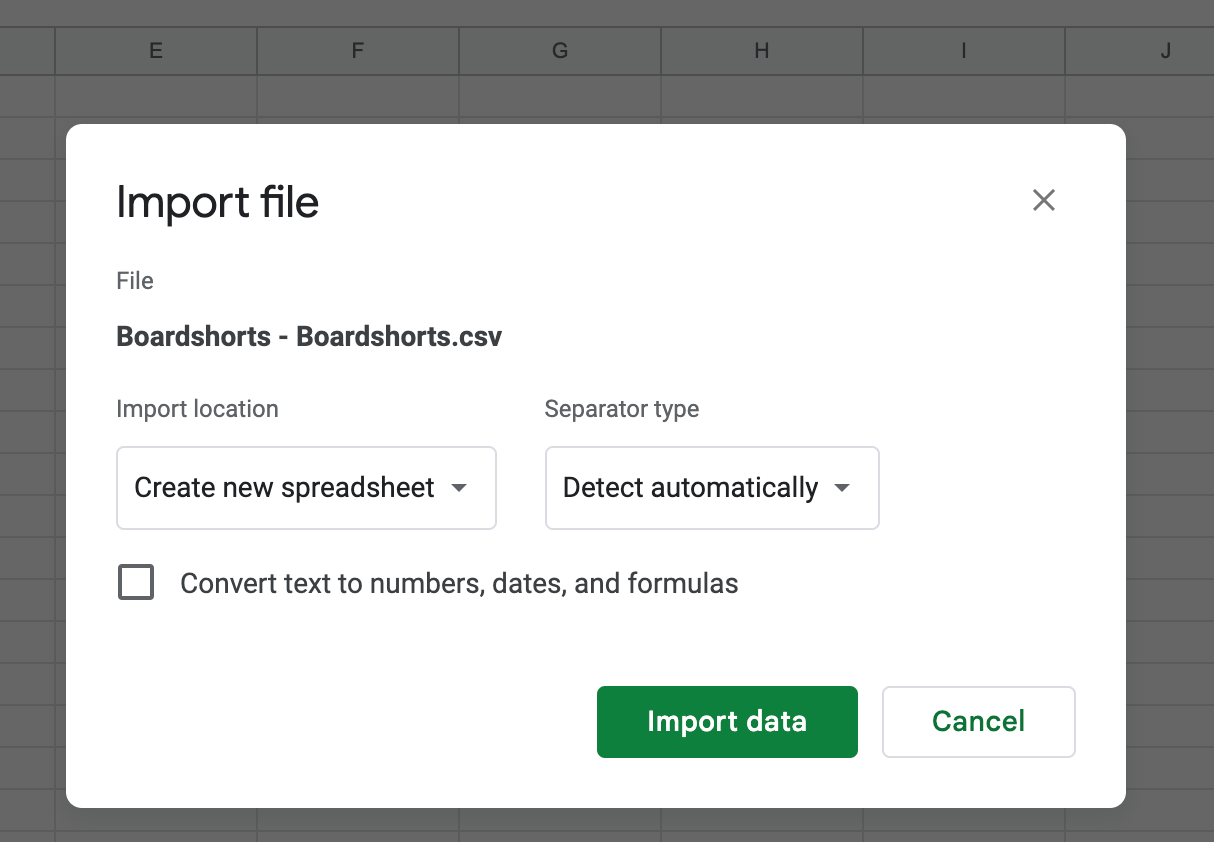
Next, from the Sheets main menu, use the CSV download option. When the file is generated, Google creates it directly in UTF-8, which is the current standard for web applications . There's no need to manually select the encoding type. The service itself is designed to support most languages without requiring the user to deal with code pages or complicated settings.
Once you've downloaded the CSV file, you can open it again in Excel or another program , for example, to import contacts into Outlook . In modern Excel, it's best to import it explicitly, specifying that it's in UTF-8 if your version allows it, or let the program detect it automatically if you open it without using any wizards. In many cases, simply double-clicking the file will display the correct characters, because the file itself contains enough information for Windows and Excel to treat it as UTF-8.
For integrations with other applications (such as CRM systems, email marketing platforms, or databases), this UTF-8 CSV will be recognized without issue, and for API integrations, converting Excel spreadsheets to JSON can be helpful . Most of these systems expect this type of file, so you won't need to perform any additional conversions if the source is Google Sheets.
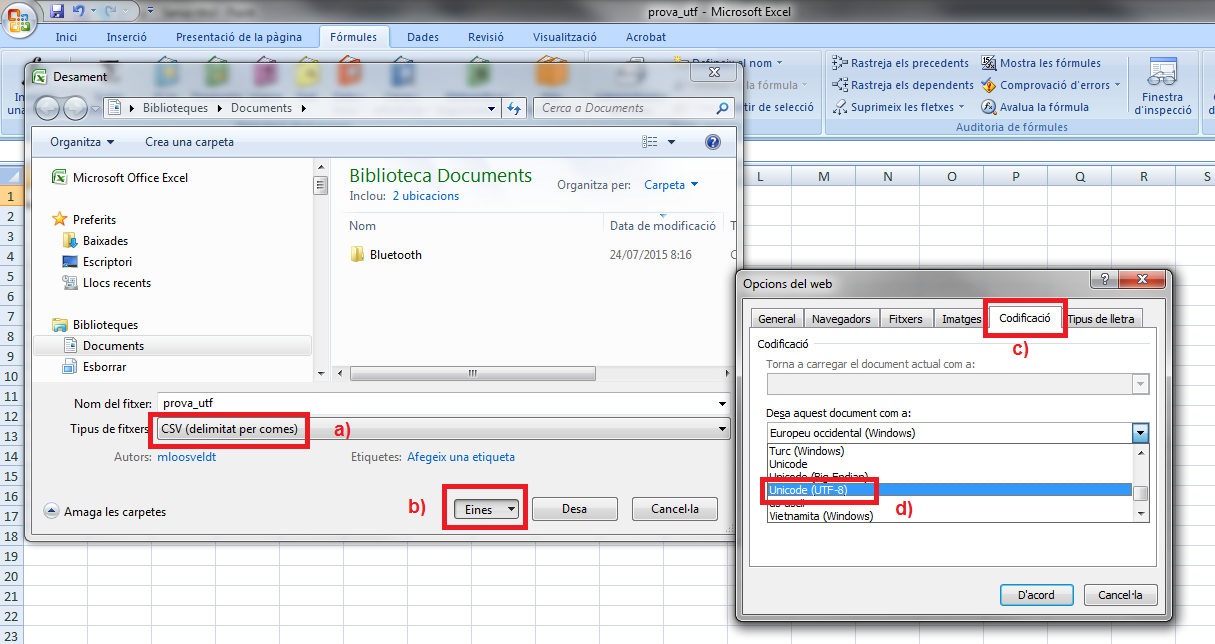
Limitations of Excel and the use of Unicode Text as a partial alternative
In environments where Excel is unavoidable , especially with older versions, many users have tried using the "Unicode Text" format (usually a UTF-16 encoded .txt file) as a workaround. This format does preserve all characters from complex languages, but it doesn't conform to the classic comma-separated CSV format.
The idea is usually to iterate through the cell range using a VBA macro and manually insert a column separator , then export the result to a Unicode text file. This approach is reminiscent of processes for exporting results to text files . The goal is to achieve something in between: a Unicode-compatible file with visible separators that behaves similarly to a CSV file.
However, this solution has several drawbacks. First, not all CSV readers accept Unicode files with tabs or custom delimiters . Some strictly expect commas or semicolons and do not handle UTF-16 well, especially if they lack a proper byte order mark (BOM) or if the target software is designed exclusively for UTF-8.
Secondly, maintaining and debugging VBA macros that manipulate text and encodings is complex. Many older properties related to the code page have stopped working in recent versions or behave inconsistently, producing different results depending on the operating system's regional settings or the specific version of Office.
For all these reasons, when it is necessary to guarantee full compatibility with UTF-8, it is common for even users very accustomed to Excel to end up resorting to Google Sheets or other alternative solutions for the final export phase, leaving Excel only for calculation, formatting or local analysis tasks that do not affect the encoding of the final file.
Other applications and services that allow saving CSV in UTF-8
Although we're focusing on Google Sheets and Excel here, it's worth noting that they aren't the only tools capable of generating CSV files in UTF-8 . Office suites like LibreOffice or Apache OpenOffice offer fairly clear options for choosing the encoding when saving or exporting data.
In these options, when you select "Save As" or "Export" to CSV, a dialog box usually appears where you can explicitly choose the character set (for example, UTF-8 or UTF-16) , the field separator (comma, semicolon, tab, etc.), and the text delimiter (double quotes, etc.). This flexibility is very useful when you need to meet very specific requirements of the software that will use the CSV file.
If your organization allows it, installing one of these free suites to generate UTF-8 CSV files might be useful, while still using Excel for other tasks. However, in many corporate environments, IT policies explicitly prohibit installing additional software, add-ons, or plugins, leaving users largely limited to the official suite.
This is where Google Sheets comes into play again: it doesn't require local installation ; all you need is a browser and access to Google Drive. In practice, it's easier for the IT department to allow the use of a web-based tool than the installation of third-party programs on company computers.
Finally, there are also specific online tools for converting files from one encoding to another . For example, you can upload a CSV file in ISO-8859-1 and download it in UTF-8. However, these types of services should be used with caution, especially if you are handling sensitive data or confidential information, as you would be sending the content to an external server.
Best practices for working with CSV files and encodings in multilingual environments
Beyond the specific tool, it's advisable to adopt a series of best practices when managing CSV files with multiple languages . The first is to establish a clear encoding policy at the team or project level: whenever possible, use UTF-8 as the standard. This simplifies many things and avoids surprises when data passes through different systems.
Another important recommendation is to test CSV files in the target environment before finalizing them. For example, if you're going to upload the file to a CRM or email marketing platform, perform a test import with a few records. Verify that special characters display correctly, delimiters are interpreted properly, and there are no misaligned columns.
It's also helpful to document the internal process: specify in writing that CSV files should be generated from Google Sheets (if that's your primary tool), indicate the exact format, the type of separator, and any additional steps that need to be followed in Excel or other applications. This documentation prevents wasted time and ensures that anyone on the team can replicate the workflow without having to figure it out from scratch.
In organizations where several tools coexist (for example, local Excel and cloud-based Google Sheets), centralizing the final export in a single tool, usually the one that best handles UTF-8, often works well. This reduces the risk of someone saving the file with the wrong encoding from another program.
Finally, it's advisable for the team to have a basic understanding of what UTF-8 is and how it affects data. You don't need to be an encoding expert , but understanding that not all CSV files are the same and that the character set can either break or preserve languages is key to avoiding costly errors, especially when working with international clients or large databases.
Understanding the role of UTF-8 encoding, knowing the limitations of classic Excel, and using Google Sheets or other tools with full Unicode support allows you to convert and export spreadsheets to CSV without losing information, keeping characters of any language intact and making it easier for other systems to import this data without errors or strange symbols.


Passionate writer about the world of bytes and technology in general. I love sharing my knowledge through writing, and that's what I'll do on this blog, show you all the most interesting things about gadgets, software, hardware, tech trends, and more. My goal is to help you navigate the digital world in a simple and entertaining way.
Table of Contents
- 1 What is a CSV and why is UTF-8 encoding so important?
- 2 The typical problem: Excel 2010 and CSV files with Cyrillic or other alphabets
- 3 Why Google Sheets has become the easy solution
- 4 How to convert a Google Sheets document to CSV with UTF-8 encoding
- 5 Limitations of Excel and the use of Unicode Text as a partial alternative
- 6 Other applications and services that allow saving CSV in UTF-8
- 7 Best practices for working with CSV files and encodings in multilingual environments