- Wireless connectivity requires all devices to share the same WiFi network in order to recognize each other.
- You can choose between streaming a specific media file or mirroring the entire screen using the Control Center.
- There are various hardware options such as Apple TV or physical HDMI adapters depending on the stability and compatibility needs.

If you own an Apple device, you've probably felt that your phone's screen is too small to show off those travel photos or watch a movie with the family. Luckily, the Cupertino ecosystem is designed to make everything run smoothly, allowing us to transfer the image and sound to a larger screen without having to struggle with complicated settings.
There are several ways to achieve this, from the wireless magic of AirPlay to the reliability of a good HDMI cable. The important thing is knowing what tool we have available and exactly what we want to do, whether it's streaming a specific file or creating an exact mirror of everything that happens on our iPhone or iPad.

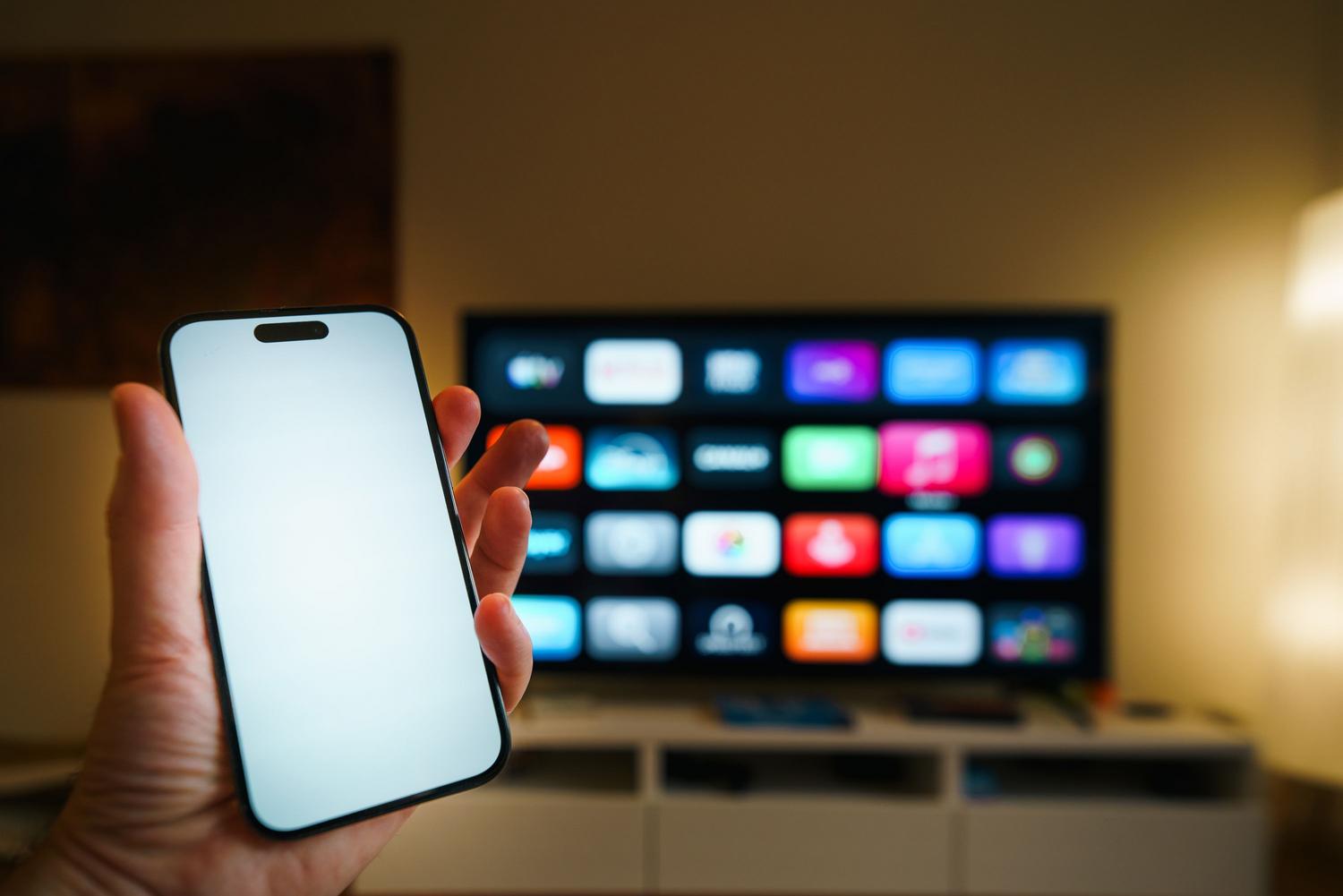
To get started, we need to understand that AirPlay is a wireless communication protocol designed by Apple. Essentially, it's the technology that allows two devices to recognize each other and send multimedia data without cables. It's Apple's answer to other systems like Google Cast or Miracast, although optimized for its own products.
This system has evolved considerably since its inception as AirTunes in 2004. The arrival of AirPlay 2 marked a significant leap forward, introducing multiroom capability and enabling the creation of a multiroom audio system where music plays in sync across multiple speakers in different rooms. Essentially, the system divides devices into two roles: the source (the iPhone, iPad, or Mac sending the content) and the receiver (the Apple TV, a compatible smart TV, or a HomePod playing the content).
A key detail is that AirPlay operates over a Wi-Fi network. This means that for the connection to be successful, both the sender and receiver must be connected to the same wireless network; otherwise, the devices simply won't be able to see each other.

Step-by-step guide to transmitting specific content

When you don't want to display your entire screen, but only a video or photo, content streaming is the cleanest option. Follow these steps to do it correctly:
- Make sure your iPhone or iPad is sharing the same WiFi network than the television, the Mac, or the Apple TV.
- Open the app where you have the file (like the Photos app) and select the video or image.
- Look for the AirPlay buttonNote that in some apps, such as Photos, you'll first need to tap the Share icon to find the AirPlay option.
- Choose the target device from the list that appears on the screen.
If you want to stop streaming, simply press the AirPlay button again within the application and select your mobile device from the list to retrieve the content.
How to duplicate the full screen (Mirroring)
If you need your TV to mirror your phone's screen (ideal for presentations or displaying an app that doesn't have an AirPlay button), you should use the Screen Mirroring function and cast your iPhone to a Samsung TV or other compatible model:
- Connect both devices to the same WiFi network.
- Accesses Control centerIf you have an iPhone X or later (or an iPad with iPadOS 13+), swipe down from the top right corner. On older models like the iPhone 8, swipe up from the bottom.
- Push the button Duplicate Pantalla and select your TV or Mac.
- If the TV displays a security code, enter it into your mobile device to validate the connection.
To end the session, return to Control Center, go to Screen Mirroring and select Stop Mirroring , or use the Menu button on your Apple TV remote.

Automation and Continuity Settings

Apple makes the process even smoother by configuring automatic connection. You can manage this from Settings > General > AirPlay & Continuity > Stream with AirPlay , where you'll find three options:
- Never: You will have to choose the device manually each time.
- To ask: The system will send you a notification suggesting the connection, and you decide whether to accept it or not.
- Automatic: The device will only connect to the receivers you normally use, although you can always undo the action quickly if you make a mistake.
Alternatives: Apple TV, Chromecast, and physical connections
While many modern TVs come with AirPlay built-in, there are other ways to bring content to the big screen. Apple TV is the premium option; it's a small device that connects via HDMI and turns any TV into an Apple smart home hub, allowing not only screen mirroring but also the use of apps like Netflix or HBO directly on the TV.
If you have a mix of Android and iOS devices at home, Google's Chromecast is a viable alternative. While it doesn't offer full AirPlay integration and some features are limited on iPhones, you can follow the correct steps to set up a Chromecast from an iPhone for convenient streaming.
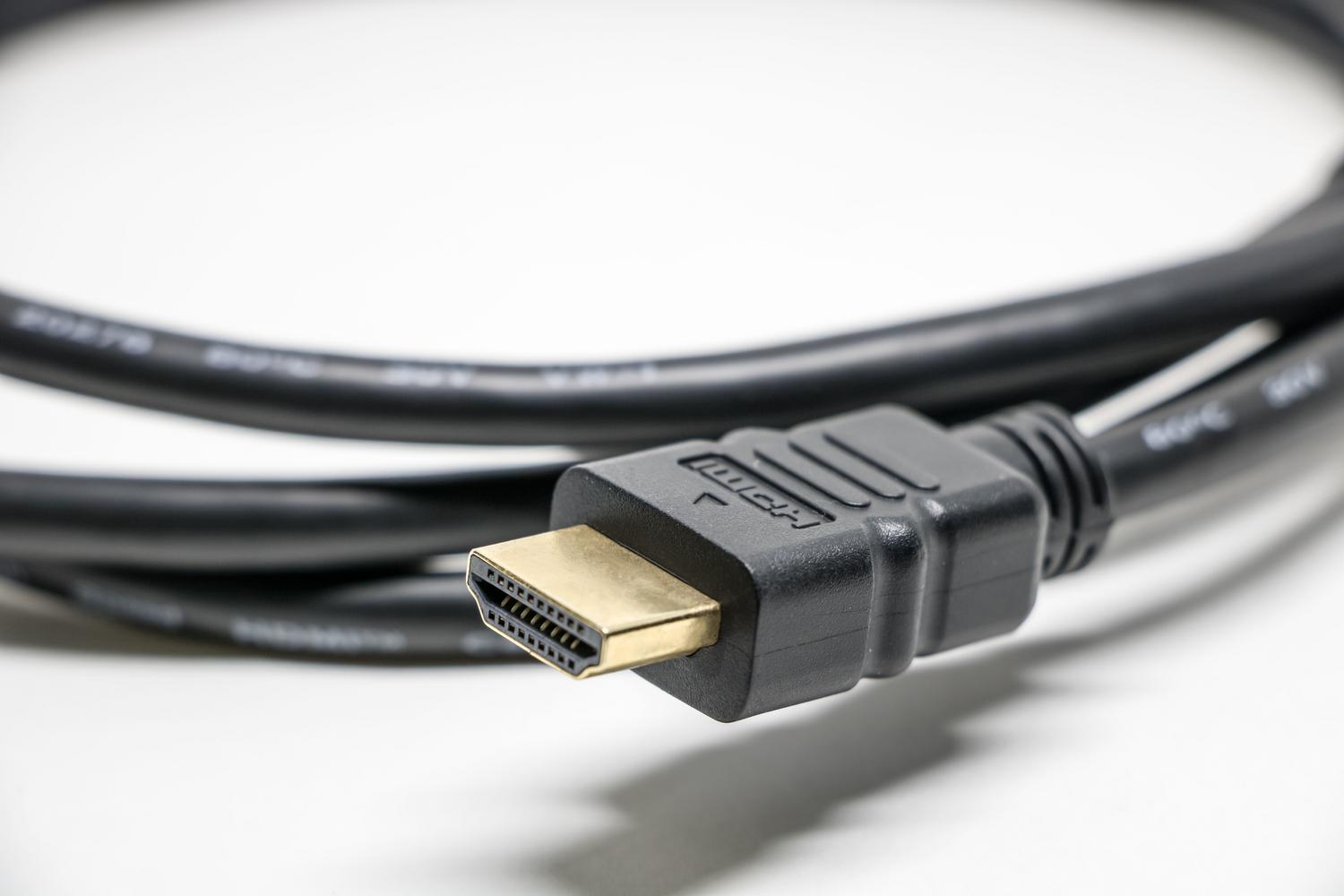
For those who prefer to avoid Wi-Fi or don't have a stable network, a wired connection is the most straightforward solution. Depending on your iPhone model, you'll need a Lightning to HDMI adapter (for newer models) or a 30-pin adapter (for older models). HDMI adapters transmit both audio and video, while VGA adapters only handle video, so you won't hear sound on your TV if you use VGA.
The choice between wireless and wired depends on your priority: while AirPlay and Apple TV offer total convenience and versatility , the HDMI cable guarantees an instant connection without setup or dependence on an internet signal.


Passionate writer about the world of bytes and technology in general. I love sharing my knowledge through writing, and that's what I'll do on this blog, show you all the most interesting things about gadgets, software, hardware, tech trends, and more. My goal is to help you navigate the digital world in a simple and entertaining way.