- Decide whether you will use wired, Wi-Fi, or a mixed network and make sure all devices share the same IP range.
- For direct connections without a router, configure a static IP address on each PC and enable network discovery and sharing.
- Check firewall and network type (Private) so that the devices can see each other and the games can communicate on LAN.
- Apply good security practices when sharing files and resources, especially on Wi-Fi networks.
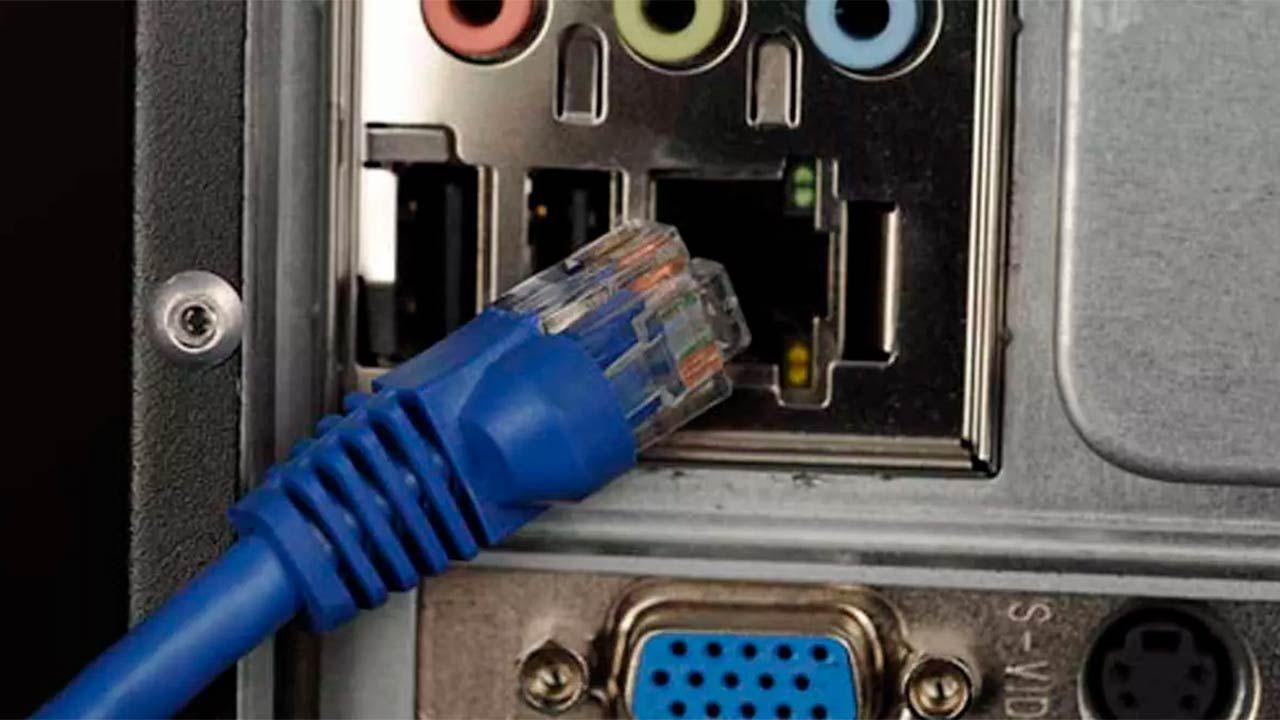
If you've ever considered playing LAN games with two or more computers , sharing files at lightning speed, or hosting a mini LAN party at home, you've probably come across a lot of strange terms: IP, DHCP, switch, ad hoc, SMB… Don't worry, setting up a local network isn't rocket science; it just requires following a few steps and knowing exactly what you want to do: connect just two PCs, create a hybrid wired + Wi-Fi network, or even isolate your network from the internet to play without interference or risks.
Based on typical user questions and how top-ranked websites explain it, we'll explore how to connect computers on a LAN for gaming (and resource sharing) in detail: via cable, Wi-Fi, directly between two computers, or using a router/switch, on Windows, macOS, and Linux, with security tips and troubleshooting. The goal is that, by the end, you'll know exactly which cable to use, how to configure IP addresses, what to adjust in your firewall settings, and what to check when you can't see each other on the network.
What you need to set up a LAN for gaming
For two computers to communicate with each other, it takes more than just randomly plugging in cables. You need a proper physical connection and logical configuration (IP address, network services, permissions, etc.). This applies whether you want to connect just two PCs or if your plan is to set up a network with multiple computers.
In general, you will need these basic items:
- Computers with network cards Ethernet (RJ-45) or Wi-Fi, in good condition and with drivers installed.
- Ethernet network cables (Cat5e or higher) if you are going to use a wired connection.
- Router or switch If you want to connect more than two PCs or have them all have automatic IP and Internet access.
- Supported operating system (Windows, Linux, macOS) with local network support and file sharing.
- IP configuration: either by DHCP (router) or static IPs within the same range.
In modern computers, most network cards support auto-MDI/MDIX, so a standard Ethernet cable is sufficient to connect two PCs directly. In older computers, however, a specific crossover cable was required.
Wired vs Wi-Fi connection for LAN gaming
When the goal is to play on a LAN, the difference between using a wired connection and Wi-Fi is significant. Ultimately, what matters most is low latency, stability, and sufficient bandwidth . Wired connections offer all of this better on local networks.
In practical terms, this is what you'll find:
- Ethernet cableVery high speed (1 Gbps or more), very low latency, and a super stable connection. Ideal for LAN gaming, large transfers, and long sessions.
- Wi ‑ Fi: convenient and flexible, but with higher latency, more interference, and highly variable actual speed depending on distance, walls, other devices, etc.
For a "serious" LAN gaming setup, especially with multiple players, it's recommended that at least the main PCs be connected by cable , leaving Wi-Fi only if there's no other option.
Ways to connect computers on a LAN
There are several ways to set up a local network for gaming or sharing resources. The choice depends on how many computers you have, whether you need internet access, and what hardware you have available.
Typical scenarios include:
- Direct Ethernet cable connection between two computers (without router).
- Connect multiple PCs through a router or switch (the most common option at home).
- Create an ad hoc Wi-Fi network where one PC acts as an access point and the rest connect.
- Mixed wired + Wi-Fi connection, all within the same local network.
The best practices recommended by manufacturers and official documentation always involve using private networks, protecting access with a password, and not disabling the firewall haphazardly.
How to connect two computers via cable to play games (without a router)
This is a classic scenario: you have two PCs and a single Ethernet cable , and you want to play LAN games or transfer files at high speed, without relying on the internet or a router. This works with both Windows and Linux/macOS, because ultimately it all depends on both computers being on the same IP address range.
The requirements are minimal: two functional RJ-45 ports and an Ethernet cable . With modern hardware, a crossover cable is not necessary.
1. Physically connect the equipment
With the PC either on or off (it doesn't matter for the network connector), plug one end of the network cable into the first computer and the other end into the second . In a few seconds, both systems will detect that the connection is active (an LED next to the port usually lights up).
2. Manually assigning an IP address in Windows
Since there's no router, no one will assign an IP address automatically. We need to configure compatible static IP addresses on each PC. Here's a simple example using IPv4:
- Open Control Panel > Network and Internet > Network and Sharing Center.
- Click "Change adapter settings."
- Right-click on "Ethernet" > "Properties".
- Select "Internet Protocol Version 4 (TCP/IPv4)" > "Properties".
- Select "Use the following IP address" and configure, for example:
PC 1: IP 192.168.1.1 – Mask 255.255.255.0 – Empty gateway.
PC 2: IP 192.168.1.2 – Mask 255.255.255.0 – Empty gateway.
A gateway and DNS are not required if the network is closed and you only want to play LAN games or share data offline . You can use public DNS servers (8.8.8.8, 1.1.1.1) if you prefer, but it's not mandatory.
3. Manually assigning an IP address in Linux (e.g., Fedora)
If you're using Linux (like Fedora, which is very common when working with Wine or Proton ), the process is similar: you need to set IPs within the same range . You can do this with NetworkManager (graphical mode) or from the terminal.
Quick example with nmcli (assuming enp3s0 interface ):
- On PC 1:
nmcli with mod enp3s0 ipv4.method manual ipv4.addresses 192.168.1.1/24 ipv4.gateway «» - On PC 2:
nmcli with mod enp3s0 ipv4.method manual ipv4.addresses 192.168.1.2/24 ipv4.gateway «»
Then, in both cases: nmcli with up enp3s0 to establish the connection with the new configuration.
4. Activate network sharing and services
For LAN gaming, it's often enough for the game to listen on the local IP address and for the firewall not to block traffic. However, if you want to share folders or visually test connectivity, it's advisable to enable network discovery and file sharing.
In Windows 10/11:
- Control Panel > Network and Sharing Center.
- "Change advanced sharing settings."
- In the "Private" profile, activate:
Network discovery y File and printer sharing. - In "All networks", if you are in a trusted environment, you can temporarily disable "Password protected sharing" to facilitate testing.
On Linux, if you want to use Windows-style file sharing, the usual solution is to use Samba (SMB) , but it's not essential for LAN gaming. The important thing is that the firewall allows the game's port , or, while testing, open it slightly more than necessary (carefully).
5. Test the connection with ping
Before starting the game, it's worth checking that both teams can see each other on the network :
- On Windows: Open CMD and run
ping 192.168.1.2 (from PC 1 to the IP address of PC 2). - On Linux/macOS: Open Terminal and run
ping 192.168.1.1 (from PC 2 to the IP address of PC 1; Ctrl+C to stop).
If you get a response with low latency (less than 1-2 ms), the connection is set up correctly for LAN gaming . If there is no response, check IPs, subnet mask, cables, and firewall.
Set up a LAN using a router or switch
The most typical scenario at home is having a router from your internet provider with several RJ-45 ports and built-in Wi-Fi. To play LAN games with multiple computers, they simply need to be connected to the same router (via cable or Wi-Fi) or to a switch connected to it.
The main advantage is that the router acts as a DHCP server : it automatically assigns IP addresses to all devices within the range (something like 192.168.0.x or 192.168.1.x). You don't have to manually configure an IP address on each PC unless you need something very specific.
If you run out of ports, a cheap Ethernet switch allows you to expand the number of ports : you connect a cable from the router to the switch and then all the PCs to the switch.
Do I need to access the modem/router settings?
For a basic LAN intended for gaming and file sharing, in most cases you don't need to access the router's settings panel . As long as the router assigns IP addresses and everyone is connected to the same one, you already have a functional LAN.
You would only need to access the router settings if you want to do things like:
- Change IP range or disable the DHCP server.
- Create separate networks (for example, isolating the guest network).
- Reserve static IPs for some equipment (static DHCP).
In many countries, your internet service provider (ISP) can block or restrict access to certain advanced router settings. Do you have the right to request a full administrator username and password? Legally, it depends on your country's regulations and your contract, but in practice, you can almost always use your own third-party router connected to your ISP's equipment and manage your internal network yourself with complete freedom.
Connect computers on LAN via Wi-Fi
If you don't want to run cables around the living room or it's physically impossible, you can set up your LAN using Wi-Fi . For gaming, it's not ideal compared to a wired connection, but it can work if the signal is good and there isn't too much congestion.
There are two main routes:
- That all PCs connect to the same Wi-Fi network as the router.
- Create ad hoc network / hotspot from one of the devices (or from the mobile) and that the rest connect to that network.
In Windows, you can set up a quick access point like this:
- Settings > Network & Internet > "Mobile hotspot".
- Activate "Share my Internet connection with other devices."
- defines a Wi-Fi network name and password.
- On the other computers, connect to that network as you would to any Wi-Fi.
Everyone will be on the same subnet, and if you've enabled network discovery and file sharing, they should be able to play on LAN without any problems, as long as the firewall isn't blocking the game.
Other ways to connect devices: Bluetooth and ad hoc networks
Although they are not the best options for LAN gaming, there are alternative methods to connect two computers without a router or Ethernet cable : Bluetooth and pure ad hoc Wi-Fi networks (without going through the hotspot wizard).
Bluetooth is designed for short distances and occasional file transfers, with very low speeds compared to Ethernet or Wi-Fi. It can get you out of a pinch for transferring documents, but it's not suitable for a decent gaming LAN.
Ad hoc networks are temporary Wi-Fi networks created directly between devices. One acts as the host and broadcasts the SSID, and the other connects. On paper, they offer decent speeds , but they are less stable than a network with a router and less secure if not configured properly.
Configure IP and network options on Windows, macOS, and Linux
Whether wired or Wi-Fi, for computers to see each other they must be on the same IP segment . In practical terms, this means that the first parts of their IP addresses must match (for example, 192.168.1.x) and that they must share a subnet mask (255.255.255.0 in typical home networks).
In Windows 10/11, you can manually set the IP address from Control Panel > Network and Sharing Center > Change adapter settings > Properties > TCP/IPv4. On macOS, the setting is in System Preferences > Network, selecting Ethernet or Wi-Fi and choosing "Manually" under Configure IPv4. On Linux, depending on the distribution, you can do this from the graphical network tool or with commands like ip, nmcli, or ifconfig (on older systems).
The logic is always the same: each PC with a different IP but the same network , same mask and, optionally, the same gateway if there is a router (for the Internet).
Verify the connection between devices
Before you start troubleshooting the game or shared folders, it's worth checking that the basic network layer is working . The standard tools are ping and, if you want to be more precise, tracert/traceroute.
Use ping to test if a device responds on the network:
- On Windows: open CMD and type ping 192.168.1.X where X is the IP address of the other device.
- On Linux/macOS: Terminal and the same command ping 192.168.1.X.
If you see short response times and no packet loss, your IP connectivity is fine. If you get a timeout error, check your IPs, subnet mask, cables, Wi-Fi, and firewall.
Tracert (Windows) or traceroute (Linux/macOS) show the path that packets follow, but on a simple LAN you will usually see one or two hops at most , or a single hop if it is a direct connection.
Share folders, files, and printers on the LAN
Once the network is up and running, you can use it not only for gaming, but also for sharing files, folders, printers, or even external drives . The typical protocol in mixed environments (Windows, macOS, Linux) is SMB.
In Windows 10/11, to share a folder:
- Right-click on the folder > "Properties".
- "Sharing" tab > "Advanced sharing".
- Check "Share this folder" and give it a name.
- Tap "Permissions" and decide if others will only be able to read, or also modify and delete.
On macOS, the process involves going to System Preferences > Sharing > "File Sharing". There you can add shared folders , define which users have access, and, if you're sharing with Windows, enable SMB by clicking the "Options..." button.
Printers are shared in a similar way: on Windows from "Devices and Printers" > Printer Properties > "Sharing" tab; on macOS from System Preferences > Printers & Scanners and by activating the sharing checkbox.
Safety when using a LAN network for gaming
Although a home LAN is generally considered a "trusted" environment, it's wise not to let your guard down. After all, when you enable file sharing, you open services on your computer that accept incoming connections.
Basic good practices:
- Mark the network as Private On Windows, use it when you're at home, and as a Public connection when you connect from other locations.
- Protect Wi-Fi with WPA2 or WPA3 and a decent password (nothing like 12345678).
- Do not share folders with sensitive data, and if you can, limit yourself to a specific folder for games/files.
- Don't completely disable the firewall: better It only allows the game or the necessary ports.
- If you disable password protection on shared resources, do so only on a private network controlled by you.
Regarding the question of whether setting up a LAN can have consequences for the security of your data: the answer is that it depends on how you expose it . A closed wired LAN between two PCs without internet access is practically isolated. A LAN connected to a router with open Wi-Fi and unpassed resources, on the other hand, is a gift to anyone who connects to your network.
Typical problems when setting up a LAN and how to solve them
The most common problem when something goes wrong is that the devices don't appear in the Windows "Network" section, or the game doesn't detect the LAN match. This is usually due to three things: a misconfigured network type, a blocking firewall, or out-of-range IPs.
Quick checklist:
- Check that both devices are on the same subnet (192.168.1.xo the one that touches).
- Make sure that in Windows the network is marked as Private, not Public.
- In "Advanced sharing settings", enable network discovery and file sharing.
- Check the firewall: allow "File and printer sharing", "Network discovery" and the game executable.
- If the computer name does not resolve (\EQUIPO1 fails), try accessing by IP (\192.168.1.X).
If you get a response when pinging from one PC to the other, but not the other way around, it's most likely that one of the firewalls is blocking the connection . To play, you can create a rule that allows all incoming/outgoing traffic for the game executable on private networks.
Finally, keep in mind that some newer games have abandoned traditional LAN support and rely solely on online play. If the game clearly states that it supports LAN or local multiplayer , the above should be sufficient for it to work, provided there are no specific restrictions imposed by the title.
With all this in mind, setting up a LAN network for gaming, whether with two computers connected directly by cable, through a router, or even combining Wi-Fi and Ethernet, becomes quite an affordable task: simply take care of the physical aspects (cables and connections), properly configure the IPs and subnet masks, check the network type and firewall, and then let each game use that infrastructure to offer fast local games with less lag and without depending on external servers that work one day and not the next.

Passionate writer about the world of bytes and technology in general. I love sharing my knowledge through writing, and that's what I'll do on this blog, show you all the most interesting things about gadgets, software, hardware, tech trends, and more. My goal is to help you navigate the digital world in a simple and entertaining way.