- Activate Game Mode and ALLM to reduce response time.
- Disabling image processing such as motion interpolation.
- Optimized connection using high-quality HDMI cables and dedicated ports.
- Adjust RGB ranges and color calibration to improve visual quality.
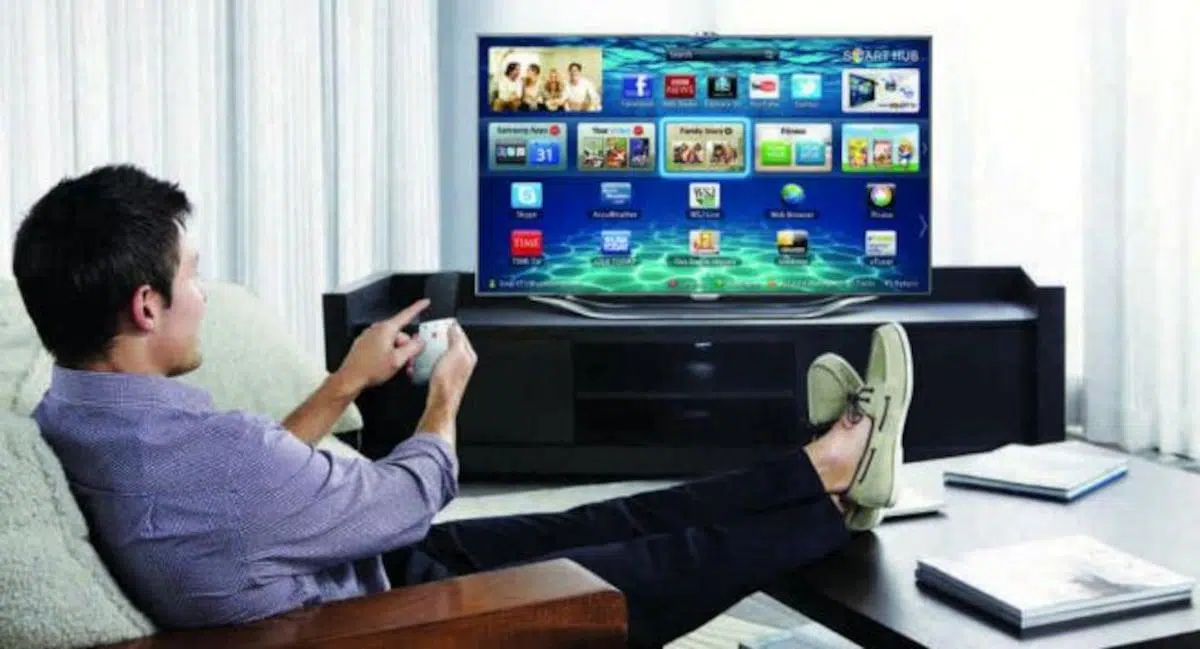
I'm sure it's happened to you: you're in the middle of an intense game, you press the button to jump or shoot, and you feel the character react with a frustrating delay . That feeling that the controller isn't responding instantly isn't your fault or a lack of skill, but rather a technical phenomenon called input lag. Many of us make the mistake of using our TVs with their factory settings, unaware that the default settings are designed for watching movies, not for competing in the virtual world.
The reality is that smart TVs perform a lot of internal processing to make the image look "prettier" or smoother, but all that extra work takes time. For those of us who play shooters, racing games, or fighting games, those milliseconds are the difference between winning the match and ending up frustrated. Luckily, there are several tricks and settings that can transform your living room into a true high-response gaming zone.

Game Mode: the master key against lag
If you could only change one thing, let it be this. Game Mode is a feature specifically designed to bypass much of the TV's image processing. Essentially, it tells the TV, "Hey, don't bother analyzing every single pixel, just release the image as quickly as possible." By turning this on, the time between your action and what you see on screen is drastically reduced.
Today, many modern TVs include ALLM (Auto Low Latency Mode) . This amazing feature automatically detects when you connect a console and activates low-latency mode without you having to navigate through ten complicated menus. If your TV supports it, make sure it's turned on for a seamless transition and immediate response.
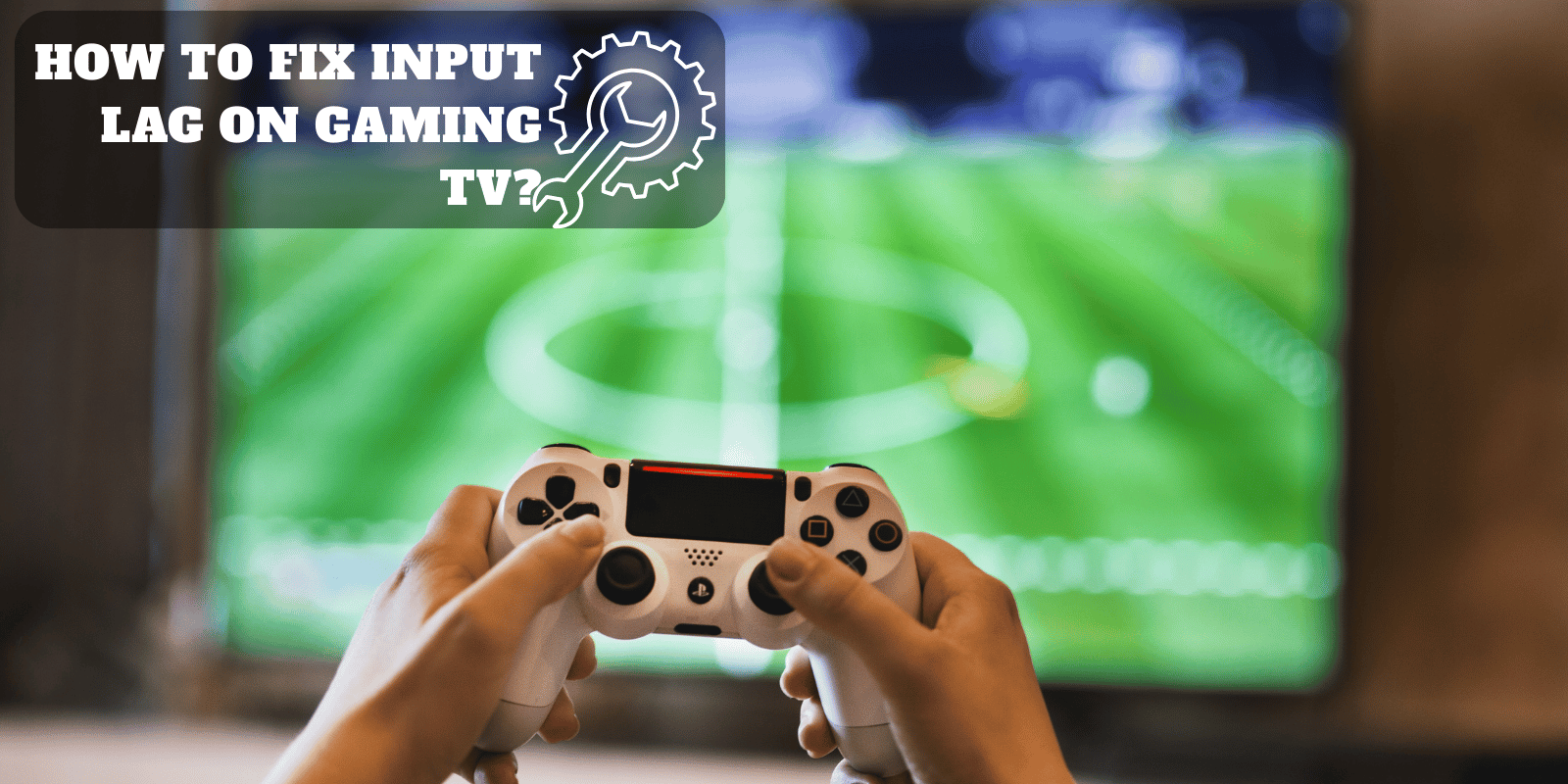
Disable the processing that slows down your experience
Aside from game mode, there are several "enhancement" features that are speed's biggest enemy. The most treacherous is motion interpolation (also known as True Motion or Motion Smoothing). While it makes movies look smoother, in video games it introduces a brutal delay that can make the controller feel twice as laggy. If you want to delve deeper, there's a comprehensive guide to eliminating input lag in various environments.
Don't forget to remove other annoying filters either. You should disable noise reduction , dynamic contrast, and sharpening. These options attempt to clean up the image or enhance edges, but they actually just add milliseconds to processing time and sometimes degrade the game's actual visual quality.

Hardware optimization and HDMI connections
Not everything happens within the TV's menus; the path the signal takes also matters. Not all HDMI ports are created equal. Some models have dedicated gaming ports that offer lower latency than the others. If you have several options, try switching ports until you find the one that feels most responsive.
The cable also plays a crucial role. Using a high-quality HDMI cable (especially version 2.1 for 4K and high refresh rates) prevents data transmission bottlenecks. Likewise, avoid using external switches or receivers that aren't high-end, as adding intermediary devices often introduces extra latency that can ruin the smoothness of your gameplay.
Image calibration to ensure no detail is lost
For a perfect image, it's vital to check the RGB range . Depending on whether you're using a PC or a console, you should set the range to "Limited" or "Full." If the two devices aren't synchronized, you'll notice that blacks appear grayish or that details are lost in dark areas, putting you at a competitive disadvantage by making it difficult to see enemies hiding in the shadows.
If you're not an expert in calibration, don't worry. You can use your Smart TV's built-in assistants or learn how to calibrate HDR on your Smart TV to achieve vibrant images. Properly adjusting brightness, contrast, and color temperature will allow you to better differentiate tones and prevent the screen from oversaturating whites, resulting in a balanced and professional viewing experience .

If you're still experiencing stuttering after trying all of this, consider updating your TV's firmware , as manufacturers often release patches to optimize performance. In extreme cases, if the native 4K resolution is causing too much strain, slightly reducing the resolution or refresh rate can help the image flow more smoothly. By keeping Game Mode active, disabling motion filters, and ensuring a good wired connection, you can make your Smart TV behave almost like a gaming monitor, optimizing every millisecond so your aim and reflexes shine in every session.

Passionate writer about the world of bytes and technology in general. I love sharing my knowledge through writing, and that's what I'll do on this blog, show you all the most interesting things about gadgets, software, hardware, tech trends, and more. My goal is to help you navigate the digital world in a simple and entertaining way.