- Advanced management of interruption modes and customization of priority alerts.
- Battery optimization settings to avoid delays in receiving push notifications.
- Detailed control over the visibility of notifications on the lock screen and activity history.

I'm sure it's happened to you before: you're expecting a crucial message and, to your surprise, your phone hasn't rang or vibrated. Sometimes it's not the app's fault, but rather that Android is a bit battery-conscious and cuts off background processes to keep the phone running longer, leaving us stranded at the worst possible moment.
To avoid these unpleasant surprises, it's essential to know how to navigate the settings menus, as managing power and alerts is almost an art. From configuring Do Not Disturb mode to preventing the system from suspending apps we need to keep running, here's how to get your device ready so you don't miss a single notification.

Master Do Not Disturb mode and custom profiles
If you want absolute silence or only want to be disturbed by those closest to you, Do Not Disturb mode is your best friend. You can activate it instantly by swiping down the quick settings panel at the top of the screen and tapping the corresponding icon. It's the fastest way to enter "disconnect" mode.
But the real fun begins when you delve into the settings. Don't just turn it on and off; Android lets you create custom modes like Sleep or Driving . For example, Sleep mode can be programmed to activate automatically when you charge your phone overnight or at a specific time, ensuring you don't wake up to an irrelevant notification.
- Rest mode: Ideal for setting sleep routines and activating the "Good night" function.
- Driving Mode: It activates when it detects that you are driving to avoid dangerous distractions.
- Custom modes: You can name them and choose their icon, adjusting the notification filters to your liking.
Within these profiles, you can fine-tune the notification filters . This is where you decide who has "VIP access" to interrupt you. You can allow calls only from favorite contacts or configure the option to allow repeated calls , very useful if someone calls twice in 15 minutes and there's a real emergency.

Tips to prevent notifications from failing due to power outages
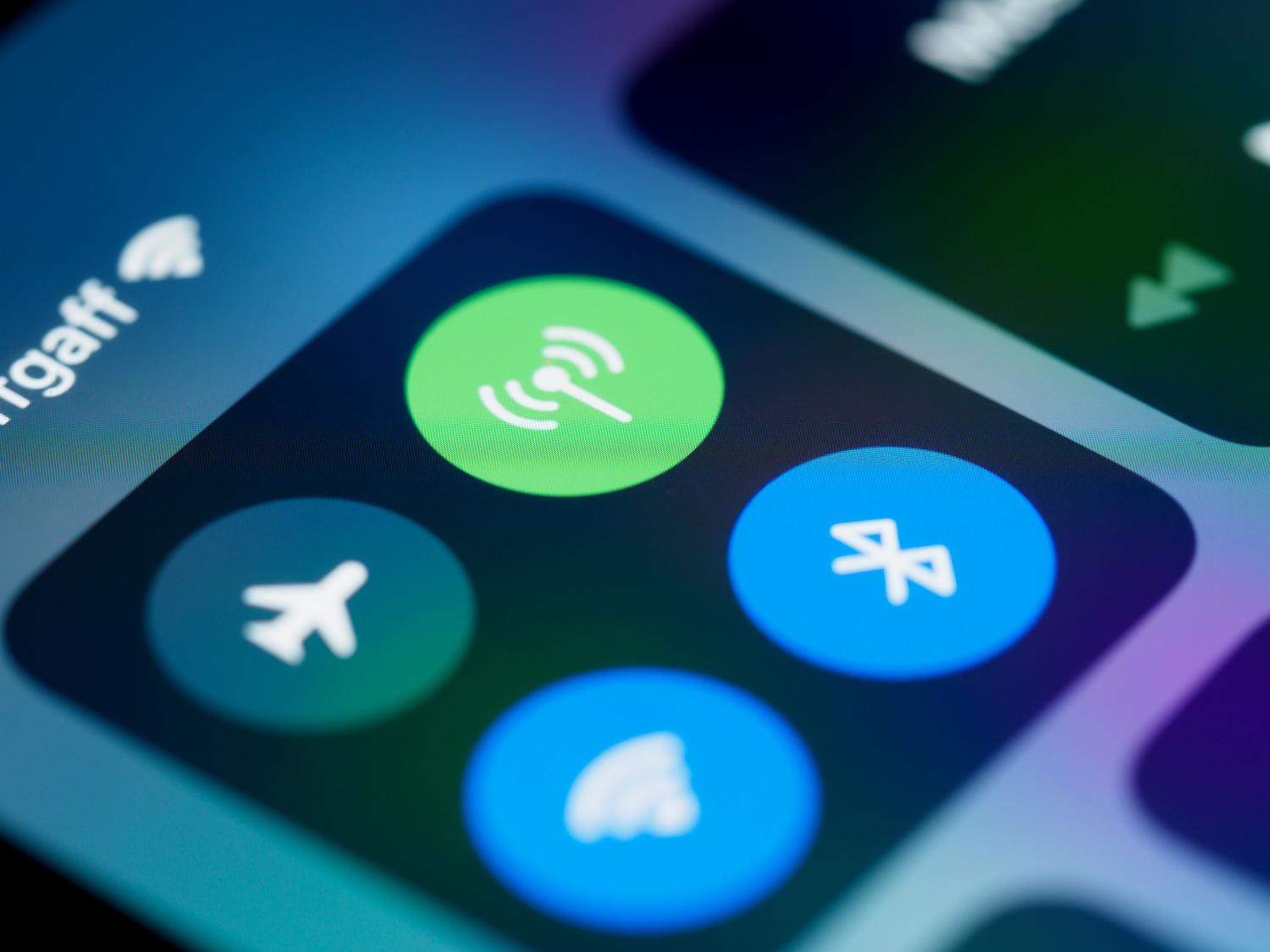
This is where many people get lost. If you notice that push notifications aren't arriving in real time, the culprit is usually aggressive battery optimization . Some manufacturers configure the system so that background apps enter a "deep sleep," which basically means the app is asleep until you manually open it.
To fix this, go to your battery settings and check the background usage limits . If an app is essential for you, make sure it's not on the suspended apps list. Also, it's crucial to check that your device isn't in airplane mode or has an unstable connection , because without internet access, no matter how many settings you've configured, the notification won't be received.
Another key point is notification permissions. Simply installing the app isn't enough; you need to go to Settings > Apps and verify that all notification categories are enabled. Sometimes, an app has multiple channels (for example, one for messages and another for offers), and you might have disabled the one you need.
Advanced customization of alerts and visibility
Android lets you manage how you interact with notifications. Not everything has to be a loud noise; you can silence specific notifications by pressing and holding on the alert. This way, the alert will appear in the notification panel but won't make a sound or vibrate, remaining discreetly tucked away at the bottom.
For those who are a bit forgetful, there's the notification history feature . If you activate this function in the settings, your phone will keep a record of everything that's arrived, allowing you to recover that message you accidentally deleted. You can also adjust the priority of your conversations , making chats from your favorite people always appear at the top and displaying their profile picture even on the lock screen.

Lock screen and privacy control
Not everyone wants their private messages visible to anyone who glances at their phone on the table. In the lock screen notifications section , you can choose to show all content, hide muted chats, or simply not show anything until the device is unlocked.
If you handle sensitive information, we recommend enabling the option to hide sensitive notifications and reviewing the privacy and security settings on your Android device . This allows the system to filter content it deems private, keeping your privacy safe while still notifying you of unread messages.
General settings and useful extras
To further enhance the experience, there are general options that can be life-changing. For example, wireless emergency alerts are essential for national security notifications, and you can customize their sound. You can also enable the notification flash , since many modern phones no longer have the classic front-facing LED, and the camera flash is the best alternative.
If the media player bothers you because it stays pinned to the notification panel even after you've stopped listening to music, you can go into its settings and disable the "pin media player" option . This will make your notification panel much cleaner and more organized.
Having full control over how the system manages power and alerts prevents us from missing important information and optimizes device performance. By adjusting interruption modes, disabling the suspension of critical apps, and configuring lock screen privacy, we achieve a perfect balance between battery saving and efficiency in daily communication.


Passionate writer about the world of bytes and technology in general. I love sharing my knowledge through writing, and that's what I'll do on this blog, show you all the most interesting things about gadgets, software, hardware, tech trends, and more. My goal is to help you navigate the digital world in a simple and entertaining way.