- Bit rate and resolution optimization to balance quality and processing time.
- Adjust frames per second according to the target platform to reduce file size.
- Use of compression and cropping tools to speed up the final rendering.
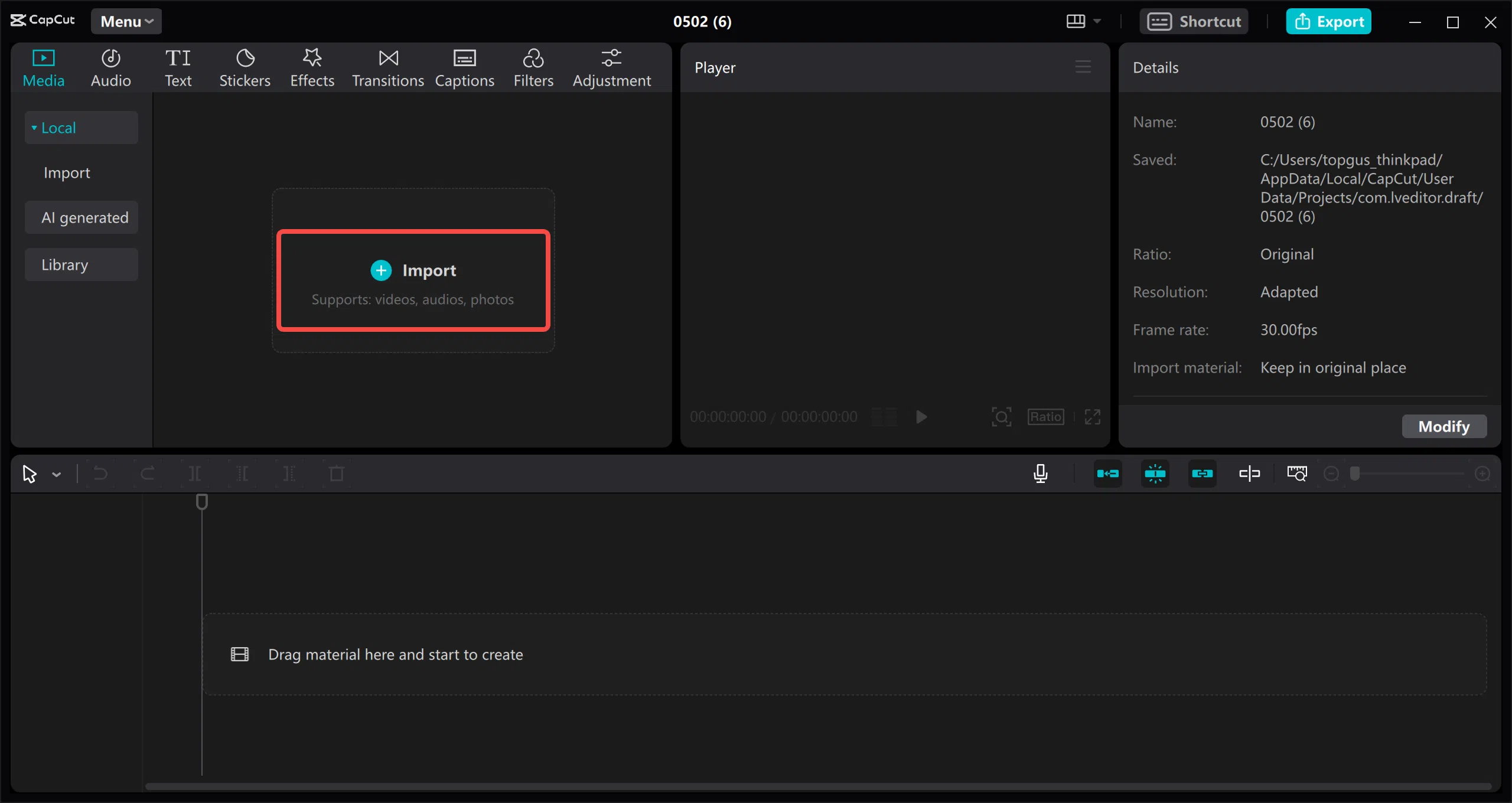
If you've ever felt like your computer freezes or that exporting your videos takes forever, you're not alone. CapCut is a fantastic tool, practically a creator's dream, because it combines a very simple interface with powerful features like AI and cloud storage. But if you don't adjust the parameters properly, rendering can turn into a nightmare.
The key to ensuring your videos don't take forever to finish editing is understanding that you don't always need the highest possible quality. Sometimes, a small adjustment to the bitrate or resolution can drastically reduce a 20-minute process, allowing you to share your content on social media without the file being gigabytes in size or freezing at 1%.
Tips to speed up export and reduce size
To make the export process faster, it's best not to overload the file with unnecessary data. One of the most effective ways to do this is to use the quick export option found in the quality menu; this compresses the video and makes the file size much more manageable. Additionally, if you don't need extremely smooth playback, setting the frame rate to 30 fps is a winning trick to reduce waiting time.

Don't forget that pre-processing cleanup is essential. Using transcript-based editing to remove silences or splitting scenes to delete unnecessary clips helps reduce the amount of material the software has to process. The cleaner your project is, the faster the final rendering will be.

Mastering Bitrate for YouTube
Bitrate is basically the amount of data processed per second. If you set it too high, the video will look amazing, but the file will be huge and take ages to export. If you lower it too much, you'll get those annoying squares or pixelation. The key is finding the right balance depending on what you're recording.
For those who upload content to YouTube, there are recommended ranges that prevent the platform from ruining your video when compressing it:
- To 1080p resolutionsIdeally, you should aim for speeds between 8 and 12 Mbps.
- If you jump into world of 4KYou will need to increase the range to between 35 and 68 Mbps.
- For 720p videos, 5 to 7.5 Mbps is usually more than enough.
Keep in mind that the type of content matters. If you're recording a fast-paced football match , you'll need a higher bitrate to avoid blurriness. Conversely, if it's an interview with a static background, you can lower the bitrate without anyone noticing the difference, thus speeding up the output process.

Ideal settings according to the social network
Exporting for a Reel is not the same as exporting for a YouTube documentary. For TikTok and Instagram Reels , the smartest approach is to use 1080p with a 9:16 aspect ratio, 30 FPS, and a bitrate between 8 and 12 Mbps. This ensures smooth video playback and prevents the app's compression from reducing quality.
For YouTube, if you're aiming for the highest 4K quality, go for 30-60 FPS and a high bitrate. But keep in mind that you can't improve the resolution of an original video; if you recorded in 480p, exporting it in 1080p is a waste of time and resources, as the result won't be any better. To ensure the audio is up to par, set the stereo to 384 kbps or the mono to 128 kbps.
Quick alternatives on other devices
If CapCut is still giving you trouble for some reason, or if you need something ultra-fast on other systems, there are very effective native tools available. On Mac, iMovie and QuickTime allow you to trim and export with the "Faster" option to reduce file size in seconds. On Windows, Clipchamp and VLC are solid options for converting large videos into smaller versions without any hassle.
For Android users, Google Photos is a hidden gem. Through the "Storage Saver" setting, you can upload your videos so the cloud automatically compresses them, allowing you to download a much smaller, optimized version to send via email or instant messaging.
Ensuring your videos export quickly depends entirely on balancing resolution, FPS, and bitrate according to your publishing platform. By adjusting these parameters and removing unnecessary footage, you reduce the software's workload and your wait time, resulting in a professional-looking video that appears crisp on any screen without spending hours watching the progress bar.


Passionate writer about the world of bytes and technology in general. I love sharing my knowledge through writing, and that's what I'll do on this blog, show you all the most interesting things about gadgets, software, hardware, tech trends, and more. My goal is to help you navigate the digital world in a simple and entertaining way.