- Methods for linking dynamic Excel data in slides that update automatically.
- Using artificial intelligence with Copilot to transform spreadsheets into structured presentations.
- Advanced strategies for managing massive reports through the management of external data sources.
I'm sure it's happened to you: you have a spreadsheet full of up-to-date data, and suddenly you're asked to prepare a presentation for management in record time. The process of copying and pasting cells one by one is tedious and error-prone , taking away valuable time that could be used to analyze the information. Fortunately, there are ways to connect both tools so that the data flows seamlessly without you having to repeat the process manually every time.
From classic object linking to cutting-edge artificial intelligence, the range of options is vast. Whether you need a simple report for a client or manage massive presentations for dozens of branches , mastering interoperability between these two Office applications is key to overcoming the struggle with charts and starting to communicate results effectively.

Data linking: the foundation of automation
When working with modern versions of PowerPoint, you can create a direct link between your Excel workbook and your slides. This technique allows any changes you make in the spreadsheet to be automatically reflected in the presentation, eliminating the need to delete and paste the table.
To achieve this, the procedure is quite intuitive. First, you need to select and copy the range of cells in Excel. Once you're in PowerPoint, the trick lies in the paste options . If you choose "Link," any subsequent adjustments to the original source will update the slide content. If you prefer something more static, you can use the destination style to make the table match your template's colors, or keep the source formatting so it looks exactly as it does in Excel.
Another very useful method is inserting objects. From the "Insert" tab, you can go to the "Object" option, select "Create from File," and, very importantly, check the Link box . This is ideal when you want to integrate an entire workbook instead of just a fragment of data, allowing the presentation to act as a dynamic viewer of your working file.

If at any point the data doesn't refresh automatically, don't panic: simply right-click on the information and select "Update link ." This ensures that you're displaying the most recent version of your metrics.
Revolutionizing the process with Microsoft Copilot
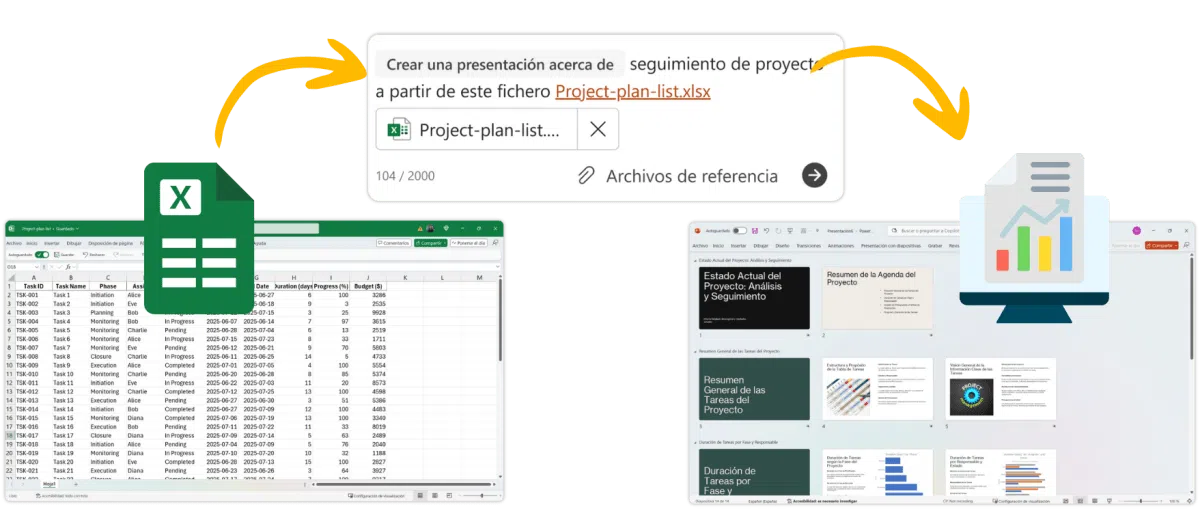
If you want to take a significant leap forward, the arrival of AI in the office has been a game-changer. It's now possible to generate entire presentations directly from an Excel file, thanks to Copilot's ability to interpret context and analyze data without requiring you to design each slide from scratch.
The workflow is surprisingly streamlined. Simply open the Copilot dashboard in PowerPoint and request a presentation by attaching your Excel file. The most critical aspect here is the design of the prompt or instruction ; the more detailed you are, the better the result. For example, you can ask it to focus on budget deviations or highlight milestones achieved in a specific project.
The tool not only imports the data, but also proposes a coherent structure , writes introductory text, and suggests charts that make sense based on the information gathered. It's an excellent solution for monthly tracking reports or KPI analysis, although we always recommend reviewing the final result to ensure the message is exactly what you intend to convey.

For this to work perfectly, it's vital that the Excel file is well-organized . Avoid strange merged cells or duplicate data; use clear headers and clean tables so the AI doesn't get confused and the presentation structure flows smoothly.
Strategies for large and complex reports
There are situations where simple linking isn't enough, such as when you need to generate 50 identical reports for different locations. In these cases, the problem is usually that the linked files become too large and slow , reaching hundreds of megabytes and crashing the system.
An advanced solution to avoid the chaos of VBA macros is to centralize data processing. Instead of performing calculations within PowerPoint, it's recommended to prepare all tables in an external tool or a master spreadsheet where the user only needs to select the year and branch for the numbers to be recalculated instantly.
The ideal workflow involves writing these results to a dedicated Excel spreadsheet and linking the PowerPoint charts to this "bridge" file. When you need to generate the report for another branch, you simply change the source file or update the source of the links in the presentation. This keeps the PowerPoint file lightweight and updates the charts in bulk without having to reinsert each visual individually.
Mastering these techniques, from linked paste to the use of AI and the management of external sources, transforms how we report data. By eliminating the manual entry of information , we can dedicate our time to what truly matters: analyzing results and making strategic decisions based on real and up-to-date data.


Passionate writer about the world of bytes and technology in general. I love sharing my knowledge through writing, and that's what I'll do on this blog, show you all the most interesting things about gadgets, software, hardware, tech trends, and more. My goal is to help you navigate the digital world in a simple and entertaining way.