- Windows 11 Magnifier is a built-in accessibility tool that allows you to magnify any area of the screen.
- The zoom level is quickly controlled with the keyboard using the Windows key combined with the plus and minus signs.
- The goal is to find a comfortable level of magnification, rather than an exact percentage, to improve readability.
- Knowing these shortcuts makes using a PC easier for both visually impaired people and users who only need to zoom in occasionally.
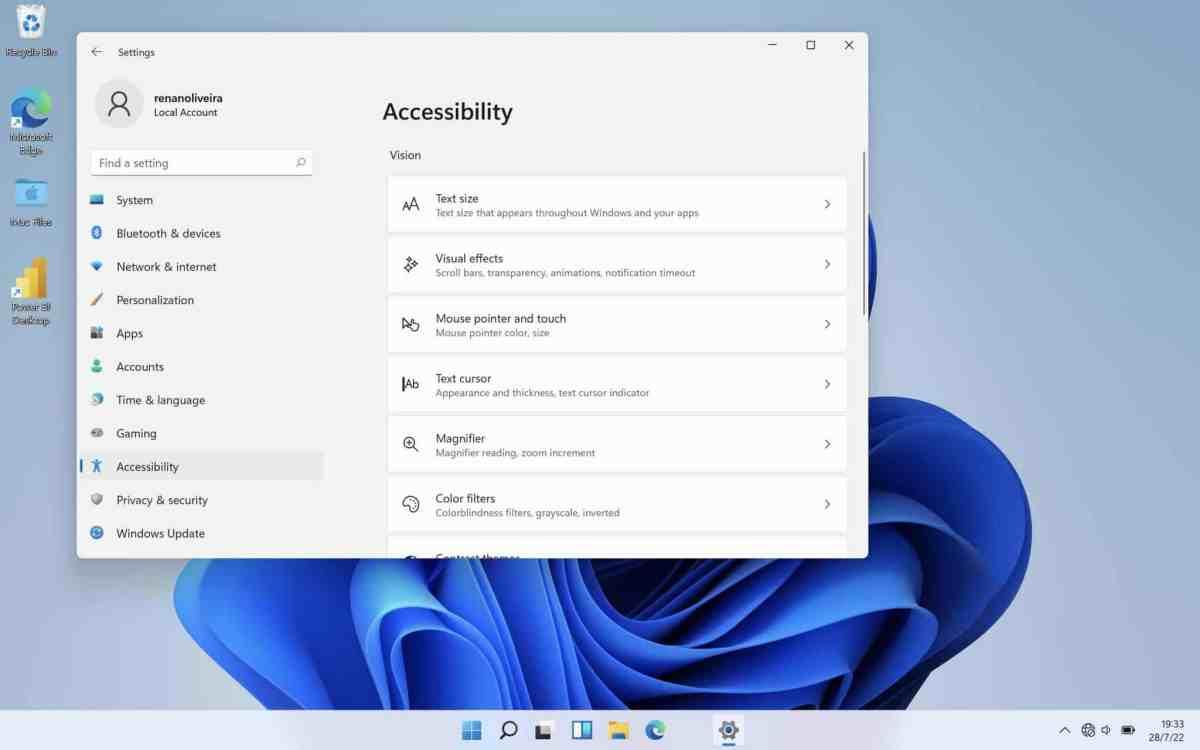
Windows 11's Magnifier is one of those tools that many users overlook, but it can make a big difference when you're having trouble reading text on the screen or distinguishing details. This accessibility feature is designed for people with visual impairments of any degree , but it's also perfect if you simply want to see something larger for a specific moment, such as a small document or a website with tiny font.
In this article, you'll find a comprehensive guide on how to adjust the Magnifier zoom level, primarily using the keyboard, which is the quickest and easiest way. I'll explain in detail which key combinations to use to increase and decrease the zoom , how to understand what each magnification level means on the screen, what to do if you want to return to the default level, and how to get the most out of Magnifier in Windows 11, based on the classic functionality inherited from Windows 10.
What is the Windows 11 Magnifier and what is it used for?
Magnifier is an accessibility tool built into the Microsoft operating system that allows you to enlarge areas of the screen to better view their content. It is included by default in Windows 11 and Windows 10 , and no additional installation is required to use it; simply activate it and start controlling the zoom level.
This feature was designed specifically for people who are blind, have low vision , color blindness, or other types of visual impairment, although any user can benefit from it. The higher the zoom level set in the Magnifier, the larger the elements on the screen will appear : text, icons, buttons, images, etc. This greatly facilitates reading and interaction, especially on small screens or with very high resolutions.
Furthermore, Magnifier isn't just for enlarging content; it can also be combined with other accessibility options such as high contrast or a screen reader. Microsoft's goal is to offer a set of tools that work well together , so that anyone, regardless of their disability, can use Windows 11 more comfortably.
In previous versions, such as Windows 10, these features already existed, and their basic operation remains virtually the same in Windows 11, so if you're coming from that system, it will feel very familiar. The keyboard shortcuts for zooming in and out are also unchanged , so the version upgrade shouldn't pose any problems when using Magnifier.
How to change the zoom level of the Magnifier using the keyboard
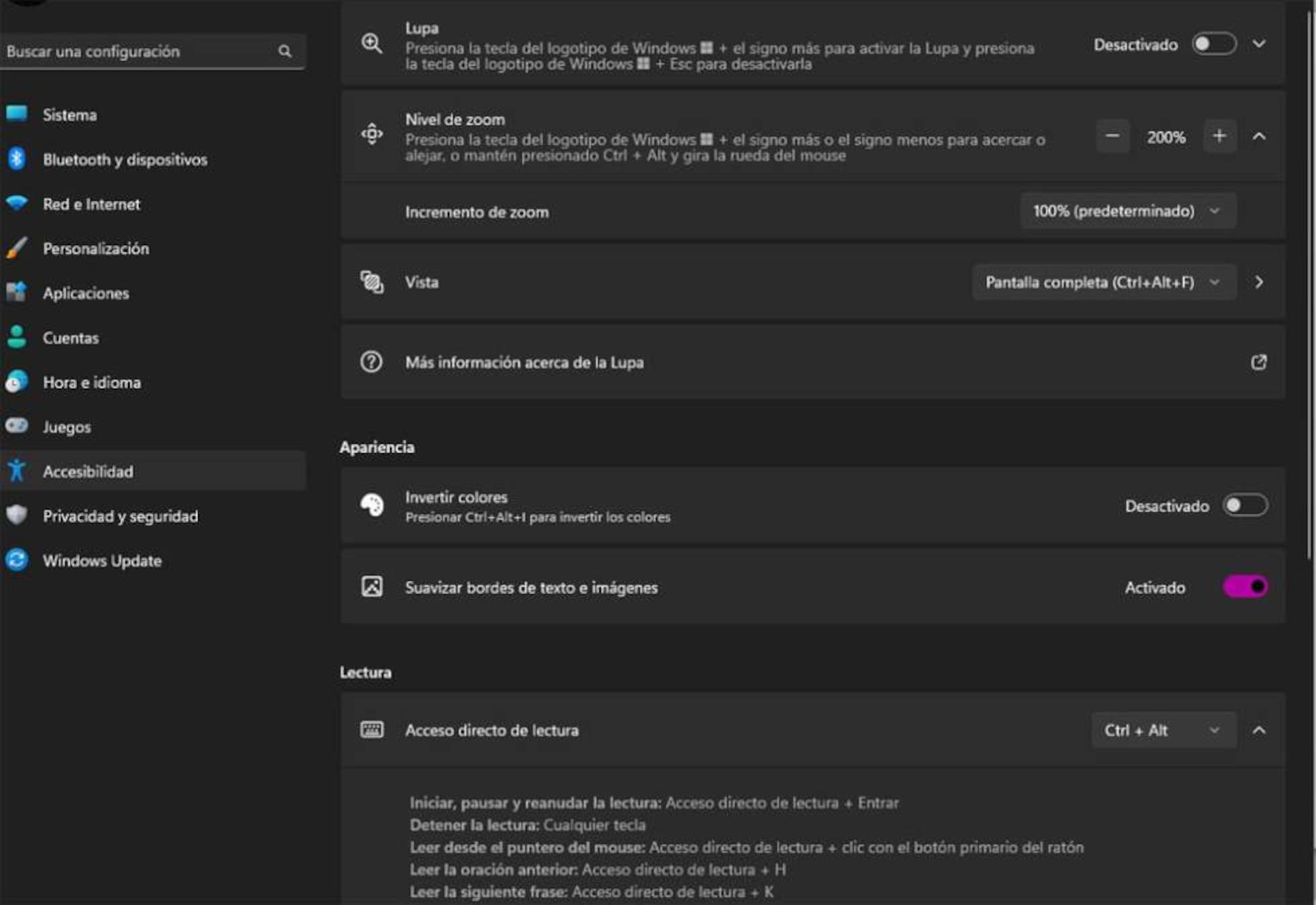
The most efficient way to control Magnifier in Windows 11 is with keyboard shortcuts. Using the keyboard allows you to increase or decrease the magnification level in seconds , without having to go into settings or open complicated menus. This is especially useful if you have vision problems and find it difficult to locate certain options on the screen.
When we talk about "zoom level," we're referring to the magnification percentage that the Magnifier applies to what's displayed on the monitor. 100% means everything is viewed at normal size , while values like 150% or 200% indicate that everything is displayed larger, which can help make text and icons more legible.
Shortcut to increase the magnifying glass zoom
If you want to zoom in on a part of the screen, the shortcut to increase the zoom is very simple. To increase the zoom level of the Magnifier in Windows 11, you have to press the Windows logo key along with the plus sign (+) . That is:
- Windows logo key + plus sign (+) – Increase the zoom level
With each press of this combination, the magnification level will gradually increase in predefined steps. This allows you to precisely control how close you want to go , without needing to use the mouse or open the Magnifier interface.
If you hold down the combination, you'll see the zoom increase rapidly, which is useful if you need to go from a very low to a very high level quickly. The system automatically adjusts the view so that the area you're focusing on (for example, the text cursor or mouse pointer) remains visible, allowing you to continue working without losing your focus.
Shortcut to decrease the zoom of the magnifying glass
Once you've zoomed in enough and want to zoom out to see more of the screen, the process is just as easy. To decrease the Magnifier's zoom level, press the Windows logo key along with the minus sign (-) . That is:
- Windows logo key + minus sign (-) – Decrease the zoom level
Each time you use this combination, the zoom percentage will gradually decrease, returning to values closer to 100% or even less, depending on the tool's capabilities. This allows you to find the perfect balance between readability and the amount of content visible on the screen , without any abrupt changes.
If you find you've zoomed in too far and can barely make out where you are on the screen, don't worry. A few presses of the zoom-out key combination will quickly return you to a more comfortable level, even if you've zoomed in very high.
Relationship between zoom level and screen size
Each zoom level typically corresponds to a specific percentage, such as 125%, 150%, 200%, etc. The higher the percentage, the larger everything on the screen appears . For example, text that looks small at 100% zoom may be perfectly legible at 150% or higher, depending on your monitor size and resolution.
This percentage-based system will be familiar if you're used to using zoom in browsers like Google Chrome, where pressing Ctrl+ or Ctrl+ displays values like 90%, 100%, 125%, 150%, and a reset button. The difference with Magnifier is that it's a system tool that affects all of Windows, not just a specific application.
How to reset the zoom to a comfortable or default level
A very common problem, both with the Magnifier and the zoom in many applications, is not knowing exactly what magnification level you're at. Many people have experienced this: trying to zoom in and out until it "seems" like it was before , without being sure it's actually back to the original point.
In some programs, like web browsers, using Ctrl+ or Ctrl+ displays an indicator with the percentage and a button to return directly to 100%. In other applications, this indicator doesn't exist, and you have to adjust it manually until you find a comfortable level . The typical question many people ask is how to restore the zoom to its default value without having to experiment repeatedly.
In the case of Windows Magnifier, the behavior is designed so that you can quickly adjust the level using the Windows key + and Windows key - combinations, without needing to know the exact number at all times. The main idea is that you adjust the zoom yourself until you feel you can see the content clearly , regardless of whether that corresponds to 100%, 125%, or 150%, for example.
If you're using the zoom function of a specific application (for example, a text editor, PDF viewer, or graphics program) and that application isn't displaying the zoom percentage, there's no universal solution that will work in all cases to return it to the "original" zoom level. You'll usually have to use the zoom settings specific to that program and zoom in as close as possible to the size you normally used.
That said, many desktop applications have a standard shortcut to return to a "normal" view, usually based on the Ctrl key combined with the number 0 (zero). While this isn't part of Windows Magnifier itself, it's a useful trick worth trying if you've zoomed in too far in an application that doesn't clearly indicate your zoom level.
It's easy to confuse the behavior of Windows Magnifier with the built-in zoom of browsers or other programs. When you use Ctrl+ or Ctrl+ in Google Chrome, Edge, or other browsers , you see an on-screen indicator that tells you the exact percentage and offers a clear option to reset it to 100%.
In that context, everything is quite intuitive: you know if you're at 90%, 125%, and if you get confused, you press the "100%" button or use the shortcut to return everything to its original state. However, not all applications implement this visual way of displaying zoom , and that's where the frustration arises when you want to return to the starting point.
When you use zoom in a program that doesn't have a visible indicator, it's common to end up adjusting the magnification by eye. There's no number to tell you if you're at the default level , so you adjust it until everything seems reasonably sized. This is what many people say when they ask how to restore the default zoom in these applications.
Windows Magnifier is in a different league because it's a component of the operating system itself. Its main objective is to improve the overall accessibility of Windows , not just a single window or browser tab. Therefore, its usage philosophy revolves more around visual comfort than always keeping you within a supposedly 100% fixed area.
If you get used to the Windows shortcuts for zooming in and out with Magnifier, you'll find you rarely miss knowing the exact percentage. What really matters is being able to quickly reach a magnification level you're comfortable with , and that's where the Windows logo key combination is your best friend.
Advantages of using the magnifying glass to improve visual accessibility
Beyond the specific keyboard shortcuts, it's worth understanding the overall usefulness of Magnifier within Windows 11. This tool is designed to ensure that anyone, regardless of their visual ability, can use the computer without feeling limited by the size of what appears on the screen.
For those with low vision, the ability to quickly enlarge content without installing anything extra is essential. Many users with vision problems rely on zoom to read emails, documents, or browse the web , and Magnifier becomes a constant aid that combines with larger fonts, high-contrast modes, or other accessibility options such as changing the text cursor color.
Another strength is its direct integration with Windows 10 and Windows 11. Microsoft includes Magnifier as part of the built-in accessibility suite , along with screen reader, captions, and more features, making everything centralized and easy to find from the system settings.
For users without visual impairments, Magnifier can also be very useful in specific situations. If you're reviewing an image with small details, analyzing a complex graph, or reading a PDF with tiny font , activating Magnifier for a few seconds can save you from straining your eyes or physically pressed against the screen. It also integrates with guides for adapting Windows for seniors when needed.
All these factors make knowing zoom shortcuts not just a simple trick, but a very useful skill for everyday computer use. Mastering how to quickly increase and decrease the zoom level gives you much more flexibility to adapt the screen to your needs at any given time.
Practical tips for using zoom without going crazy
As you've seen, the shortcuts for controlling the Magnifier's zoom are very straightforward, but it's always good to have a few extra tricks to avoid losing control when you start experimenting with the magnification levels. The first tip is to increase or decrease the zoom gradually , pressing the key combinations one at a time, instead of holding them down indefinitely.
This way, you'll avoid suddenly going from a comfortable zoom level to an excessive magnification that could make you lose your bearings. If at any point you feel disoriented on the screen , simply repeat the shortcut a few times to zoom out until you return to a more manageable size.
Another trick is to focus on the area of the screen you're working on before zooming in. If, for example, you're writing in a document, it's best to position the text cursor over the part you want to enlarge . This way, when you activate the Magnifier, it will be easier to follow what you're doing.
Finally, keep in mind that the tool supports different viewing modes (such as full-screen view, docked magnifier, etc.) and also works well with touchscreens and touchpads on modern versions of Windows. While we've focused here on controlling the zoom level with the keyboard , if you're interested in exploring further, you can delve into the additional options offered by the accessibility settings.
Once you get used to these kinds of aids, it's easy to wonder how you ever worked without them. The ability to so precisely adjust how you see the screen becomes almost essential if you spend many hours in front of the computer or if your vision isn't perfect.
Everything we've covered about changing the zoom level of Windows 11 Magnifier revolves around a couple of simple ideas: using the right keyboard shortcuts and understanding that the goal isn't so much to reach an exact percentage as it is to find the level that feels most comfortable. With the Windows logo key combined with the plus sign to zoom in and the minus sign to zoom out, you can adjust the magnification in seconds , take advantage of the system's built-in accessibility tool, and if an application doesn't display the zoom percentage, rely on your own visual sense to return to a size that works well for you.

Table of Contents
- 1 What is the Windows 11 Magnifier and what is it used for?
- 2 How to change the zoom level of the Magnifier using the keyboard
- 3 How to reset the zoom to a comfortable or default level
- 4 Comparison with browser zoom and other applications
- 5 Advantages of using the magnifying glass to improve visual accessibility
- 6 Practical tips for using zoom without going crazy
