
Want to change the background color while writing information in the Notes app on your iPhone or iPad ? Just as you can change the Notes background to white, grid, or lines, you can also change the background color of the notes themselves.
The default Notes app that comes pre-installed on iPadOS and iOS devices uses a background based on your system-wide settings. For example, if you use Dark Mode on your iPhone, the Notes app will use a dark background for all your notes. However, some people may prefer a light background when taking notes on their devices. Conversely, some people who use Light Mode may want a dark background for their notes. In either case, if you want to use a background color that isn't tied to your system-wide settings, you can easily do so on your iPhone and iPad.
Let's take a look at how to change the background color of specific notes, as well as all notes, regardless of whether your iPhone or iPad is using dark mode or light mode.
How to Change the Background Color of a Specific Note on iPhone and iPad
Before you proceed with the following procedure, you will need to make sure that your device is running a modern version of system software on iOS 13/iPadOS 13 or later
- Launch the Notes app from the Home screen of your iPhone or iPad.


- Find and tap on the note you want to change the background for. It can't be a blank note, as you won't find the option to change the background for it unless you write something in it.


- Once you have opened the note, tap the triple dot icon located in the top right corner of the screen.

- Now, you will see a pop-up menu at the bottom. Scroll down and choose “Use light background” as shown below.
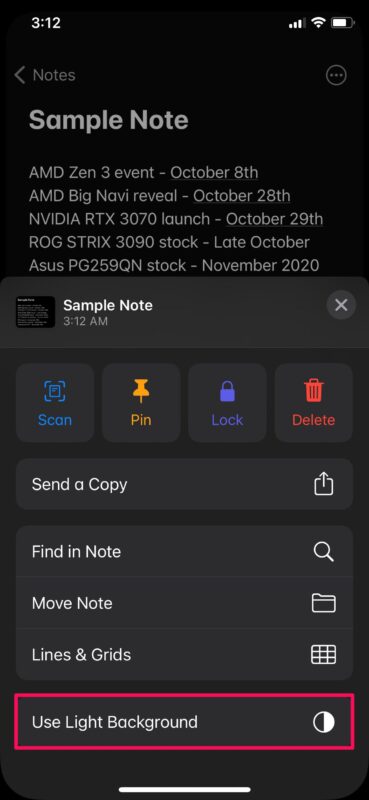
- As you can see here, the background of the note changes immediately.

How to Change the Background Color of All Notes on iPhone and iPad
We know that some of you want to change the background of all your notes without having to do it one by one. In that case, you may want to check out the following steps.
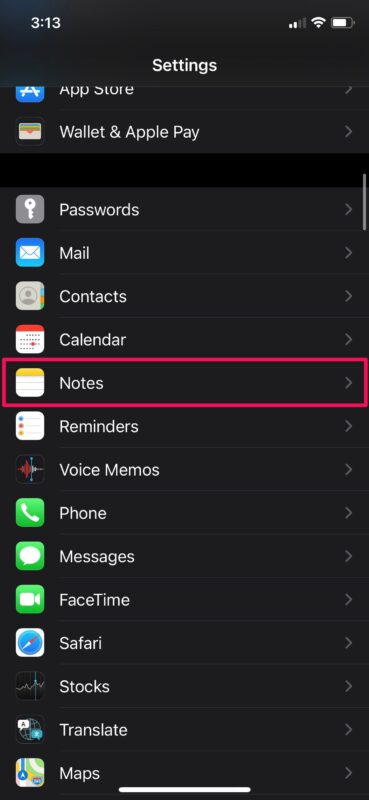
- Go to “Settings” from the home screen of your iPhone or iPad.

- In the settings menu, scroll down and tap on “Notes.”
- Now, scroll down to the bottom and you will find the option to change the background of the notes. Tap on it to continue.
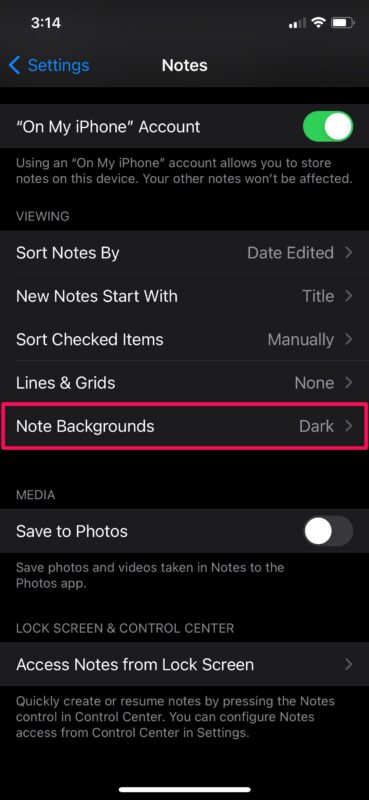
- Here you can easily select light or dark background for all your notes.

That's it! You've now learned how easy it is to change the background color of notes on your iPhone and iPad.
From now on, you won't have to switch between light and dark modes on your iPhone every time you make checklists or jot down important information with the default Notes app. Just set a background of your choice once and you're done.
It's worth noting that regardless of the background you choose for your notes, the app's main menu will still use your system-wide appearance settings. So if you're using Dark Mode, the Notes main menu will have a dark appearance, but it will change to light once you open the note.
In addition to being able to set light and dark backgrounds for notes, the out-of-the-box Notes app also lets you change the appearance style of the paper to best suit your needs. Students who use Apple Pencils to take handwritten notes on iPads may prefer the line style, while artists who draw with their Apple Pencils may appreciate the grid layout.
We hope you were able to switch to a background color that better suits your note-taking preferences on your iPhone and iPad. What are your reasons for preferring one background over another? Share your valuable thoughts and opinions in the comments.

My name is Javier Chirinos and I am passionate about technology. Ever since I can remember, I have been interested in computers and video games, and that passion has turned into a job.
I have been publishing about technology and gadgets on the Internet for over 15 years, especially in mundobytes.com
I am also an expert in online marketing and communication and have knowledge in WordPress development.