
In this article, we'll learn how to block pop-up ads in any web browser . Most major browsers come with built-in features that automatically block annoying pop-ups. However, in many cases, you'll need to delve into the settings.
Pop-up windows can be overwhelming, but you can easily manage them or block them entirely. Follow the procedures (depending on your browser) to manage pop-ups in the way that best suits your needs.
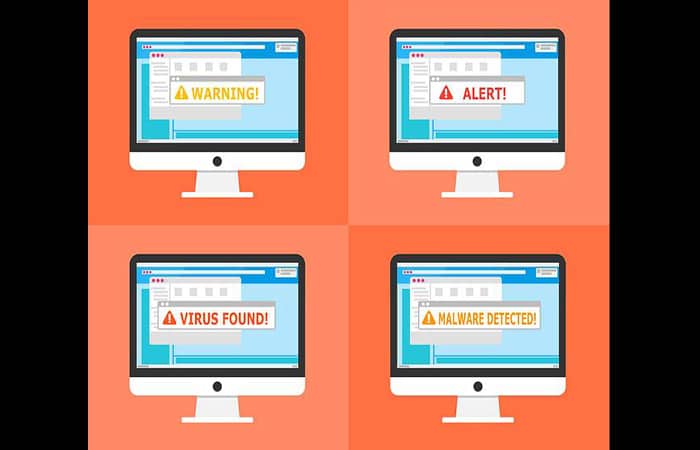
Most pop-up ads are distracting and can pose security risks. Let's learn how to use pop-up ad blockers, and discover how the specialized Avast Secure Browser can automatically block unwanted pop-ups and keep you safe.
You might also be interested in: 5 Best Security Apps for iPhone and iPad
Block pop-up ads in Google Chrome
The process for blocking pop-up ads in Google Chrome is quite similar on PC, Mac , and iOS and Android devices.
Block pop-up ads in Chrome on a Mac or PC
Follow the steps below:
- Step 1: Open Chrome on a Mac or PC.
- Step 2: select option More (it is represented by three vertical dots, which are located in the upper right corner). After this, select the option Configuration.
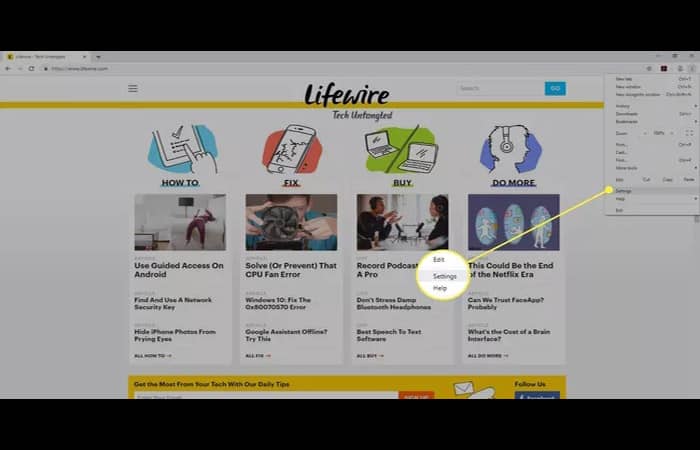
- Step 3: in the window Privacy & Security, press the option Site settings.
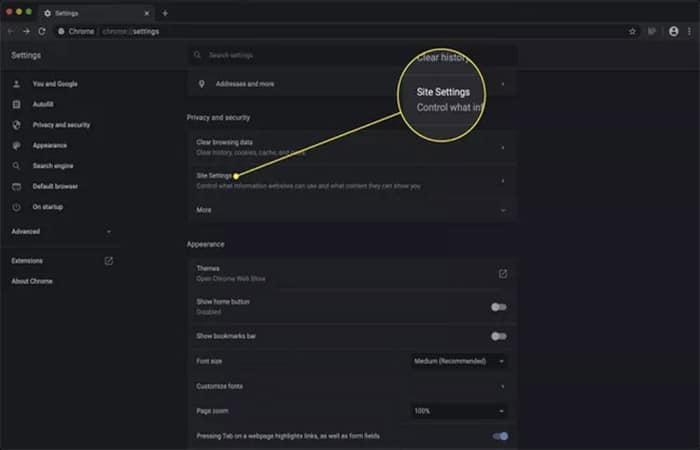
- Step 4: Choose Pop-ups and redirects.
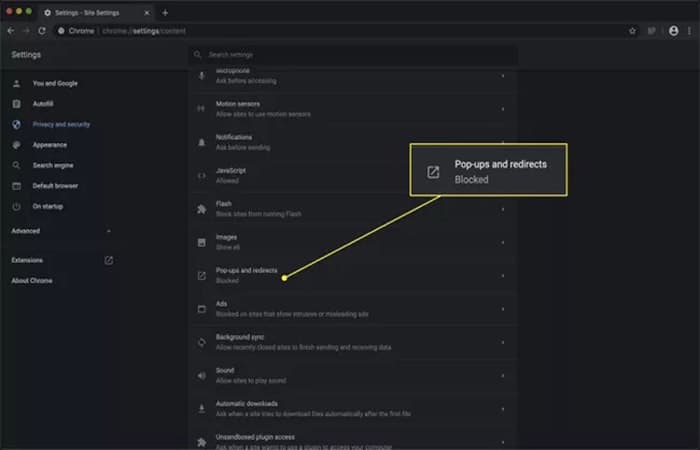
- Step 5: turn on the toggle switch locked.
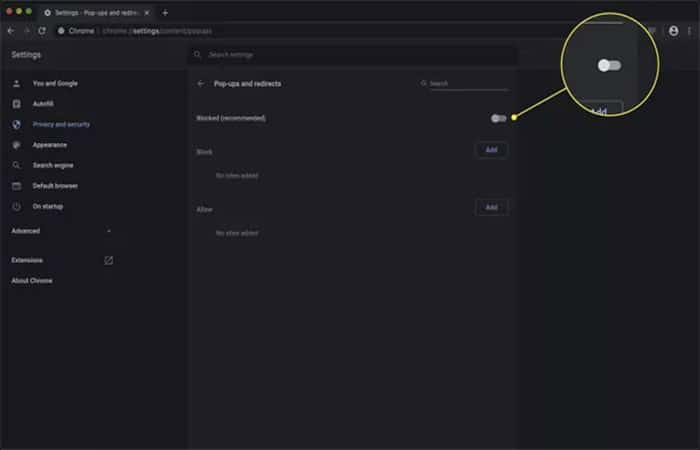
Since some pop-ups are legitimate, under Allow , add any sites from which you want to allow pop-ups. If you only want to block pop-up ads from specific sites, add those sites under Block.
Block pop-up ads in Chrome on iOS devices
To block pop-up ads in the browser on iOS devices, follow the steps below:
- Step 1: open the app Chrome, press More (the three dots) and then press the option Configuration.
- Step 2: pulsa Content Settings and then go to Block pop-up windows.
- Step 3: disable the option Block pop-up windows.
Block pop-up ads in Chrome on Android
Follow the steps below:
- Step 1: open the app Chrome on the Android device.
- Step 2: Go to the right of the address bar and press More (the three dots). Then press the option Configuration.
- Step 3: press the option Configuration from the site and then go to Pop-ups and redirects.
- Step 4: disable pop-ups and redirects.
Block pop-up ads in Microsoft Edge
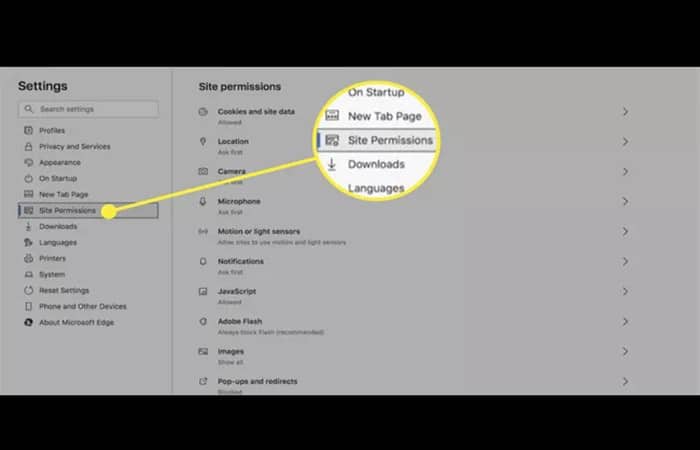
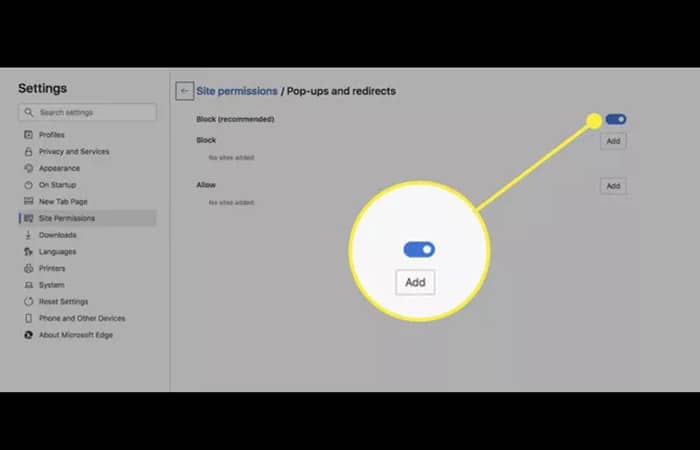
This procedure applies only to the Microsoft Edge Chromium-based browser on Windows . For Edge on Mac, go to Settings , click Site Permissions , and then click Pop-ups and Redirects . After that, enable the Block option . Now let's see how it works on Windows:
- Step 1: Open Edge, then go to Configuration and then more (the three points).
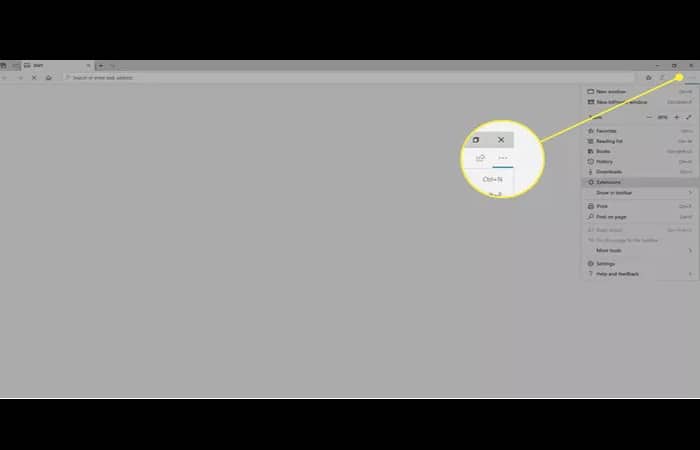
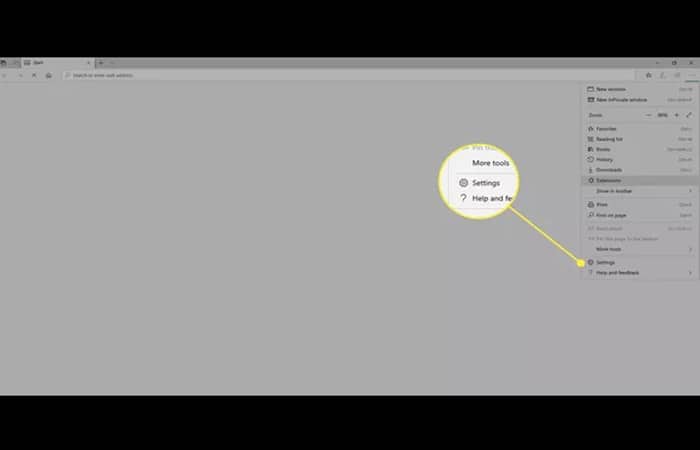
- Step 2: Choose Configuration (the gear icon).
- Step 3: go to Site Permissions.
- Step 4: Choose Pop-ups and redirects.
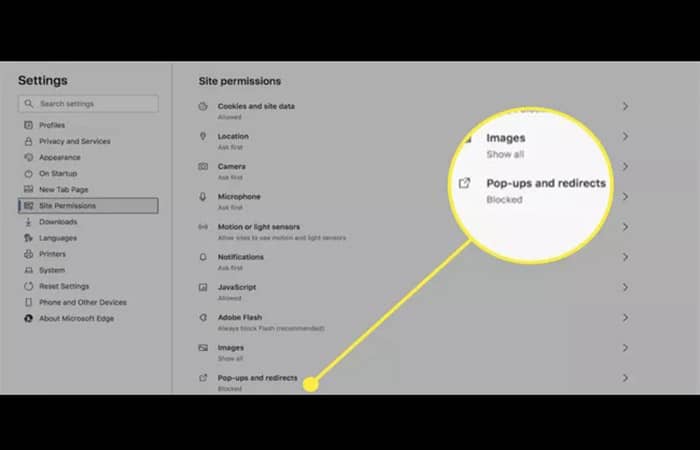
- Step 5: move the Lock switch to the state Enabled.
Block pop-up ads in Internet Explorer 11
These instructions apply only to Internet Explorer 11 on Windows.
- Step 1: opens Internet Explorer 11, Select Tools (the settings icon) and then go to Internet Options.
- Step 2: en Privacy policy, go to the option Pop-ups blocker and click the checkbox to activate the pop-up blocker. Then click Accept.
- Step 3: Select option Configuration.
- Step 4: In your pop-up blocker settings, go to Blocking level. There you will need to set the High blocking level: block all pop-ups. You can press Ctrl+Alt to cancel.
- Step 5: Choose CLOSE and then press Accept.
Block pop-up ads in Opera
These instructions apply to the Opera web browser:
- Step 1: In Opera, press Alt + P to open Configuration.
- Step 2: active Block ads.
- Step 3: Alternatively, select the shield icon located on the right side of the browser's address bar and activate Block ads.
How to Block Pop-Up Ads in Safari
Next we will learn how to block pop-up ads in Safari easily.
Why do we block pop-ups in Safari?
According to studies, the most annoying type of online ads are the various pop-ups that suddenly start appearing in a window or another tab and get on our nerves. Almost all of us who use Safari have faced this unpleasant inconvenience and have tried to find an effective solution.
Why should we block these pop-up windows ? These ads are not only incredibly annoying, but they can also be very dangerous for user privacy. Most of them try to trick people into believing they're from a trusted company. They inform users about prizes they've won or warn them about something.
Be careful: clicking on such pop-up windows may lead you to phishing websites and trick you into sharing your personal or financial information.
Some banners are simply designed to get users to subscribe to a constant stream of unnecessary news, while others force people to install unwanted software by using enticing free downloads and updates.
Be careful: they could be viruses that are very dangerous for your device and your privacy! However, the worst thing about pop-ups is that they distract people from reading the information they were looking for and cause them to close the banners repeatedly. Sometimes, users even have to restart their browser, but the annoying pop-ups tend to reappear.
This makes people look for information on how to remove or disable pop-ups once and for all. In the next sections, we will tell you how to get rid of pop-ups in Safari, one of the most popular browsers. You will find out what advantages and disadvantages different solutions have and which blocker is best.
How to Block Pop-Up Ads in Safari on Desktop
When restarting your browser doesn't help and you can no longer stand working on your computer with all those bright, flashing banners, you start thinking about ad blocking . As promised, we'll show you the main ways to disable pop-ups in Safari.
How to Block Pop-Up Ads in Safari Preferences
The easiest way to block pop-up ads in Safari is to disable them in Safari's settings on your computer. Let's see how to do that.
- Step 1: opens Preferences of Safari.
- Step 2: choose the tab Security.
- Step 3: Check the box «Warn when visiting a fraudulent website«.
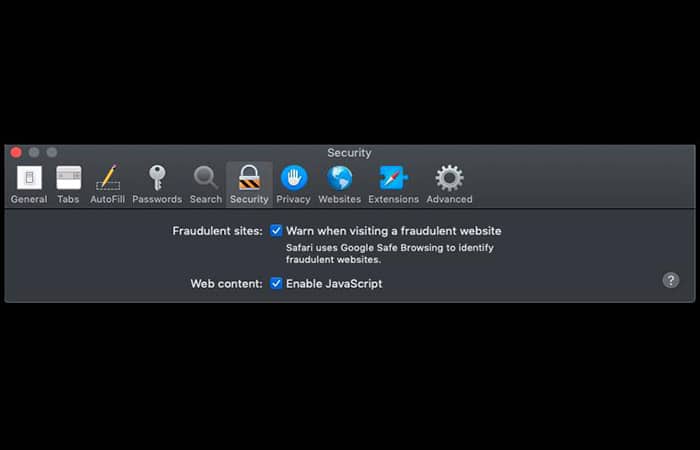
To get rid of most pop-ups, you should also do the following:
- Step 1: open the tab Websites.
- Step 2: click on «Pop-up windows«.
- Step 3: choose Block o Block and notify in the lower right corner of a window.
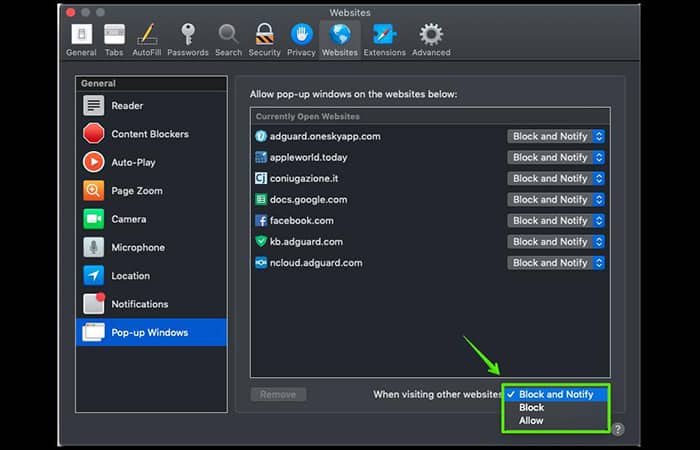
There's another easy way to disable some unwanted pop-ups : go to the Extensions tab in Safari's preferences and check for any installed extensions you'd like to disable. Let's draw a conclusion by evaluating the benefits and drawbacks of disabling pop-ups through your browser settings.
Benefits:
- You can customize the lock in Safari settings quickly and easily.
- You don't need to install anything to block pop-ups in your browser.
Disadvantages:
- It doesn't allow you to get rid of all kinds of annoying pop-up banners.
- You will need to enable these options again and again when updating versions.
How to Block Pop-Up Ads in Safari Using Blocking Extensions
When you search for a pop-up blocker for Safari, you're probably expecting to find an add-on for your favorite browser. First, let's figure out what we mean by an ad blocker . Well, an ad blocker is usually a browser extension or, sometimes, a standalone program that helps us remove different types of ads from the internet.
There are several ad-blocking extensions designed to block ads specifically in the Safari browser. These extensions are easy to install and are most likely free. You can find them in the App Store on your computer.
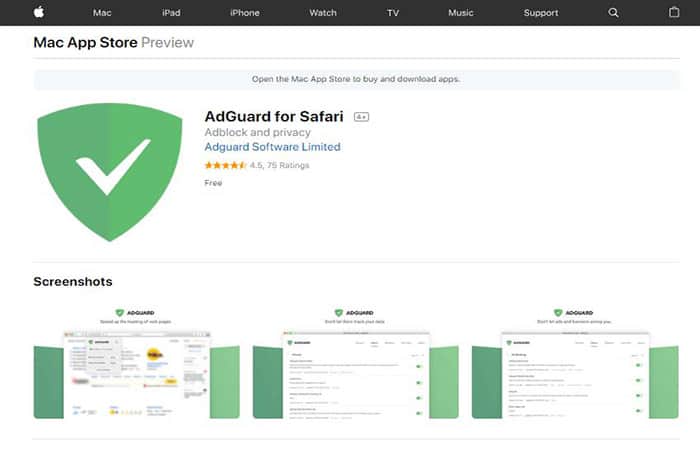
In the App Store on your Mac you will also find AdGuard for Safari, an extension that works perfectly in the Safari browser: it blocks ads, pop-ups, video ads, banners, and more. It also protects all your personal data from trackers and malicious websites.
The AdGuard extension offers numerous options for managing the filtering process. You can add sites to the whitelist, enable/disable filters, or create your own filtering rules. Additionally, there's a very useful tool for blocking annoying elements or reporting websites directly on the page.
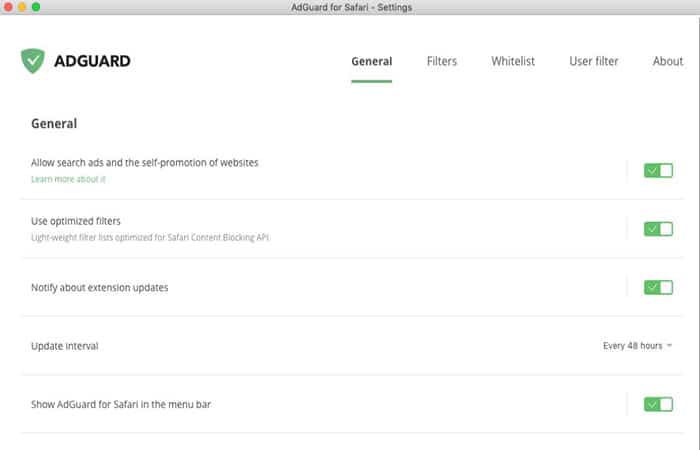
But all Safari extensions are now experiencing major problems due to Apple's new policy . The issue is that Apple recently mandated that everyone use the new SDK, and as a result, most features have simply stopped working. This means that the quality of filtering has deteriorated.
The AdGuard extension works better than other extensions, but still, filtering is limited by the browser's capabilities. So, let's look at the benefits and drawbacks of using ad-blocking extensions for Safari.
Benefits:
- Extensions are easy to install and customize.
- You can download most extensions for free.
- You will get rid of most of the annoying banners.
Disadvantages:
- Lower quality filtering due to Apple's new policy.
- Blocking only in Safari browser (ads are not blocked in other browsers and apps).
It's a different matter when it comes to ad-blocking programs (though not all programs) that offer better filtering quality and block ads everywhere. Below, you'll find information on the most effective pop-up ad blocking solution for your Mac.
The most effective way to block pop-up ads in Safari on Mac
You might be surprised, but there is a great solution to block pop-up ads in Safari on Mac. AdGuard is a full-featured ad-blocking program that works perfectly on your computer without any limitations. With AdGuard for Mac you will forget about all intrusive pop-ups and other types of annoying ads once and for all. But that's not all!
Imagine browsing the web in Safari on your Mac without any annoying banners or video ads. Your personal data will be perfectly secure. What more could you expect from an ad blocker? Well, of course, secure, ad-free apps and other browsers! So, what can AdGuard do?
AdGuard for Mac helps you deal with all pop-ups and other types of ads in Safari and other browsers and apps. It processes pages even before they load, so you can see only the information you were looking for, without annoying elements.
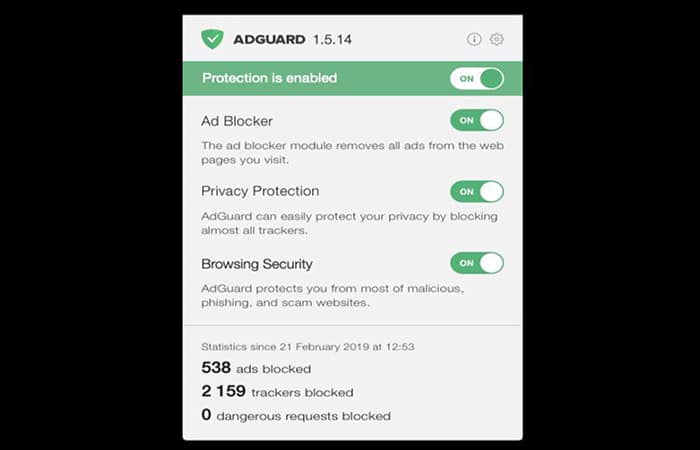
As shown in the picture, except for ad blocking, AdGuard offers even more useful options. Here are the most important of them:
- Browsing security: a module that protects you against malware and phishing websites. It won't let you install malware and will protect you from web fraud.
- Please note that AdGuard is not an antivirus program.: This means that it cannot remove malware from your computer, it will only warn you about visiting a malicious website.
- Privacy protection: a module that protects you and your personal data from trackers and online statistics gathering resources.
- Extending functionality of the application by adding different extensions that AdGuard has: AdGuard Assistant, Popup Blocker.
You'll find that AdGuard includes a number of features that protect your personal information from online threats. Malicious, fraudulent, phishing and scam websites – AdGuard will stop them all from bothering you.
All of these and some other settings can be customized in the AdGuard for Mac application on your computer after downloading the program. Let's take a closer look at the advantages and disadvantages of using AdGuard for Mac:
Benefits:
- High filtration quality.
- No more ads in Safari and other browsers and apps on your PC.
- Faster page loading.
- Protection against analytics and tracking systems.
- Protection against malicious and phishing websites.
- 24/7 Support.
- Trial period: you can try AdGuard before purchasing.
Disadvantages:
- Fee-based program.
You might also be interested in: Computer Worms – What They Are and How to Prevent Them
How to Block Pop-Up Ads in Safari on Mobile Devices

There are different possibilities to block pop-up ads in Safari on iOS devices, as well as on computers. Here we will list the most appropriate and effective methods.
How to Block Pop-Ups in Safari Preferences
You can easily disable pop-ups on iOS devices in almost the same way as in the case of PCs. So, you just need to open the device settings and do the following:
- Step 1: Open Safari preferences in your device settings.
- Step 2: activate the option Block pop-up windows.
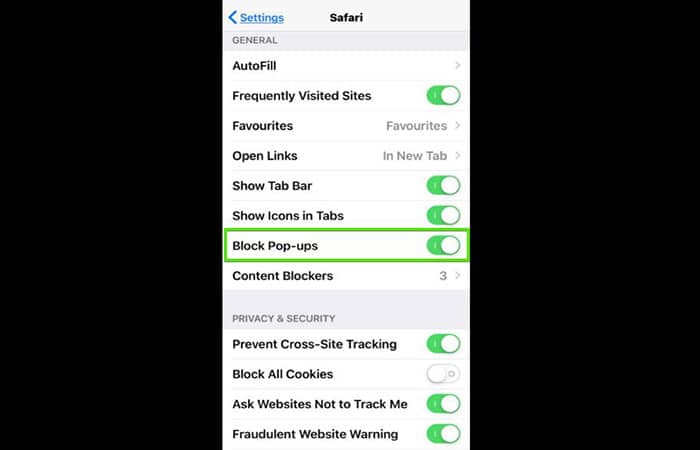
The pros and cons of disabling pop-up ads in Safari preferences are as follows:
Benefits
- You can easily and quickly enable lock on your device.
- You don't need to install anything to block pop-ups in your browser.
Disadvantages:
- It doesn't allow you to get rid of all kinds of annoying pop-up banners.
- There is no possibility to customize the filtering.
When you see a pop-up in Safari and want to get rid of it, you can enter a new URL or search term in the search field to find a new site. Sure, sometimes it works, but it's not really an easy way to get rid of pop-ups.
Blocking pop-ups on mobile devices with AdGuard
For those users who want to ensure better filtering quality and manage blocking processes on their devices, there is a perfect solution – a special ad blocking tool from AdGuard. When we talk about AdGuard for iOS we mean an application that can remove all ads in Safari, protect your personal data and save traffic.
The app contains several filters (including language-specific ones) and effectively blocks all annoying ads and social media widgets. And of course, AdGuard is a great Safari pop-up blocker that helps get rid of all intrusive pop-ups in the browser on iPhones or iPads.
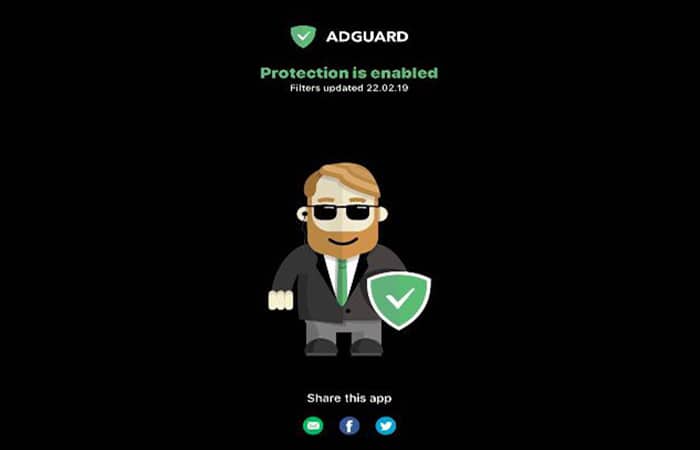
If you're an advanced user , you can try AdGuard for iOS Pro, which has much more to offer. It blocks ads in all browsers and some apps, and lets you customize DNS settings, ensuring the best filtering quality. You can also adjust the filtering by accessing the AdGuard Assistant directly from Safari.
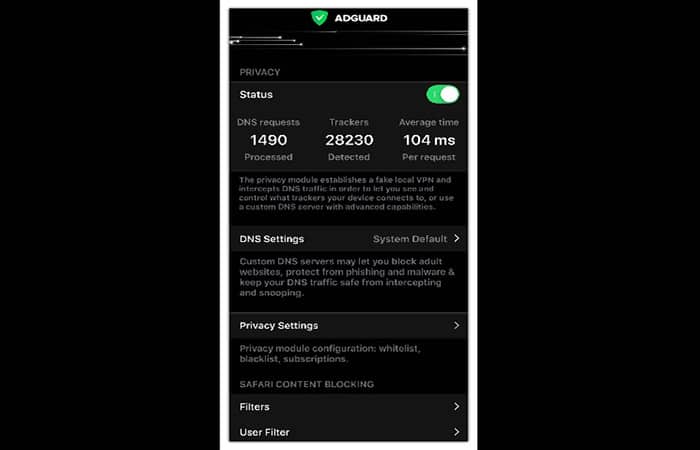
Here are the pros and cons of blocking pop-ups in Safari with AdGuard for iOS Pro:
Benefits:
- High filtration quality.
- No ads or trackers in browsers and some apps.
- Faster page loading.
- Protection against malicious and phishing websites.
- 24/7 Support.
Drawbacks.
- It doesn't allow you to block all ads in all apps due to Apple policy.
- AdGuard Pro for iOS is a paid program.
What solution to choose?
As you may know, there are completely different ways to block pop-ups and other ads in Safari. We have tried to show you the main advantages and disadvantages of these methods and we hope that you will find something that suits your needs.
In conclusion, we would like to say that AdGuard app is a great solution that actually gives you more than just a regular pop-up blocking extension. It was created to block ads everywhere on the Internet (including social networks) and in apps on your device, and it was developed to protect your privacy from tracking, phishing, and other online threats.
Why is AdGuard better than other ad blocking programs?

We have already mentioned the main benefits of AdGuard for Mac and AdGuard for iOS Pro. In the two screenshots below you can see more clearly the main advantages of AdGuard compared to other ad blocking apps.
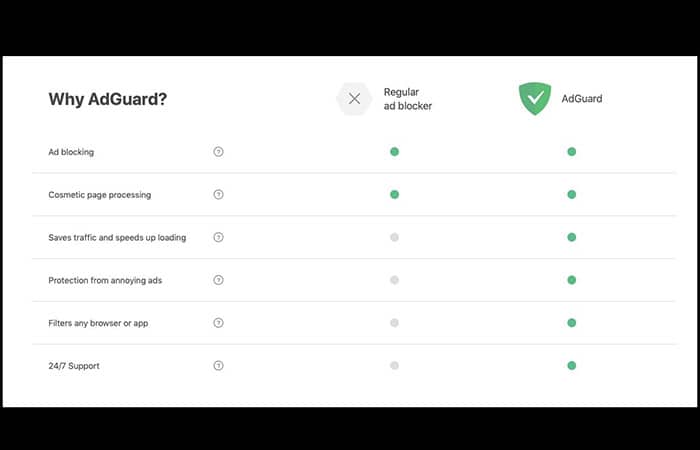
AdGuard Competitors
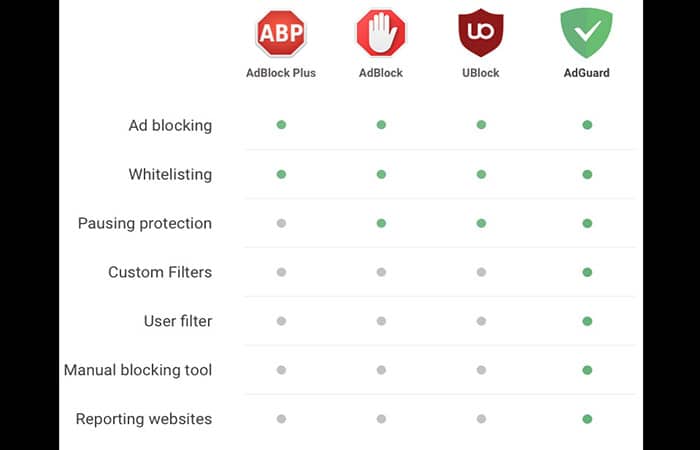
If you have no more doubts and want to try AdGuard as soon as possible, we will be happy to provide you with download and installation instructions.
How to download and install AdGuard on MAC
Here are the instructions to download AdGuard on Mac:
- Step 1: go to the site AdGuard official website and click the button «Download«.
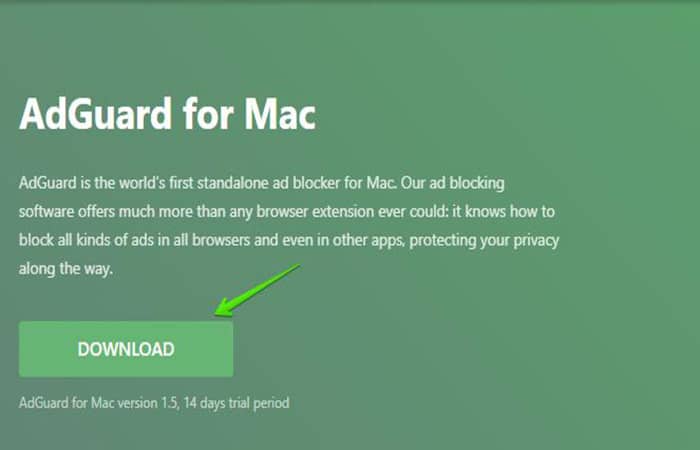
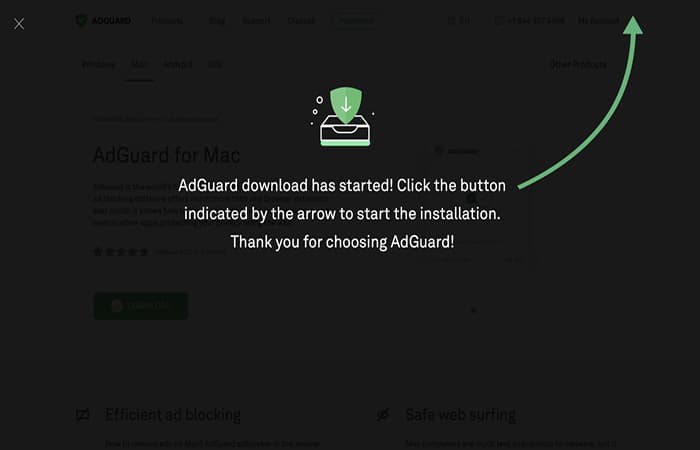
- Step 2: Wait for Adguard.release.dmg download to complete. After that, click on its icon in the list of downloaded items in the Dock panel. The icon will be visible on your desktop, click on it to open the installation application.
- Step 3: In the installation window, drag the AdGuard icon to the folder icon Applications which is on the right.
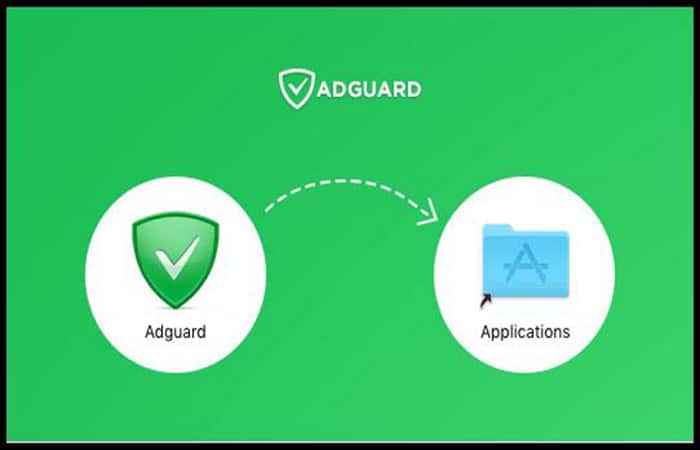
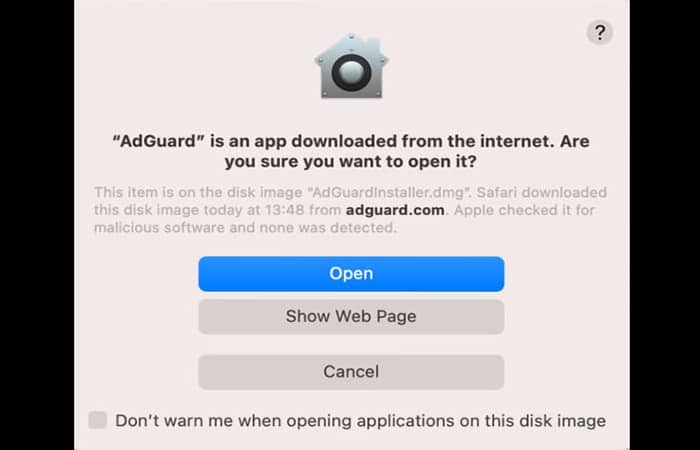
- Step 4: Now the application has been installed on your computer. To start the application, double-click on the icon AdGuard in the folder Applications what can you open with Finder. Your operating system will warn you that the application has been downloaded from the Internet. After it appears, press the option OPEN.
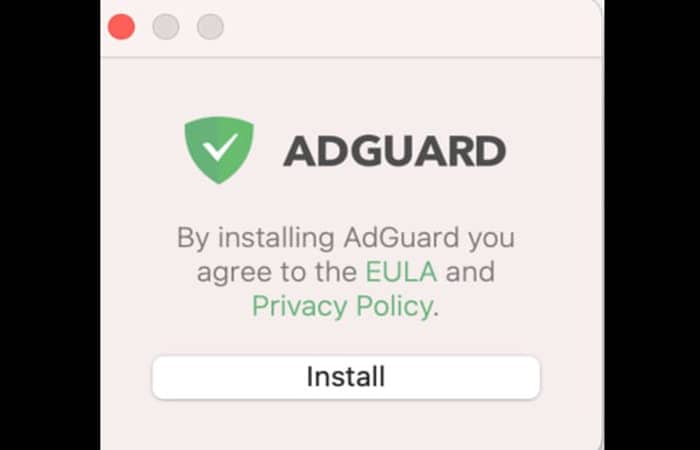
- Step 5: To use the app, you'll need the administrator password for your macOS account. Enter the password in the dialog box (when it appears) and press OK.
Download the app on iOS
Follow the steps below:
- Step 1: Go to the same site mentioned in the previous section and download AdGuard for iOS Pro. If you do not see App Store.
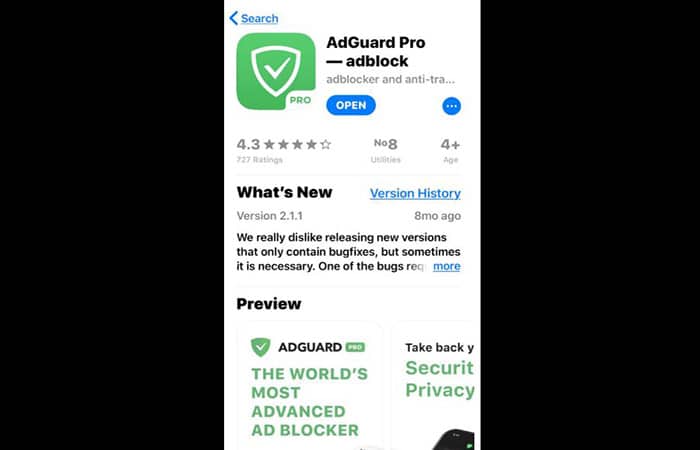
- Step 2: download the app and receive further installation instructions within the app.
How to Access Firefox's Pop-Up Settings
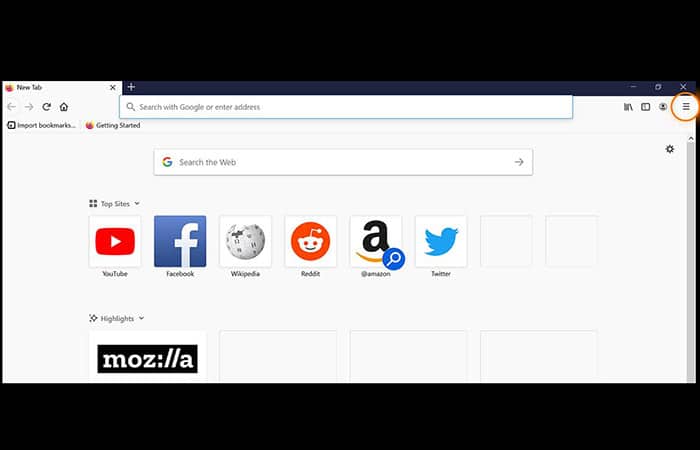
If you want to manage the pop-up blocking feature in Firefox, the first step is to access the settings. Here's how to access the pop-up settings in Firefox:
- Step 1: Open a new browser window in Firefox and click on the hamburger menu (three stacked lines) in the top right corner.
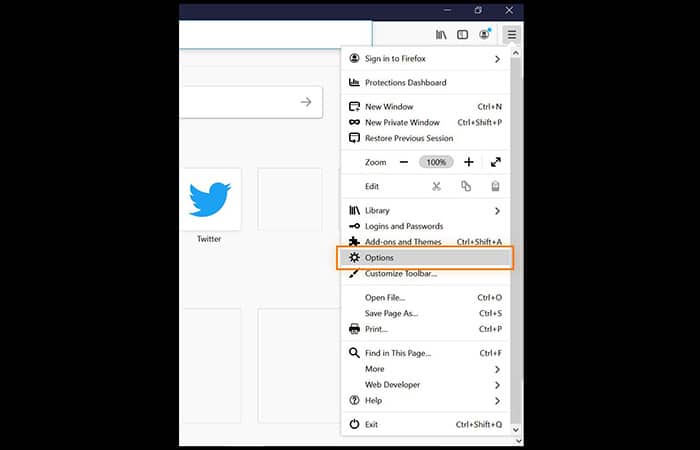
- Step 2: choose Options in the drop-down menu.
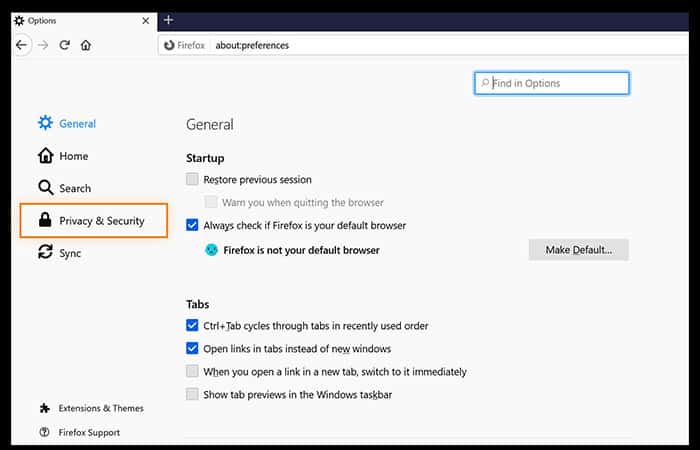
- Step 3: Choose Privacy & Security in the menu on the left side.
- Step 4: Go down, just until you see the section Permissions. When you see it, look for the option Block pop-up windows.
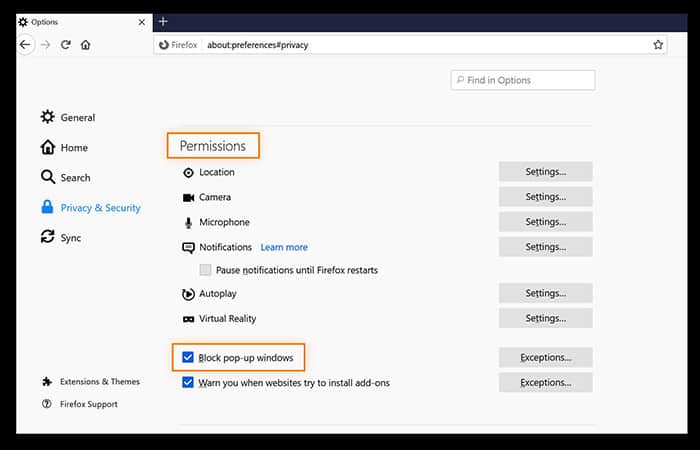
You can now manage your pop-up settings. Firefox blocks pop-ups by default , so keep the box checked to continue blocking them. If you want to grant pop-up exceptions to specific websites (because you want to see their messages), go to the Exceptions box and customize your list there.
How to allow pop-ups in Firefox
Firefox knows that the vast majority of pop-up ads are unwanted: it automatically has pop-up ad blocking enabled , meaning that Firefox blocks pop-ups by default. If you want to disable this setting so that Firefox allows all pop-ups, here's how:
- Step 1: Follow steps 1 to 4 listed above to access the page Permissions and look for the option Block pop-up windows.
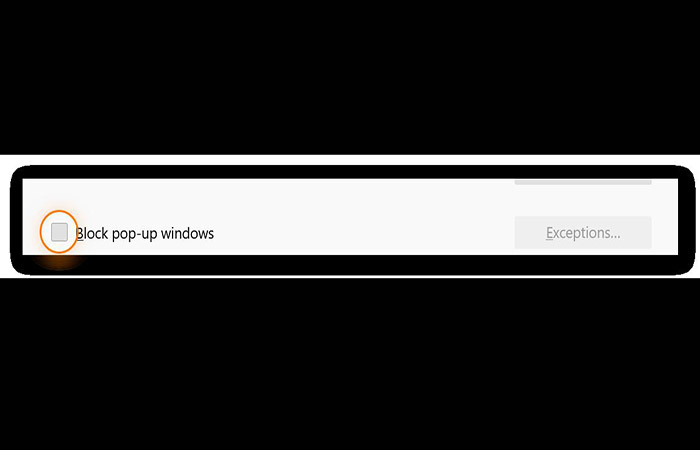
- Step 2: Then uncheck the box to the left of the pop-ups Block to disable the pop-up blocker and accept all pop-up ads.
How to allow popup exceptions in Firefox
Maybe you would like to allow pop-ups only for specific websites where they may be needed? That is also possible, here's how:
- Step 1: Instead of unchecking the box next to Block pop-up windows, as described above, leave the pop-up ad blocker enabled and press the button Exceptions to the right of this setting.
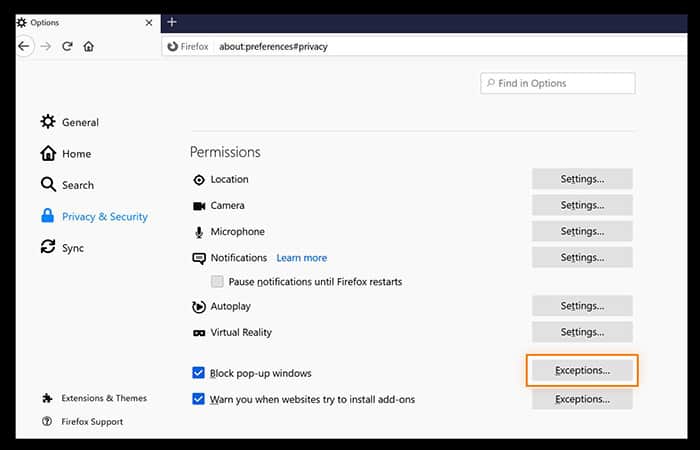
- Step 2: A window will open with an option to add a website address. Type or paste the URL of the websites you would still like to receive pop-ups from.
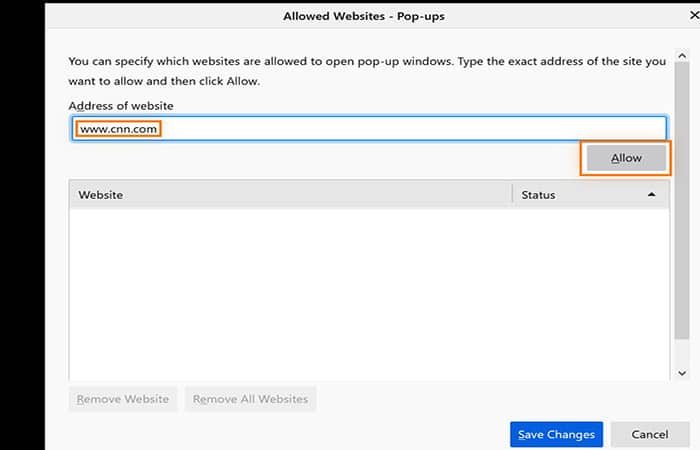
- Step 3: click Allow below the website URL. The website will appear in the field below with the popup status set to “Allow«.
- Step 4: click Save Changes.
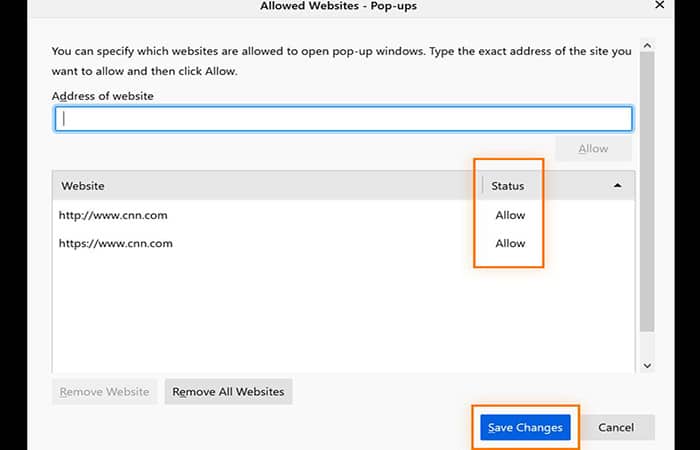
Pop-ups should now be visible on any site you've added to " Exceptions " and should be blocked on all other sites.
How to Block Pop-Up Ads in Firefox
Perhaps at some point you needed to allow many pop-ups, but now the constant stream of ads, notifications, and new windows has become a nuisance , and you want to re-enable your pop-up blocker. Here's how to turn on Firefox's pop-up ad blocker:
- Step 1: Access Firefox's pop-up settings. Use steps 1 through 4 above to access and manage Firefox's pop-up settings.
- Step 2: check the box Block pop-up windows. Once you check this box, your pop-ups will be blocked.
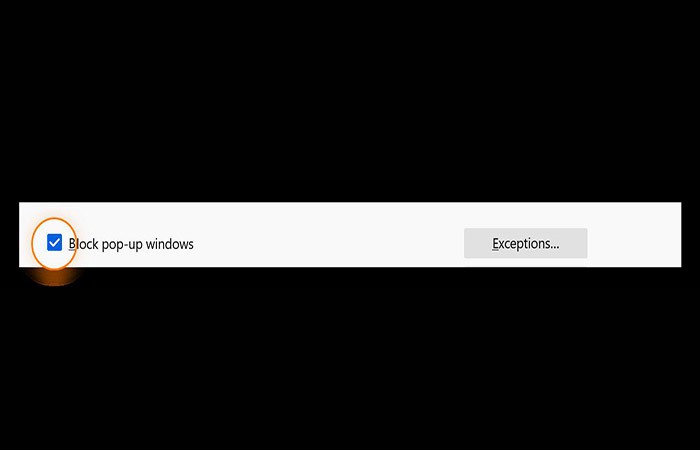
Blocking all those pop-up windows makes browsing much cleaner and less frustrating. Another way to create a smoother online experience is to delete all your browser cookies and clear your browsing history, which can free up disk space for what you actually need.
Although you can do all of this manually, a browser cleaning tool will automatically clear your cookies and browsing history, which will help speed up your computer.
Most frequently asked questions
Below we will answer some of the doubts and frequently asked questions related to pop-up ads in browsers:
Why am I getting ads on Safari?
Pop-ups are advertisements, notifications, or alerts that open in your browser window. Real Safari ads can be helpful, while others are often unwanted, boring, or even dangerous.
Are Safari ads dangerous?
Third-party pop-ups may use phishing, a form of online fraud, to trick you into believing that they are actually from a trusted company. The danger is that users may share their sensitive data (personal data or credit card details) or download software that turns out to be malicious.
Can ads in Safari cause viruses?
Unfortunately, they can still infect your computer, even though Macs have built-in protection against classic viruses. So it's best not to take any risks and block ads proactively.
How do I block all ads?
There is a safe way: install a system-wide ad-filtering software. The best option, AdGuard, fits the bill perfectly.
How do I get rid of ads without an ad blocker?
Go to your browser settings and turn off ads. You'll see fewer pop-ups, but most ads will still be there. Consider purchasing subscriptions to the services you want ads blocked on.
The limitation lies in the fact that this method is too expensive : you'll have to pay an exorbitant price to remove each ad service, but other websites will be flooded with ads. Therefore, it seems that an ad blocker is a better option if you want to eliminate all pop-ups.
Are ad blockers legal?
Absolutely. To get a verifiable picture of the information, Google the skirmish between Eyeo, a software developer behind solutions like Adblock Plus, and Alex Springer, a digital publisher. The German Federal Court of Justice ruled that ad blocking is legitimate and, consequently, internet users can and should control what they see online.
Are ad blockers safe?
They are. In case you use an ad blocker from a decent developer. Download it from the developer's site! Be careful and stay away from dubious ad blockers - they may end up being fake and abusing your personal data.
Do ad blockers track you?
The good ones don't. How do you check your ad blocker ? Make sure it's from a trusted developer and that you downloaded it from a valid source. If you did, you can stop worrying; your ad blocker probably isn't tracking you. Also, keep in mind that a paid ad blocker is usually more credible than a free one.
Why do I keep seeing pop-ups?
While the ad blocker is effective at blocking pop-up ads, there are some it can't control . Firefox can only block pop-ups originating from the browser itself. If the pop-up comes from an unknown source , Firefox won't block it.
While third-party pop-ups are unlikely to hide anything malicious, malware can be accidentally downloaded through deceptive browser extensions. Therefore, it is important to remove unwanted extensions from Firefox, to ensure that any associated pop-ups or even malware are removed as well.
Another way pop-ups can evade Firefox's default blocking settings is if they are triggered by actions such as mouse clicks or keystrokes (perhaps more likely for those who know various keyboard shortcuts for each browser).
Firefox intentionally included this loophole in its pop-up settings because websites sometimes need pop-ups to function properly. For example, when you click a delete button, you often need to confirm the action in a separate confirmation window. Unfortunately, sneaky advertisers can abuse this click trigger.
Sometimes, a pop-up ad contains a fake " Close " or " Exit " button that simply triggers a new pop-up window, indicating a possible adware infection and endless frustration. Another reason you might keep seeing pop-up ads in Firefox is that they aren't genuine pop-up ads.
Some types of ads, such as floating ads and in-page pop-ups, are designed to appear as new windows, but technically remain part of the original webpage. These " pop-ups " cannot be removed with a pop-up blocker. You will need an ad blocker to stop ads like these in Firefox.
If you want to easily block ads and pop-ups, consider switching to a secure browser that includes a robust ad-blocking feature by default. Avast Secure Browser automatically blocks ads, including floating ads and on-page pop-ups, for a much cleaner online experience.
What exactly are Firefox pop-ups?
Firefox pop-ups are small windows in the browser , usually containing advertisements, that suddenly appear in front of the main page. This aggressive interruption, in which an advertiser interrupts with their own content, has frustrated internet users for decades.
Pop-up windows were first used in the late 1990s because advertisers didn't want their ads displayed on web pages containing adult content. When an advertisement window appears below the active browser window, it's called a pop-up.
While this strategy is less immediately disruptive, it's also more subtle, because you'll only see the popup after closing all your browser windows. It's also harder to pinpoint its origin. Firefox's popup blocker works on both pop-ups and underlying pop-ups, since both appear as separate windows from the browser's main page.
Should I enable pop-ups in Firefox?
Although pop-ups are mostly frustrating, they can also be functional: you may be required to fill out a certain form that loads in a pop-up window. Confirmation windows in online banking sometimes appear as pop-ups, and help windows are often pop-ups as well.
If you frequently visit a site that uses functional pop-ups, you can add that website to the Exceptions list in Firefox settings so that those pop-ups remain enabled while all others are blocked. Firefox lets you enable or block pop-ups, and other browsers do as well.
Beyond the annoying nature of pop-up ads , the content can also be unappealing. If you're not using Firefox's private browsing mode, you're collecting cookies on every site, and all your searches are being stored. Cookies are used to track your behavior and gather data for advertisers so they can personalize their ads based on your perceived interests.
A pop-up with a random ad is annoying, but a pop-up with an ad based on your browsing data is annoying and invasive. You can use private browsing or incognito mode to clear your cookies, history, and searches from your private session once you're done browsing. Learn how to disable and enable cookies (it's important). Just keep in mind that private browsing deletes that data only locally on your device.
To further strengthen your privacy , use incognito browsing, which helps keep your data private and secure. Of course, some browsers protect privacy better than others.
Final thoughts
Okay, we know how to block pop-up ads in every browser, whether on PC, Mac, or Android. The internet is a diverse place, and you can personalize your experience. With tools like Avast Secure Browser, you don't have to suffer through recurring pop-up ads or worry about your information being tracked from site to site. Avast Secure Browser was created by dedicated security and privacy experts, and it lets you easily enable or disable pop-ups and automatically block ads and tracking.
It even offers special features like the ability to control which websites can access your webcam and anti-phishing features that block dangerous downloads and websites. As you spend more and more time online, the experiences you have there matter more. That's why it's so important to use an optimized browser that you can trust. We hope this article has been helpful and informative for you. Stay safe from all the dangers that the Internet holds!

Table of Contents
- 1 Block pop-up ads in Google Chrome
- 2 Block pop-up ads in Microsoft Edge
- 3 Block pop-up ads in Internet Explorer 11
- 4 Block pop-up ads in Opera
- 5 How to Block Pop-Up Ads in Safari
- 5.1 Why do we block pop-ups in Safari?
- 5.2 How to Block Pop-Up Ads in Safari on Desktop
- 5.3 How to Block Pop-Up Ads in Safari Preferences
- 5.4 How to Block Pop-Up Ads in Safari Using Blocking Extensions
- 5.5 The most effective way to block pop-up ads in Safari on Mac
- 5.6 How to Block Pop-Up Ads in Safari on Mobile Devices
- 5.7 Blocking pop-ups on mobile devices with AdGuard
- 6 How to Access Firefox's Pop-Up Settings
- 7 Most frequently asked questions
- 7.1 Why am I getting ads on Safari?
- 7.2 Are Safari ads dangerous?
- 7.3 Can ads in Safari cause viruses?
- 7.4 How do I block all ads?
- 7.5 How do I get rid of ads without an ad blocker?
- 7.6 Are ad blockers legal?
- 7.7 Are ad blockers safe?
- 7.8 Do ad blockers track you?
- 7.9 Why do I keep seeing pop-ups?
- 7.10 What exactly are Firefox pop-ups?
- 7.11 Should I enable pop-ups in Firefox?
- 8 Final thoughts