- Microsoft Power Automate lets you automate everyday tasks at home and at work without any programming skills.
- It offers pre-configured templates and connectors to integrate multiple services and devices.
- Simplify home management and improve productivity with easily configurable custom workflows.

Imagine arriving home and having the lights turn on automatically if needed, or a report being sent to your email while you're on vacation without you lifting a finger. Home automation has gone from a futuristic idea to a reality thanks to Microsoft Power Automate . This powerful platform allows you to integrate and simplify everyday tasks both at home and in your professional environment, without needing to be a programming expert.
These days, dealing with tons of repetitive tasks and different apps can be a real headache. The good news is that Power Automate is designed precisely to free you from that chaos . In this article, I'll tell you in detail how you can get the most out of this tool so your home and daily life run almost automatically.
What is Microsoft Power Automate?
Power Automate is a process automation platform developed by Microsoft that helps you optimize workflows and minimize manual tasks. With it, you can connect Microsoft and third-party applications, services, and devices, creating automated workflows (the famous "flows") that perform actions for you.
Whether you're a home user or a professional , Power Automate offers over 400 ready-to-use templates with just a few clicks. From simple tasks like moving files and sending emails to more complex features such as smart home sensor integrations and calendar synchronization, this tool is a versatile solution for saving time and boosting productivity.
Why automate household tasks with Power Automate?
Most of us look for ways to free ourselves from the most monotonous daily tasks , letting technology take care of alerting us, turning on lights, moving files, or sending notifications. Power Automate allows you to:
- Schedule actions based on times, locations, events, or custom conditions.
- Integrate a multitude of devices and services (lighting, mail, calendars, alarms, etc.).
- Avoid forgetfulness and human errors, since the actions are always executed the same way.
- Free up time to dedicate to what is truly important, reducing mental load.
For example, you can have the house prepare itself when you arrive in your area: lights turned on if there is little light, climate control adjusted, important emails automatically forwarded to the appropriate person, notifications to your devices according to your preferences, and much more.
How to install Power Automate on Windows?
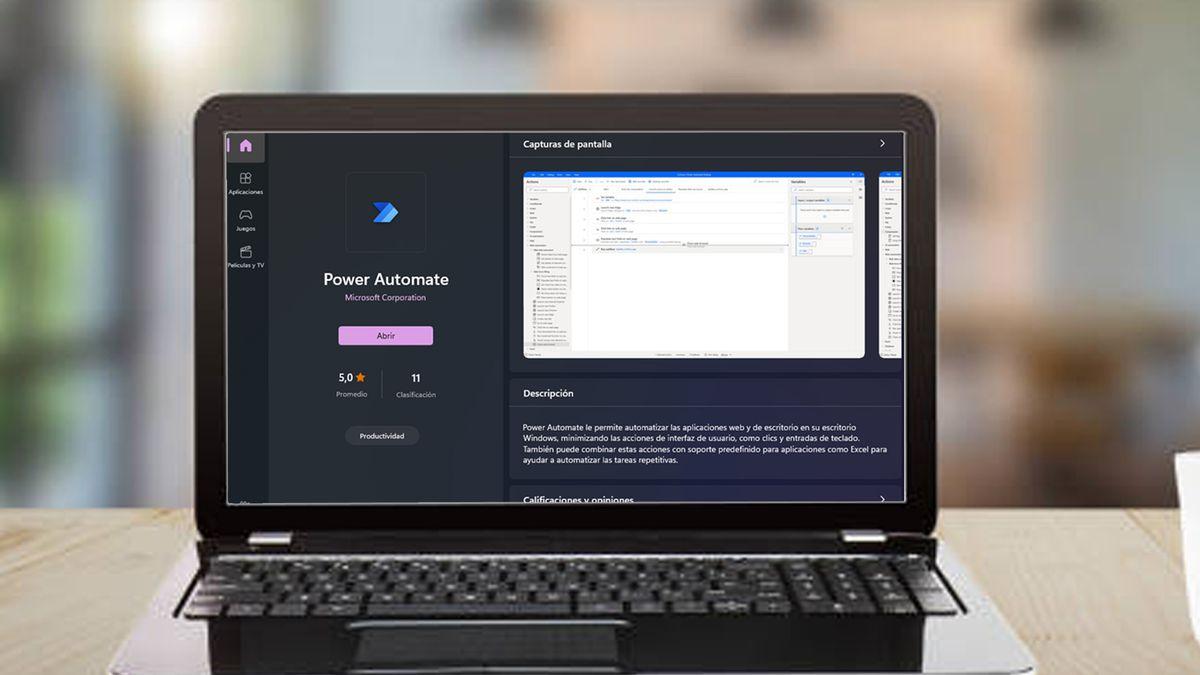
On most devices running Windows 10 and Windows 11 , Power Automate comes pre-installed, but if yours doesn't, installing it will only take about five minutes. Here's how:
- Search Power Automate in the Microsoft Store and click Get.
- If you prefer, download it from the official Microsoft website and run the installation file (Setup.Microsoft.PowerAutomate.exe), following the on-screen instructions.
Once installed, sign in with your Microsoft account to access all available options and templates.
How does Power Automate work? Main flow types
One of the great advantages of Power Automate is that you can choose between different types of flows according to your needs :
- Cloud flows: They run processes automatically, instantly or on a scheduled basis based on cloud events (for example, when you receive an email or when a file is uploaded to OneDrive).
- Desktop Flows: They automate tasks on your computer, such as organizing files into folders, extracting data from websites, and even running applications.
- Business process flows: Aimed at guiding users through a series of defined tasks or steps, they are very useful in work environments.
For example, you can create a workflow that sends you a notification to your mobile phone or email every time someone uploads a file to a specific OneDrive folder, or that automatically copies events from a Google calendar to your Office 365 calendar.
Getting Started: Creating Workflows and Using Templates
One of Power Automate's strengths is how easy it is to start automating tasks with pre-configured templates . You don't need any programming knowledge; just choose the template that best suits your needs and customize it with your data.
The usual process would be:
- Access the template gallery from the app itself or the official Power Automate website.
- Select the appropriate template (for example, “Send a notification and email when a file is uploaded to OneDrive”).
- Connect your services (OneDrive, Outlook, Teams, etc.) and choose specific conditions (folder to monitor, destination email, etc.).
- Save and activate the flow. It will now be available in your "My Flows" section.
If you want to delete a flow later, just select it, click the three vertical dots, and press "Delete."
Practical home automation: real-life examples
The real magic of Power Automate lies in the number of practical automations you can implement in your daily life . Here are a few examples that make a real difference:
- Intelligent lighting and climate control: Have your lights turn on only when you're home and there's little natural light, or adjust your heating and air conditioning based on your geolocation.
- Automatic calendar management: Sync meetings and events from different accounts (work, family, etc.) to avoid double bookings and missing important appointments.
- Contextualized reminders: Set smart reminders for family events, kids' homework, or sports activities, receiving notifications through the channel of your choice (Teams, email, mobile notifications, etc.).
- File Workflows: Whenever a document arrives in a certain folder, it is automatically sent to the responsible person for approval or moved to another location once it has been reviewed.
- Automation of reports and notifications: Extract data from Excel spreadsheets and automatically email summaries or upload updated reports without manual intervention.
These types of automations allow you to forget about repetitive tasks and focus on what really matters, saving time and avoiding errors.


Passionate writer about the world of bytes and technology in general. I love sharing my knowledge through writing, and that's what I'll do on this blog, show you all the most interesting things about gadgets, software, hardware, tech trends, and more. My goal is to help you navigate the digital world in a simple and entertaining way.